
Table of Contents
Website speed has become one of the most important ranking factors for modern search engines. Google officially confirmed that page speed affects both desktop and mobile search rankings, making website optimization critical for SEO success.
For WordPress websites, performance optimization is especially important because WordPress relies heavily on PHP scripts, plugins, database queries, themes, and dynamic content generation.
A slow website can reduce conversions, increase bounce rates, and negatively affect user experience.
Fortunately, modern caching technologies and optimization plugins can dramatically improve WordPress performance without requiring expensive hosting upgrades.
In this comprehensive guide, you will discover the best WordPress cache plugins, advanced optimization techniques, image compression strategies, and server-level improvements to maximize website speed and SEO performance.
Why Website Speed Matters for SEO
Fast-loading websites provide better experiences for visitors and improve engagement metrics.
Search engines use performance signals such as:
- Page loading time
- Core Web Vitals
- Time To First Byte (TTFB)
- Mobile usability
- User engagement duration
Slow websites often suffer from:
- Higher bounce rates
- Lower rankings
- Reduced conversions
- Poor mobile performance
- Lower crawl efficiency
Improving WordPress speed can significantly boost SEO visibility and overall user satisfaction.
PHP Optimization for WordPress
WordPress depends heavily on PHP execution. Every page request triggers multiple scripts, plugins, and database operations.
Optimizing PHP performance is one of the most effective ways to improve website speed.
1. Enable PHP OPcache
PHP OPcache stores precompiled PHP scripts in memory to reduce execution time.
This allows WordPress pages to load much faster by skipping repeated PHP compilation processes.
Benefits of OPcache
- Faster PHP execution
- Reduced CPU usage
- Improved server response time
- Better scalability during traffic spikes
Modern PHP versions already include OPcache support, but it may require activation in the php.ini configuration file.
2. Upgrade to the Latest PHP Version
Newer PHP versions provide major performance improvements and security enhancements.
PHP 8.x versions are significantly faster than older PHP releases.
Advantages of Upgrading PHP
- Faster execution speed
- Reduced memory usage
- Improved security
- Better compatibility with modern plugins
Before upgrading, always test plugin and theme compatibility.
3. Disable PHP Debugging
PHP debugging extensions such as Xdebug can dramatically slow down WordPress performance.
For production websites, debugging tools should always remain disabled.
You can disable Xdebug by editing the php.ini file and commenting out the extension line.
Best WordPress Cache Plugins
WordPress cache plugins improve performance by storing pre-generated versions of pages, reducing server workload, and optimizing assets.
Essential Caching Features
- Server-side caching
- Browser caching
- CSS and JavaScript minification
- File compression (GZIP/Brotli)
- Deferred JavaScript loading
- Database optimization
- CDN integration
Top WordPress Cache Plugins
1. LiteSpeed Cache
One of the most powerful free optimization plugins available for WordPress.
Features include:
- Server caching
- Image optimization
- Lazy loading
- Database optimization
- CSS and JS optimization
2. WP Rocket
A premium plugin known for its beginner-friendly interface and powerful optimization tools.
3. W3 Total Cache
A highly advanced caching solution offering granular performance controls.
4. WP Super Cache
A lightweight and reliable caching plugin developed for simplicity and stability.
5. Autoptimize
Focused mainly on CSS, JavaScript, and HTML optimization.
Best Cache Plugin Bundles
In many cases, combining multiple optimization plugins delivers better results than using a single plugin.
Recommended Optimization Bundles
LiteSpeed Cache + Autoptimize
This combination provides powerful server-side caching alongside advanced asset optimization.
Autoptimize + Cache Enabler
A lightweight setup that delivers excellent performance for smaller websites.
W3 Total Cache + CDN
Ideal for larger websites requiring advanced caching and global content delivery.
Always test compatibility carefully when combining plugins.
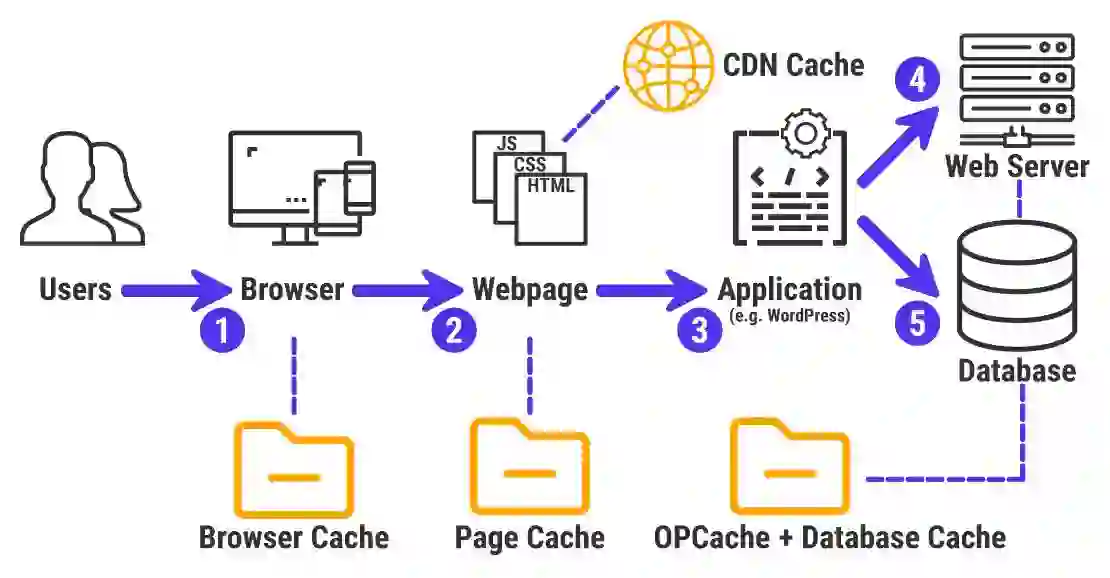
Image Compression and Optimization
Images are often the largest resources loaded on a website.
Optimizing images can dramatically reduce loading times.
Best Image Optimization Plugins
- EWWW Image Optimizer
- Imagify
- Smush
- ShortPixel
Image Optimization Best Practices
- Use WebP format
- Compress images before upload
- Enable lazy loading
- Resize oversized images
- Use responsive image dimensions
How to Measure Website Performance
Performance testing tools help identify bottlenecks and optimization opportunities.
Best Speed Testing Tools
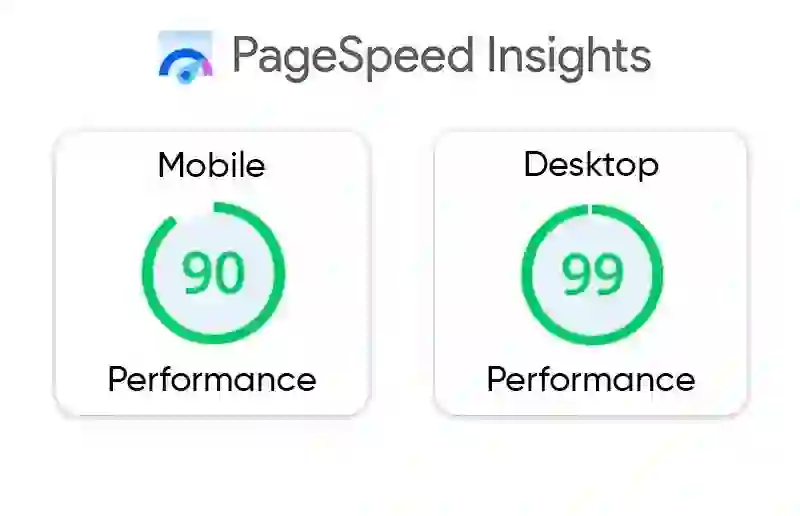
- Google PageSpeed Insights
- GTmetrix
- Pingdom Tools
- WebPageTest
Google PageSpeed Insights provides valuable recommendations including:
- Render-blocking resource optimization
- Image compression
- Unused CSS removal
- JavaScript optimization
- Core Web Vitals analysis
Using Chrome Developer Tools
You can also measure performance directly in Google Chrome:
- Press F12
- Open the Network tab
- Refresh the page using Ctrl + F5
- Analyze loading times and resources
Final Thoughts
Website speed optimization is no longer optional for WordPress websites. Fast-loading pages improve SEO rankings, user experience, and conversion rates.
By combining PHP optimization, modern caching plugins, CDN integration, image compression, and proper server configuration, WordPress websites can achieve exceptional performance.
Whether you run a blog, WooCommerce store, or enterprise website, implementing the strategies discussed in this guide can dramatically improve loading speed and search visibility.
Continuous testing and optimization are essential because website performance directly affects both users and search engine rankings.
Frequently Asked Questions
What is the best WordPress cache plugin?
LiteSpeed Cache, WP Rocket, and W3 Total Cache are among the best WordPress caching plugins available.
Do cache plugins improve SEO?
Yes, faster websites improve user experience and search engine rankings.
What is OPcache in PHP?
OPcache stores compiled PHP scripts in memory to reduce execution time and improve performance.
Should I use multiple cache plugins together?
Some plugin combinations work well together, but compatibility testing is important.
How can I improve Google PageSpeed scores?
Use caching, image optimization, modern PHP versions, CDN services, and JavaScript optimization.WordPress is the most well-liked CMS on this planet and encompass loads of scripts and plugins. It ought to work quick to be in good positions in the major search engines.
Moreover, Google announced at July 9, 2018 that utilizing web page pace in cellular search rating is now rolling out for all customers.
Scripts run optimization
WordPress makes use of PHP for scripting. So the three most important steps must be achieved:
-
Allow PHP code cache
PHP caching might improve response time by about 50%. There are detailed steps easy methods to examine and configure PHP script caching.
-
Swap to the newest PHP model
Efficiency improve and different optimizations are made in 7.x variations of PHP. So, it’s really useful to make use of 7.2.10 model or later. If some scripts get inappropriate conduct simply swap to 7.1.22 model – it’s probably the most secure.
-
Make sure that PHP debugger is disabled
Typically it’s nonetheless enabled. And it actually slowdowns the efficiency. It may be disabled by way of modifying php.ini file. Usually, discover part [xdebug] and inside it put a semicolon (remark) earlier than ‘zend_extension’ key.
INTERESTING!We just lately launched our personal WordPress efficiency enchancment answer.
Content material caching and optimization
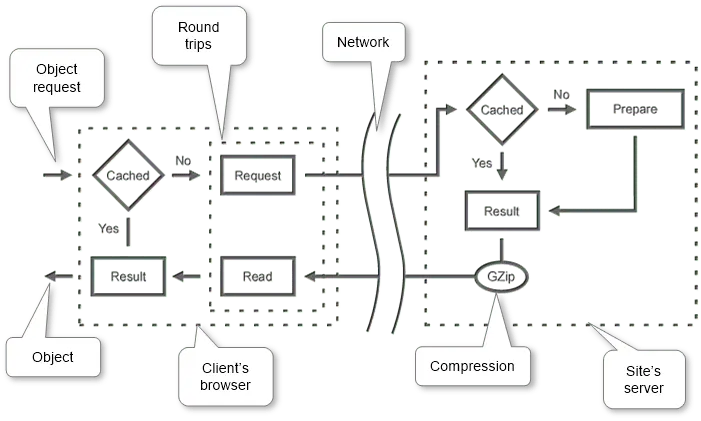
One of the vital efficient methods to optimize websites’ load time is to cache unchanged (or hardly ever altering) elements to stop them from reassembling.
The simplest option to handle that’s to use a particular plugin. There are a lot of plugins that cowl that wants. Beneath is proven a comparability of the most well-liked and freed from them and selecting the most effective for our wants.
Required minimal options to be on prime:
-
Server cache
-
Web page load time
It’s probably the most crucial parameter. Much less time means higher efficiency. If it’s huge so it’s wanted to extend {hardware} pace that value cash as an alternative of selecting a greater plugin.
-
Caching methodology
Load already ready HTML, JS, CSS straight as an alternative of producing them once more.
-
-
Consumer cache
- Allow shopper browser’s cache to scale back requests to our website.
-
Optimize
-
Mix
Lower requests to every JS, CSS from our website to extend load pace by becoming a member of them right into a single one in every of every sort.
-
Inline
It’s really useful to inline CSS into HTML to lower request rely.
-
Postpone
Load JS within the background to permit the person to see pages sooner. One of many essential characteristic based on Google Page Speed Test because it influences on render-blocking spherical journeys rely. Fewer spherical journeys end in sooner pages.
-
Minify
Take away unneeded areas, feedback and so forth. from HTML, JS, and CSS for minimizing dimension so improve load pace.
-
Compress
Lower requested HTML, JS, CSS sizes by compressing them by Zip algorithm (GZip) to be downloaded sooner.
-
-
Handle
-
Refresh
Drop cache by website modification occasions and handbook mode in another instances.
-
Exclude
Handle actual dynamic content material such login pages and admin space.
-
Plugins Comparability
A particular discovery was made to match the plugins. Every plugin was put in and examined on the identical web page with plugin’s most efficiency settings. The outcomes are organized by the assigned whole rating.
| Plugin | Position | Full | Server Cache | Consumer Cache | Optimize | Handle |
|---|---|---|---|---|---|---|
| LiteSpeed Cache + Hyper Cache Prolonged + Autoptimize + Velocity Up – Browser Caching (Bundle) |
Full | 96% | 98% | 71% | 100% | 100% |
| Breeze 1.0.10 |
Full | 93% | 95% | 71% | 97% | 75% |
| WordPress Cache and CDN Plugin + Autoptimize (Bundle) |
Full | 90% | 98% | 100% | 83% | 75% |
| Autoptimize + Cache Enabler + Velocity Up – Browser Caching (Bundle) |
Full | 88% | 98% | 71% | 83% | 100% |
| W3 Total Cache 0.9.7 |
Full | 84% | 55% | 100% | 100% | 100% |
| WordPress Cache and CDN Plugin 1.5.04 |
Full | 82% | 98% | 100% | 67% | 75% |
| LiteSpeed Cache + WP Quickest Cache (Bundle) |
Full | 79% | 50% | 71% | 100% | 100% |
| WP Rocket 3.2.0.1 |
Full | 76% | 50% | 71% | 95% | 100% |
| WP Speed of Light 2.3.2 |
Full | 70% | 50% | 71% | 83% | 100% |
| Yasakani Cache 2.0.4 |
Full | 64% | 98% | 0% | 53% | 75% |
| Hummingbird Page Speed Optimization 1.9.2 |
Optimize | 53% | 48% | 71% | 50% | 100% |
| WP Fastest Cache 0.8.8.6 |
Full | 52% | 50% | 71% | 47% | 100% |
| Cache Enabler 1.3.1 |
Server Cache | 48% | 95% | 0% | 20% | 100% |
| LiteSpeed Cache 2.6.1 |
Optimize | 47% | 2% | 71% | 70% | 100% |
| Autoptimize 2.4.1 |
Optimize | 44% | 2% | 36% | 73% | 100% |
| Powered Cache 1.2.2 |
Full | 44% | 50% | 71% | 30% | 100% |
| Hyper Cache 3.3.7 |
Server Cache | 43% | 95% | 0% | 10% | 100% |
| Hyper Cache Extended 1.6.3 |
Server Cache | 43% | 95% | 0% | 10% | 100% |
| Simple Cache 1.6.4 |
Server Cache | 43% | 95% | 0% | 10% | 100% |
| Super Static Cache 3.3.5 |
Server Cache | 43% | 95% | 0% | 10% | 100% |
| WP Super Cache 1.6.4 |
Server Cache | 43% | 95% | 0% | 10% | 100% |
| Fast Velocity Minify 2.3.5 |
Optimize | 36% | 2% | 0% | 65% | 100% |
| WP Performance Score Booster 1.9.2.1 |
Consumer cache | 31% | 23% | 71% | 30% | 0% |
| Speed Booster Pack 3.7.1 |
Optimize | 27% | 0% | 0% | 52% | 50% |
| Comet Cache 170220 |
Full | 27% | 25% | 0% | 30% | 100% |
| Speed Up – Browser Caching 1.0.2 |
Consumer cache | 23% | 0% | 71% | 30% | 0% |
| Gator Cache 2.1.7 |
Server Cache | 20% | 48% | 0% | 0% | 100% |
| Cachify 2.2.4 |
Full | 16% | 25% | 0% | 10% | 50% |
| Cache-Control 2.2.2 |
Consumer cache | 3% | 0% | 29% | 0% | 0% |
In response to take a look at outcomes, a task was assigned to every plugin. It helpful to match plugin goal capabilities.
Obtain Detailed Dynamic Comparability Desk
Utilizing a single plugin
The best approach is to decide on the all-in-one plugin to reduce configuration effort. So the quickest plugins that cowl nearly all necessities are Breeze, W3 Total Cache, and WordPress Cache and CDN Plugin.
And the best approach is to use bundles (a number of plugins mixtures). As there isn’t any distinctive free plugin that covers all necessities and has excessive web page load pace. There have been examined a number of mixtures that launched beneath.
Utilizing bundle: LiteSpeed Cache + Hyper Cache Prolonged + Autoptimize + Velocity Up – Browser Caching#
This bundle makes use of the optimization energy of LiteSpeed Cache, among the finest caching pace from Hyper Cache Prolonged, sensible CSS optimization from Autoptimize and ‘Velocity Up – Browser Caching’ for shopper’s cache management and compressing. So, the ensuing rating is 94%. It’s the quickest and optimized mixture.
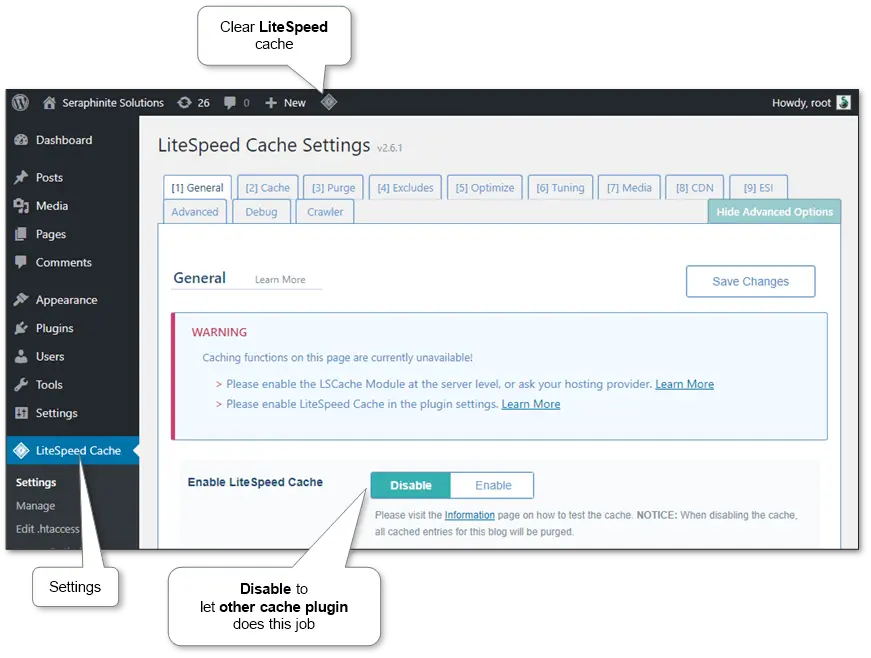
LiteSpeed Cache’s associated settings:
-
Common
- Allow LiteSpeed Cache: Disable
-
Optimize
- CSS Minify: Off
- CSS Mix: Off
- JS Minify: On
- JS Mix: On
- HTML Minify: On
- Inline CSS Minify: On
- Inline JS Minify: On
- Load CSS Asynchronously: Off
- Generate Crucial CSS: Off
- Generate Crucial CSS In Background: Off
- Inline CSS Async Lib: Off
- Load JS Deferred: On
- Exclude JQuery: On
- Take away Feedback: On
-
Tuning
- Mixed CSS Precedence: Off
- Mixed JS Precedence: Off
-
Superior
- Browser Cache: Off
- Examine Superior Cache: Off
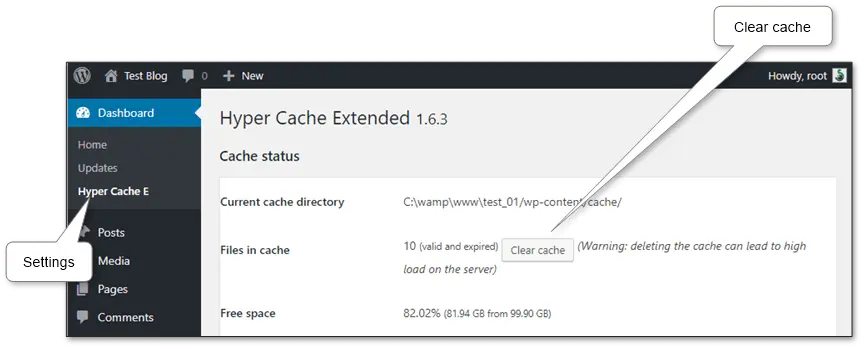
Hyper Cache Extended’s associated settings:
-
Compression
- Allow compression: On
- Disk area utilization: On
Autoptimize’s associated settings:
-
HTML Choices
- Optimize HTML Code: Off
-
JavaScript Choices
- Optimize JavaScript Code: Off
-
CSS Choices
- Optimize CSS Code: On
- Combination CSS-files: On
- Additionally combination inline CSS: On
- Generate knowledge – URIs for photographs: On
- Inline all CSS: On
-
Misc Choices
- Save aggregated script/css as static recordsdata: On
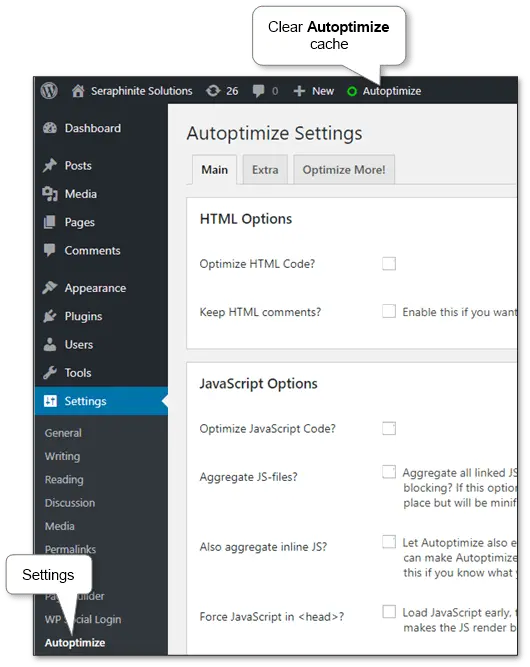
And Speed Up – Browser Caching has no settings – it does all by default.
Utilizing bundle: WordPress Cache and CDN Plugin + Autoptimize#
This mix eliminates the drawback of WordPress Cache and CDN Plugin in JS suspending and makes use of the ability of shopper cache and compression options. Lastly, the ensuing rating is 90%. So it’s a really quick and helpful set.
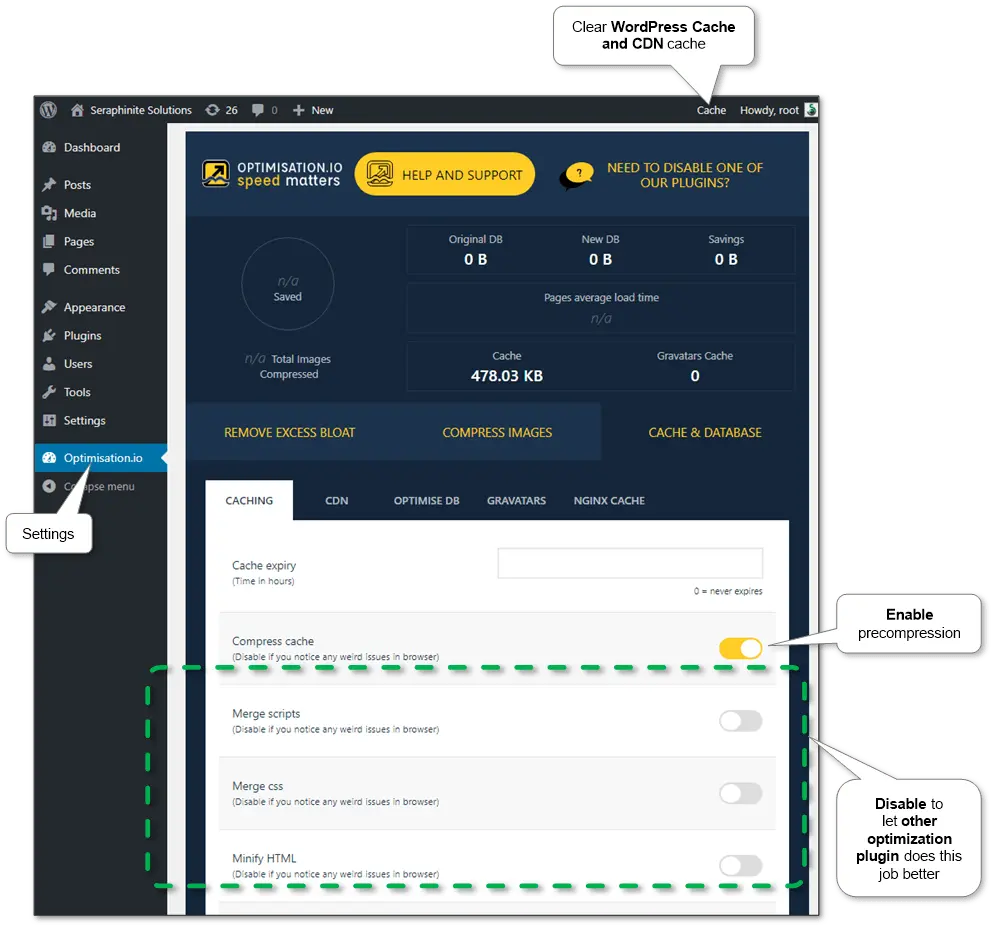
To make use of Autoptimize energy, all associated settings in WordPress Cache and CDN Plugin are disabled:
-
Cache & Database\Caching
- Compress cache: On
- Merge scripts: Off
- Merge css: Off
- Minify HTML: Off
- Allow Gzip Compression: On
- Leverage browser caching: On
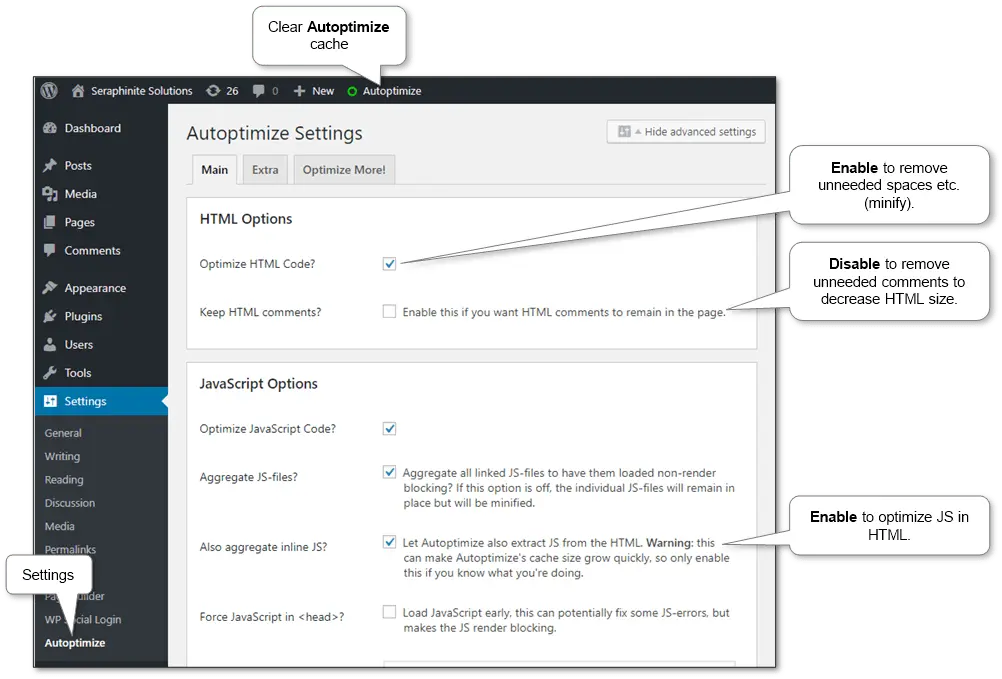
And the settings of Autoptimize are:
-
HTML Choices
- Optimize HTML Code: On
-
JavaScript Choices
- Optimize JavaScript Code: On
-
CSS Choices
- Optimize CSS Code: On
- Combination CSS-files: On
- Additionally combination inline CSS: On
- Generate knowledge – URIs for photographs: On
- Inline all CSS: On
-
Misc Choices
- Save aggregated script/css as static recordsdata: On
Utilizing bundle: Autoptimize + Cache Enabler + Velocity Up – Browser Caching
That mixture has achieved 88% rating in testing outcomes that larger than another single plugin. In consequence, we now have excessive pace, easy and highly effective answer.
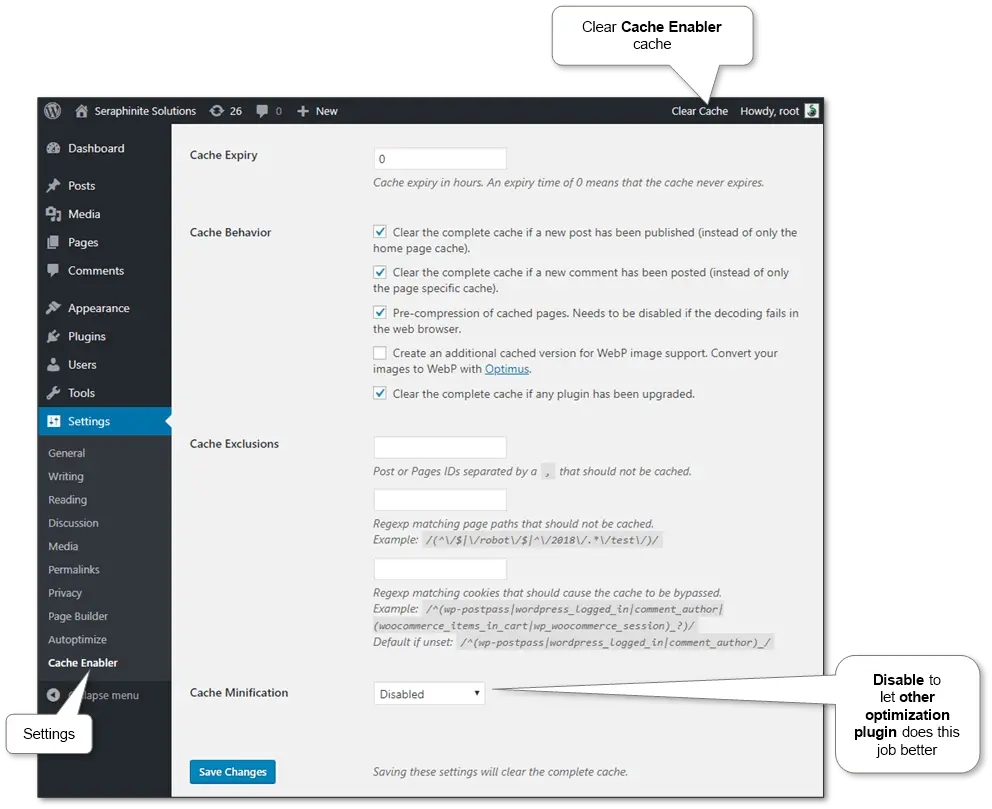
The settings of Cache Enabler are:
-
Cache Habits
- Pre-compression of cached pages: On
- Cache Minification: Disabled
The settings of Autoptimize are the identical as within the earlier bundle.
And Speed Up – Browser Caching has no settings – it does all by default.
Utilizing bundle: LiteSpeed Cache + WP Quickest Cache
This mix has achieved solely 79% rating due to having not so good web page load time as an alternative of above bundles. Nevertheless it nonetheless higher by web page load time that W3 Whole Cache.
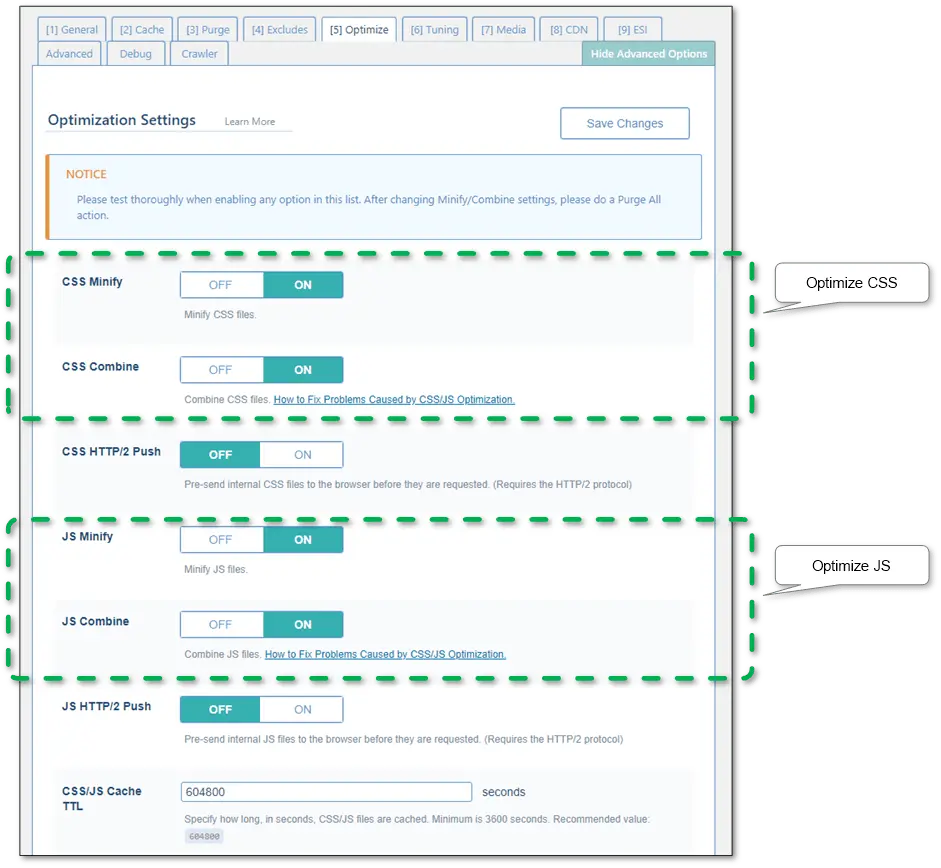
Settings had been tuned in such approach that LiteSpeed Cache was used as content material optimizer:
-
Common
- Allow LiteSpeed Cache: Disable
-
Optimize
- CSS Minify: On
- CSS Mix: On
- JS Minify: On
- JS Mix: On
- HTML Minify: On
- Inline CSS Minify: On
- Inline JS Minify: On
- Load CSS Asynchronously: Off
- Generate Crucial CSS: Off
- Generate Crucial CSS In Background: Off
- Inline CSS Async Lib: Off
- Load JS Deferred: On
- Exclude JQuery: On
- Take away Feedback: On
-
Tuning
- Mixed CSS Precedence: Off
- Mixed JS Precedence: Off
-
Superior
- Browser Cache: Off
- Examine Superior Cache: Off
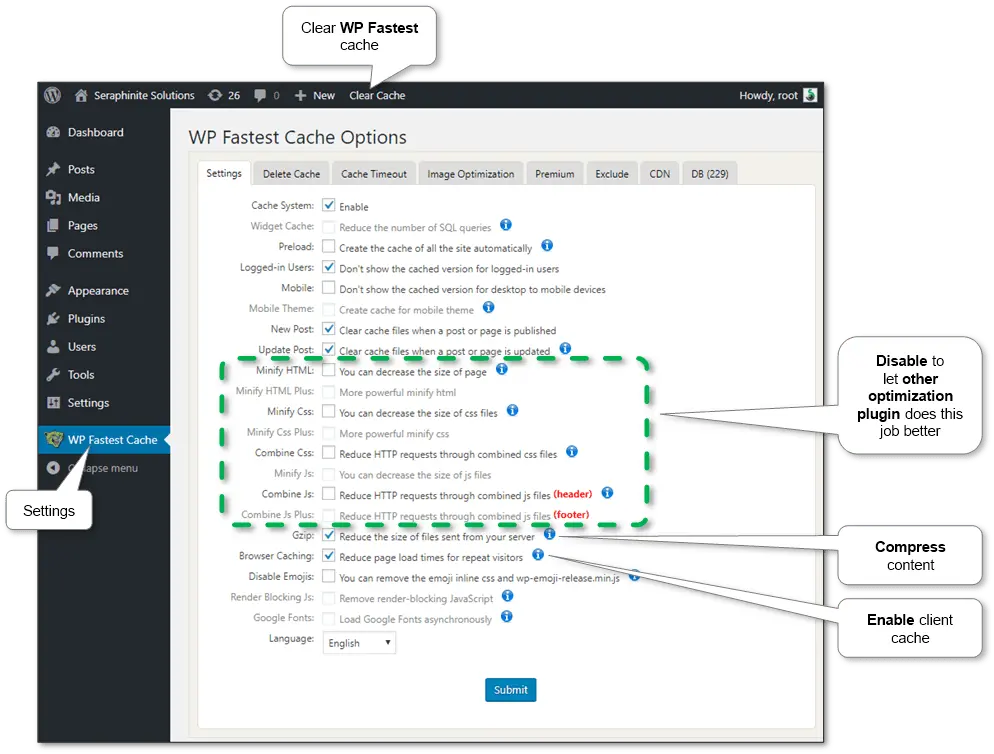
And WP Fastest Cache choices are set solely as a cache supplier:
-
Settings
- Cache System: On
- Minify HTML: Off
- Minify HTML Plus: Off
- Minify Css: Off
- Minify Css Plus: Off
- Mix Css: Off
- Minify Js: Off
- Mix Js: Off
- Mix Js Plus: Off
- Gzip: On
- Browser Caching: On
- Render Blocking Js: Off
Utilizing different potential bundles#
The consequence detailed dynamic desk helps to decide on and examine plugins based on wants. Examined plugin mixtures (bundles) are listed there as effectively.
Word: Some plugins could also be incompatible with one another.
Word: All the time examine JS right working of suspending optimization choices – some plugins is likely to be tuned up and a few may not work correctly. Such plugins are commented within the outcomes desk.
Picture compression
Pictures must be as smaller as attainable to scale back response time.
Choices beneath can be utilized in any mixture.
-
Utilizing picture optimization plugin
It’s the best approach. And most of such plugins are quite simple as an alternative of caching plugins. As an illustration, EWWW Image Optimizer, Imagify Image Optimizer, and Smush Image Compression and Optimization.
-
Utilizing picture optimization on-line companies
There are loads of such companies. Simply sort ‘optimize picture’ or ‘compress picture’ within the browser and select any from the highest. E.g. Optimizilla, ShortPixel, OptimizePNG. They get any photographs and return optimized. Simply change it on the location.
-
Getting optimized photographs proper from Google Web page Velocity Take a look at
Lastly, Google Page Speed Test supplies optimized photographs after measure so it may be changed in our websites. As typically, particular companies’ optimized photographs are nonetheless too massive for Google.
Measuring
The consequence optimizations simply could be checked at Google Page Speed Test that reveals any drawback in easy view and supplies advice and clarification.
Moreover, website’s pace could be straight measured by Google Chrome browser. Press F12, go to Community tab and press Ctrl+F5 to refresh web page and observe info. Right here it’s attainable to catch the response time of every web page, content material group and media recordsdata.

