
Table of Contents
- Why Change Your Computer Name?
- What Is a Computer Name?
- How to Change Computer Name on Mac
- Change Computer Name on Windows 10 & 11
- Change Computer Name on Windows 8 & 8.1
- Change Computer Name on Windows 7 & Vista
- Change Computer Name on Windows XP
- Best Practices for Naming Computers
- Benefits of a Recognizable Device Name
- Frequently Asked Questions
How to Change Your Computer Name on Windows and Mac
Modern computers constantly communicate with other devices through:
- Wi-Fi networks
- :contentReference[oaicite:3]{index=3}
- Local area networks
- Internet connections
- File-sharing systems
Every computer requires a unique name so it can be identified correctly on networks and connected devices.
This guide explains how to rename computers on:
- :contentReference[oaicite:4]{index=4}
- :contentReference[oaicite:5]{index=5}
Why Change Your Computer Name?
By default, computers often use generic names such as:
- DESKTOP-7F3NH21
- LAPTOP-92KJQ
- MacBook-Pro
These names may become confusing in homes or offices with multiple devices.
Reasons to Rename Your Computer
- Easier identification on networks
- Better Bluetooth pairing recognition
- Simplified file sharing
- Cleaner organization in offices
- Improved remote access management
What Is a Computer Name?
A computer name, also called a hostname or device name, identifies a system on a network.
It is used for:
- Network communication
- Wi-Fi sharing
- Bluetooth device discovery
- Remote desktop connections
- Printer and media sharing
Without unique names, managing multiple computers becomes difficult.
How to Change Computer Name on Mac
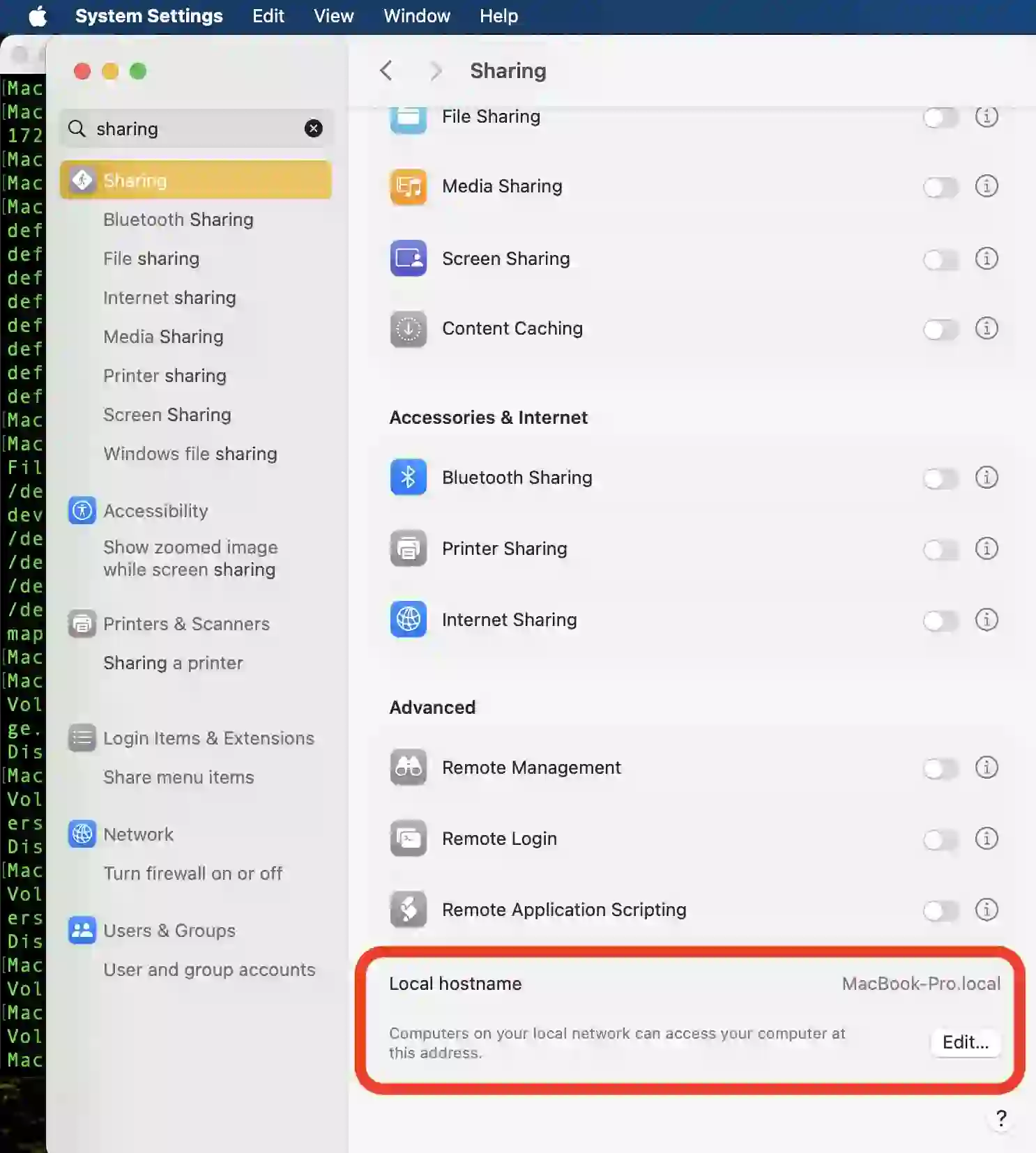
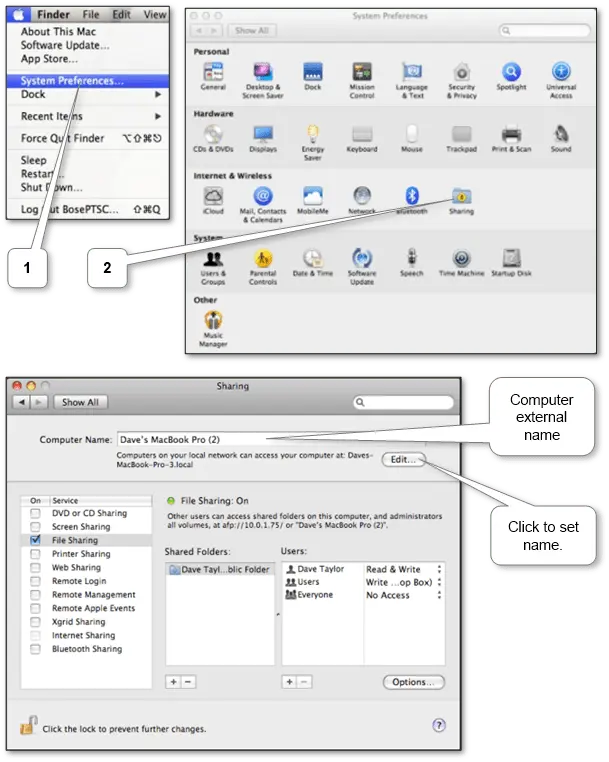
:contentReference[oaicite:6]{index=6} makes it simple to rename a computer.
Steps
- Open System Preferences
- Select Sharing
- Locate the Computer Name field
- Enter the new name
The new device name becomes visible to other devices on the network.
Change Computer Name on Windows 10 & 11
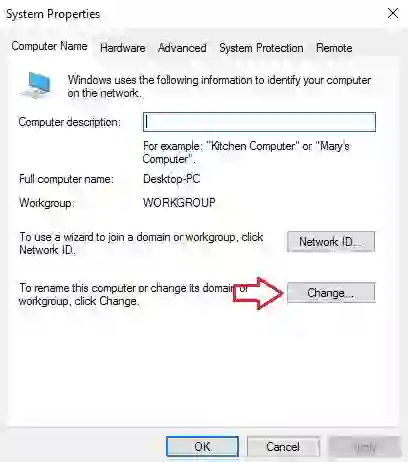
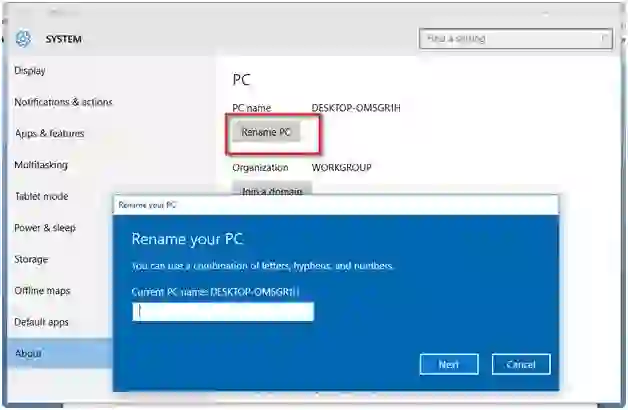
Modern versions of :contentReference[oaicite:7]{index=7} and :contentReference[oaicite:8]{index=8} include built-in rename options.
Steps
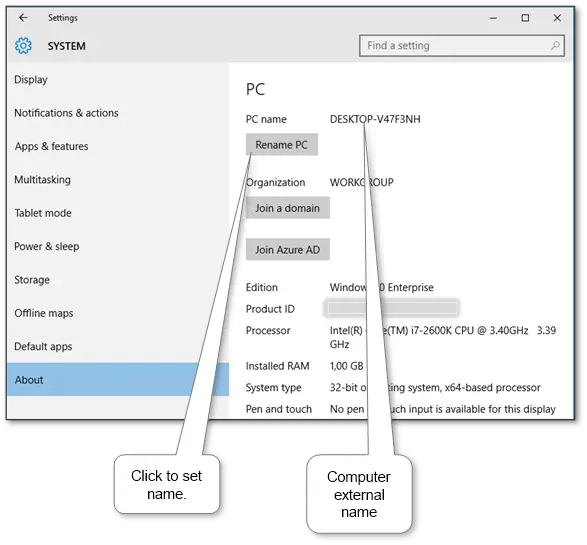
- Open Settings
- Go to System
- Select About
- Click Rename this PC
- Enter the new computer name
- Restart the computer if requested
The updated name will appear across connected networks and devices.
Change Computer Name on Windows 8 & 8.1
For :contentReference[oaicite:9]{index=9} and :contentReference[oaicite:10]{index=10}:
Steps
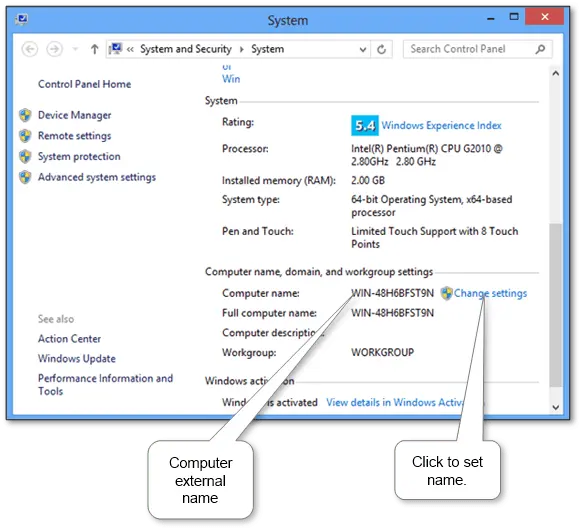
- Press Win + E to open File Explorer
- Right-click Computer
- Select Properties
- Choose Change Settings
- Open the Computer Name tab
- Click Change
Change Computer Name on Windows 7 & Vista
:contentReference[oaicite:11]{index=11} and :contentReference[oaicite:12]{index=12} use a similar process.
Steps
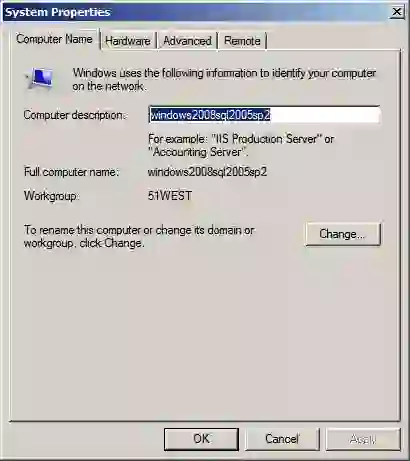
- Open Control Panel
- Select System and Security
- Open System
- Click Change Settings
- Open the Computer Name tab
- Select Change
Change Computer Name on Windows XP
:contentReference[oaicite:13]{index=13} also allows hostname customization.
Steps
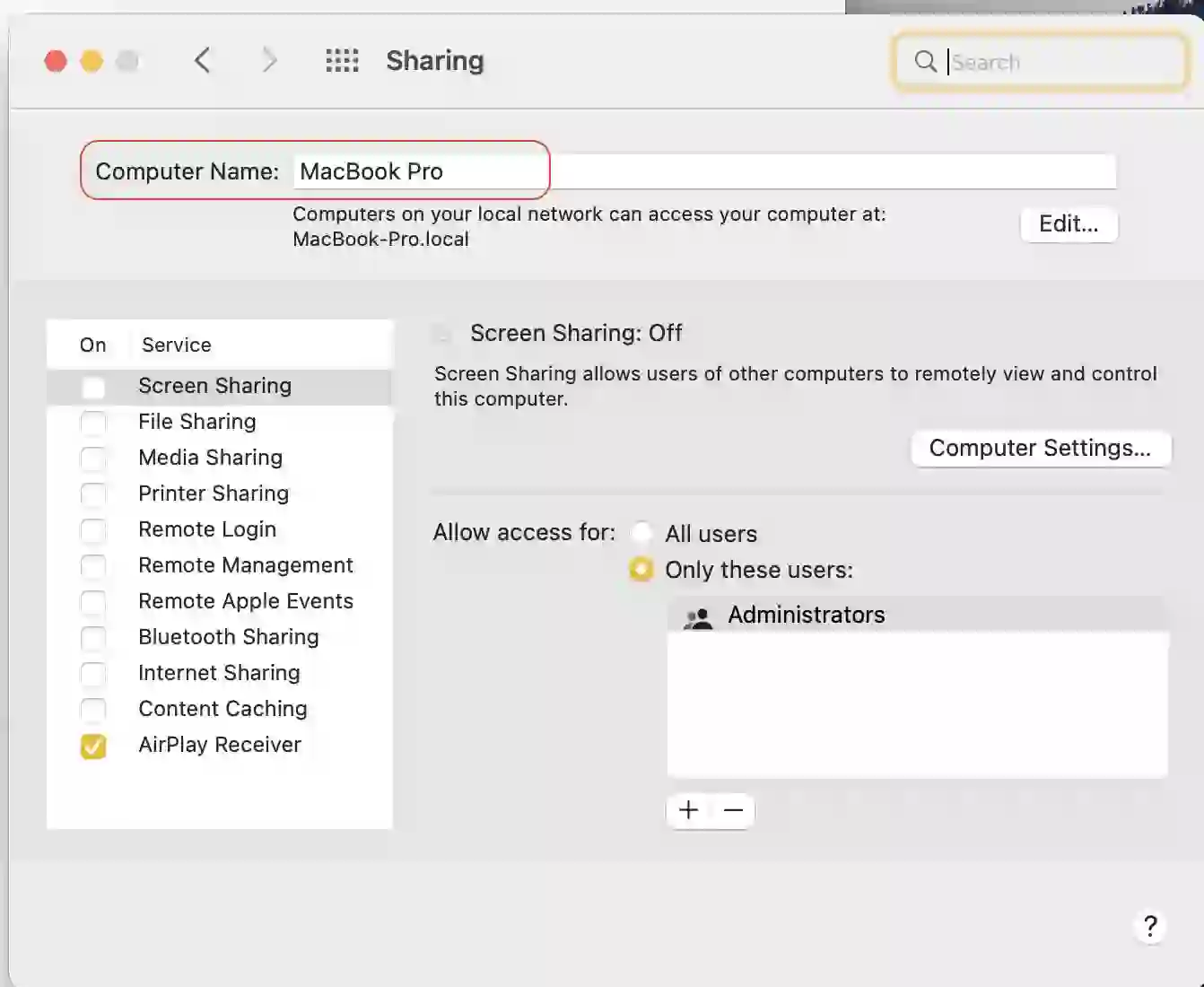
- Open Control Panel
- Select System
- Open the Computer Name tab
- Click Change
- Enter the desired computer name
Best Practices for Naming Computers
Choosing a clear computer name improves organization and troubleshooting.
Recommended Naming Tips
- Use your name or department
- Avoid complicated symbols
- Keep names short and clear
- Use recognizable device types
- Avoid duplicate names on the same network
Good Examples
- Paul-Laptop
- Office-PC-01
- Design-MacBook
Benefits of a Recognizable Device Name
A meaningful device name makes many networking tasks easier.
Main Benefits
- Faster Bluetooth pairing
- Simpler Wi-Fi sharing
- Easier remote desktop setup
- Improved printer management
- Better file-sharing identification
This becomes especially important in offices and homes with multiple connected devices.
Final Thoughts
Changing your computer name is a simple but useful customization.
Whether you use:
- :contentReference[oaicite:14]{index=14}
- :contentReference[oaicite:15]{index=15}
a recognizable device name improves communication between devices and reduces confusion on shared networks.
Instead of generic names like:
- DESKTOP-XXXX
- MacBook-Pro
consider using personalized names that are easier to identify.
Frequently Asked Questions
What is a computer hostname?
A hostname is the unique name used to identify a computer on a network.
Do I need to restart after renaming my PC?
In many Windows versions, a restart is required for the changes to apply fully.
Can two computers have the same name?
It is not recommended because it may cause network conflicts.
Does changing the computer name affect files?
No, renaming a computer does not delete or modify personal files.
Can I rename my MacBook?
Yes, macOS allows users to rename devices through Sharing settings.
Helpful Resources:
Presently, we are able to’t think about our actuality with out laptop communications. We will join it by way of wires, Bluetooth, Wi-Fi, and so on. We join our PC via Wi-Fi and capable of alternate recordsdata and multimedia with others within the community, share our laptop computer web with different mobiles, pair extra units by way of Bluetooth with it, and so on.
What’s our laptop identify? Every one has to have personal identify to be recognizable on this digital world as every particular person has it too. So we should always know tips on how to change our laptop identify and the place it may be discovered for the preferred sorts comparable to
- Mac and
- Home windows.
Rename laptop identify on Mac
We will change Mac recognizable exterior identify in “System Preferences\Sharing”.
Methods to change laptop identify in Home windows
Quite a few methods to alter laptop identify are as many as variations of Home windows:
- Home windows 10 (Server 2016)
- Home windows 8\8.1 (Server 2012)
- Home windows Vista\7 (Server 2008)
- Home windows XP (Server 2003)
Home windows 10 (Server 2016)
We will see our PC exterior identify in “Begin Menu\Settings\About”. Click on “Rename PC” to set a recognizable identify.
Home windows 8\8.1 (Server 2012)
Test identify by way of open Home windows Explorer (press Win+E), right-click on Pc merchandise and select “Properties” then do as described on the subsequent bullet.
Home windows Vista\7 (Server 2008)#
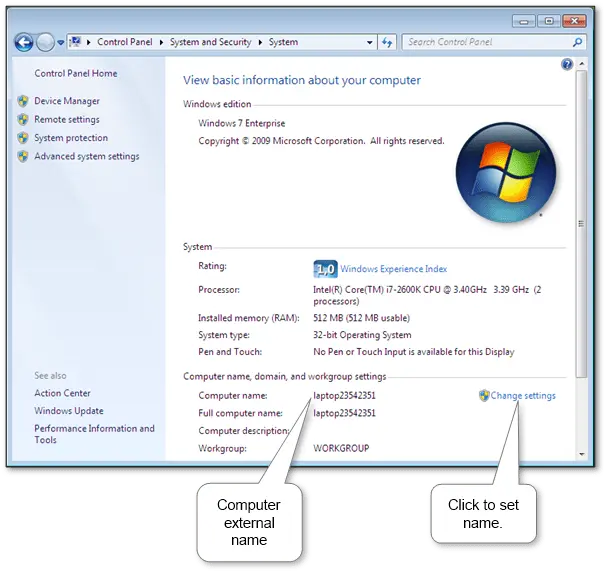
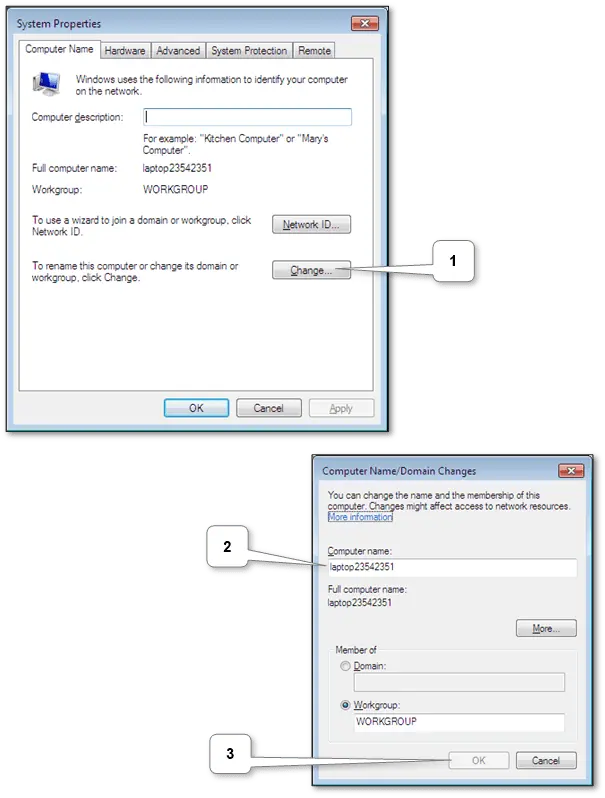
View our system exterior identify underneath “Begin Menu\Management Panel\System and Safety\System”. Click on “Change settings” and within the “Pc Title” tab click on “Change” if mandatory.
Home windows XP (Server 2003)
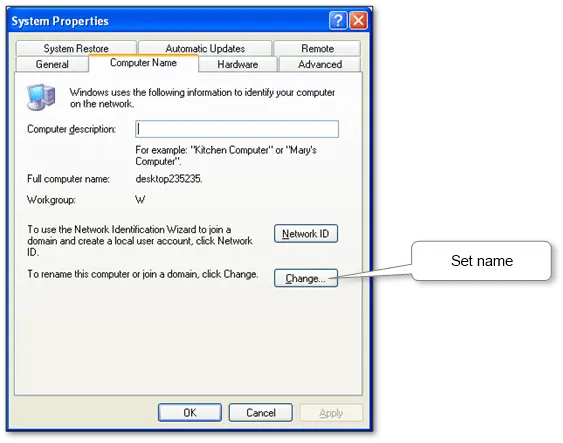
We will discover the identify in “Begin Menu\Management Panel\System\Pc Title”. Use “Change” to set applicable identify like in case of the Home windows 7.
Conclusion
Because of this, we are able to set the identify of our PC to be properly recognizable by different ones. Notice that every one units have non-personed or mannequin names by default e.g. “DESKTOP-V47F3NH” or “MacBook Professional”. So we suggest to alter it e.g. “Paul’s laptop computer” to keep away from any sort of bewilderment sooner or later.

