
Table of Contents
- Introduction
- What Is 500 Internal Server Error?
- Why Does 500 Internal Server Error Happen?
- Common Causes of 500 Error
- How to Fix 500 Internal Server Error in WordPress
- Fixing the .htaccess File
- Disable Faulty Plugins
- Switch to Default Theme
- Increase PHP Memory Limit
- Fix File Permissions
- Check Server Error Logs
- Contact Your Hosting Provider
- How to Prevent 500 Errors
- Frequently Asked Questions
How to Fix 500 Internal Server Error (Complete Step-by-Step Guide for Beginners)
The 500 Internal Server Error is one of the most common and frustrating website problems.
Unlike other website errors, this error does not clearly explain what caused the issue.
It can suddenly make your website inaccessible and negatively affect:
- User experience
- SEO rankings
- Website traffic
- Online sales
- Business reputation
To learn more, check our guide on Best WordPress Database Optimization Plugins
If you run a WordPress website, blog, eCommerce store, or business website, learning how to fix the 500 Internal Server Error is extremely important.
In this complete guide, you will learn:
- What the 500 error means
- Why it happens
- How to fix it step-by-step
- How to prevent it in the future
What Is 500 Internal Server Error?
The 500 Internal Server Error is a general HTTP status code that indicates something went wrong on the website server.
However, the server cannot specifically identify the exact issue.
You may see different versions of this error, including:
- 500 Internal Server Error
- HTTP 500 Error
- Internal Server Error
- Temporary Error (500)
- 500 Error
To learn more, check our guide on How to Start a Blog
This error can appear on:
- WordPress websites
- Shared hosting servers
- VPS hosting
- Cloud hosting
- Custom PHP websites
Why Does 500 Internal Server Error Happen?
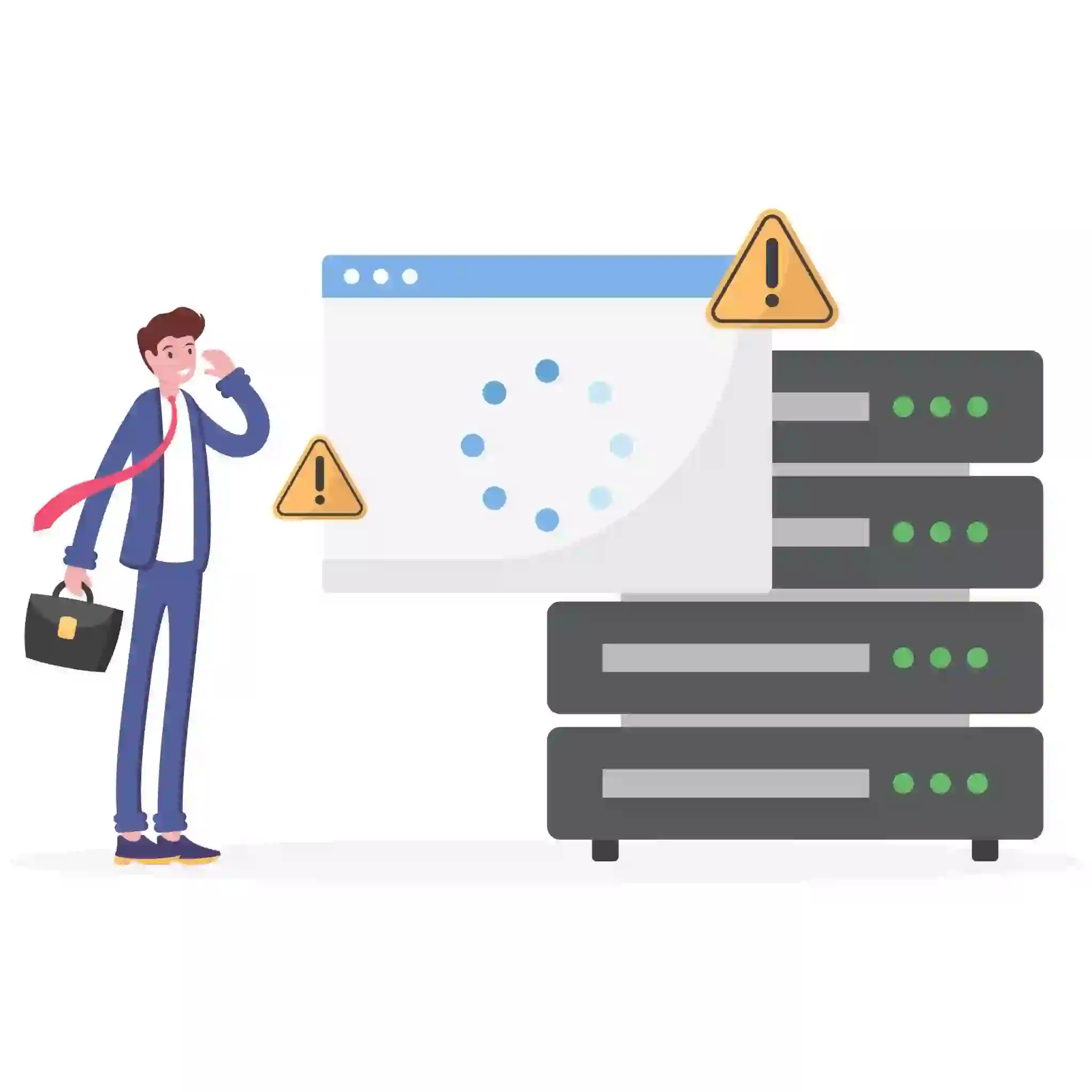
The error usually occurs when the server encounters a condition it cannot handle properly.
Unlike 404 errors, which indicate missing pages, 500 errors are server-side issues.
To learn more, check our guide on convert Word documents to WordPress.
This means the problem typically originates from:
- Website files
- Plugins
- Themes
- Server configuration
- PHP scripts
- Database problems
Because the error is generic, troubleshooting requires several diagnostic steps.
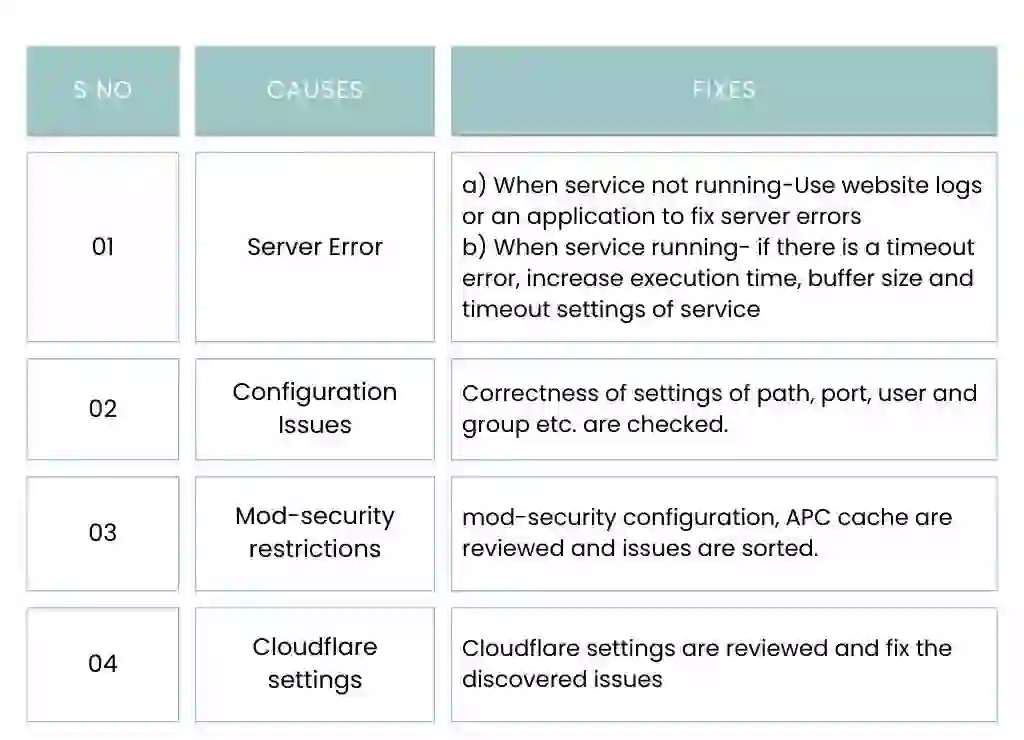
Common Causes of 500 Internal Server Error
Understanding the causes is the first step toward solving the issue.
1. Corrupted .htaccess File
The .htaccess file controls important server configurations.
If the file becomes corrupted, it may trigger a 500 error.
2. Plugin Conflicts
Faulty or incompatible plugins are one of the most common causes of server errors in WordPress.
3. Theme Problems
A poorly coded theme or broken update may create server conflicts.
4. PHP Memory Limit Exhaustion
If your website exceeds the server’s PHP memory limit, the server may fail to process requests.
5. Incorrect File Permissions
Wrong file permissions can block server access to important files.
6. Corrupted Core Files
Damaged WordPress core files may cause critical website errors.
7. Server Misconfiguration
Improper server settings can trigger internal server errors.
8. Database Corruption
Database problems may prevent the website from loading correctly.
How to Fix 500 Internal Server Error in WordPress
Now let’s go through the most effective solutions step-by-step.
To learn more, check our guide on Speed Up WordPress.
1. Fix the .htaccess File
The .htaccess file is one of the first things you should check.
How to Rename the .htaccess File
- Access your website using FTP or File Manager
- Locate the .htaccess file in the root folder
- Rename it to something like:
Bash
.htaccess_old
Then try loading your website again.
If the website works, the .htaccess file was corrupted.
Create a New .htaccess File
In WordPress:
- Go to Settings → Permalinks
- Click Save Changes
WordPress will automatically generate a new .htaccess file.
2. Disable Faulty Plugins
Plugins are one of the biggest causes of 500 errors.
How to Disable Plugins Manually
- Access the website via FTP or File Manager
- Navigate to:
Bash
/wp-content/plugins/
- Rename the plugins folder:
Bash
plugins_old
This disables all plugins immediately.
If the website starts working again, one of the plugins caused the issue.
How to Find the Faulty Plugin
- Rename the folder back to “plugins”
- Enable plugins one by one
- Check the website after each activation
The plugin causing the error will reveal itself.
3. Switch to a Default Theme
Sometimes WordPress themes cause server conflicts.
How to Disable Your Theme
Using FTP:
Bash
/wp-content/themes/
Rename your active theme folder.
WordPress will automatically switch to a default theme like:
- Twenty Twenty-One
- Twenty Twenty-Two
- Twenty Twenty-Three
If the website loads correctly, the issue is likely theme-related.
4. Increase PHP Memory Limit
Low PHP memory can trigger internal server errors.
Method 1: Edit wp-config.php
Add this line:
PHP
define(‘WP_MEMORY_LIMIT’, ‘256M’);
Method 2: Edit php.ini
INI
memory_limit = 256M
Method 3: Edit .htaccess
apache
php_value memory_limit 256M
Increasing memory helps websites handle larger processes and plugins.
5. Fix File Permissions
Incorrect file permissions may block server access.
Recommended Permissions
- Folders: 755
- Files: 644
How to Change Permissions
- Use FTP client
- Right-click files or folders
- Select “File Permissions”
Improper permissions can cause serious server issues.
6. Check Server Error Logs
Error logs provide valuable debugging information.
Where to Find Logs
- cPanel → Error Logs
- Hosting dashboard
- Apache logs
- Nginx logs
Error logs may reveal:
- Plugin conflicts
- PHP errors
- Database problems
- Missing files
Reading logs can dramatically speed up troubleshooting.
7. Reupload WordPress Core Files
Corrupted WordPress files can trigger internal server errors.
Steps
- Download fresh WordPress files
- Upload only:
- wp-admin
- wp-includes
Do not overwrite:
- wp-content
- wp-config.php
This refreshes core files without affecting your content.
8. Check PHP Version Compatibility
Some plugins and themes may not support newer PHP versions.
Common Compatibility Problems
- Old plugins
- Deprecated functions
- Outdated themes
Switching to a supported PHP version may solve the issue.
9. Repair the WordPress Database
Database corruption may cause server instability.
Enable Database Repair
Add this to wp-config.php:
PHP
define(‘WP_ALLOW_REPAIR’, true);
Then visit:
Bash
yourwebsite.com/wp-admin/maint/repair.php
Run the repair process and remove the code afterward.
10. Contact Your Hosting Provider
If nothing works, the problem may be server-related.
Contact your hosting provider and ask them to check:
- Server logs
- Resource limits
- ModSecurity rules
- Firewall blocks
- Server outages
Professional support teams can often identify hidden server problems quickly.
How 500 Errors Affect SEO
Frequent server errors can seriously damage search rankings.
SEO Consequences
- Reduced crawl efficiency
- Higher bounce rates
- Poor user experience
- Indexing issues
- Lower rankings
To learn more, check our guide on WordPress SEO workflow.
If search engines repeatedly encounter 500 errors, your pages may disappear from search results.
How to Prevent 500 Internal Server Errors
Prevention is always better than troubleshooting.
Best Practices
- Keep WordPress updated
- Use trusted plugins
- Choose quality hosting
- Create regular backups
- Monitor error logs
- Optimize database regularly
- Limit heavy plugins
- Use caching solutions
Proper maintenance greatly reduces server issues.
Best Tools for Monitoring Website Errors
Several tools can help monitor server health and detect issues early.
Useful Tools
- Google Search Console
- GTmetrix
- Pingdom
- New Relic
- UptimeRobot
- Cloudflare Analytics
Monitoring tools help identify performance problems before they become critical.
Shared Hosting vs VPS Hosting
Hosting quality strongly affects server stability.
Shared Hosting Problems
- Limited resources
- Server overload
- Shared CPU usage
VPS Hosting Advantages
- Dedicated resources
- Better performance
- Improved stability
- Greater scalability
For growing websites, VPS or cloud hosting often reduces server errors significantly.
When Should You Hire a Developer?
Sometimes advanced technical problems require professional help.
Hire a Developer If:
- The website remains inaccessible
- You cannot identify the issue
- Database corruption exists
- Custom code is causing errors
- Server configuration is complex
To learn more, check our guide on Best WordPress Cache Plugins.
An experienced developer can save time and prevent further damage.

Real-World Example of a 500 Error
Imagine installing a poorly coded plugin on a WooCommerce website.
After activation:
- The website crashes
- The admin dashboard becomes inaccessible
- Customers cannot place orders
By disabling the plugin through FTP, the website immediately recovers.
This demonstrates why plugin management is extremely important.
Final Thoughts
The 500 Internal Server Error may look intimidating, but it is usually fixable with proper troubleshooting.
Most website owners eventually face server errors, especially on WordPress websites with many plugins and themes.
By understanding the causes and following the step-by-step solutions in this guide, you can quickly restore your website and minimize downtime.
Regular website maintenance, quality hosting, and careful plugin management are the best ways to prevent future errors.
A stable and fast website not only improves user experience but also strengthens SEO performance and business growth.
Frequently Asked Questions
What causes a 500 Internal Server Error?
The error is usually caused by server misconfiguration, plugin conflicts, corrupted files, or PHP memory issues.
Can plugins cause 500 errors?
Yes. Faulty or incompatible plugins are one of the most common causes.
Does the 500 error affect SEO?
Yes. Frequent server errors can negatively impact search rankings and indexing.
How do I fix a corrupted .htaccess file?
Rename the existing .htaccess file and generate a new one through WordPress permalink settings.
Should I contact hosting support?
If troubleshooting fails, contacting your hosting provider is strongly recommended.

