
Table of Contents
- What Is Windows Firewall?
- Why Block Programs from Internet Access?
- Step 1: Open Windows Defender Firewall
- Step 2: Open Advanced Settings
- Step 3: Open Outbound Rules
- Step 4: Create a New Rule
- Step 5: Select Rule Type
- Step 6: Choose Program Path
- Step 7: Block the Connection
- Step 8: Apply the Rule
- Step 9: Name the Rule
- How to Disable or Delete Firewall Rules
- Pro Tips
- Frequently Asked Questions
If you want to control your internet usage, protect your privacy, or prevent applications from accessing the internet, learning how to use :contentReference[oaicite:3]{index=3} is extremely useful.
Windows 11 includes a built-in firewall system that allows users to monitor and control network traffic without installing third-party software. :contentReference[oaicite:4]{index=4}
What Is Windows Firewall?
Windows Firewall is a built-in security feature in :contentReference[oaicite:5]{index=5} that helps:
- Monitor network traffic
- Block unauthorized connections
- Control which applications can access the internet
It acts as a protective barrier between your computer and external networks. :contentReference[oaicite:6]{index=6}
To learn more, check our guide on Windows 10 Support Ends in 2025.
Why Block Programs from Internet Access?
Blocking applications from using the internet can improve both privacy and security.
Main Benefits
- Prevent apps from sending data
- Reduce bandwidth usage
- Stop unwanted background activity
- Improve system privacy
- Block malware communication
Many users also block games, software tools, or unnecessary background apps to improve performance. :contentReference[oaicite:7]{index=7}
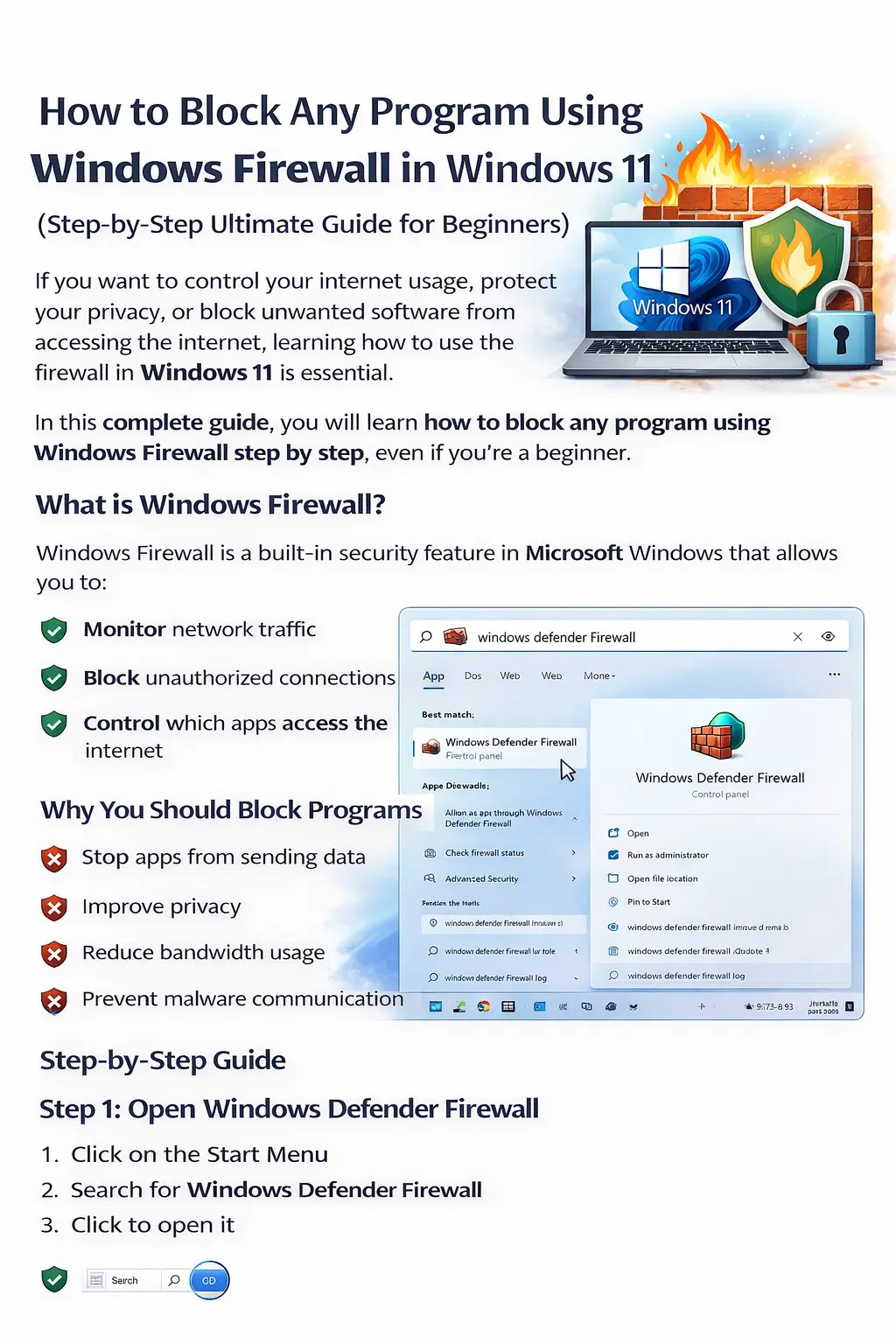
Step 1: Open Windows Defender Firewall
Instructions
- Open the Start Menu
- Search for Windows Defender Firewall
- Click to open it
This opens the main firewall management interface in Windows 11. :contentReference[oaicite:8]{index=8}
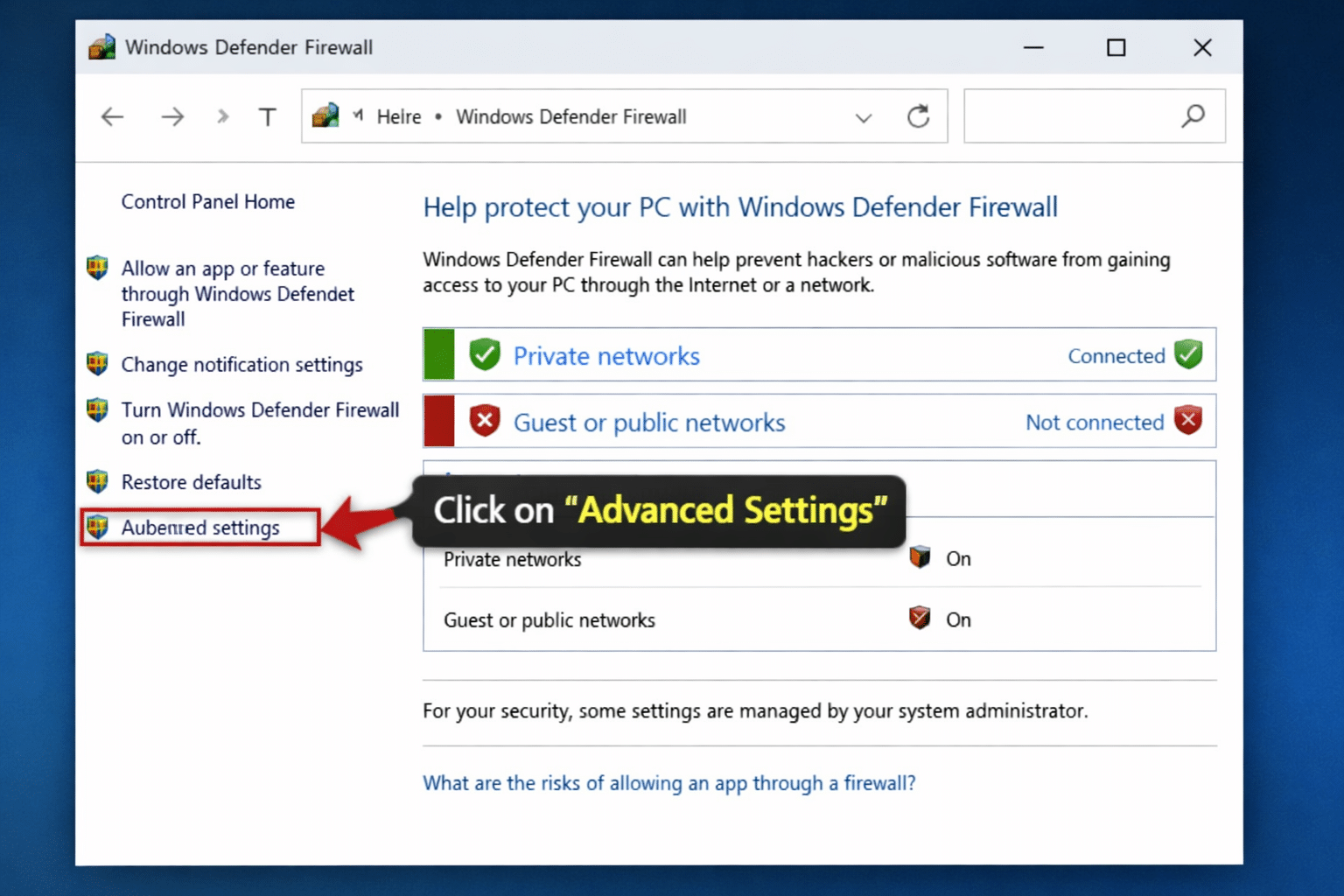
 Step 2: Open Advanced Settings
Instructions
- Inside the Firewall window
- Click Advanced Settings from the left panel
A new window called Windows Defender Firewall with Advanced Security will appear. :contentReference[oaicite:9]{index=9}
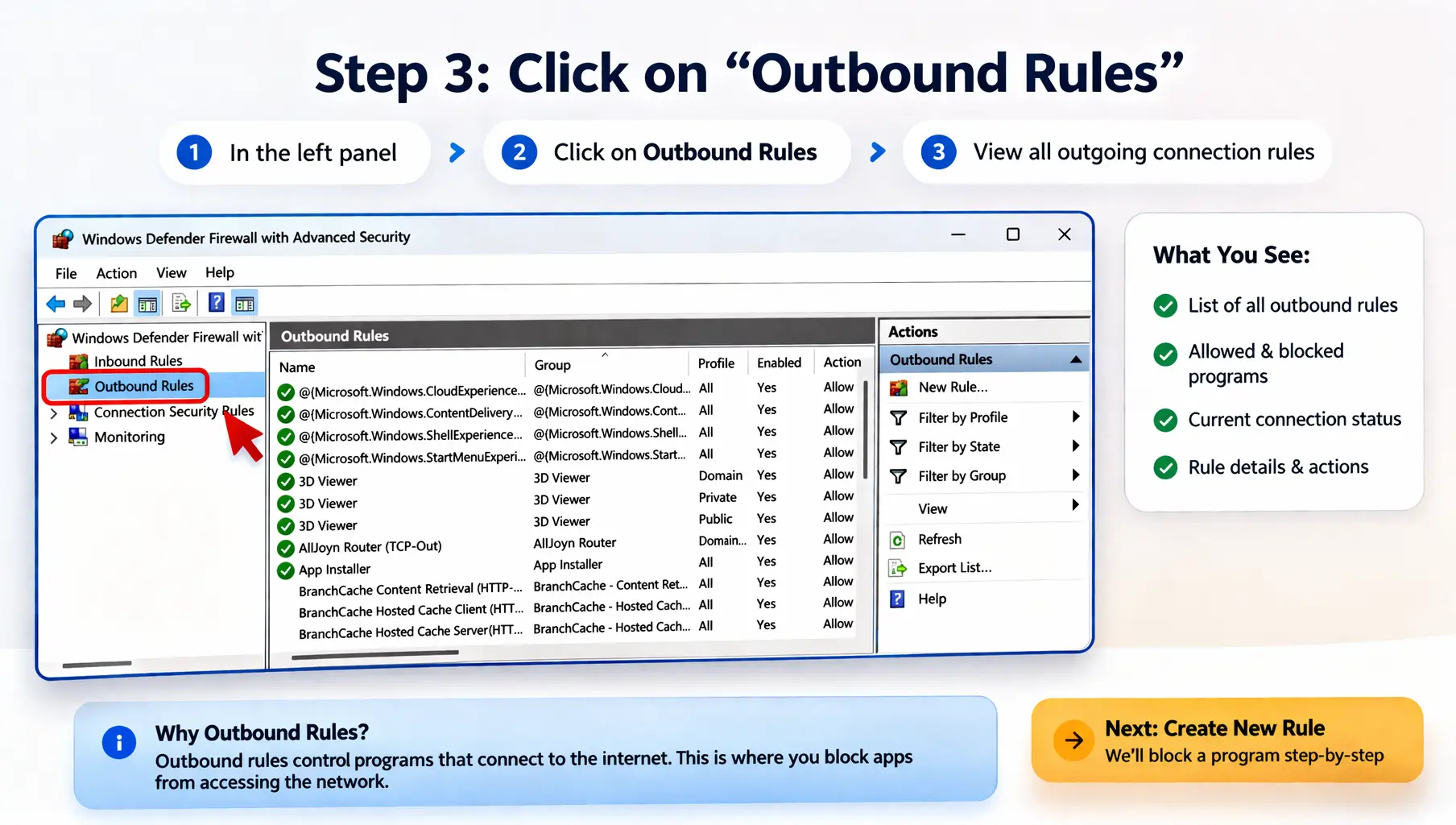
Step 3: Open Outbound Rules
Instructions
- In the left panel
- Click Outbound Rules
You will now see all rules controlling outgoing internet connections. :contentReference[oaicite:10]{index=10}
To learn more, check our guide on Windows 11 tips and tricks.
Important Note
Outbound Rules control which applications can access the internet.
Inbound Rules control incoming network traffic.
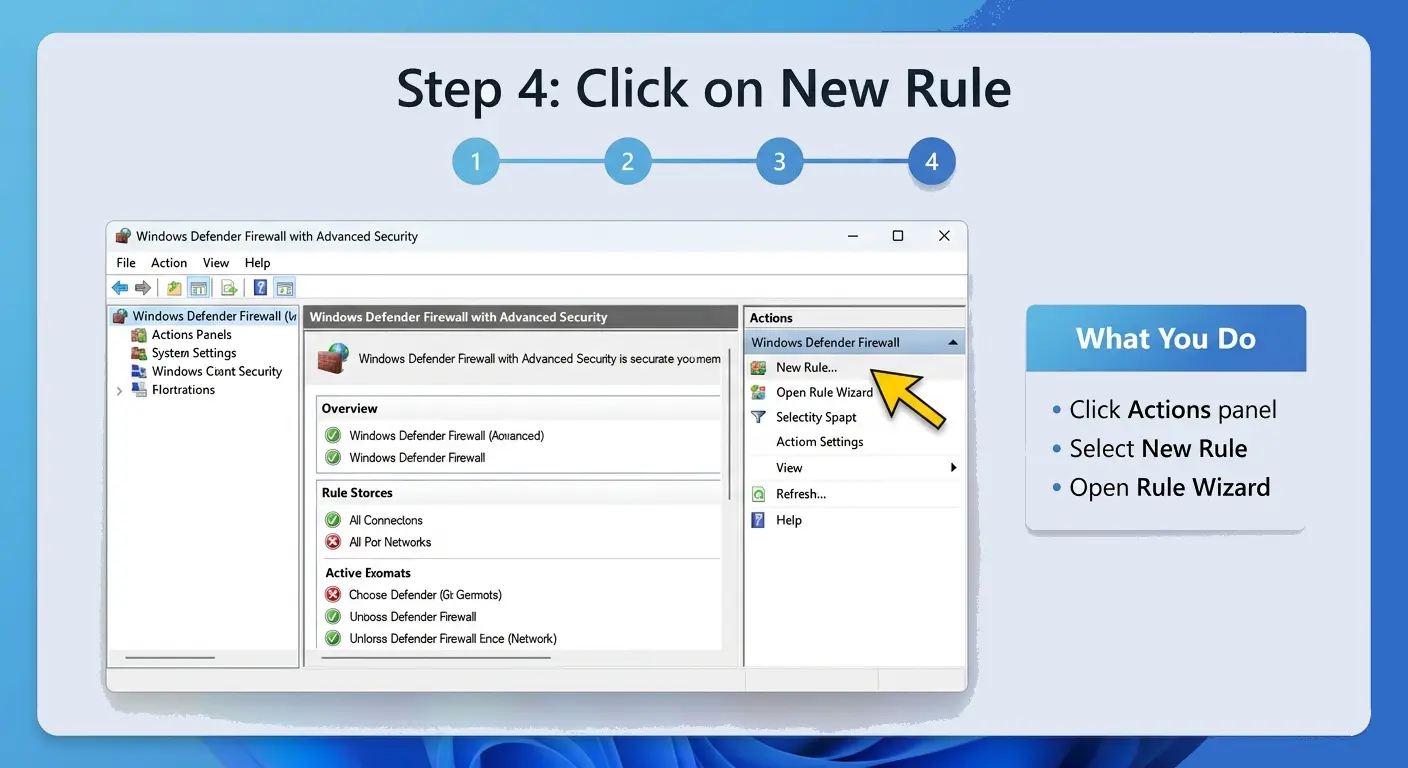
 Step 4: Create a New Rule
Instructions
- Go to the right-side Actions panel
- Click New Rule…
This launches the New Outbound Rule Wizard. :contentReference[oaicite:11]{index=11}
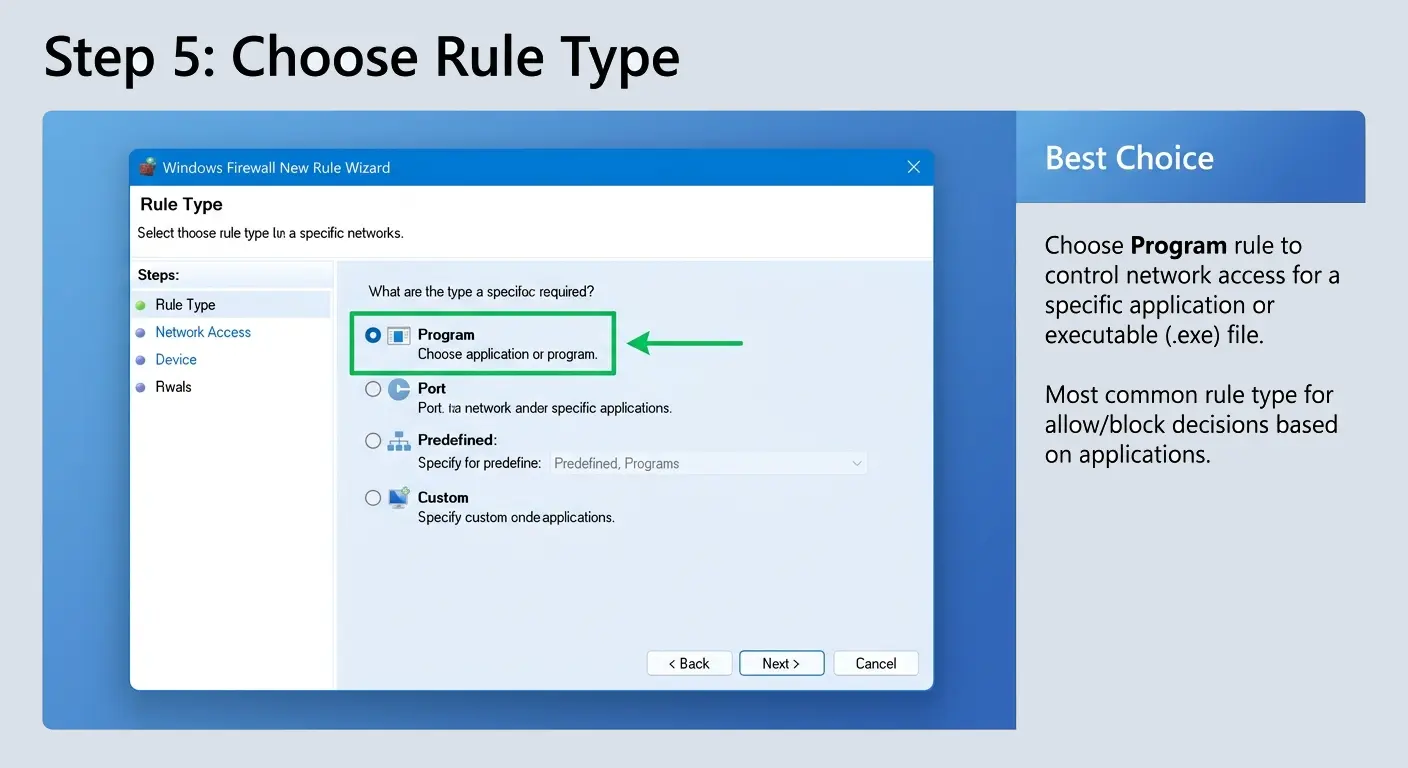
 Step 5: Select Rule Type
Instructions
- Select Program
- Click Next
To learn more, check our guide on direct download link Google Drive.
This option allows you to target a specific application rather than a network port or service. :contentReference[oaicite:12]{index=12}
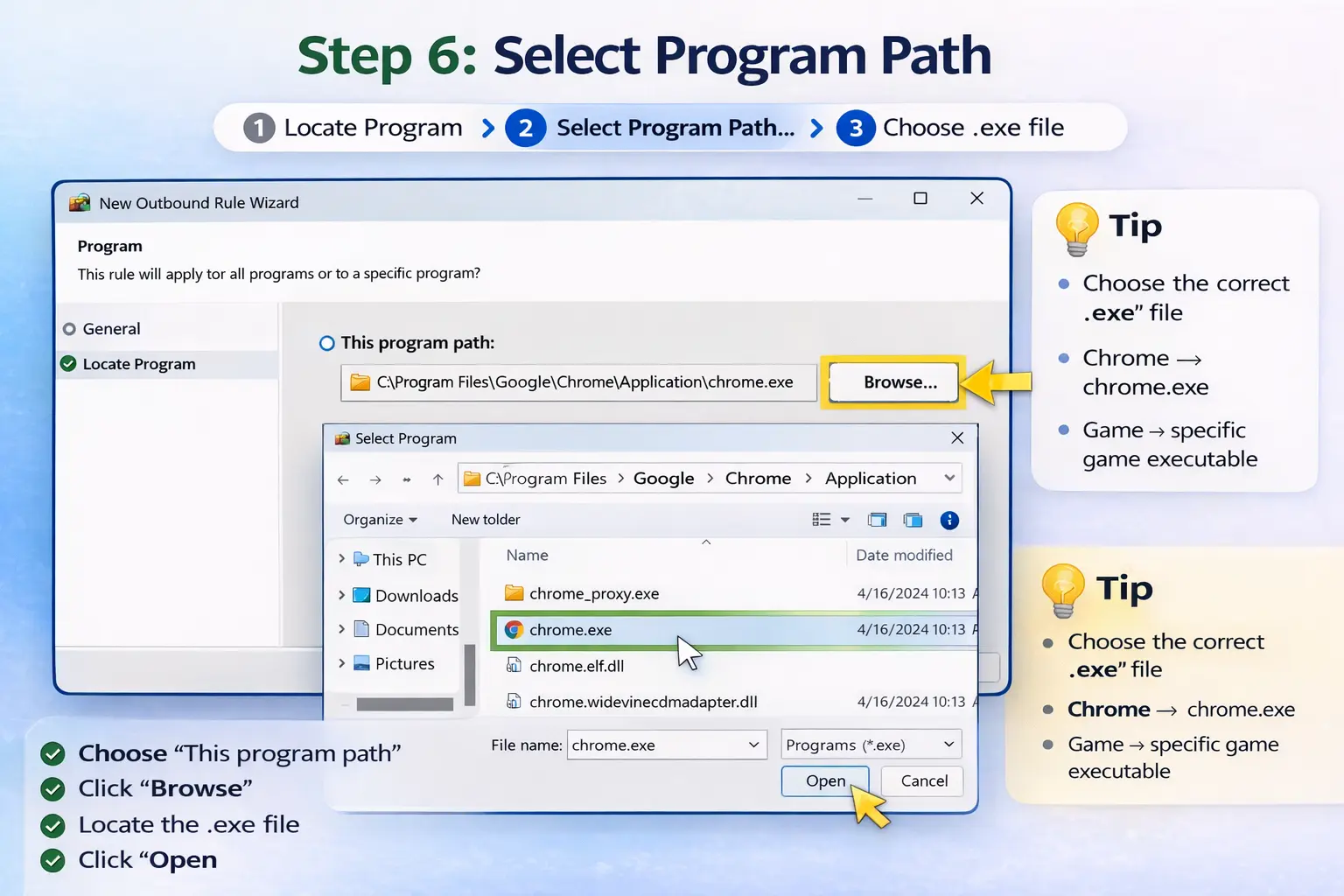
 Step 6: Choose Program Path
Instructions
- Select This program path
- Click Browse
- Locate the application’s .exe file
- Click Next
Examples
- chrome.exe
- game.exe
- discord.exe
Choosing the correct executable file is essential for the rule to work properly. :contentReference[oaicite:13]{index=13}
 Step 7: Block the Connection
Instructions
- Select Block the connection
- Click Next
This is the main step that prevents the selected application from accessing the internet. :contentReference[oaicite:14]{index=14}
Step 8: Apply the Rule
Instructions
Check all network profiles:
- ✔ Domain
- ✔ Private
- ✔ Public
Then click Next.
This ensures the rule remains active on all network types. :contentReference[oaicite:15]{index=15}
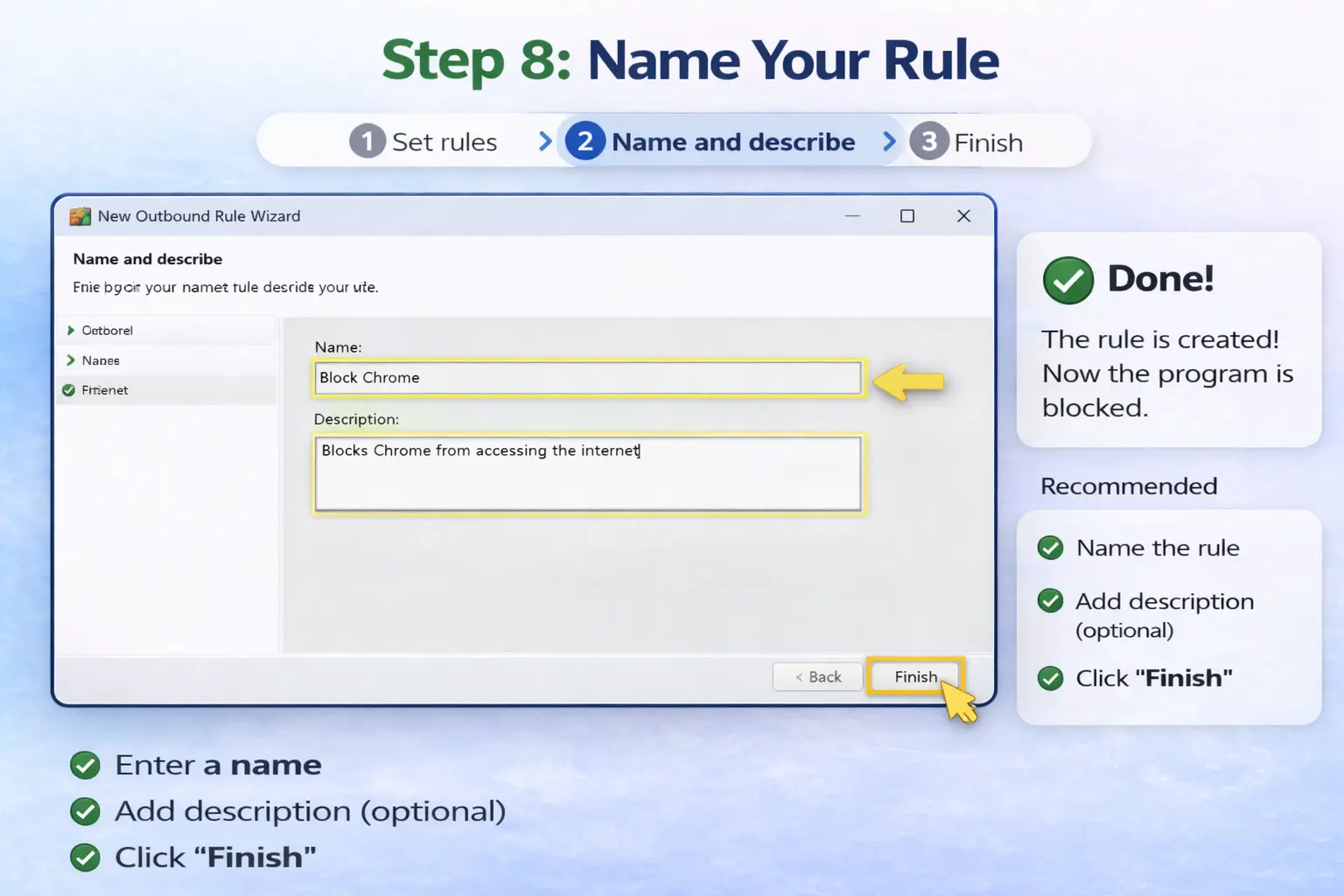 Step 9: Name the Rule
Instructions
- Enter a rule name
- Optionally add a description
- Click Finish
Example Name
Block Chrome Internet Access
Once you click Finish, the firewall rule becomes active immediately. :contentReference[oaicite:16]{index=16}
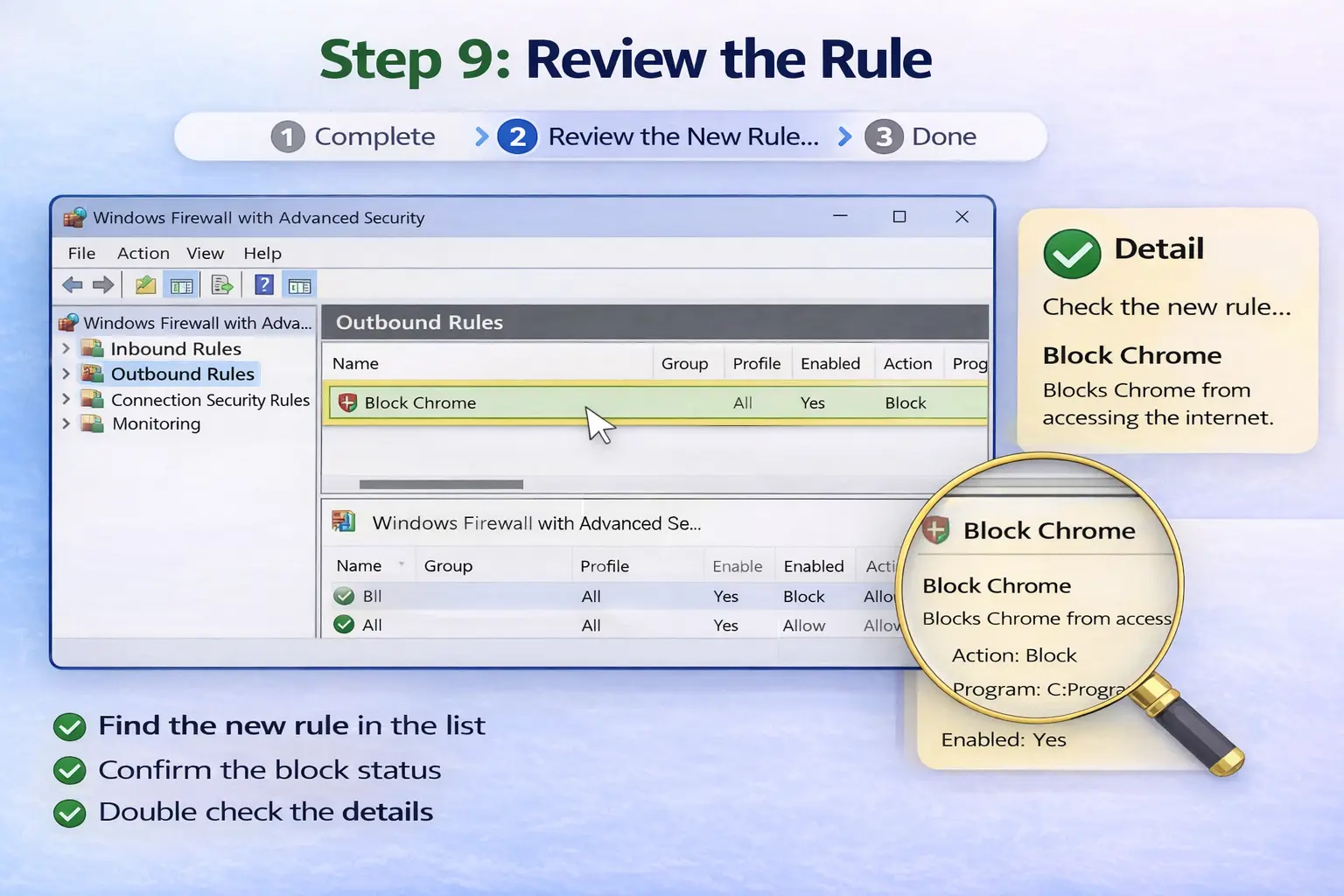 How to Disable or Delete Firewall Rules
Disable a Rule
- Open Outbound Rules
- Right-click the rule
- Select Disable Rule
Delete a Rule
- Right-click the rule
- Select Delete
This restores internet access for the application if needed. :contentReference[oaicite:17]{index=17}
Pro Tips for Better Firewall Management
- Always verify the program path
- Use clear rule names
- Avoid blocking important system processes
- Test the application after creating the rule
- Organize rules carefully for easier management
Final Thoughts
Using :contentReference[oaicite:18]{index=18} is one of the safest and most effective ways to control internet access on your computer.
By following the steps above, you can:
- Protect your privacy
- Reduce unwanted network traffic
- Improve security
- Block suspicious applications
Best of all, Windows Firewall is already built directly into Windows 11 and requires no additional software. :contentReference[oaicite:19]{index=19}
Frequently Asked Questions
Does blocking a program uninstall it?
No, blocking a program only prevents it from accessing the internet.
Can I unblock the program later?
Yes, you can disable or delete the firewall rule anytime.
Is Windows Firewall enough for security?
For many users, Windows Firewall combined with antivirus protection provides strong basic security.
What is the difference between inbound and outbound rules?
Inbound rules control incoming connections, while outbound rules control internet access from applications.
Can firewall rules affect system performance?
Normally, firewall rules have minimal impact on overall system performance.

