
Table of Contents
- Introduction to Remote MySQL Connections
- Understanding the MySQL Client-Server Model
- Local vs Remote MySQL Connections
- Why Remote MySQL Access Is Useful
- Why MySQL Security Matters
- How to Access Remote MySQL in cPanel
- How to Add an Allowed IP Address
- Using Wildcards for Dynamic IP Addresses
- Managing Allowed Hosts
- Remote MySQL Security Best Practices
- Common Remote MySQL Errors
- Frequently Asked Questions
Managing databases remotely is an essential feature for developers, website administrators, and businesses working with dynamic web applications.
cPanel provides a built-in feature called Remote MySQL that allows external devices and applications to connect securely to MySQL databases hosted on your server.
This feature is particularly useful for developers using local development environments, Integrated Development Environments (IDEs), remote applications, or third-party software that requires direct database access.
In this complete guide, you will learn how Remote MySQL works, how to configure it in cPanel, how to whitelist IP addresses, and how to secure your database connections properly.
Introduction to Remote MySQL Connections
MySQL uses a client-server communication model.
In this system:
- The MySQL server stores and manages databases.
- The MySQL client connects to the server to retrieve or manage data.
Common MySQL clients include:
- WordPress
- Joomla
- Drupal
- phpMyAdmin
- Desktop database tools
- PHP applications
- Development IDEs
Whenever an application connects to a MySQL database, a database connection is established between the client and the server.
Understanding the MySQL Client-Server Model
The MySQL server runs on your hosting environment and handles database requests.
The MySQL client sends requests such as:
- Reading data
- Writing information
- Updating records
- Deleting content
- Executing SQL queries
The communication between the client and server is protected using authentication credentials such as:
- Database username
- Database password
- Allowed host permissions
Remote MySQL access adds another security layer by restricting which IP addresses can connect to the database server.
Local vs Remote MySQL Connections
Local MySQL Connections
A local connection occurs when both the website and database are hosted on the same server.
For example:
- A WordPress website hosted on the same cPanel account as its database
- A Laravel application using a local MySQL database
Since the connection occurs internally within the hosting environment, no external internet communication is required.
Remote MySQL Connections
A remote MySQL connection occurs when the database client is hosted outside the server environment.
Examples include:
- Connecting from a local computer
- Using a desktop SQL management tool
- Accessing the database from another hosting server
- Using external applications or APIs
Remote connections require additional security configuration because the request originates from outside the hosting server.
Why Remote MySQL Access Is Useful
Remote MySQL access is commonly used during website development and server administration.
Benefits of Remote MySQL Access
- Manage databases from local machines
- Use advanced database management software
- Improve developer productivity
- Access databases from multiple servers
- Simplify testing environments
Developers often connect their local IDEs directly to hosted databases while building applications.
Why MySQL Security Matters
Databases contain sensitive information such as:
- User accounts
- Passwords
- Email addresses
- Website content
- Customer information
- Financial records
Allowing unrestricted remote access could expose your server to serious security risks.
Potential Security Risks
- Unauthorized database access
- Brute-force attacks
- Data theft
- SQL injection attacks
- Malware infections
For this reason, cPanel only allows local MySQL connections by default.
To enable remote access, you must manually whitelist trusted IP addresses.
How to Access Remote MySQL in cPanel
To manage allowed IP addresses, you must first access the Remote MySQL feature inside cPanel.
Steps to Access Remote MySQL
Once opened, you will see tools for:
- Adding allowed hosts
- Managing existing IP addresses
- Removing access permissions
How to Add an Allowed IP Address
To enable remote access, you must whitelist the IP address that will connect to the database.
Steps to Add an IP Address
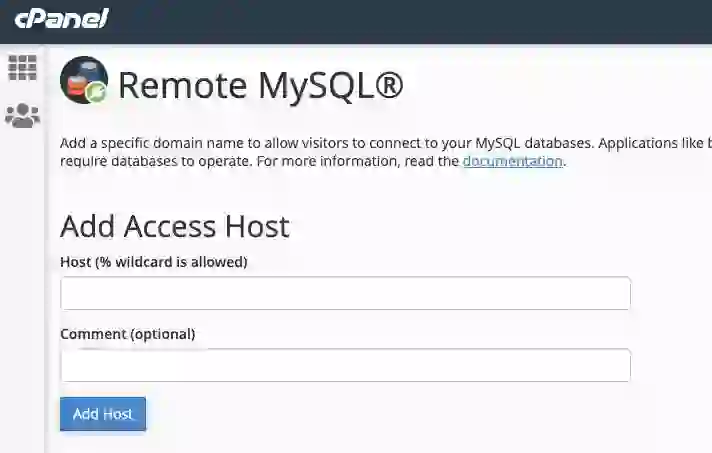
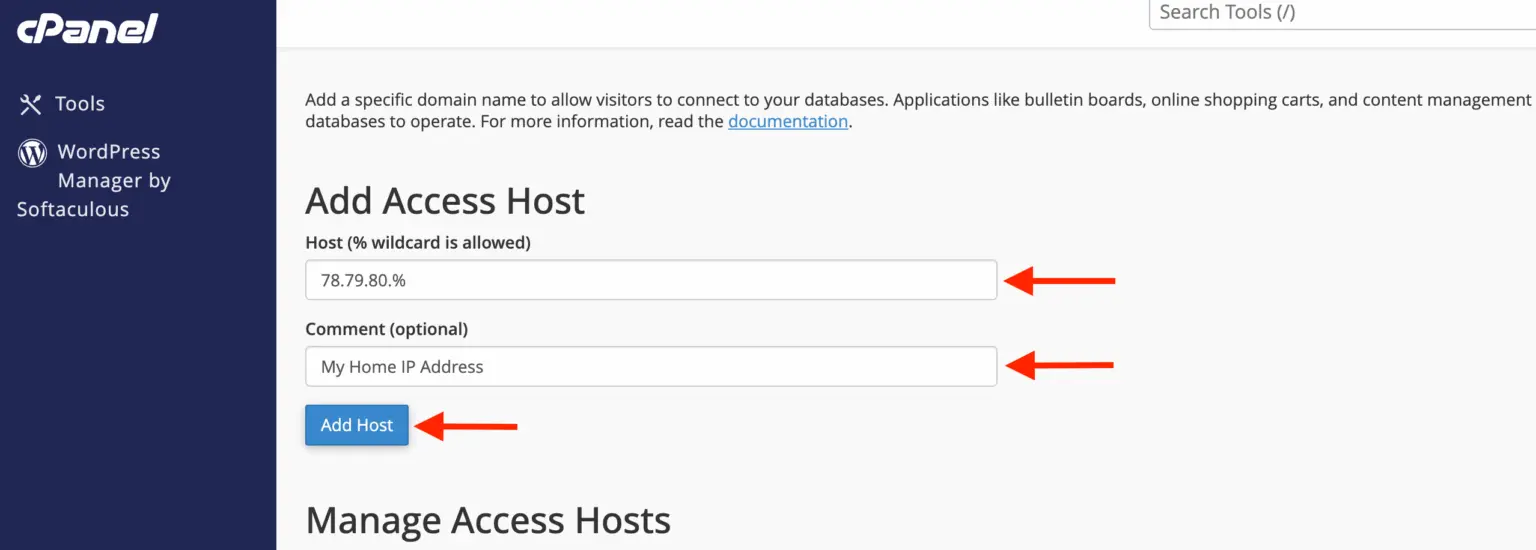
- Locate the “Add Access Host” section
- Enter the IP address in the “Host” field
- Add an optional comment
- Click “Add Host”
Example IP Address
78.79.80.81
cPanel will then allow database connections from that address.
Using Wildcards for Dynamic IP Addresses
Some internet providers assign dynamic IP addresses that change periodically.
cPanel allows wildcard usage with the % symbol.
Example
If your IP range changes between:
78.79.80.0 → 78.79.80.255
You can whitelist the entire range using:
78.79.80.%
This helps maintain access even if your local IP changes.
Managing Allowed Hosts
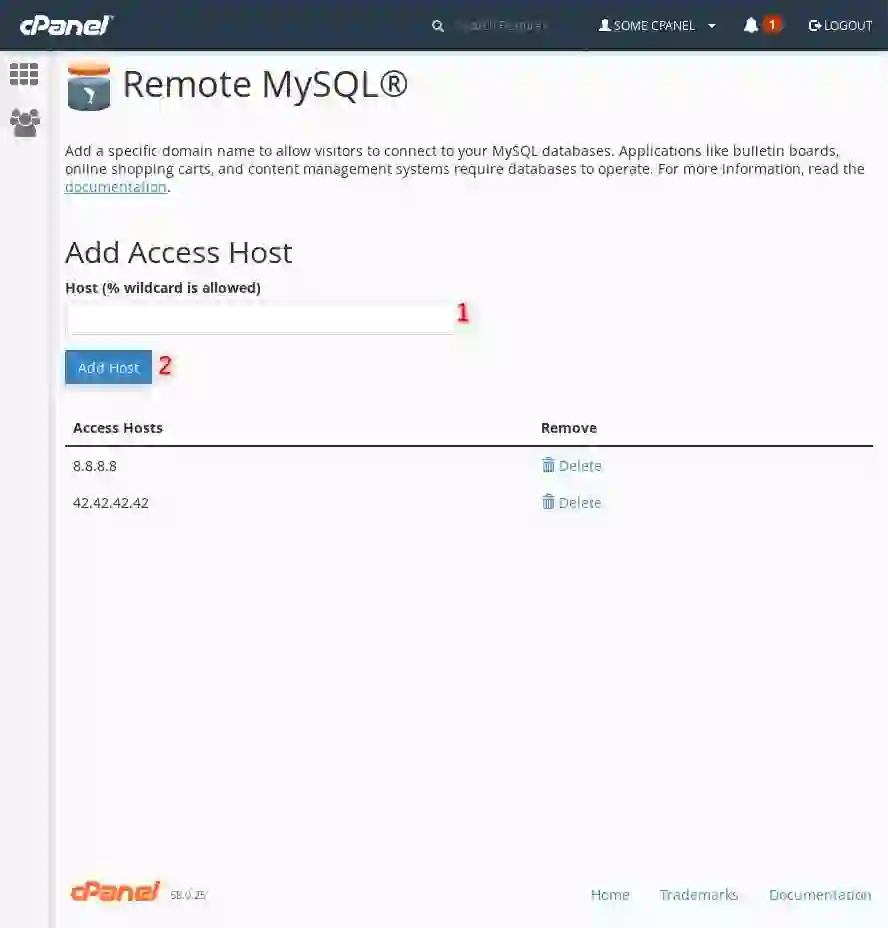
After adding IP addresses, they appear inside the Manage Access Hosts section.
Information Displayed
- Allowed IP address
- Saved comment
- Delete option
cPanel automatically includes your hosting server’s local IP address.
Important: Never remove the server’s local IP address, as doing so may break database connectivity for your websites.
Editing Allowed Hosts
cPanel does not support direct editing of IP addresses.
To change an address:
- Delete the existing IP
- Add the updated IP address again
Remote MySQL Security Best Practices
Securing remote database access is extremely important.
Recommended Security Practices
- Whitelist only trusted IP addresses
- Use strong database passwords
- Remove unused access hosts
- Avoid using broad wildcard ranges
- Monitor database activity regularly
- Use SSL connections when possible
- Keep applications updated
Restricting access minimizes the risk of unauthorized database activity.
Common Remote MySQL Errors
Users sometimes encounter issues when configuring remote database access.
Common Problems Include
- Incorrect IP address
- Blocked firewall ports
- Wrong database credentials
- Host not whitelisted
- Dynamic IP address changes
- Hosting provider firewall restrictions
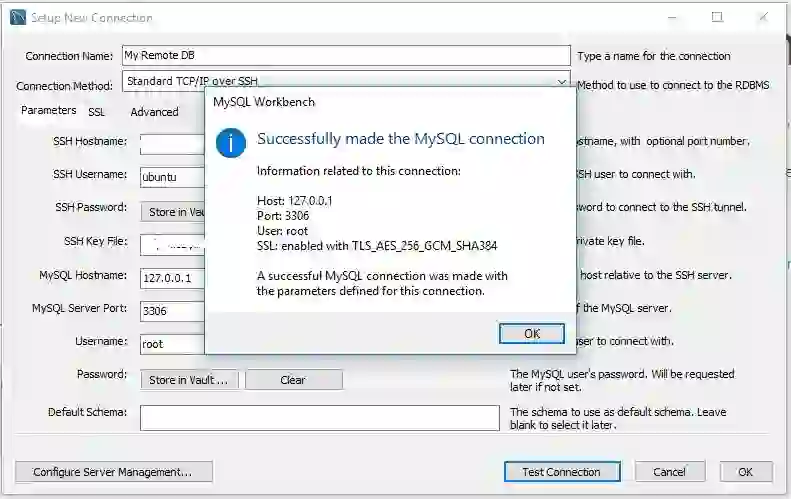
If remote connections fail, verify your IP whitelist configuration carefully.
Final Thoughts
The Remote MySQL feature in cPanel makes it possible to securely connect external applications and devices to your hosting databases.
By correctly managing allowed IP addresses and following database security best practices, developers can safely work with remote databases without exposing their hosting environments to unnecessary risks.
Whether you are building applications locally, managing websites remotely, or connecting external services, understanding Remote MySQL configuration is an important skill for modern web hosting and database administration.
Frequently Asked Questions
What is Remote MySQL in cPanel?
Remote MySQL is a cPanel feature that allows external devices and applications to connect to your MySQL databases securely.
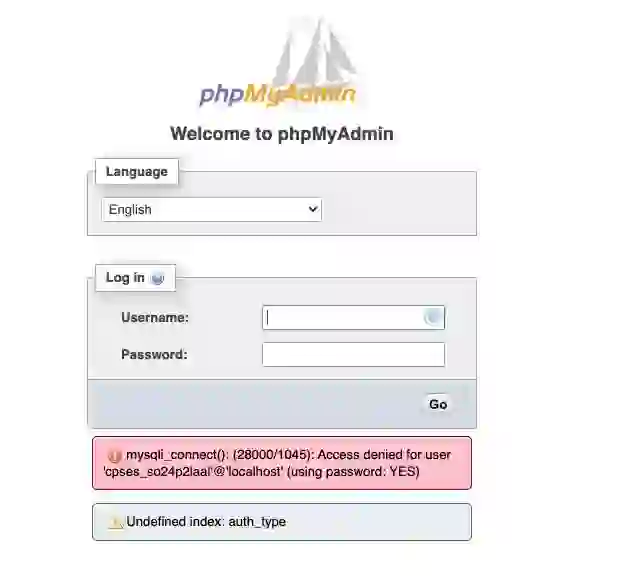
Why is my remote MySQL connection blocked?
Your IP address may not be whitelisted, or firewall settings may be preventing the connection.
Can I allow multiple IP addresses?
Yes, cPanel allows multiple IP addresses and host entries.
Is Remote MySQL secure?
Yes, if you whitelist trusted IP addresses and use strong authentication credentials.
Can I use wildcards in Remote MySQL?
Yes, the % wildcard can be used to allow IP address ranges.MySQL makes use of a client-server mannequin for communication between a MySQL shopper and a MySQL server. A MySQL shopper is any open-source web site, script, or internet utility, akin to WordPress, Joomla, or Drupal, or any third-party software program used to hook up with and handle databases, akin to phpMyAdmin. A MySQL server, then again, refers back to the MySQL service working on our hosting server, the place we host your hosting account. When a MySQL shopper connects to a MySQL server, a MySQL connection is used.
Native and distant MySQL connections
If the MySQL shopper is hosted on the identical server because the MySQL server, the connection is taken into account an area connection, as a result of it takes place inside the identical internet hosting atmosphere with out the necessity for information to be transferred exterior the server.
If a MySQL shopper is working from a unique location, akin to an area laptop or one other hosting server, and is connecting to a database hosted underneath your internet hosting account with us, that is thought-about a distant MySQL connection.
To determine this connection, the programmer enters the database credentials into the built-in improvement atmosphere (IDE), granting them distant entry to the database. This connection is taken into account “distant” as a result of the request originates from exterior the hosting server.
Nevertheless, as soon as the web site is programmed and the code is uploaded to the identical internet hosting server that hosts the database, the connection turns into an area connection. This occurs as a result of the connection happens inside the identical server, with out passing by the web or an exterior atmosphere.
Now that you simply perceive how MySQL connections are categorized, let’s talk about the best way to safe them. As talked about in our earlier instance, each MySQL shopper should authenticate to the MySQL server. Authentication is finished utilizing MySQL credentials—particularly, a username and password. Whereas authentication supplies primary safety for database entry, this information focuses on a further layer of safety: the best way to limit distant entry to the database by controlling which IP addresses are allowed.
Let’s go over how to try this step-by-step.
Accessing the distant MySQL function in cPanel
To start managing the IP addresses allowed to hook up with your MySQL databases, you should first entry the “MySQL Distant” function in your cPanel management panel . To do that, you should first log in to your cPanel account on your web site internet hosting. In case you are uncertain how to do that, please confer with our different tutorial on how to entry cPanel .
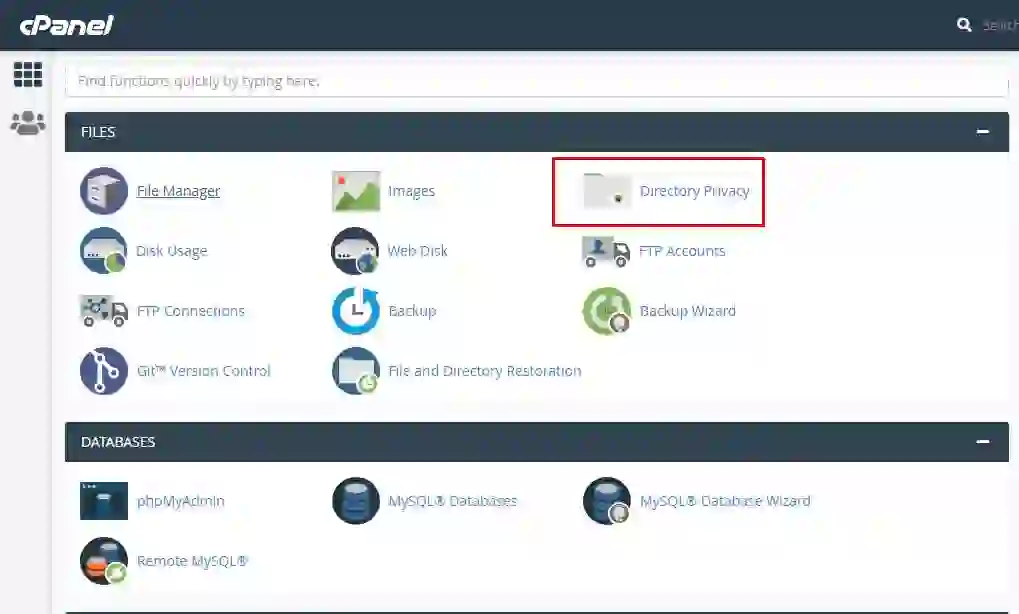
When you log in to your cPanel management panel, you will see all of the options it affords. The ” Distant MySQL ” function is situated inside the ” Databases ” function set and is definitely accessible.
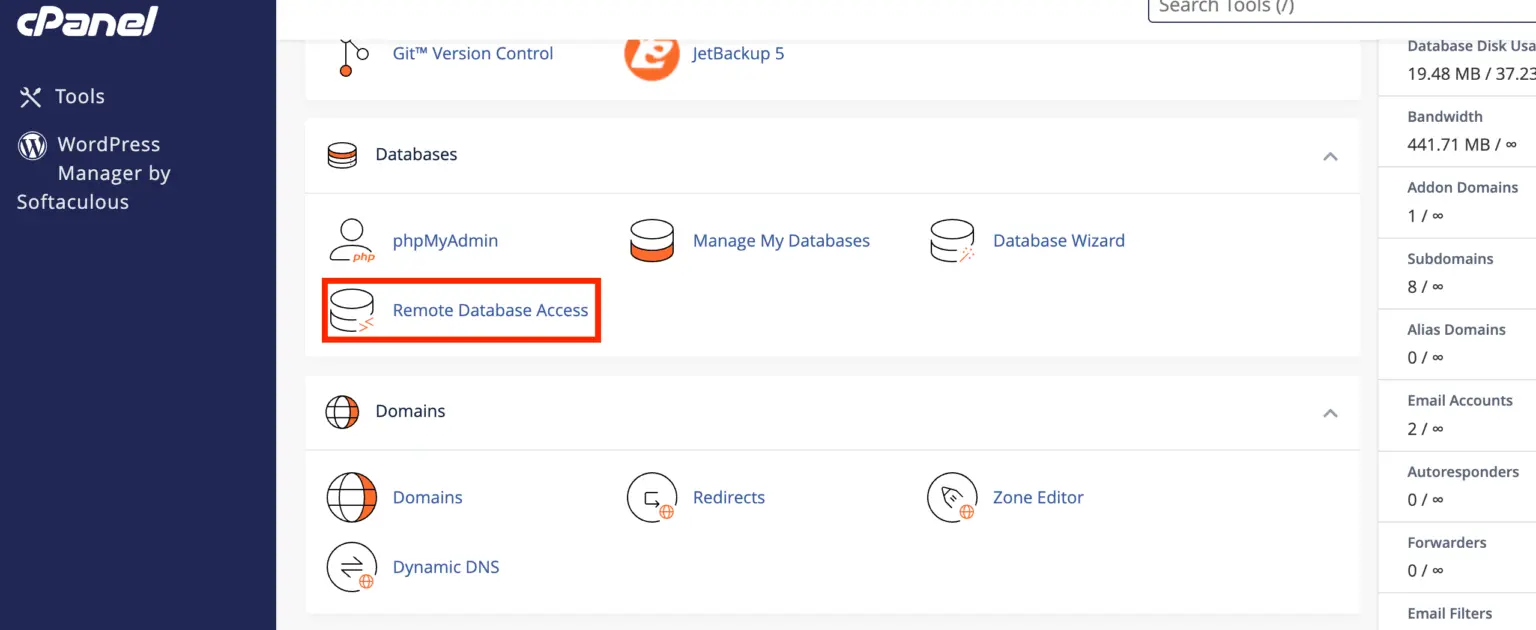
Clicking on the function will redirect you to a brand new web page the place extra details about the function can be offered, in addition to administration instruments for allowed IP addresses.
Handle IP addresses allowed to hook up with your databases
The MySQL Distant web page options a easy and user-friendly interface, making it straightforward to handle the IP addresses allowed to hook up with the databases. The primary part of the web page, known as “Add Entry Host ,” comprises instruments that make including new IP addresses straightforward. Let’s evaluation the process.
The primary discipline you want to fill in is “Host (% allowed wildcard)”. On this discipline, you have to to enter the bodily IP deal with that’s allowed for connections to your databases. For instance, in the event you permit entry to your native laptop, you must know your native IP deal with, but when not, please test your IP deal with utilizing any free online IP address checker.
Subsequent, add a remark explaining the aim of this IP deal with. Whereas feedback are optionally available, we strongly suggest together with the proprietor of the allowed IP deal with to keep away from any points ought to an issue come up. Based mostly on our instance, let’s add a remark like ” My Dwelling IP Handle “.
Lastly, click on the “Add Host” button to permit the desired IP deal with to hook up with the database.
The cPanel management panel provides the IP deal with and shows a message confirming the operation was profitable or indicating an error. Afterward, please return to the “Distant MySQL” web page by clicking the “Go Again” hyperlink .
As you’ve got seen, the IP deal with you simply added will seem straight within the subsequent part, ” Handle Entry Hosts .” On this part, you will discover all of the IP addresses allowed to hook up with your hosting account. We routinely add the IP deal with of the internet hosting server that hosts your account to this listing. Don’t delete this deal with, as doing so might trigger issues with MySQL connecting to the web sites in your cPanel internet hosting account.
- Entry Host : This column will assist you to see the IP addresses allowed in your hosting account.
- Remark : Underneath this column, you will note all of the saved feedback associated to the allowed IP addresses that you’ve got added to your cPanel hosting account.
- Take away : Beneath this column you will discover a “ Delete ” hyperlink, which lets you delete the allowed IP deal with in addition to the remark you added to it.
It is possible for you to to replace the remark for every IP deal with, and naturally, delete it when wanted. Please be aware that cPanel does not assist you to straight edit allowed IP addresses. To edit an IP deal with, you should first delete it after which add it once more.

That is it! You at the moment are absolutely acquainted with managing a distant MySQL connection in cPanel. When you encounter any technical difficulties including new IP addresses, or if this information did not absolutely clarify the method, please be at liberty to contact us by our feedback part.

