Table of Contents
- What Is Bluetooth Technology?
- Why Bluetooth Is Important for Smartphones
- Common Bluetooth Devices
- Basic Bluetooth Pairing Steps
- How to Connect Bluetooth on iPhone and iPad
- How to Connect Bluetooth on Android
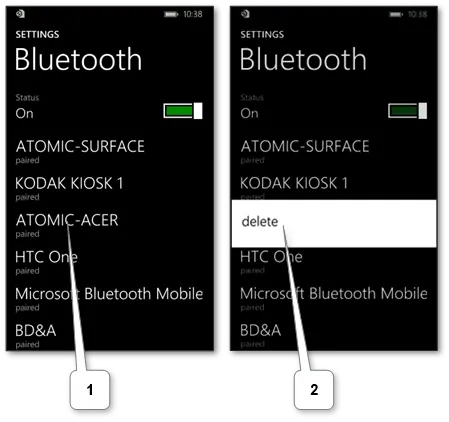
- How to Connect Bluetooth on Windows Phone
- How to Disconnect or Unpair Devices
- Bluetooth Battery Usage Tips
- Common Bluetooth Problems and Fixes
- Frequently Asked Questions
:contentReference[oaicite:2]{index=2} has become one of the most important wireless technologies used in smartphones today.
It allows devices to communicate without cables, making it possible to connect smartphones with:
- Wireless headphones
- Bluetooth speakers
- Car audio systems
- Wireless keyboards
- Wireless mice
- Smartwatches
- Other smartphones
Because modern smartphones rely heavily on wireless accessories, understanding how Bluetooth pairing works is essential for everyday mobile use.
This guide explains how to connect Bluetooth devices on Android phones, iPhones, iPads, and Windows Phones step by step.
What Is Bluetooth Technology?
:contentReference[oaicite:3]{index=3} is a short-range wireless communication standard used for connecting electronic devices.
Bluetooth allows secure wireless communication between devices without requiring internet access or physical cables.
Main Bluetooth Uses
- Wireless audio streaming
- Connecting mobile accessories
- Phone-to-phone file transfer
- Vehicle connectivity
- Internet tethering
Most Bluetooth devices operate within a range of approximately 10 meters (33 feet).
Why Bluetooth Is Important for Smartphones
Bluetooth simplifies mobile device connectivity and eliminates the need for excessive cables.
Main Advantages
- Wireless convenience
- Easy accessory pairing
- Portable connectivity
- Hands-free communication
- Cleaner device setup
Today, nearly all smartphones released after 2007 include built-in Bluetooth functionality.
Common Bluetooth Devices
Bluetooth supports a wide variety of devices.
Popular Bluetooth Accessories
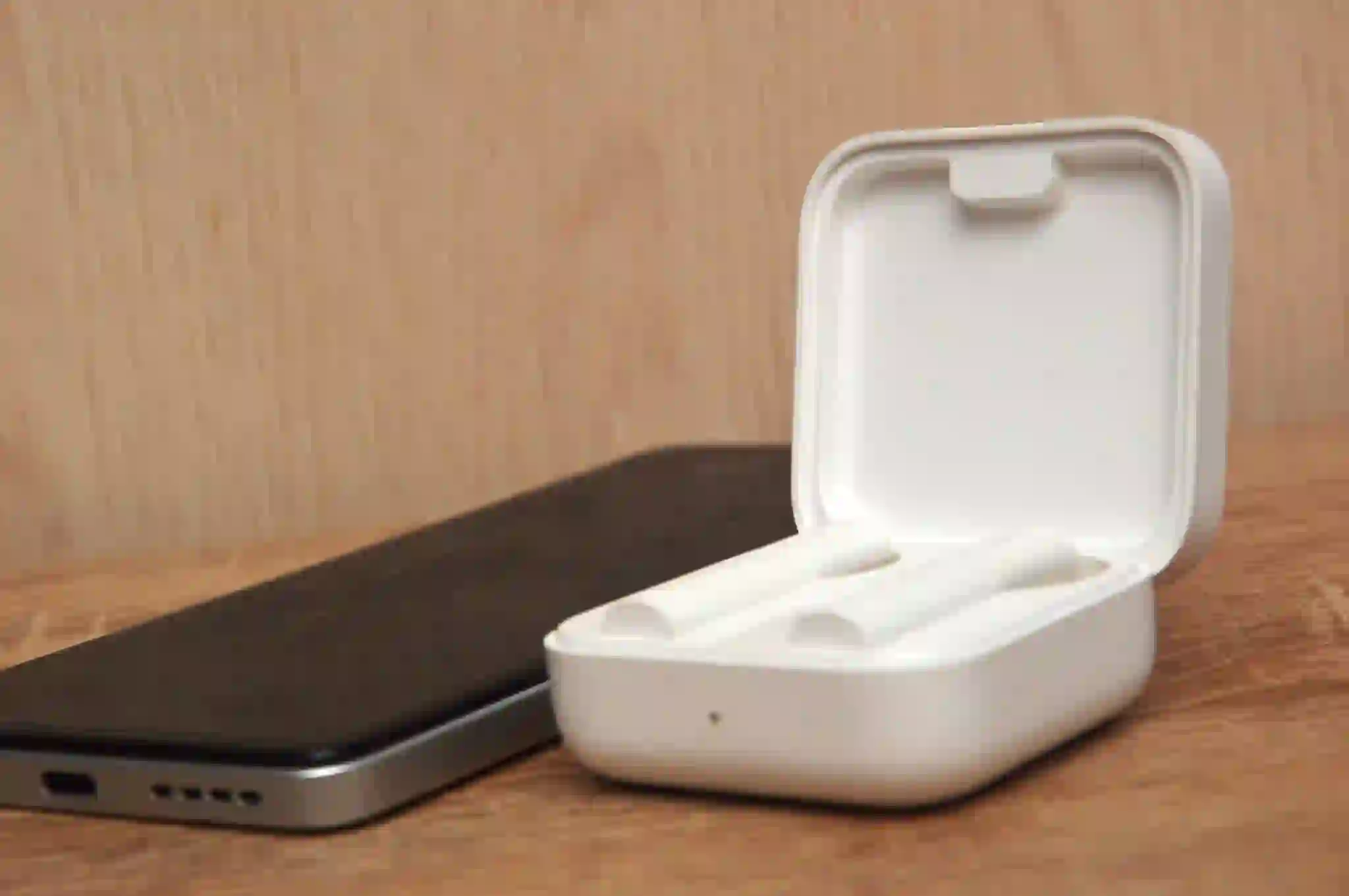
- Wireless earbuds
- Bluetooth headsets
- Smartwatches
- Portable speakers
- Car infotainment systems
- Gaming controllers
- Wireless keyboards and mice
One of the most popular Bluetooth uses today is pairing smartphones with wireless headphones for music and calls.
Basic Bluetooth Pairing Steps
The Bluetooth connection process is called pairing.
Although interfaces differ slightly between operating systems, the general process is similar.
Basic Bluetooth Pairing Process
- Enable Bluetooth on both devices
- Put the second device into pairing mode
- Open Bluetooth settings on your phone
- Select the device from the available list
- Confirm or enter the pairing code if requested
Once paired successfully, devices usually reconnect automatically whenever Bluetooth is enabled and the devices are nearby.
How to Connect Bluetooth on iPhone and iPad
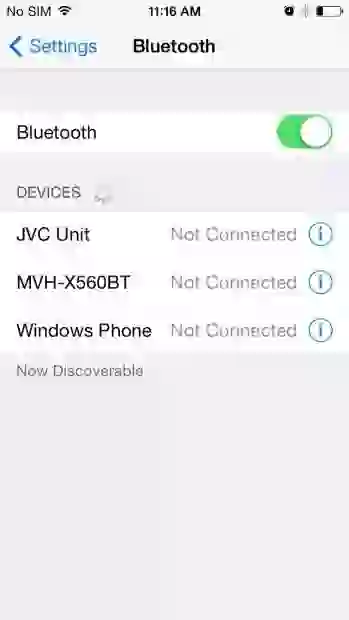
:contentReference[oaicite:4]{index=4} devices such as the iPhone and iPad use a very simple Bluetooth interface.
Steps to Connect Bluetooth on iPhone or iPad
- Open Settings
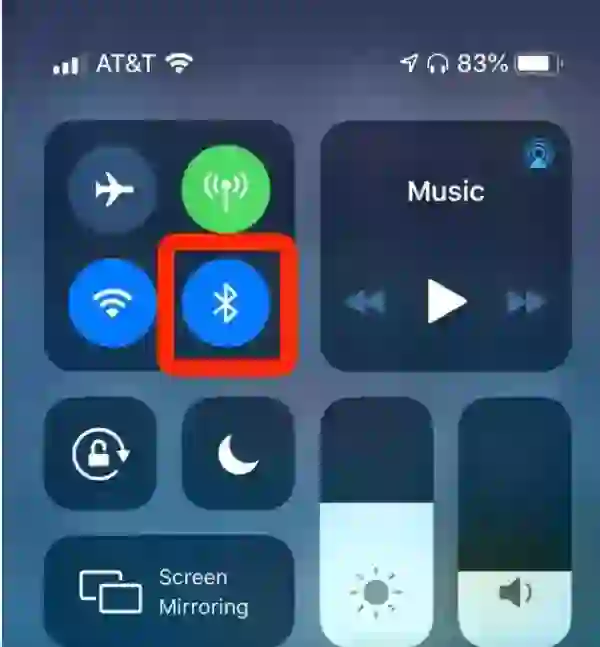
- Tap Bluetooth
- Enable Bluetooth
- Turn on the second device and activate pairing mode
- Select the device from the available list
- Confirm the pairing request
Some devices may require entering a PIN code or confirming a generated passkey.
How to Unpair a Device on iPhone
- Open Bluetooth settings
- Tap the information icon next to the device
- Select Forget This Device
How to Connect Bluetooth on Android
:contentReference[oaicite:7]{index=7} smartphones may have slightly different interfaces depending on the manufacturer, but the process remains similar.
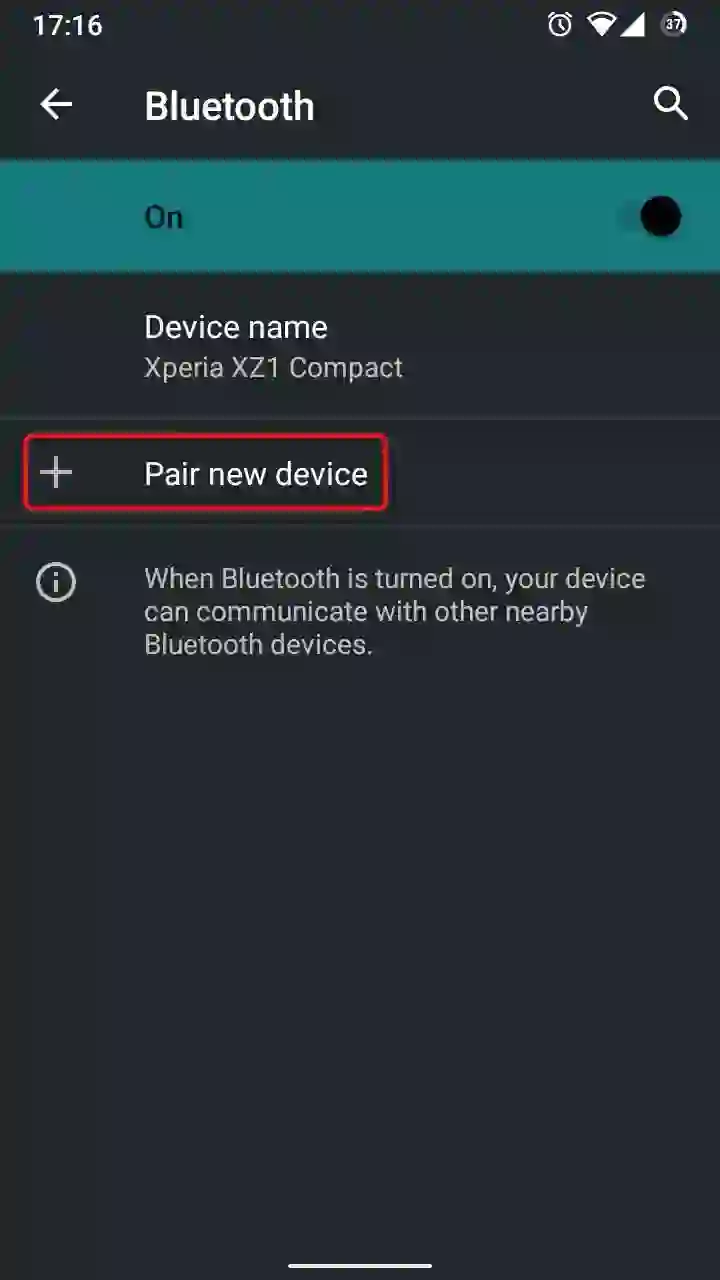
Steps to Connect Bluetooth on Android
- Open Settings
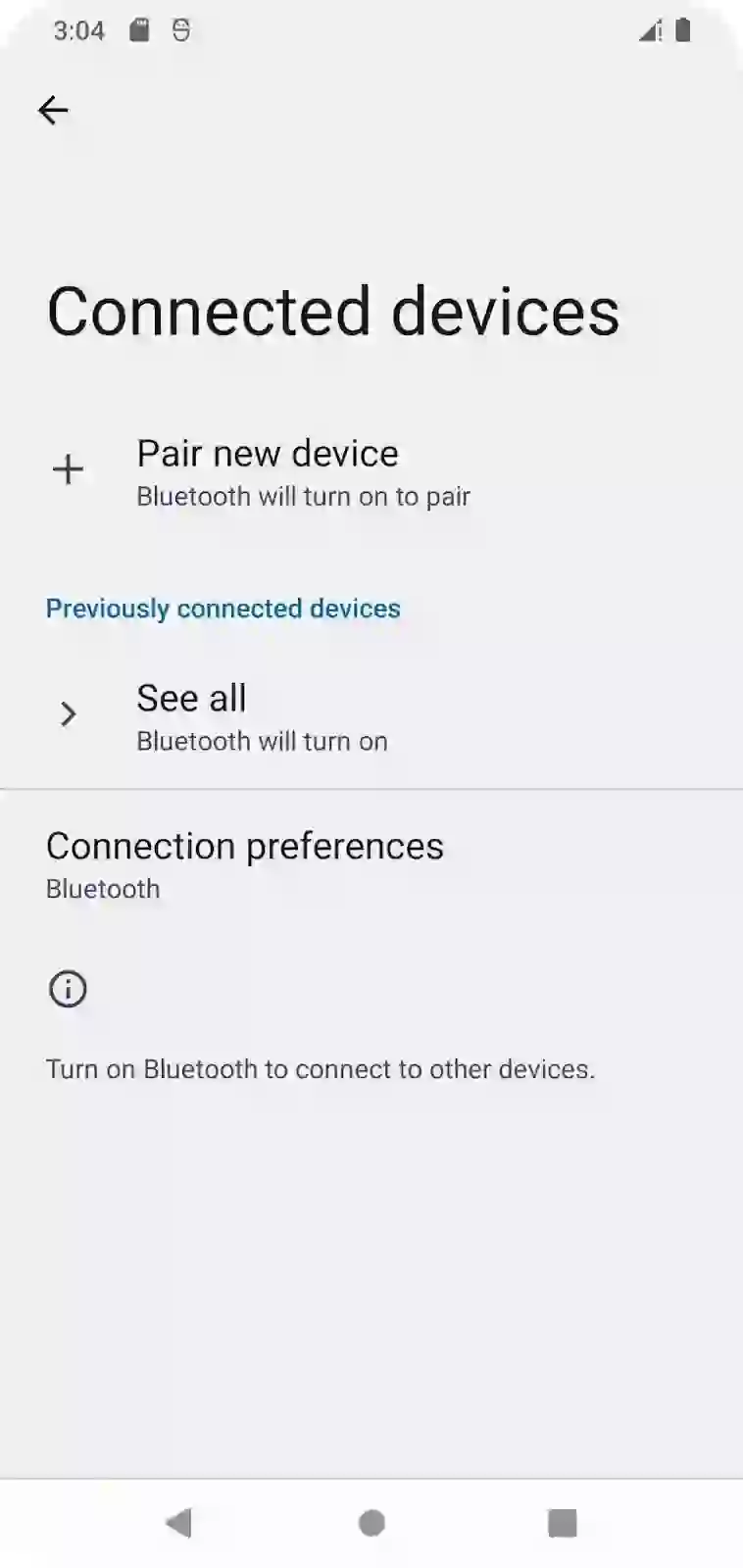
- Go to Bluetooth
- Enable Bluetooth
- Activate pairing mode on the second device
- Tap Search for Devices if necessary
- Select the device from the list
- Confirm the pairing request
How to Rename or Unpair Devices
Android devices often allow:
- Renaming paired devices
- Disconnecting accessories
- Removing paired devices completely
To unpair a device:
- Open Bluetooth settings
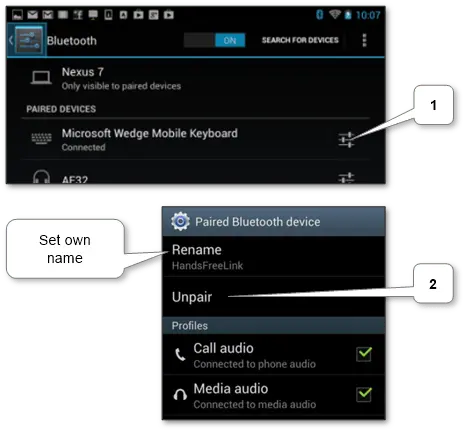
- Tap the settings icon next to the device
- Select Unpair
How to Connect Bluetooth on Windows Phone
Although :contentReference[oaicite:8]{index=8} is no longer widely used, some users still operate older devices.
Steps to Connect Bluetooth on Windows Phone
- Open Settings
- Go to Bluetooth
- Enable Bluetooth mode
- Wait for nearby devices to appear
- Select the desired device
- Confirm the pairing PIN
How to Remove Devices
Tap the connected device and choose the option to remove or disconnect it.
How to Disconnect or Unpair Devices
If you no longer use a Bluetooth accessory, you can disconnect or remove it completely.
Why Remove Devices?
- Fix connection problems
- Reduce clutter in paired lists
- Improve security
- Reconnect devices from scratch
Unpairing usually requires repeating the pairing process later if you want to reconnect the device.
Bluetooth Battery Usage Tips
Bluetooth can slightly increase battery consumption on smartphones and accessories.
Tips to Save Battery
- Disable Bluetooth when unused
- Disconnect inactive accessories
- Keep devices charged regularly
- Avoid unnecessary background connections
Some accessories automatically enter sleep mode during inactivity to preserve battery life.
Common Bluetooth Problems and Fixes
Bluetooth connections occasionally experience issues.
Common Problems
- Device not appearing
- Connection failures
- Audio delays
- Random disconnections
- Pairing errors
Common Solutions
- Restart both devices
- Recharge batteries
- Move devices closer together
- Remove and re-pair devices
- Update smartphone software
Keeping operating systems updated often improves Bluetooth compatibility and stability.
Final Thoughts
:contentReference[oaicite:9]{index=9} continues to play a major role in modern smartphone connectivity.
Whether connecting:
- Wireless headphones
- Car systems
- Smartwatches
- Bluetooth speakers
- Wireless keyboards
the pairing process is now faster and simpler than ever.
Understanding how Bluetooth works on Android, iPhone, and Windows Phone devices helps users troubleshoot problems easily while improving convenience and wireless productivity.
As wireless technology continues evolving, Bluetooth remains one of the most important features in modern mobile devices.
Frequently Asked Questions
What is Bluetooth used for on smartphones?
Bluetooth is used to connect wireless accessories such as headphones, speakers, smartwatches, and car systems.
How far does Bluetooth work?
Bluetooth generally works within a range of approximately 10 meters.
Why won’t my Bluetooth device connect?
Possible reasons include low battery, disabled pairing mode, software issues, or devices being out of range.
Do Bluetooth devices reconnect automatically?
Yes, most paired Bluetooth devices reconnect automatically when nearby and powered on.
Does Bluetooth drain battery?
Bluetooth uses some battery power, but modern smartphones are optimized for efficient wireless connectivity.
Official Bluetooth Information:
Bluetooth Technology Official Website
These days this wi-fi expertise is a standard normal that enables us to attach various kinds of models with none cables or cords. What’s Bluetooth used for? It might be used to be part of a cellular to a automobile, to be part of headset to our telephone, to use wi-fi keyboard and mouse with pill or telephone, to act our telephone as a modem, to attach cellular to cellular, and so forth. The common working distance for this expertise is just not greater than about 10 meters so we shouldn’t transfer linked ones too removed from one another.
In the present day the mobiles are very talked-about. The entire rely of them is extra that folks on the earth. So we must always know find out how to join Bluetooth to the telephone to remain fashionable.
The second machine kind is different. One of the crucial in style wi-fi devices for cellular is a headset. Here’s a guide on find out how to join the Bluetooth headset unit in 4 steps. One other in style possibility is pairing a telephone with automobile.
The generic fundamental steps are
- Confirm that the wi-fi mode is turned on of the cellular and on the second unit.
- Select the second one within the record to attach with.
- Enter or test supplied Bluetooth passkey that’s required for authorization.
We don’t want to attach the models once more in additional. They robotically join when they’re within the vary of one another with wi-fi mode turned on. Be aware that utilizing fashionable expertise can improve the extent of battery utilization, so we must always test the cost degree on each models repeatedly.
Flip off the wi-fi mode simply in case of cease utilization. Take away every one from a paired record of different one to fully unpair Bluetooth units if wanted.
Probably the most mobiles launched after 2007 have this expertise onboard. We might at all times test it by means of discovering an applicable setting on the one. Under are detailed pairing directions for various sorts resembling
- Apple iPhone and iPad
- Android telephone and pill
- Home windows Cellphone
Learn how to join Bluetooth on iPhone and iPad
- Ensure that that the cellular has a recognizable exterior title to be discovered if wanted.
-
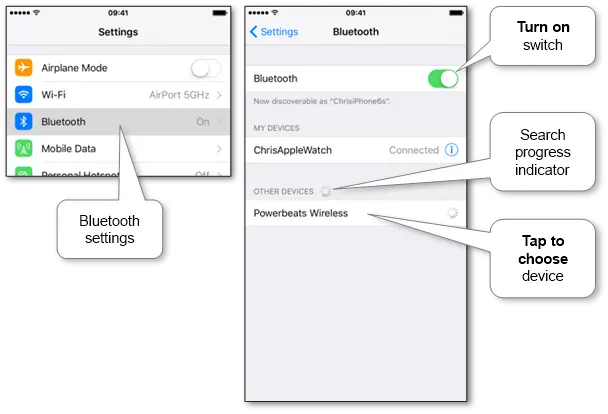
Guarantee that wi-fi mode is on, do the identical on the second unit and faucet on its title within the record of obtainable gear. The consumer interface is kind of the identical for iPad by due to Apple.
-
Test Bluetooth passkey (or enter it if mandatory) and select “Pair” to simply accept the connection.
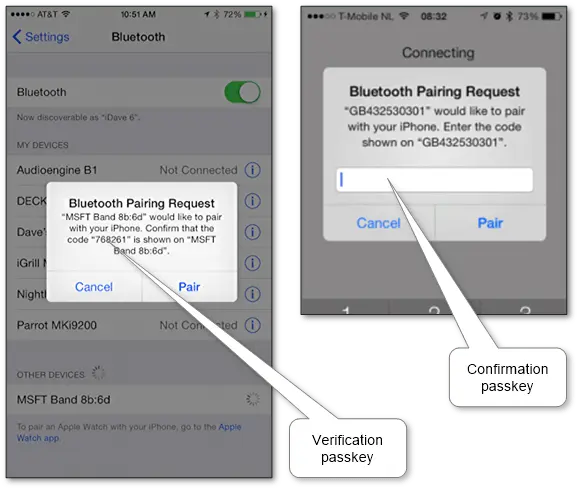
Now the cellular and the opposite unit are paired.
Open it particulars by way of data icon and select “Neglect this Machine” to unpair the machine if mandatory.
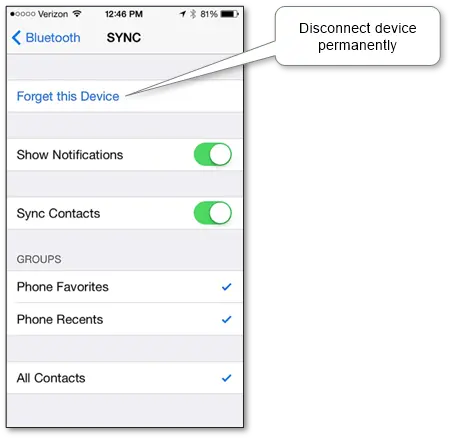
Connect Bluetooth on Android telephone and pill
- Ensure that that the machine has a recognizable title if required.
-
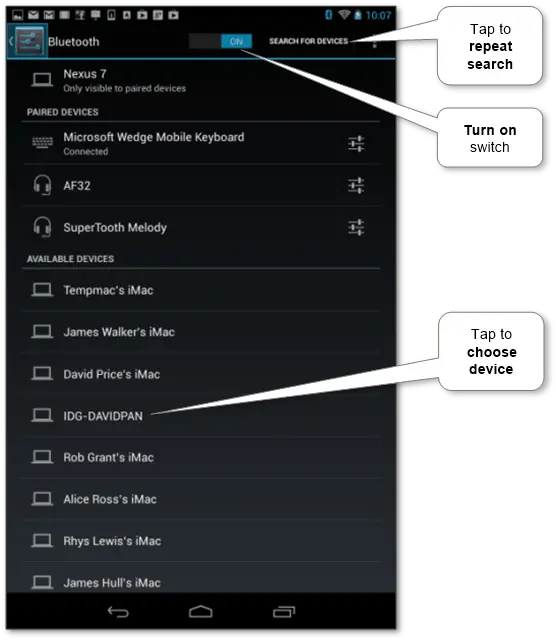
Guarantee that wi-fi expertise is on in “Settings\Bluetooth” and faucet on the actual obtainable machine that should be wirelessly activated too. Repeat search by “Seek for units” or related if we will’t discover a explicit unit within the record.
-
Test passkey for Bluetooth (or enter it if mandatory) and ensure the connection.
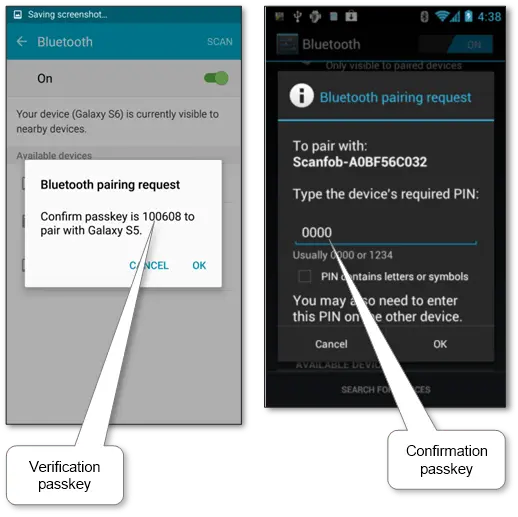
Now our models are paired.
Open it particulars by way of configuration icon and select “Unpair” to disconnect the unit. Additionally, we will set personal native title of paired one by way of “Rename”.
Learn how to join Bluetooth on Home windows Cellphone
- Test discoverable title and alter it by way of “edit title” if mandatory.
-
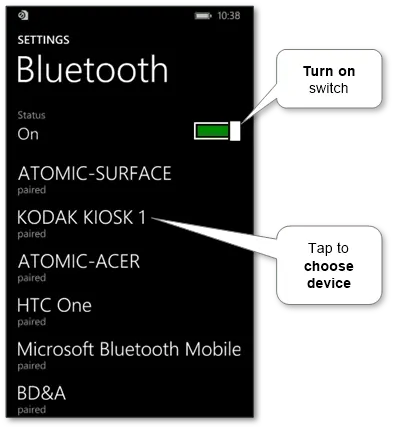
Ensure that that the mode is on (have a look at the under image) and get the record of obtainable ones. The second one must be enabled too. Then discover and faucet on the second unit title.
-
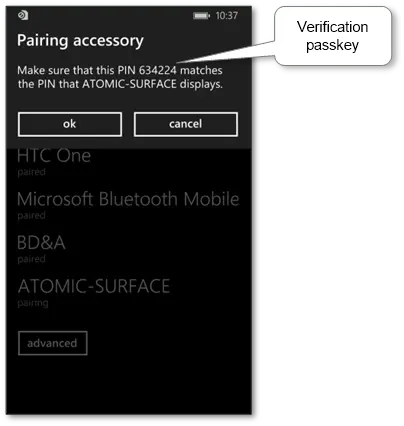
Test the pairing PIN and ensure the connection.
Now the cellular and the opposite unit are paired.
Faucet on machine within the record and ensure deletion to unpair it in case of no want.