
Table of Contents
- What Is Bluetooth Technology?
- Why Use Bluetooth on Mac?
- Requirements Before Pairing
- How to Enable Bluetooth on macOS
- How to Pair Bluetooth Devices With a Mac
- Connecting Bluetooth Headphones
- Connecting Wireless Keyboards and Mice
- Connecting Smartphones to Mac
- How to Disconnect or Remove Devices
- Common Bluetooth Problems and Solutions
- Frequently Asked Questions
:contentReference[oaicite:2]{index=2} is one of the most useful wireless technologies available on modern computers and mobile devices.
It allows users to connect devices without cables, making everyday tasks more convenient and flexible.
On macOS devices such as the MacBook, Bluetooth can be used to connect:
- Wireless headphones
- Bluetooth speakers
- Wireless keyboards
- Wireless mice
- Smartphones
- Game controllers
- Printers
This complete guide explains how Bluetooth works on macOS, how to pair devices correctly, and how to solve common connection problems.
What Is Bluetooth Technology?
:contentReference[oaicite:4]{index=4} is a short-range wireless communication standard designed to connect devices without physical cables.
Bluetooth typically works within a range of approximately 10 meters (33 feet), depending on the device and environment.
Common Bluetooth Uses
- Wireless audio streaming
- Connecting accessories
- Data transfer between devices
- Internet tethering
- Peripheral device communication
Modern Apple computers include built-in Bluetooth functionality, eliminating the need for external adapters in most cases.
Why Use Bluetooth on Mac?
Bluetooth provides several advantages for Mac users.
Main Benefits
- Wireless convenience
- Cleaner workspace setup
- Easy device switching
- Portable connectivity
- Reduced cable clutter
Many users rely on Bluetooth daily for accessories such as:
- Wireless headphones
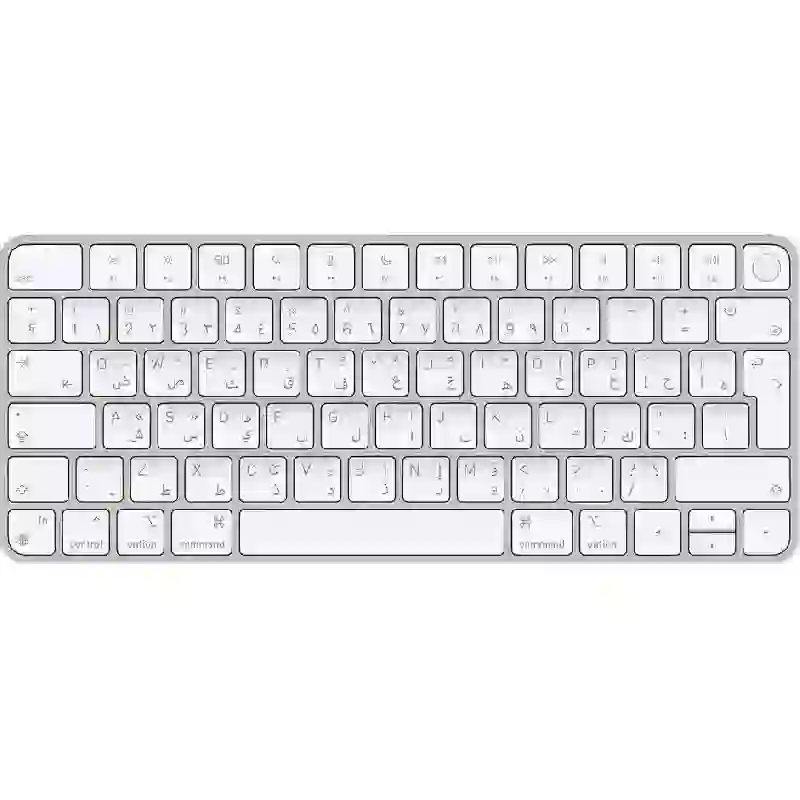
- Apple Magic Mouse
- Bluetooth keyboards
- External speakers
Requirements Before Pairing
Before pairing a Bluetooth device with your Mac, make sure the following conditions are met:
Checklist Before Pairing
- Bluetooth is enabled on your Mac
- The second device is powered on
- The device is in pairing mode
- The device is within Bluetooth range
- The device battery is charged
Some older Macs may require external Bluetooth USB adapters if Bluetooth hardware is unavailable.
How to Enable Bluetooth on macOS
Enabling Bluetooth on a Mac is very simple.
Method 1: Using System Settings
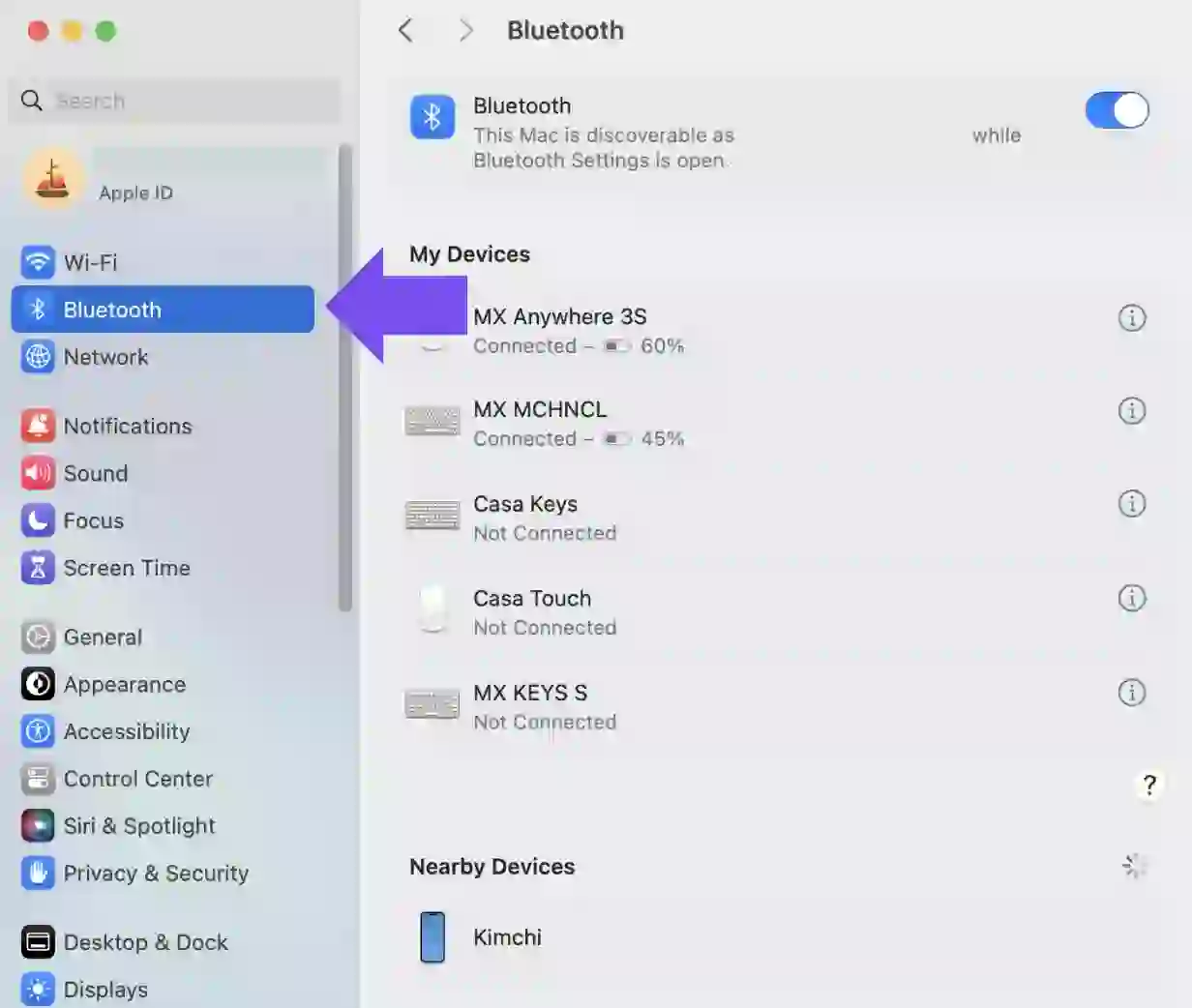
- Open System Settings
- Click Bluetooth
- Toggle Bluetooth ON
Method 2: Using Menu Bar
- Click the Bluetooth icon in the menu bar
- Select Turn Bluetooth On
Once activated, your Mac will begin searching for nearby Bluetooth devices automatically.
How to Pair Bluetooth Devices With a Mac
The Bluetooth connection process is called pairing.
Pairing allows devices to recognize and securely communicate with each other.
Step-by-Step Pairing Process
- Enable Bluetooth on your Mac
- Turn on the Bluetooth device
- Activate pairing mode on the device
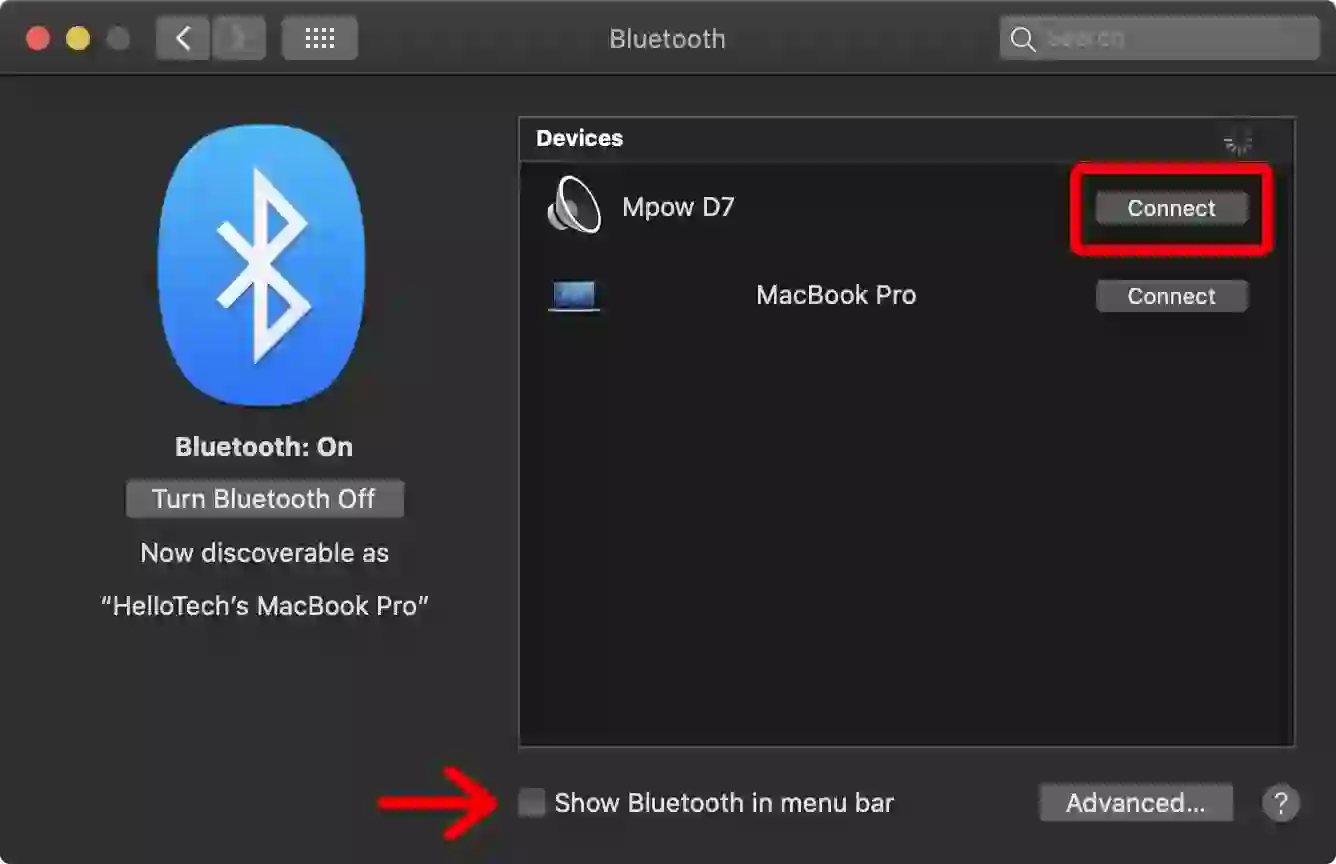
- Open Bluetooth settings on macOS
- Select the device from the list
- Click Connect
Some devices may require entering or confirming a pairing code for security verification.
After successful pairing, the devices will reconnect automatically whenever they are nearby and Bluetooth is enabled.
Connecting Bluetooth Headphones
Bluetooth headphones are one of the most common accessories paired with Macs.
How to Connect Wireless Headphones
- Put the headphones into pairing mode
- Open Bluetooth settings on macOS
- Select the headphones from the available devices
- Click Connect
After pairing, macOS usually switches audio output automatically to the connected headphones.
Common Headphone Brands
- :contentReference[oaicite:5]{index=5} AirPods
- Sony
- Bose
- JBL
- Beats
Connecting Wireless Keyboards and Mice
Wireless keyboards and mice improve flexibility and workspace organization.
How to Pair a Bluetooth Mouse or Keyboard
- Turn on the accessory
- Enable pairing mode
- Open Bluetooth settings
- Select the accessory
- Click Connect
Some accessories automatically enter pairing mode when powered on for the first time.
Devices may disconnect temporarily during inactivity to preserve battery life.
Connecting Smartphones to Mac
Smartphones can also connect to a Mac using Bluetooth.
Possible Uses
- Internet tethering
- File transfer
- Wireless syncing
- Device communication
On some systems, smartphones can function as internet modems through Bluetooth tethering.
This can be useful when Wi-Fi is unavailable.
How to Disconnect or Remove Devices
If you no longer want a Bluetooth device connected to your Mac, you can disconnect or remove it.
How to Disconnect a Device
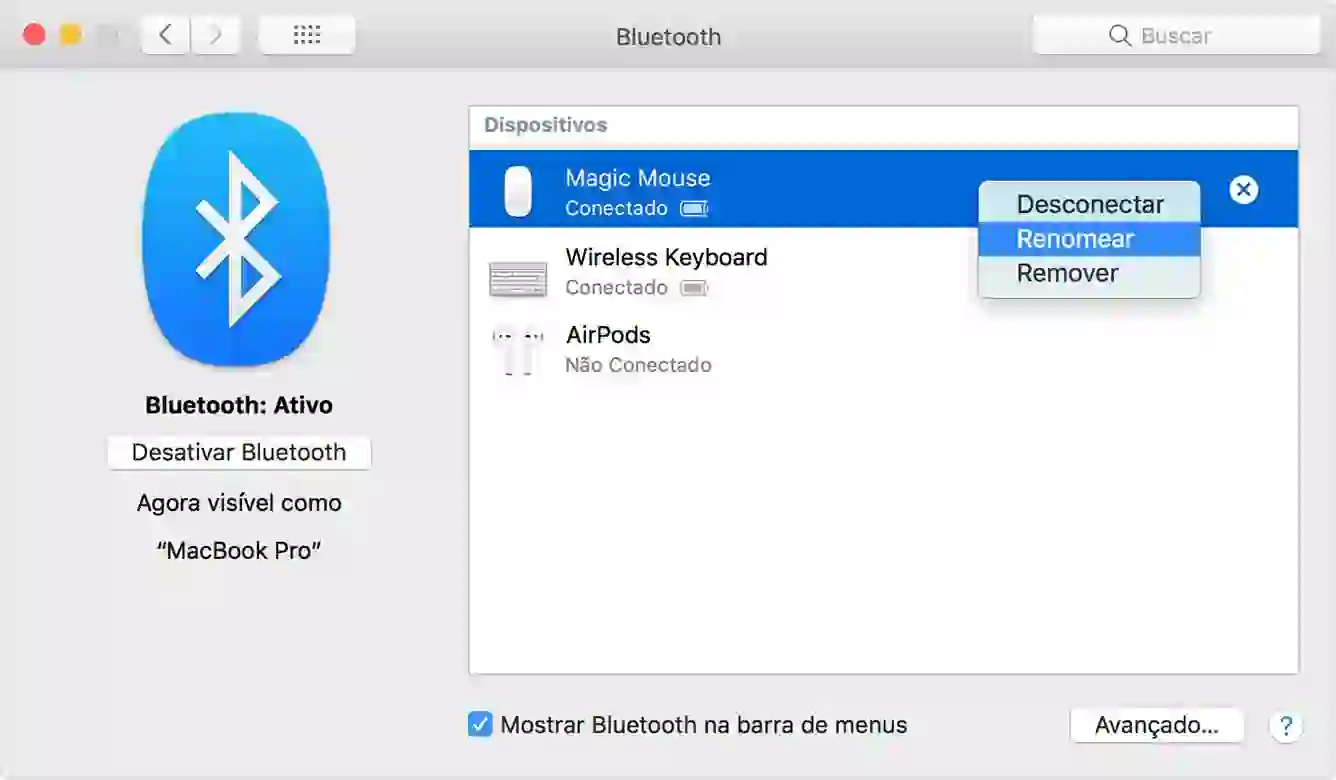
- Open Bluetooth settings
- Select the connected device
- Click Disconnect
How to Remove a Device Completely
- Open Bluetooth settings
- Click the information icon next to the device
- Select Forget Device
Removing the device requires repeating the pairing process if you want to reconnect later.
Common Bluetooth Problems and Solutions
Bluetooth connections occasionally encounter problems.
Common Issues
- Device not appearing
- Connection drops
- Audio lag
- Pairing failures
- Interference issues
Solutions
- Restart Bluetooth on both devices
- Move devices closer together
- Recharge batteries
- Remove and re-pair the device
- Restart your Mac
Software updates can also resolve compatibility and connectivity issues.
Final Thoughts
:contentReference[oaicite:6]{index=6} makes using a Mac far more flexible and convenient.
Whether you are connecting:
- Wireless headphones
- Bluetooth keyboards
- Mice
- Smartphones
- Speakers
macOS provides a simple and user-friendly pairing process.
Once devices are paired successfully, they reconnect automatically, creating a smooth wireless experience for daily use.
Understanding Bluetooth setup and troubleshooting can help you avoid common connectivity problems while improving productivity and convenience on your Mac.
Frequently Asked Questions
What is Bluetooth used for on a Mac?
Bluetooth is used to connect wireless devices such as headphones, keyboards, mice, and smartphones to a Mac.
How far does Bluetooth work?
Bluetooth usually works within a range of approximately 10 meters depending on the environment and hardware.
Why won’t my Bluetooth device connect to my Mac?
Possible reasons include low battery, disabled pairing mode, software issues, or the device being out of range.
Can a Mac connect to multiple Bluetooth devices?
Yes, macOS supports connecting multiple Bluetooth devices simultaneously.
How do I remove a Bluetooth device from my Mac?
Open Bluetooth settings, select the device, and choose “Forget Device.”
Official Apple Support:
What’s Bluetooth expertise? It permits us to attach several types of tools with none cables or wires. It may be used once we need to join headphones or microphones to our laptop, to use a wireless mouse or keyboard with it, to use our mobile phone as a modem, and so on. The working distance coated by this expertise is about 10 meters.
So, it is going to be higher for us to know the principle ideas of arrange Bluetooth with completely different items. The particular related course of is named pairing. The essential primary steps for Bluetooth join are as comply with
-
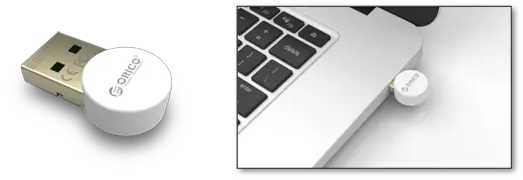
Examine that the wi-fi expertise is actually enabled on the pc. Most Mac computer systems have this expertise built-in. In any other case, we are able to acquire exterior adapters or use particular USB dongle that always comes with the tools.
- Activate wi-fi mode on the second unit e.g. gadget, cellular or one other laptop.
- Guarantee that the wi-fi mode is enabled in our Mac and provoke one other tools looking.
- Select the second unit to pair with.
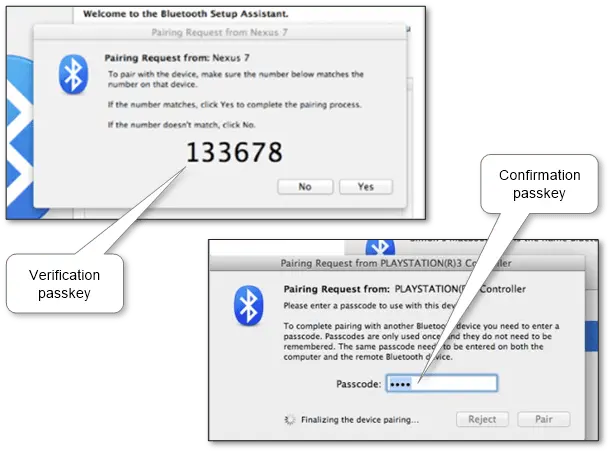
- Sort or evaluate offered Bluetooth passkey that’s required for authorization and end process.
There isn’t a want to attach the Mac and second unit once more sooner or later as a result of they routinely join when they’re within the vary of one another with the wi-fi mode turned on.
Unpair Bluetooth gadget from the pc by eradicating the primary one from the linked items listing in case no want.
Trendy variations of Mac working techniques are fairly related, so under steps are offered with out separation to specific variations.
- Change Mac recognizable external name in “System Preferences\Sharing” if wanted.
- Examine that the wi-fi mode is enabled on the second unit. Have a look at how to connect to Bluetooth for iPhone, iPad and other mobiles. Additionally, there are device pairing descriptions for gadgets like a mouse, keyboard, headphones, and so on.
-
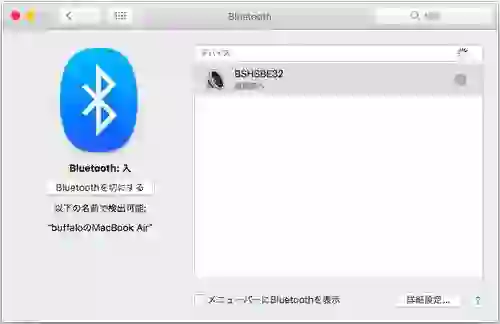
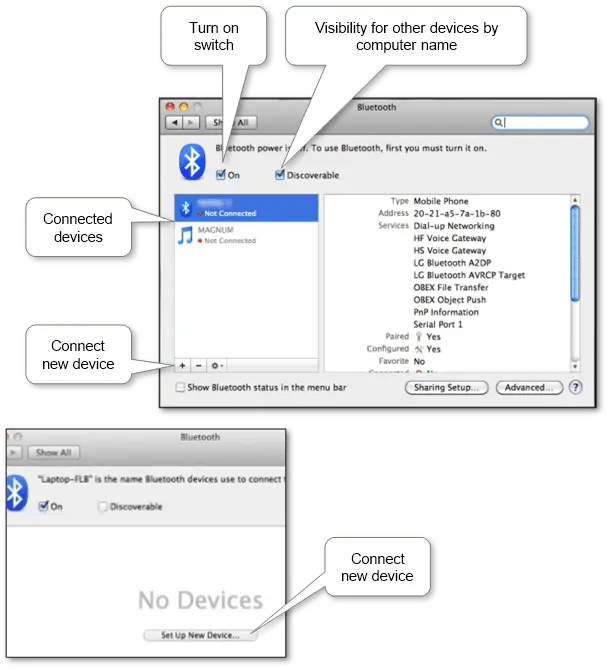
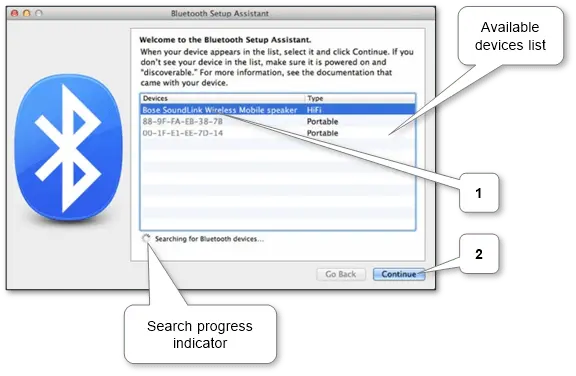
Guarantee that the wi-fi mode is on in “System Preferences\Bluetooth” and launch setup assistant to attach the brand new unit through backside or central button. Allow Bluetooth discovery mode trough test “Discoverable” if we need to be seen by different items.
-
Select the wanted gadget from the listing and proceed.
-
Validate Bluetooth pairing PIN (or enter it if obligatory) to simply accept pairing and end the including course of.
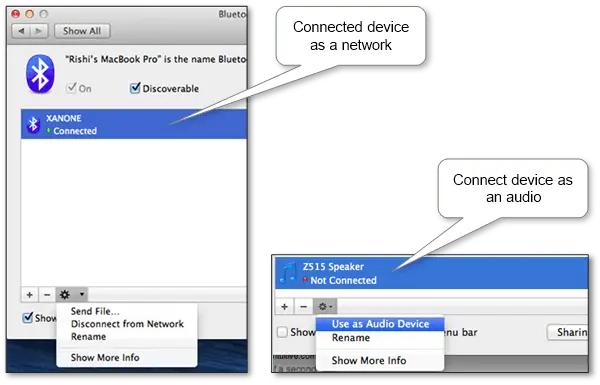
Now the pc and the gadget are paired. And now we should always assign the operate to the second will depend on the aim. If it’s a cell phone we are able to use the device as the Internet connection for the pc by connecting it to a community by the popup menu command. If it’s a speaker system, we should always activate it as an audio gadget through the corresponding command in the identical popup menu. In different circumstances, take a look at applicable instructions on this menu. Additionally, we are able to change the native title of the paired gadget.
Use the underside “Disconnect” menu command to unpair the gadget. After that, we’ll should repeat the pairing course of if you wish to use it once more.
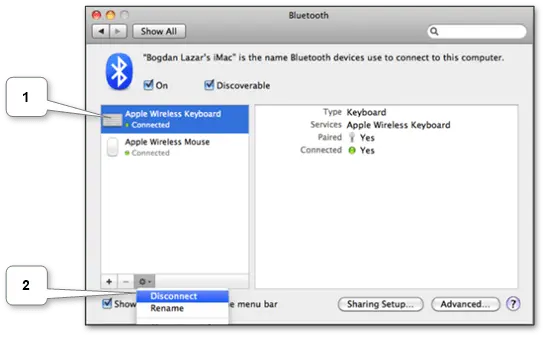
Discover that some gadgets akin to mouse or keyboard would possibly disconnect after a while of inactivity to avoid wasting their battery energy. So, we would have to press any button or management to activate the gadget once more.

