
Table of Contents
How to Connect to Wi-Fi on Mac
Wi-Fi has become one of the most important technologies in modern life.
Today, wireless internet access is available almost everywhere, including:
- Cafes
- Airports
- Hotels
- Shopping centers
- Homes and offices
If you use a :contentReference[oaicite:3]{index=3} MacBook or Mac computer, learning how to connect to Wi-Fi correctly is essential for browsing the internet, streaming content, working remotely, and communicating online.
This beginner-friendly guide explains several easy ways to connect your Mac to wireless networks.
What Is Wi-Fi?
Wi-Fi is a wireless networking technology that allows devices to connect to the internet without cables.
Instead of using Ethernet wires, devices communicate through radio signals using wireless routers or access points.
Common Uses of Wi-Fi
- Internet browsing
- Video streaming
- Online gaming
- Cloud storage access
- Video conferencing
Most modern Mac computers include built-in Wi-Fi adapters.
Why Wi-Fi Is Important on Mac
Wireless networking provides flexibility and mobility for Mac users.
Main Benefits
- No cables required
- Fast internet access
- Easy setup process
- Automatic reconnection
- Portable connectivity
Whether using a MacBook at a coffee shop or working remotely from home, Wi-Fi allows instant internet access almost anywhere.
How to Check if Wi-Fi Is Enabled
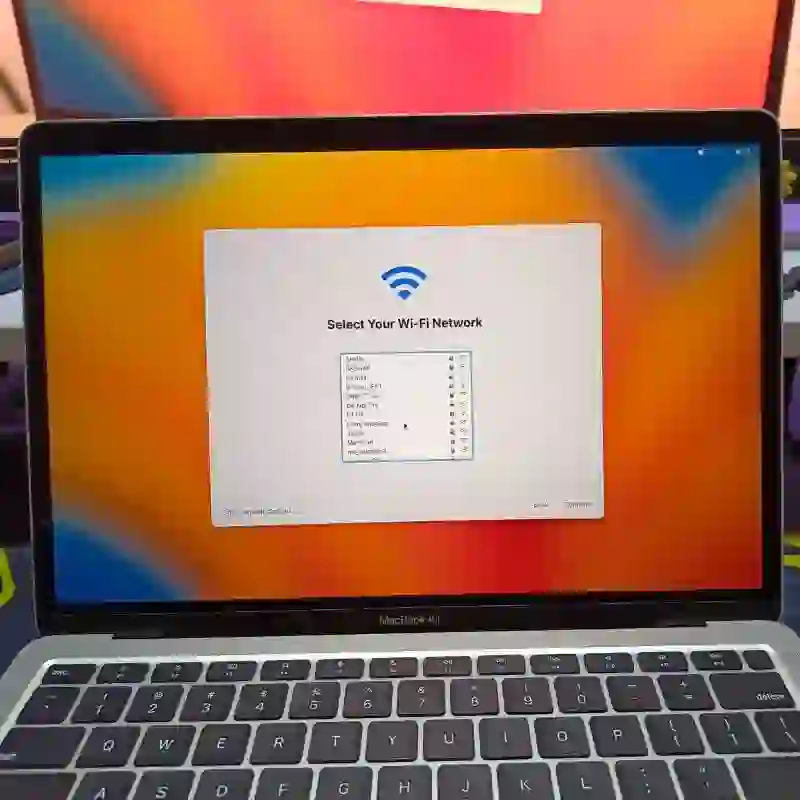
Before connecting to a wireless network, make sure Wi-Fi is enabled on your Mac.
Check Wi-Fi Status
- Look at the top menu bar
- Find the Wi-Fi icon
- Verify that Wi-Fi is turned on
If Wi-Fi is disabled, click the icon and select:
- Turn Wi-Fi On
Once enabled, nearby wireless networks will appear automatically.
Connect Using the Wi-Fi Menu
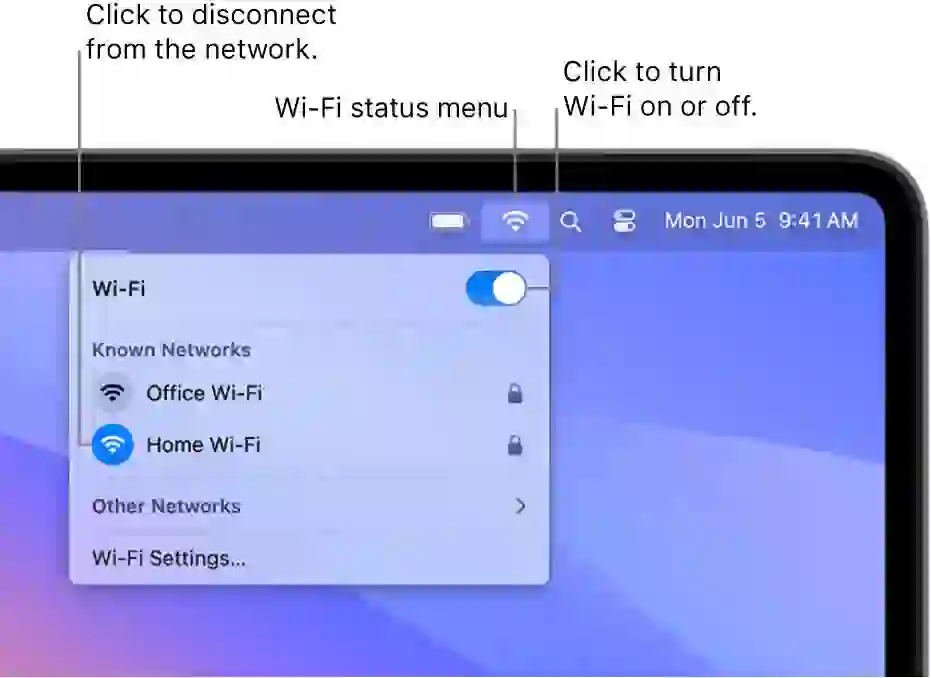
The fastest and easiest method is through the macOS menu bar.
Steps to Connect via Menu
- Click the Wi-Fi icon in the top menu bar
- Select the desired Wi-Fi network name (SSID)
- Enter the Wi-Fi password if required
- Click Join
Your Mac will now connect to the wireless network.
Save the Network Automatically
To reconnect automatically in the future:
- Enable Remember this network
This allows your Mac to connect automatically whenever the network is available.
Connect Using Network Settings
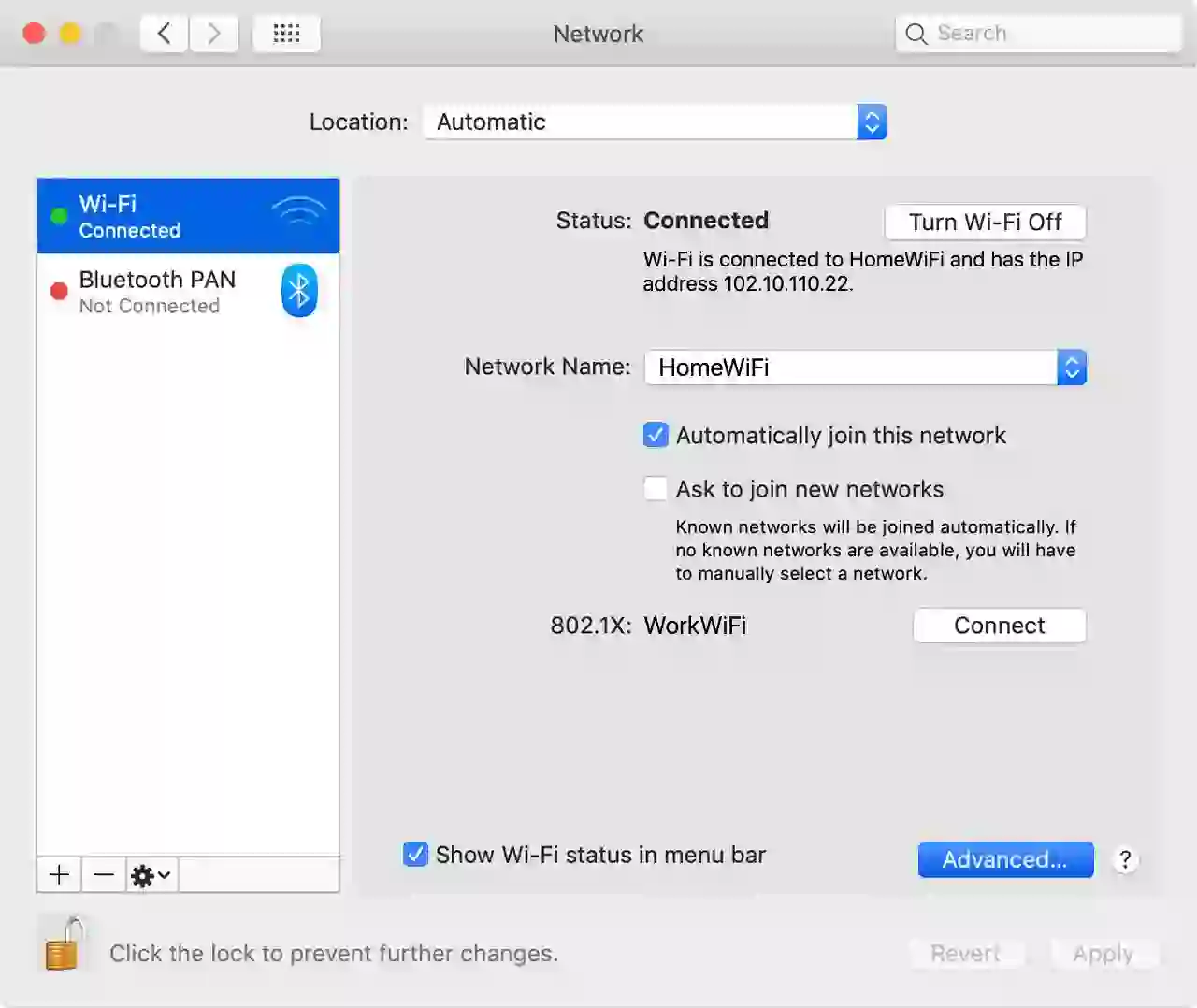
If the Wi-Fi icon does not appear in the menu bar, you can connect through macOS settings.
Steps Using Network Settings
- Open System Settings or System Preferences
- Select Network
- Choose Wi-Fi from the left panel
- Select the network name
- Enter the password
- Click Join
This section also allows you to:
- Enable or disable Wi-Fi
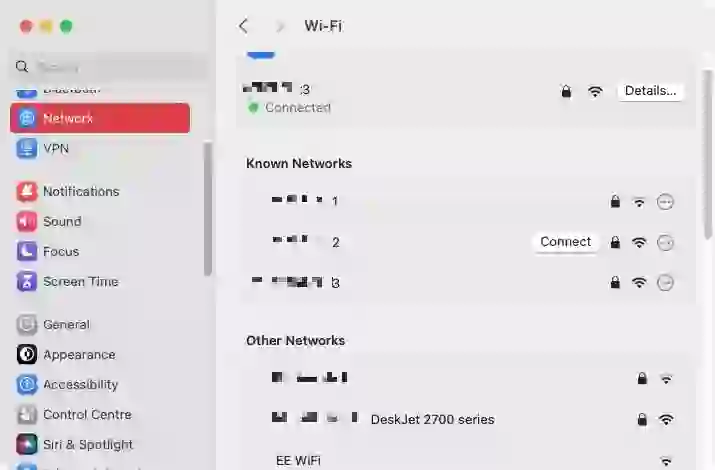
- View saved networks
- Configure advanced settings
How to Save Wi-Fi Networks
macOS can remember previously connected Wi-Fi networks.
Advantages of Saved Networks
- Automatic reconnection
- Faster access
- No repeated password entry
- Convenient for home or office use
Saved Wi-Fi credentials are securely stored within macOS.
Common Wi-Fi Problems on Mac
Occasionally, Mac users may experience wireless connection issues.
Common Problems
- Wi-Fi not showing
- Incorrect password
- Weak signal strength
- Slow internet speeds
- Random disconnections
Possible Solutions
- Restart your Mac
- Restart the router
- Forget and reconnect to the network
- Update macOS
- Move closer to the router
Most wireless issues can be fixed with basic troubleshooting steps.
Wi-Fi Security Tips
Connecting to unsecured wireless networks can expose your data to risks.
Best Security Practices
- Use trusted networks only
- Avoid unknown public hotspots
- Enable strong router passwords
- Use WPA2 or WPA3 encryption
- Keep macOS updated
Secure Wi-Fi usage helps protect personal information and online activity.
Final Thoughts
Connecting a Mac to Wi-Fi is usually quick and simple thanks to the user-friendly design of :contentReference[oaicite:4]{index=4}.
Whether you use:
- MacBook Air
- MacBook Pro
- iMac
- Mac mini
the process is nearly identical across Apple devices.
By understanding how to manage wireless settings and troubleshoot common issues, you can enjoy a faster, more reliable internet experience on your Mac.

Frequently Asked Questions
Why is my Mac not connecting to Wi-Fi?
This may happen because of incorrect passwords, router issues, outdated software, or weak signal strength.
How do I turn on Wi-Fi on Mac?
Click the Wi-Fi icon in the menu bar and select “Turn Wi-Fi On.”
Can my Mac connect automatically to Wi-Fi?
Yes, enable “Remember this network” to reconnect automatically.
What should I do if Wi-Fi keeps disconnecting?
Try restarting the router, updating macOS, or reconnecting to the network.
Does every Mac support Wi-Fi?
Most modern Mac computers include built-in Wi-Fi support.
Helpful Resources:
At the moment, Wi-Fi is a quite common technique of communication. It may be discovered anyplace: cafes, airports, retailers, our properties. In our life we should understand how to hook up with Wi-Fi in your Mac®.
Be aware. First, make it possible for the Wi-Fi is enabled on the laptop computer.
In your Mac, you should use the icon of the Wi-Fi menu to shortly connect with the closest wi-fi community. When you don’t see that the Wi-Fi menu, you possibly can join utilizing the network settings.
By the menu
Click on the Wi-Fi icon within the menu. If Wi-Fi is off, choose “Flip Wi-Fi on”. Then choose from the checklist the identify (SSID) of the Wi-Fi community to which you wish to join.
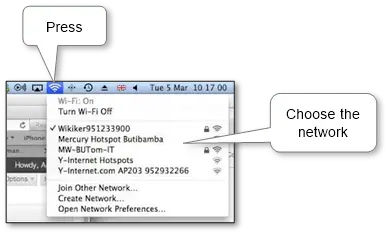
If crucial, enter the password from Wi-Fi and click on “Be part of“.
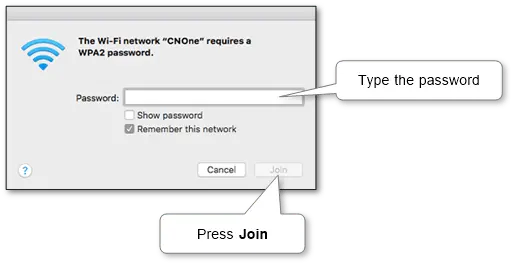
Be aware. Examine the field “Bear in mind this community” if you’d like your Mac pc to hook up with this Wi-Fi community mechanically when the pc is within the visibility vary of it.
By community settings
When you don’t see that within the menu there may be an icon Wi-Fi, you possibly can join utilizing the “Community” panel of system settings.
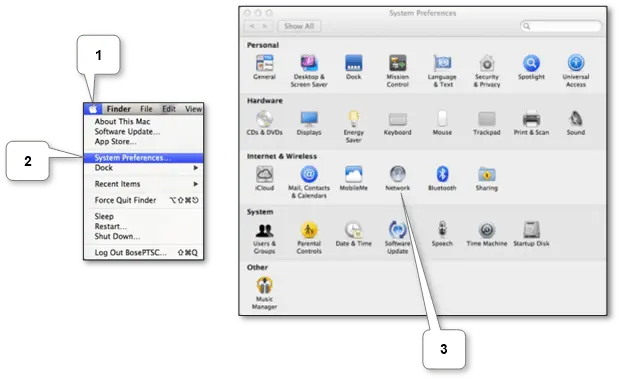
Choose Wi-Fi from the left pane, click on “Community Title” and from the drop-down checklist, choose the identify of the Wi-Fi community to which you wish to join. Additionally, right here you possibly can allow and disable the Wi-Fi menu icon.
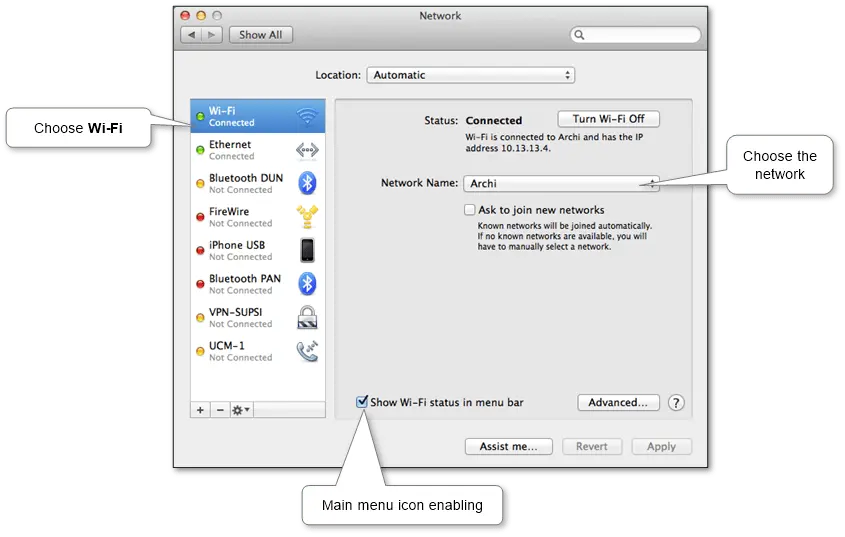
If crucial, enter the password from Wi-Fi and click on “Be part of“.
If one thing is flawed, you possibly can attempt to discover the reply on the official support website of Apple.

