
- Introduction
- Why Internet Connection Matters for Xbox
- Wired vs Wi-Fi Connection
- How to Connect Xbox via Ethernet Cable
- How to Connect Xbox via Wi-Fi
- Troubleshooting Connection Issues
- Tips to Improve Xbox Internet Speed
- Best Accessories for Online Gaming
- FAQ
How to Connect Xbox to the Internet: Complete Beginner-Friendly Guide
Online gaming has become one of the most popular forms of entertainment worldwide. Whether you are playing competitive multiplayer games or exploring open worlds with friends, a stable internet connection is essential for the best Xbox experience.
In this complete guide, you will learn how to connect your Xbox console to the internet using both wired (Ethernet) and wireless (Wi-Fi) methods, along with expert tips to improve performance and fix common issues.
Why Internet Connection Matters for Xbox Gaming
Connecting your Xbox to the internet unlocks a wide range of features, including:
- Online multiplayer gaming with players worldwide
- Access to Xbox Live services
- Downloading games and updates
- Streaming apps like Netflix and YouTube
- Cloud saves and syncing progress
Without a reliable connection, you may experience lag, disconnections, or slow downloads.
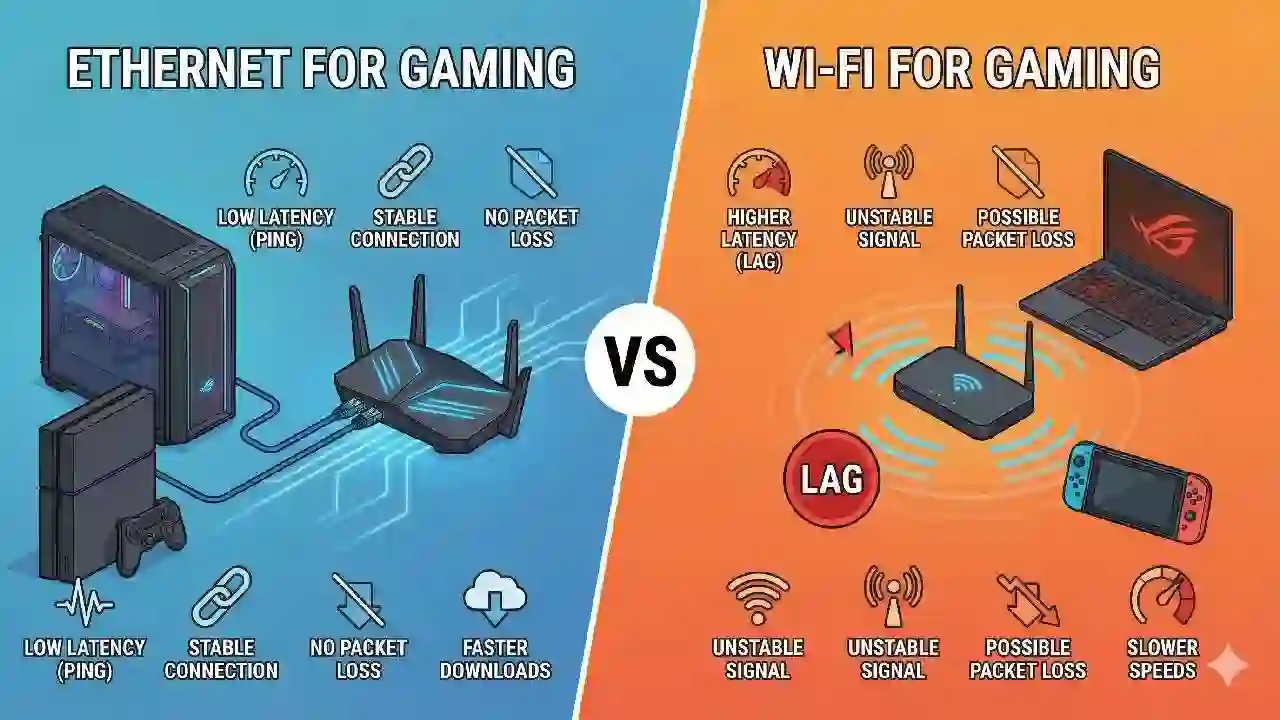
Wired vs Wi-Fi Connection: Which Is Better?
1. Ethernet (Wired Connection)
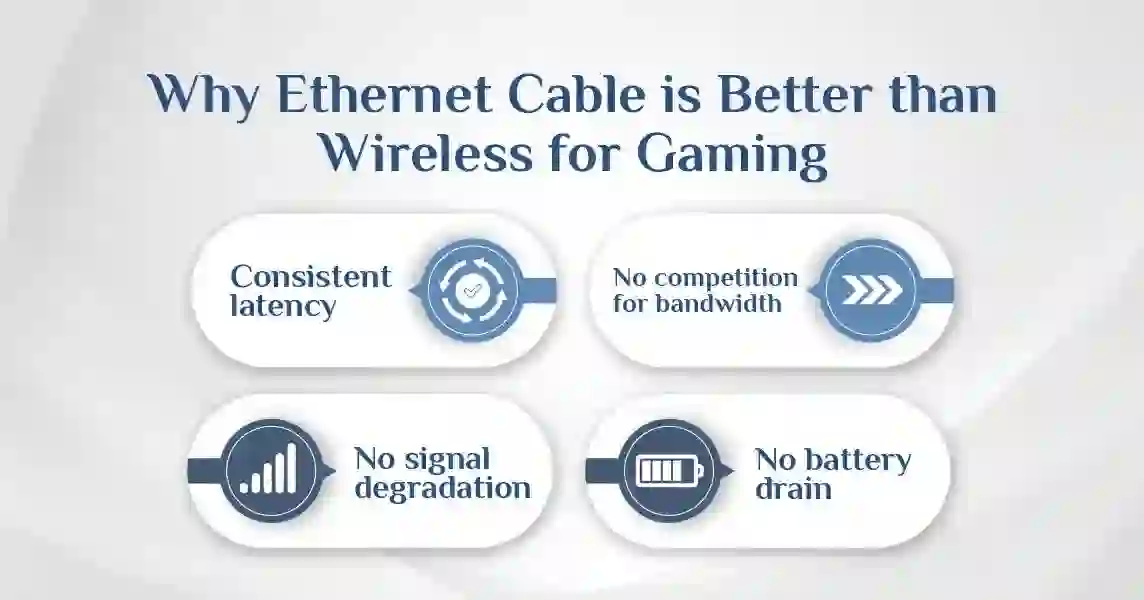
A wired connection is the fastest and most stable way to connect your Xbox to the internet.
- ✔ Faster speeds
- ✔ Lower latency (less lag)
- ✔ No signal interference
- ✔ Ideal for competitive gaming
To learn more, check our guide on google AI overviews Ads.
2. Wi-Fi (Wireless Connection)
Wi-Fi is more convenient but may be less stable depending on signal strength.
- ✔ Easy setup
- ✔ No cables required
- ❌ Possible lag and signal drops
- ❌ Affected by walls and distance
Recommendation: Use Ethernet whenever possible for the best gaming performance.
How to Connect Xbox via Ethernet Cable
Step 1: Check Your Equipment
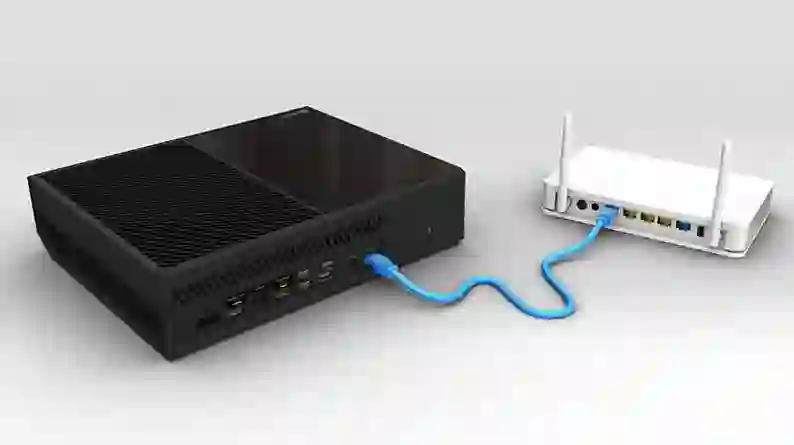
Make sure your modem or router has an available Ethernet port. Most Xbox consoles include an Ethernet port on the back.
Step 2: Plug in the Cable
Connect one end of the Ethernet cable to your router and the other to your Xbox console.
To learn more, check our guide on how to create a website yourself for free.
Step 3: Turn On Your Xbox
Power on your console. The internet connection should be detected automatically.
Step 4: Test Connection
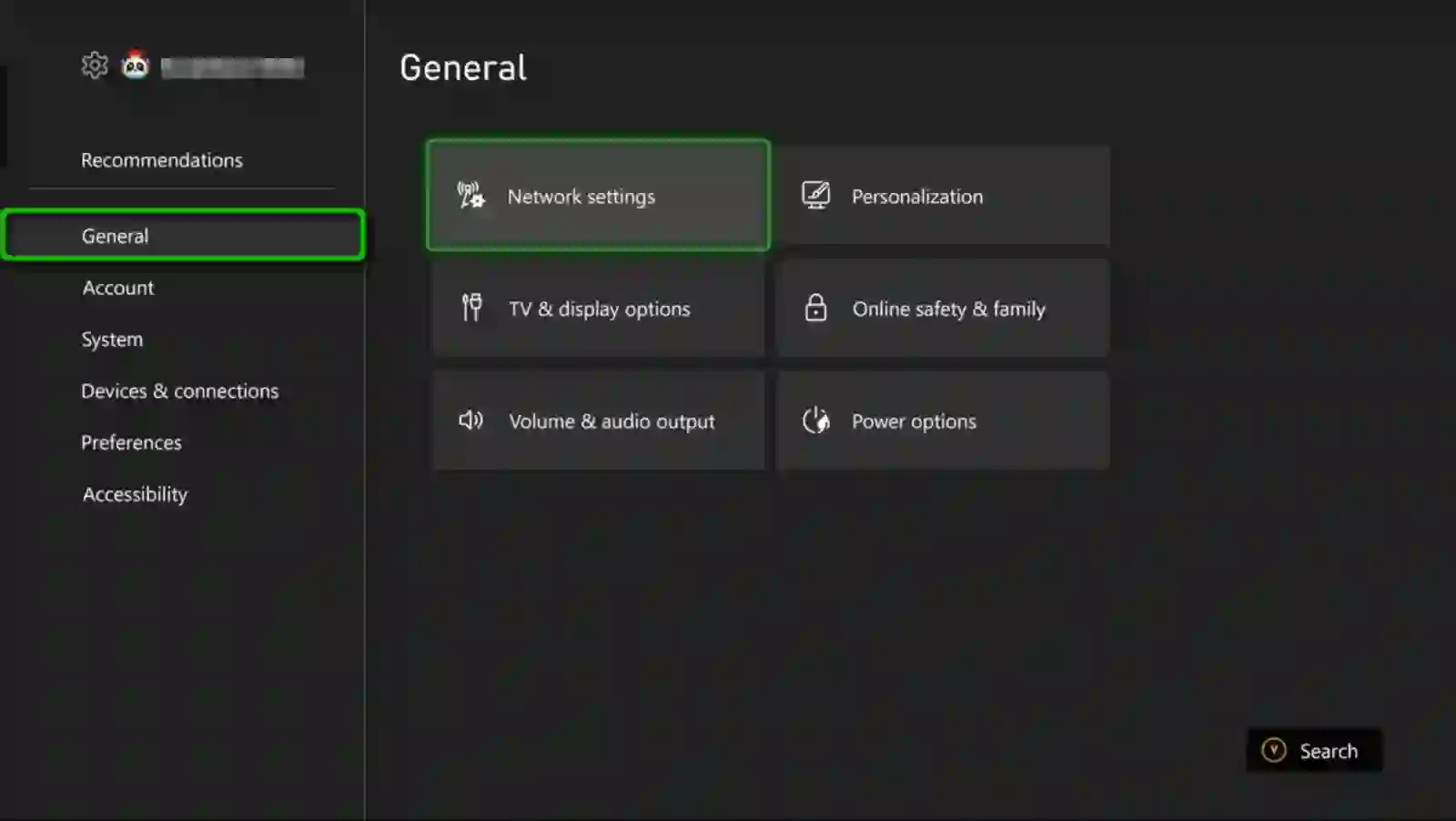
Go to Settings → Network → Network Settings and check the connection status.
That’s it! You are now connected using a stable wired connection.
How to Connect Xbox via Wi-Fi
Step 1: Open Network Settings
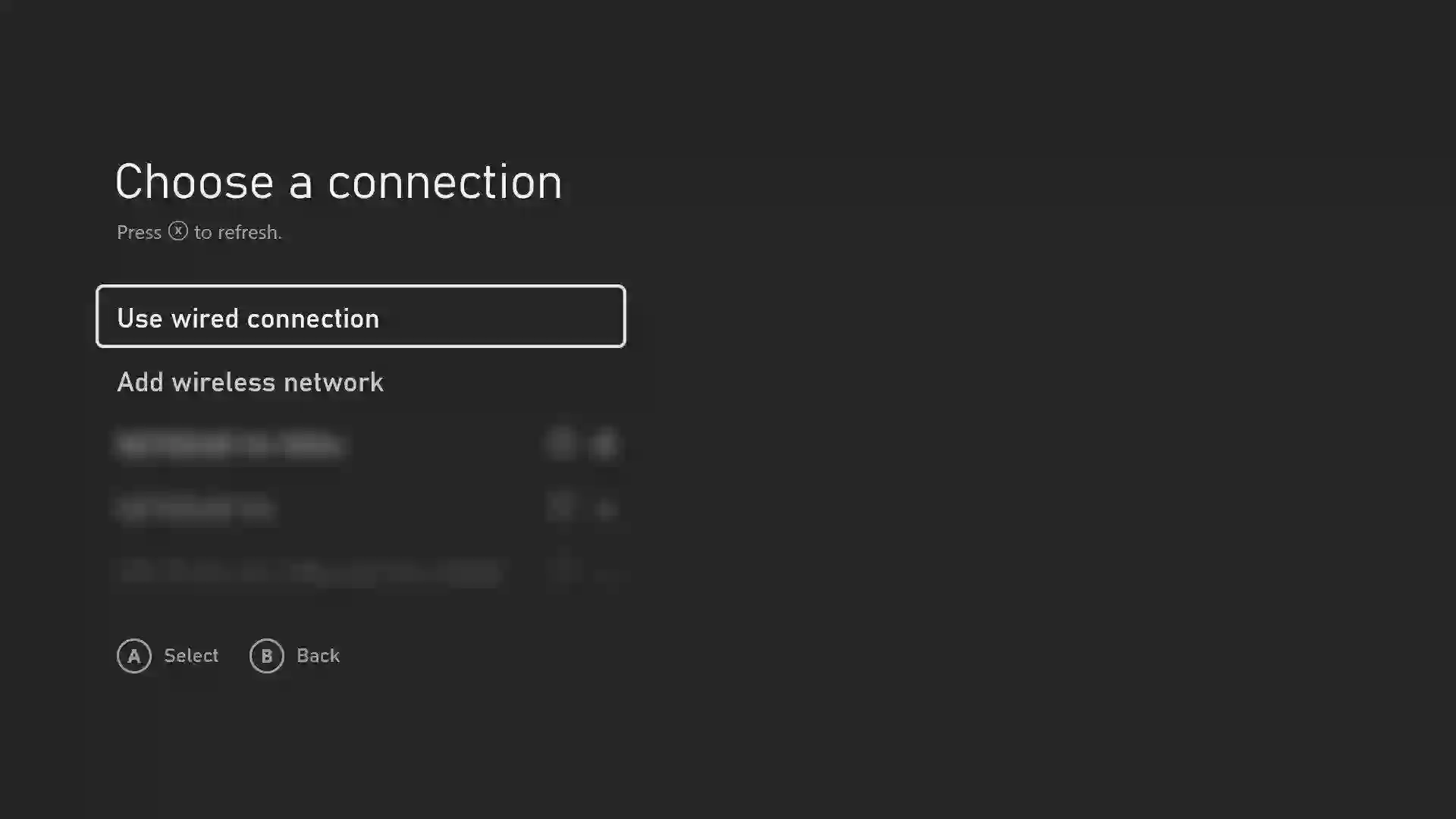
Turn on your Xbox and go to Settings → Network → Set up wireless network.
Step 2: Choose Your Wi-Fi Network
Select your Wi-Fi network from the list of available networks.
Step 3: Enter Password
Type your Wi-Fi password and confirm.
Step 4: Confirm Connection
Your Xbox will connect to the network and display the connection status.
If your console does not have built-in Wi-Fi, you may need an official Xbox wireless adapter.
Troubleshooting Xbox Internet Connection Issues
If your Xbox cannot connect to the internet, try the following solutions:
- Restart your router and modem
- Restart your Xbox console
- Check Wi-Fi password
- Move closer to the router
- Test connection on another device
- Switch between Ethernet and Wi-Fi
If the problem persists, the issue may be with your internet service provider.
To learn more, check our guide on top financial apps for money management.
Tips to Improve Xbox Internet Speed
- Use Ethernet instead of Wi-Fi
- Close background downloads
- Upgrade your internet plan
- Use a gaming router
- Reduce network congestion
These tips can significantly reduce lag and improve your overall gaming experience.
Best Accessories for Online Gaming
Enhance your online gaming setup with the following accessories:
- Gaming headset for voice chat
- Wireless controller for flexibility
- High-speed router for better connectivity
- Ethernet cables for stable connection
Frequently Asked Questions (FAQ)
Can I play Xbox without internet?
Yes, but only offline games will be available. Online features require an internet connection.
Is Ethernet better than Wi-Fi for Xbox?
Yes, Ethernet provides faster speeds and lower latency.
Why is my Xbox internet slow?
This could be due to weak Wi-Fi signal, network congestion, or ISP issues.
Do I need Xbox Live to play online?
Yes, Xbox Live (or Game Pass Core) is required for most online multiplayer games.
How do I test my Xbox connection?
Go to Settings → Network → Network Settings → Test Network Connection.
Right now on-line gaming may be very standard so we should always know the way to connect with Xbox Stay and to the Web. That permits us to play with actual peoples world wide.
To learn more, check our guide on best passive income ideas online.
Guarantee that we have the Web supply to attach with. If we don’t have it we could uncover doable methods keep on-line. There are two following choices to have Xbox the Web connection by way of
- Cable
It’s the quickest and the stablest technique to get the Web. We don’t care about wi-fi sign loss, don’t unfastened FPS and focus our consideration on a recreation. - Wi-Fi
Use this selection if we don’t have any wired hi-speed connection or will probably be not handy. E.g. we’re in a lodge and in a position to join Xbox to lodge Wi-Fi solely. In different instances, we suggest to make use of a wired connection.
Join Xbox by way of cable#
This recreation console helps wired connection solely by Ethernet. The Xbox Ethernet port is situated on the bottom of the sport console. Guarantee that our Web tools (modem or router) helps it too and acceptable connection holes can be found. There additionally could also be an Ethernet jack in a wall. If we don’t have a router we’d plug a cable in laptop computer or PC and share its Web connection with the sport console.
- Plug cable to it and to our Web supply. Brief cable typically included within the set however we’d must receive the longer one.
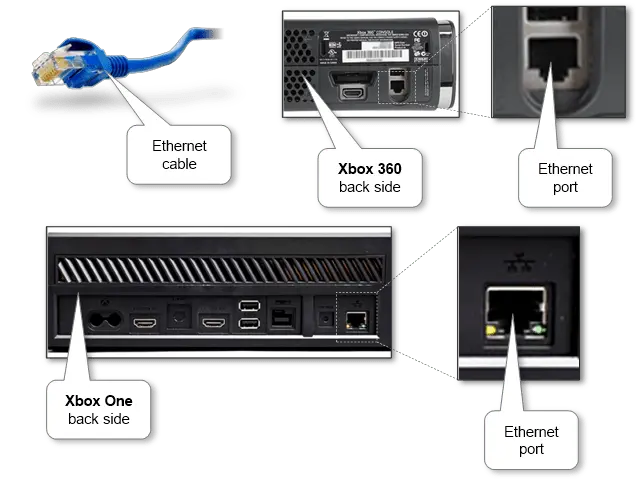
- If the console was turned off simply flip it on and the connection ought to be established.
How you can Join Xbox by way of Wi-Fi
-
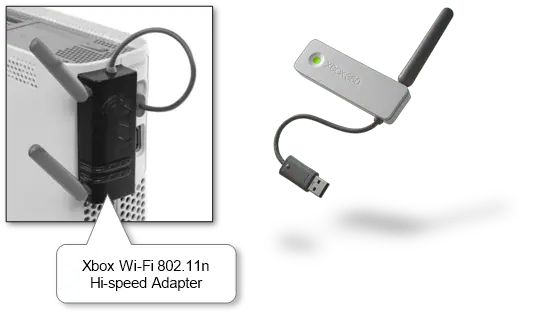
If our Xbox doesn’t have a built-in Wi-Fi adapter we should always use a particular branded Xbox Wi-fi Networking Adapter. Generally utilizing an exterior wi-fi adapter is preferable as a substitute of a built-in adapter as a result of it might enhance our sign power and bandwidth. Different 3rd occasion adapters are incompatible resulting from vendor limitations or price comparable value. However we are able to strive to save cash and use the Wi-Fi router by configuring it as a receiver and plug into the Ethernet port.
-
Plugin the adapter to the USB gap on the bottom of the console and orient the radio antenna(s). Discover that in some instances we might want to set up drivers for adapter utilizing CD that comes with the tools.
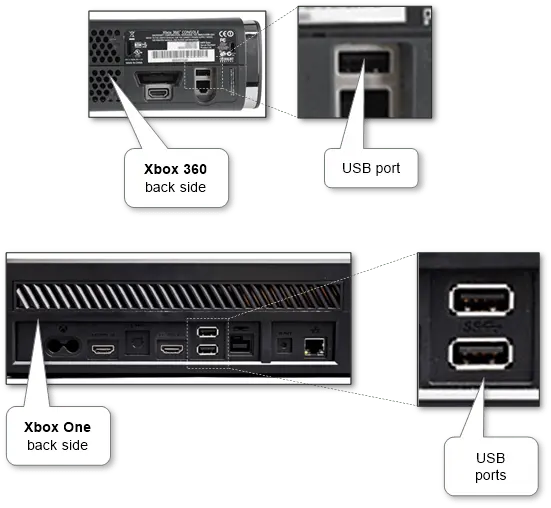
-
Then activate the console if essential, open Settings and start wi-fi community setup. This course of is kind of comparable after we join our pill or cellular to Wi-Fi the place we are able to discover some extra details about connecting to several types of wi-fi networks. Choose the suitable community from the supplied checklist of accessible ones in our location.
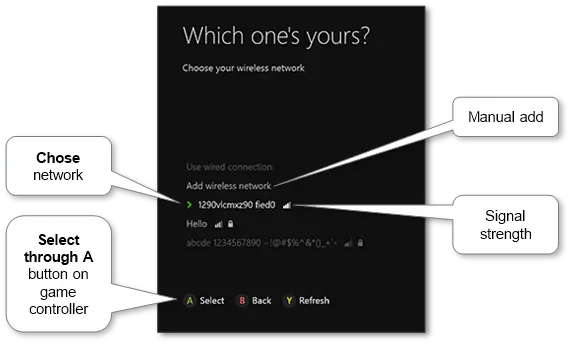
-
Sort the password and choose Enter.
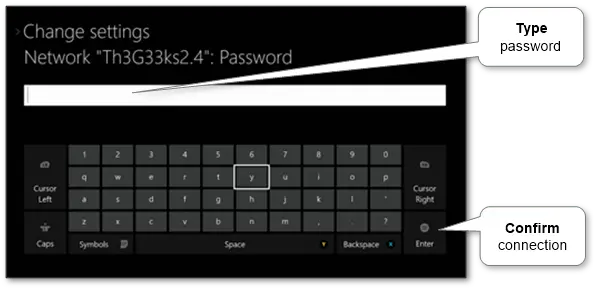
-
The sport console ought to hook up with the community and present the standing. Choose Proceed to return again to the settings.
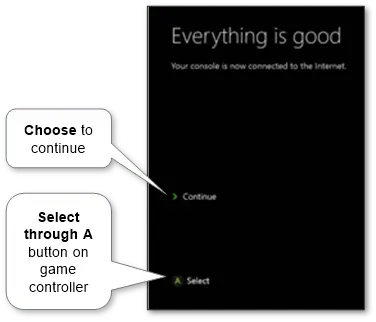
Verify standing
We all the time can verify the standing of the connection. Go to the Settings menu, then select Community menu.
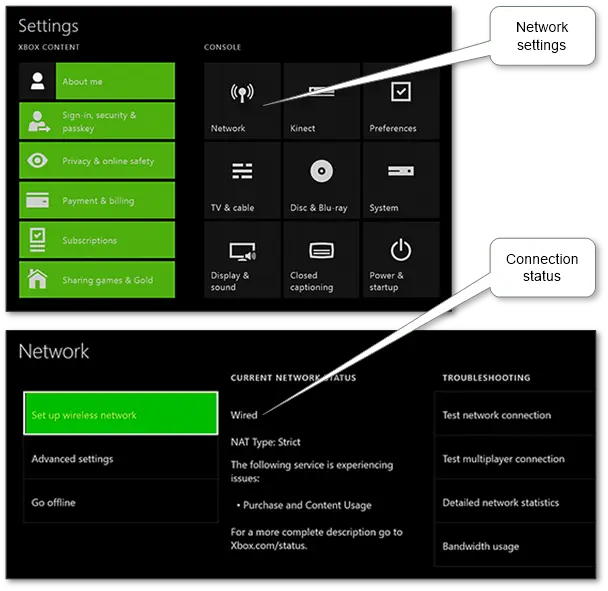
And right here we all the time can swap between several types of connection and setup it’s configuration.
If we do all as described and Xbox nonetheless received’t hook up with the Web, the motive most likely is on the Web tools aspect. We could double-check present Wi-Fi networks by connecting to them from cellular, pill or laptop computer.
It additionally may be very useful to make use of wi-fi devices comparable to Bluetooth headset and recreation controller for Xbox to speak with different gamers and benefit from the recreation.

