Table of Contents
How to Check Your Windows Version
Sometimes it is important to know exactly which version of :contentReference[oaicite:3]{index=3} is installed on your computer, laptop, or tablet.
This information may be required for:
- Installing software
- Checking hardware compatibility
- Updating drivers
- Troubleshooting system problems
- Verifying Microsoft support status
Fortunately, checking your Windows version is quick and easy.
Why You Need to Check Your Windows Version
Different programs and devices may require specific Windows versions to function correctly.
Common Situations
- Installing new applications
- Gaming compatibility checks
- Updating security software
- Installing drivers
- System troubleshooting
Knowing your Windows edition also helps determine whether your system still receives official updates and security support.
What Information Windows Shows
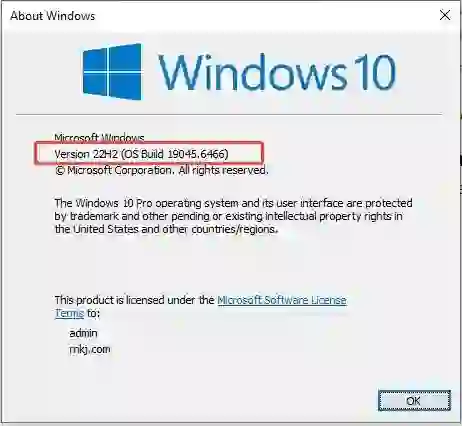
Windows provides several important system details.
Information Available
- Windows edition
- Version number
- Build number
- Operating system name
- Microsoft licensing details
This information helps users identify their exact operating system configuration.
How to Use the Winver Command
The easiest way to check your Windows version is by using the built-in Winver command.
Step-by-Step Instructions
- Press Win + R on your keyboard
- The Run dialog box will appear
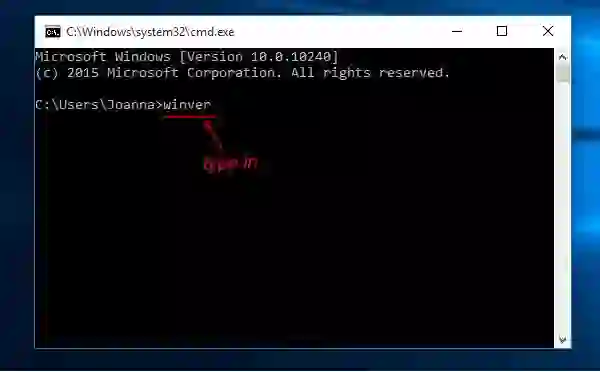
- Type winver
- Press Enter or click OK
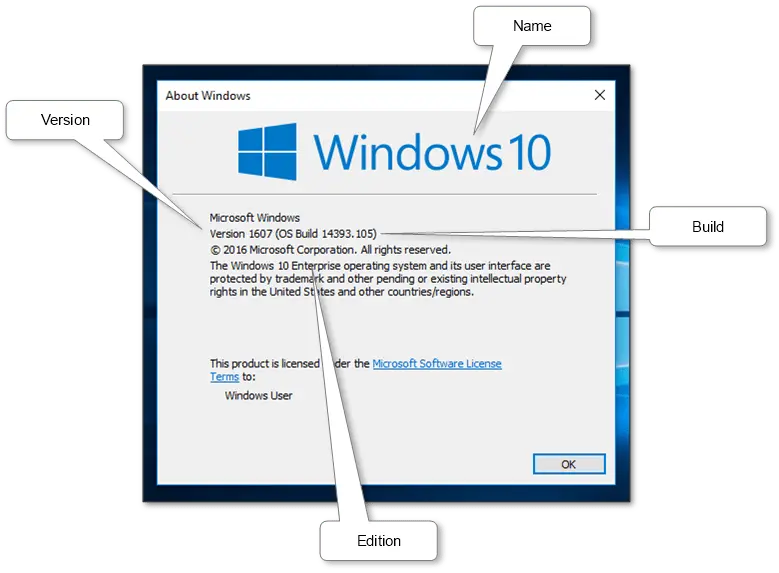
A new window will open showing:
- Windows version
- Edition
- Build number
- Copyright information
This method works on almost all versions of Windows.
Check Windows Version Through Settings
Modern versions of :contentReference[oaicite:4]{index=4} and :contentReference[oaicite:5]{index=5} also provide version information inside system settings.
Steps
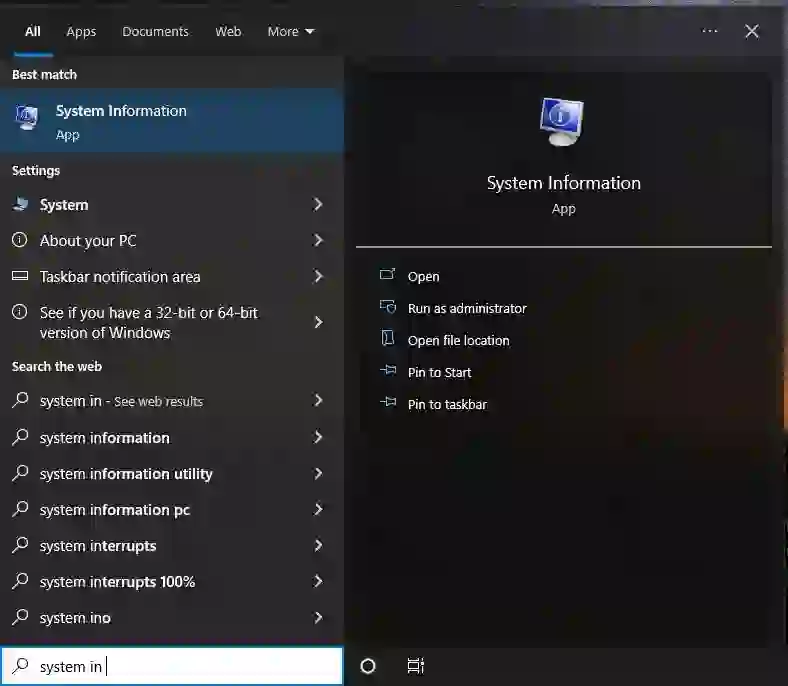
- Open Settings
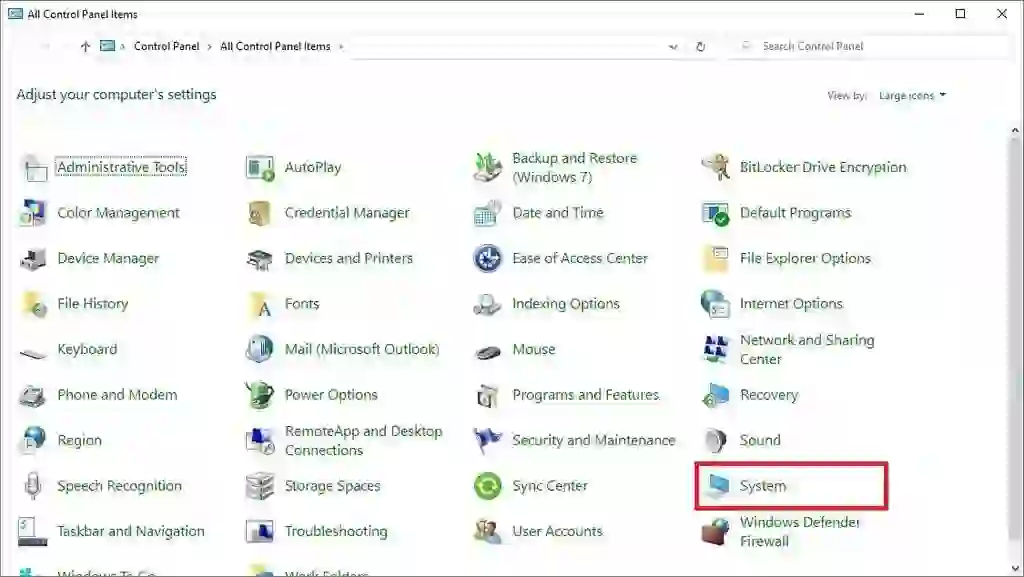
- Select System
- Choose About
There you will find:
- Device specifications
- Windows specifications
- Version and build information
Windows Support Lifecycle
:contentReference[oaicite:6]{index=6} typically supports Windows versions for approximately ten years.
Support Phases
- Mainstream support
- Extended support
After support ends:
- Security updates stop
- Bug fixes are discontinued
- Compatibility problems increase
Example
:contentReference[oaicite:7]{index=7} officially reached end of extended support on January 14, 2020.
Why Updating Windows Matters
Running outdated operating systems can create security and compatibility risks.
Main Reasons to Upgrade
- Improved security
- New features
- Better hardware support
- Software compatibility
- Performance improvements
Modern applications increasingly require newer Windows versions.
Common Compatibility Problems
Older versions of Windows may experience issues with:
- Modern web browsers
- New games
- Drivers
- Security software
- Updated applications
Checking your Windows version is often the first troubleshooting step.
Windows Security Tips
Maintaining an updated operating system is one of the most important security practices.
Best Practices
- Install Windows updates regularly
- Use antivirus protection
- Enable Windows Firewall
- Keep drivers updated
- Upgrade unsupported systems
Older unsupported systems are more vulnerable to malware and cyberattacks.
Final Thoughts
Checking your Windows version is a quick and useful process that helps with:
- Software installation
- Hardware compatibility
- Security updates
- Troubleshooting
The Winver command remains one of the simplest ways to identify your exact Windows edition and build number.
Whether you use:
- :contentReference[oaicite:8]{index=8}
- :contentReference[oaicite:9]{index=9}
- :contentReference[oaicite:10]{index=10}
- :contentReference[oaicite:11]{index=11}
this method works across nearly all Microsoft operating systems.
Frequently Asked Questions
How do I open the Winver command?
Press Win + R, type “winver,” and press Enter.
What does the Windows build number mean?
The build number identifies the exact Windows release and update version installed on your computer.
Can outdated Windows versions still be used?
Yes, but unsupported versions no longer receive important security updates.
Why is my software not compatible with Windows?
Some applications require newer Windows versions or updated system components.
Does Windows automatically update version information?
Yes, Windows updates may change the version and build number automatically.
Helpful Resources:
Generally it’s good to discover out which model of Home windows put in on a pc, laptop computer or pill. For instance, some applications and laptop {hardware} will solely work with a selected model of Home windows®.
You might also want to seek out out if it’s time to improve. Microsoft often helps every model of its working system for about ten years, and for instance, “extended Support” for Windows 7 ends January 14, 2020.
It is vitally simple to do. The tactic is appropriate for all variations.
-
Press Win + R. The next window will open (see picture beneath).
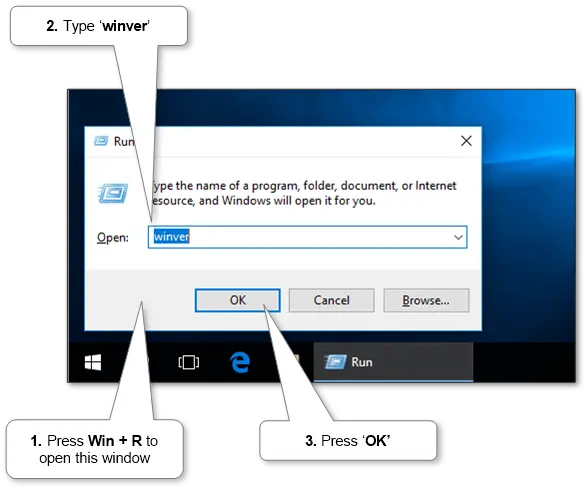
- Sort ‘winver‘ within the subject and click on ‘OK’ or press Enter.
-
A window will open with details about the title, model, version and construct (see picture beneath).