Table of Contents
- What Is Bluetooth Technology?
- How Bluetooth Pairing Works
- How to Connect a Bluetooth Keyboard
- How to Connect a Bluetooth Mouse
- How to Connect a Bluetooth Headset
- How to Pair Bluetooth Headphones
- How to Connect a Phone to Car Bluetooth
- How to Pair Bluetooth Devices with Xbox
- Common Bluetooth Troubleshooting Tips
- Frequently Asked Questions
Bluetooth technology has become one of the most common wireless communication standards used in modern devices. From smartphones and laptops to cars, headphones, gaming consoles, and smart home accessories, Bluetooth allows devices to connect without cables.
Wireless connectivity offers convenience, flexibility, and portability for everyday tasks. Whether you want to connect a wireless keyboard to your tablet, pair Bluetooth headphones with your phone, or link your smartphone to your car’s multimedia system, understanding the Bluetooth pairing process is essential.
In this complete guide, you will learn how Bluetooth works and how to connect different Bluetooth devices step by step.
What Is Bluetooth Technology?
Bluetooth is a short-range wireless communication technology designed to exchange data between devices over radio frequencies.
It eliminates the need for physical cables while allowing secure communication between compatible devices.
To learn more, check our guide on top financial apps for money management.
Common Uses of Bluetooth
- Connecting wireless headphones
- Using Bluetooth keyboards and mice
- Pairing smartphones with cars
- Connecting gaming controllers
- Wireless file transfers
- Using smartwatches and fitness trackers
- Wireless audio streaming
Most modern smartphones, tablets, laptops, gaming consoles, and cars support Bluetooth connectivity.
How Bluetooth Pairing Works
Bluetooth pairing is the process of establishing a trusted wireless connection between two devices.
Basic Bluetooth Pairing Steps
- Enable Bluetooth on the first device
- Put the device into pairing mode
- Enable Bluetooth on the second device
- Search for available devices
- Select the desired device
- Confirm the connection or enter a passkey if required
Once paired successfully, devices usually reconnect automatically whenever Bluetooth is enabled and both devices are within range.
How to Connect a Bluetooth Keyboard
Bluetooth keyboards are extremely useful for tablets, smartphones, smart TVs, and home theater PCs.
They improve typing speed and productivity while eliminating cable clutter.
To learn more, check our guide on how to connect Xbox to the internet.
Steps to Pair a Bluetooth Keyboard
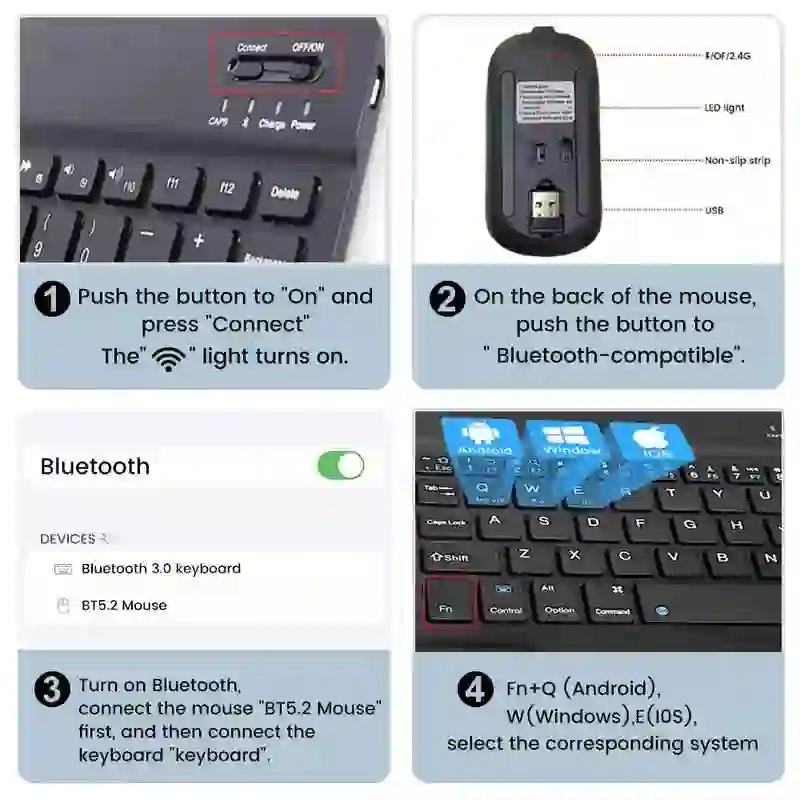
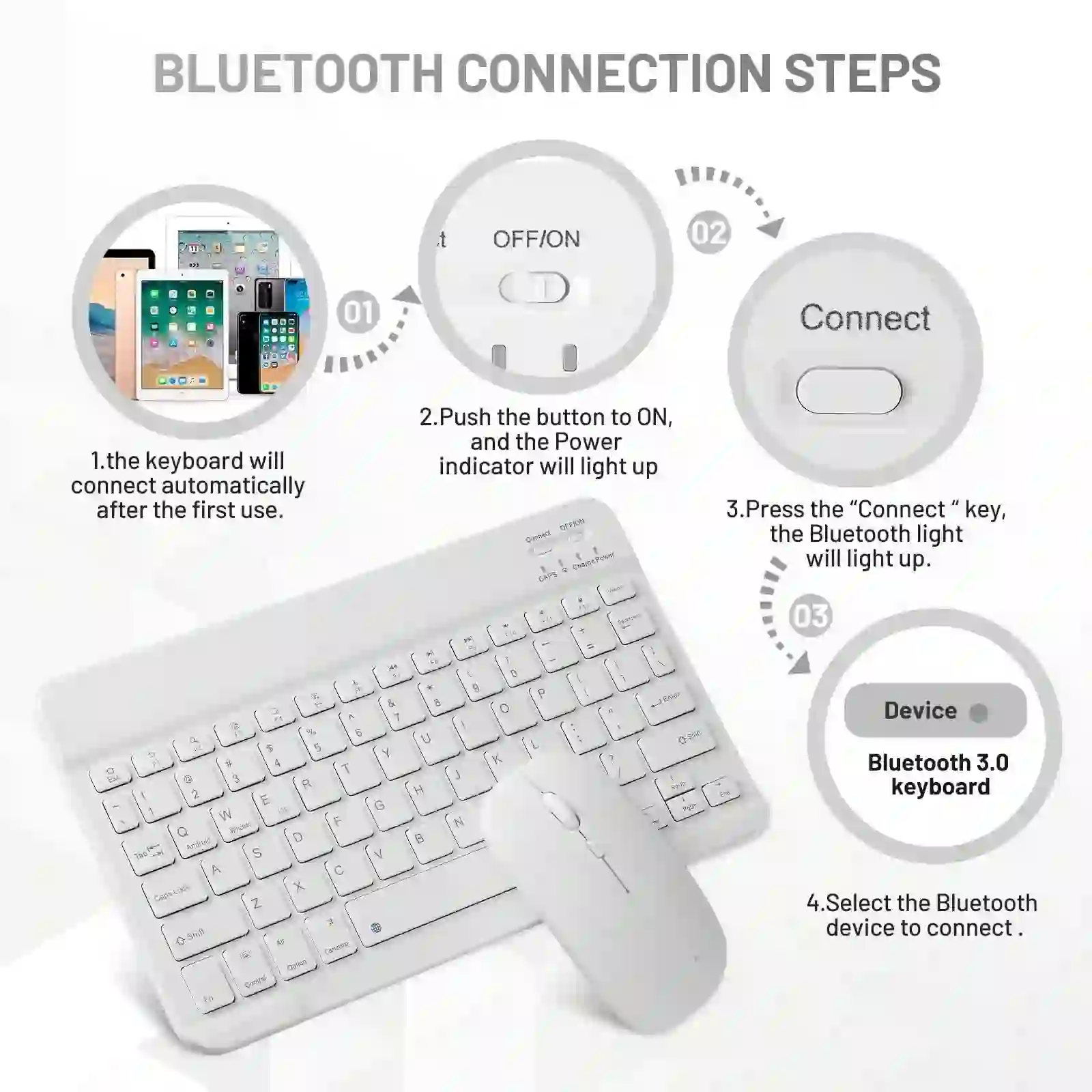
- Turn on the keyboard
- Press the Bluetooth or Connect button
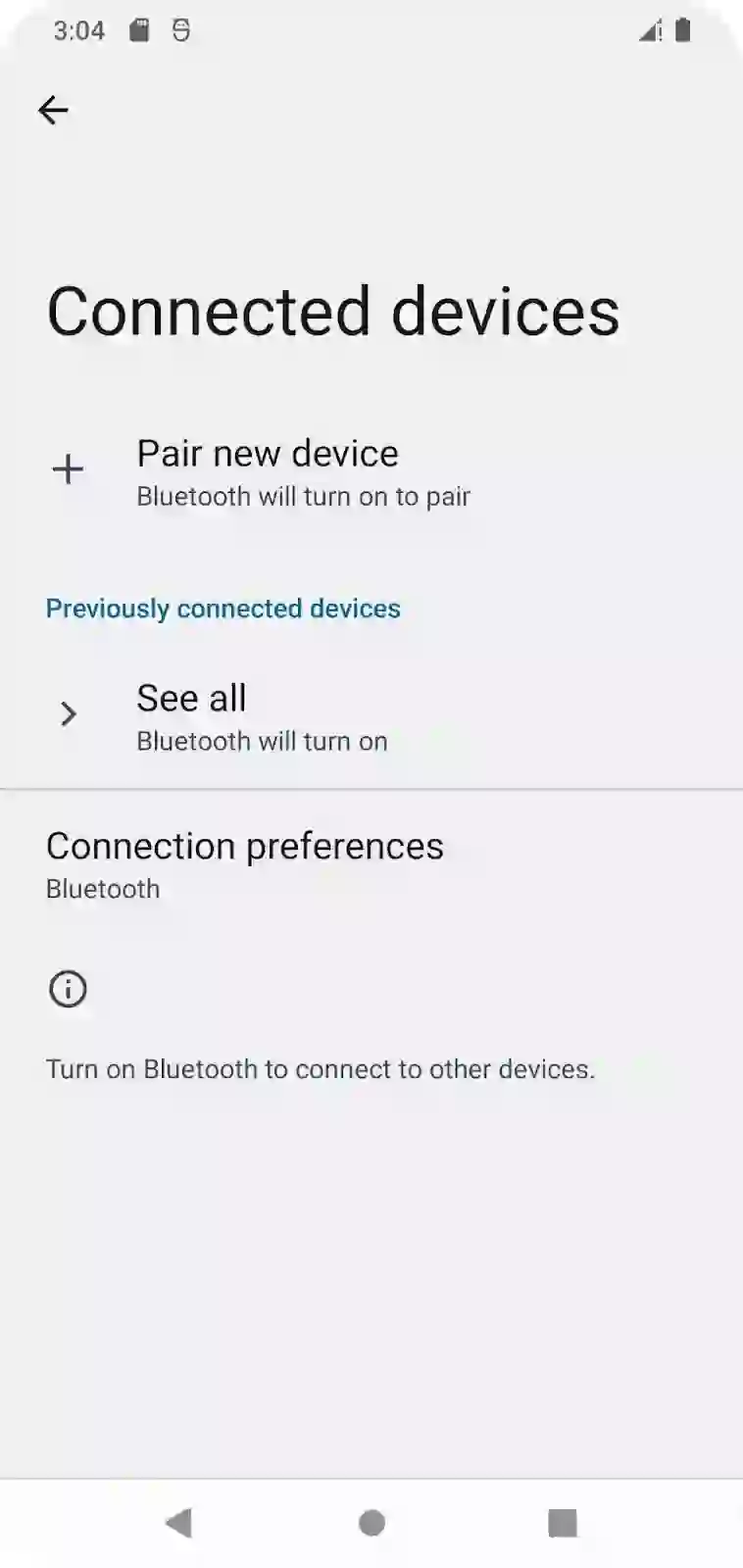
- Enable Bluetooth on your phone, tablet, or computer
- Search for available Bluetooth devices
- Select the keyboard from the device list
- Enter the displayed pairing code using the keyboard
- Press Enter to complete pairing
If the keyboard fails to connect, check the battery level or recharge the device.
How to Connect a Bluetooth Mouse
Bluetooth mice are popular accessories for laptops and desktop setups.
Some models include USB adapters for devices that do not support Bluetooth natively.
How to Pair a Bluetooth Mouse
- Turn on the mouse
- Press the pairing button on the bottom
- Enable Bluetooth on the target device
- Search for the mouse in available devices
- Select the mouse and connect
- Enter the pairing code if requested
Most Bluetooth mice use standard passcodes such as:
- 0000
- 1234
- 9999
Low battery levels may prevent successful pairing.
How to Connect a Bluetooth Headset
Bluetooth headsets are commonly used for hands-free phone calls, remote work, and mobile communication.
They provide convenience by allowing users to answer calls without holding their phones.
Steps to Connect a Bluetooth Headset
- Turn on the headset
- Press and hold the multifunction button
- Wait for the pairing light to flash
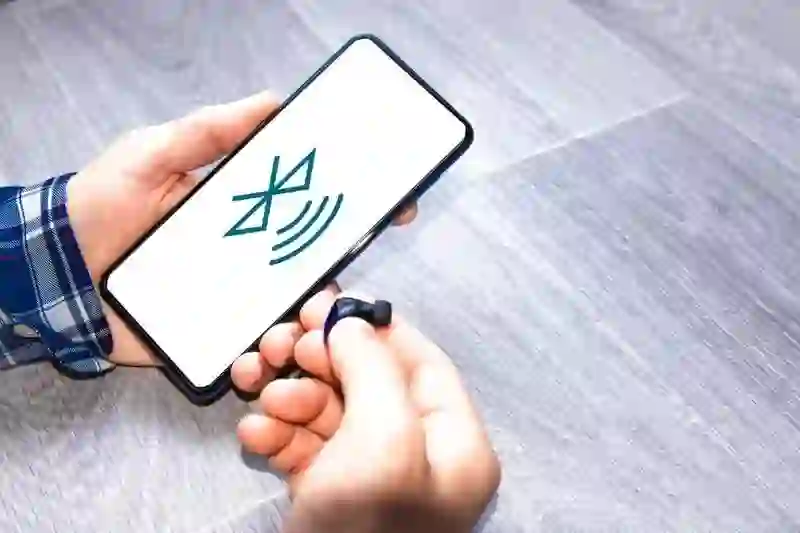
- Enable Bluetooth on your smartphone or computer
- Select the headset from the device list
- Enter the pairing code if required
To learn more, check our guide on grand egyptian museum (GEM).
Many Bluetooth headsets use default pairing codes such as 0000 or 1234.
Once connected, you can make calls, listen to audio, and use voice assistants wirelessly.
How to Pair Bluetooth Headphones
Wireless headphones provide freedom of movement while listening to music, podcasts, or videos.
Most Bluetooth headphones follow a simple pairing process.
How to Pair Bluetooth Headphones
- Turn on the headphones
- Activate pairing mode
- Enable Bluetooth on your smartphone, tablet, or PC
- Select the headphones from available devices
- Confirm the pairing request
If your headphones do not appear during scanning, hold the power button longer to activate pairing mode manually.
How to Connect a Phone to Car Bluetooth
Modern vehicles support Bluetooth connectivity for hands-free calling, music streaming, and navigation audio.
Using Bluetooth in cars improves driving safety and convenience.
Steps to Connect Your Phone to a Car
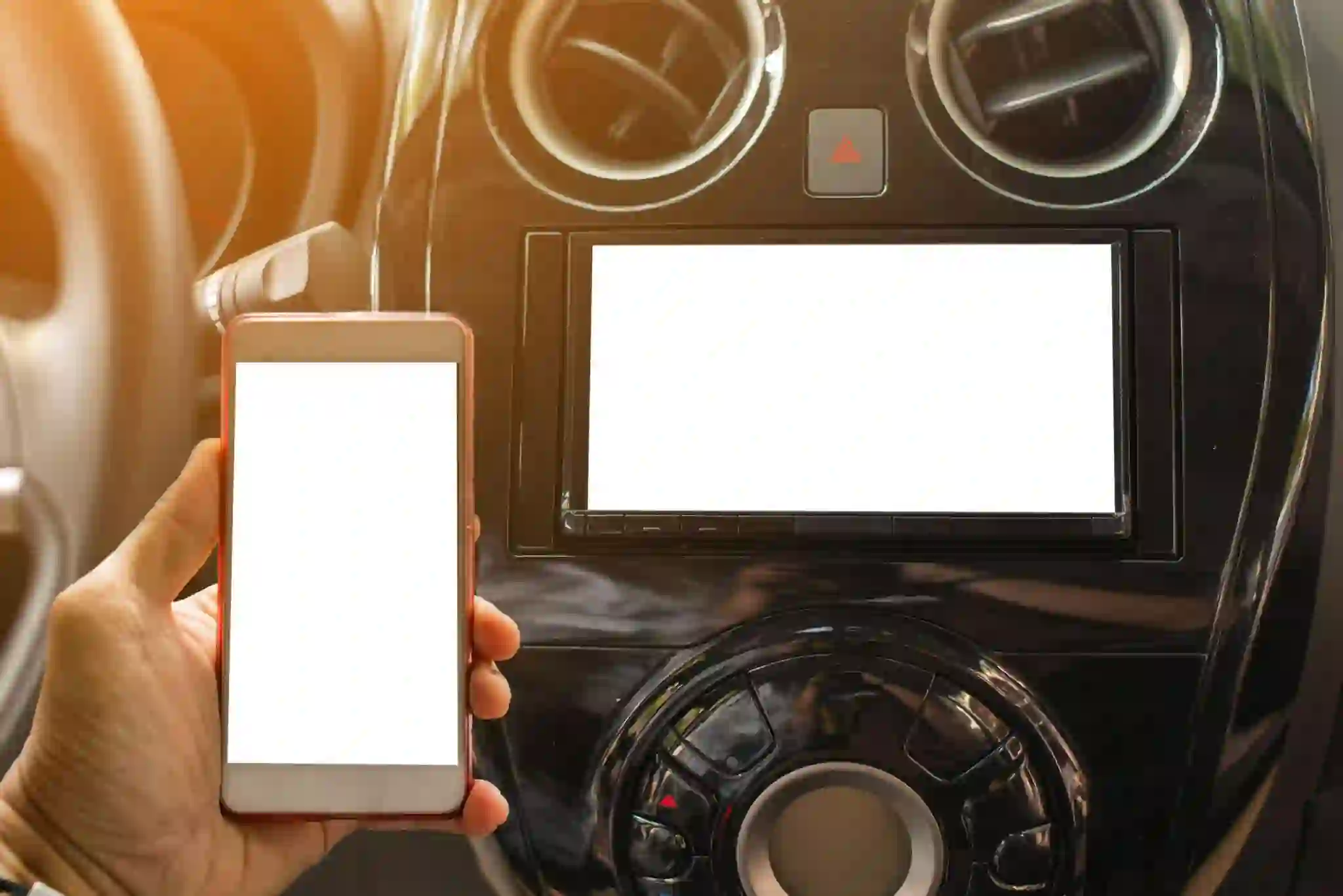
- Open the car’s phone or Bluetooth menu
- Select “Add New Device”
- Enable Bluetooth on your smartphone
- Select your car from the Bluetooth device list
- Confirm or enter the displayed passcode
To learn more, check our guide on Best Camera Phones in 2025.
After successful pairing, your car system may display:
- Battery status
- Signal strength
- Call information
- Music playback controls
Some vehicles use default Bluetooth PIN codes such as 1234.
How to Pair Bluetooth Devices with Xbox
Xbox consoles support wireless accessories including controllers and headsets.
Bluetooth connectivity improves gaming convenience while reducing cable clutter.
How to Connect Bluetooth Devices to Xbox
- Turn on the Bluetooth device
- Power on the Xbox console
- Press the Pair button on the Xbox
- Press the Pair button on the controller or headset
- Wait for the devices to connect automatically
Xbox supports multiple wireless devices simultaneously.
However, there may be limits on the number of connected controllers or headsets.
To learn more, check our guide on best passive income ideas online.
Common Bluetooth Troubleshooting Tips
Restart Both Devices
Restarting devices often resolves temporary pairing issues.
Check Battery Levels
Low battery power can interrupt Bluetooth connectivity.
Remove Old Pairings
Deleting unused paired devices can improve connection reliability.
Update Device Software
Firmware and operating system updates often improve Bluetooth compatibility.
Stay Within Range
Bluetooth typically works best within 10 meters (33 feet).
Final Thoughts
Bluetooth technology has transformed the way modern devices communicate wirelessly. From smartphones and cars to gaming consoles and accessories, Bluetooth provides a simple and convenient way to connect devices without cables.
Understanding the pairing process helps users troubleshoot connection issues and maximize compatibility across multiple devices.
Whether you are connecting headphones, keyboards, gaming controllers, or automotive systems, following the proper setup steps ensures a smooth and reliable wireless experience.
Frequently Asked Questions
What is Bluetooth used for?
Bluetooth is used for wireless communication between devices such as phones, headphones, cars, keyboards, and gaming consoles.
Why won’t my Bluetooth device connect?
Possible causes include low battery, disabled pairing mode, software issues, or distance limitations.
What is a Bluetooth pairing code?
A pairing code is a security PIN used to authorize Bluetooth connections between devices.
Can Bluetooth devices reconnect automatically?
Yes, most paired devices reconnect automatically when Bluetooth is enabled and devices are nearby.
How far does Bluetooth work?
Most Bluetooth devices work reliably within approximately 10 meters or 33 feet.Right now this expertise is a contemporary frequent wi-fi normal. What’s Bluetooth used for? It is perhaps used after we wish to join a cell phone to our automotive, to be part of a headset to our telephone, to use a wi-fi keyboard and mouse, to use our telephone as a modem, to join telephone to telephone, and so forth. Typically, it permits us to attach various kinds of gadgets with none cables.
So we should always know the rules of arrange Bluetooth with completely different items. The principle steps are as follows
- Activate the Bluetooth mode and begin ready for the connection within the first unit.
- In the meantime, select the primary unit within the second system for making the connection.
- If wanted enter supplied Bluetooth passkey for authorization and make sure the connection.
Additional on there isn’t any want to attach them once more as they often keep mechanically related in shut vary of one another and turned on Bluetooth.
Disconnect the paired items in case no want.
Discover directions beneath pair completely different finish items equivalent to
- Keyboard
- Mouse
- Headset
- Headphones
- Automotive
- Xbox
Pair up Keyboard
A wi-fi keyboard may be very helpful with a cell phone or pill for typing numerous messages or texts. Additionally, such keyboard works effectively with a desktop that’s used as a house theater.
- Test that the keyboard is switched on.
-
Discover and press Join button on the keyboard. If it isn’t discovered on the entrance facet look on the again one.
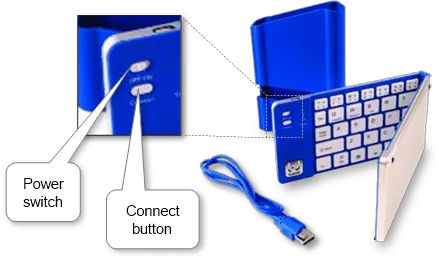
- Launch Bluetooth looking out on the opposite unit, select the keyboard and begin connecting. Listed here are detailed directions of join with Android, iPad and iPhone, Home windows Cellphone, Mac and Home windows.
- Sort the Bluetooth passkey on the keyboard proven on the opposite unit, press Enter key and end pairing if wanted.
Discover in case of the keyboard battery is low the connection may not be established. Then substitute it or cost the battery whether it is in-build.
To learn more, check our guide on how to start investing for beginners.
Pair up Mouse
A wi-fi cellular mouse is a really helpful laptop computer device. Additionally, it really works effectively along with a desktop that’s used as a house theater.
Discover when our second system doesn’t help this wi-fi expertise (e.g. desktop PC) or we don’t wish to use the built-in one we will use a small USB adapter included in some mouse fashions’ units. It mechanically pairs the connection.
- Swap on the mouse.
-
Discover and press the mouse Join button on the bottom.
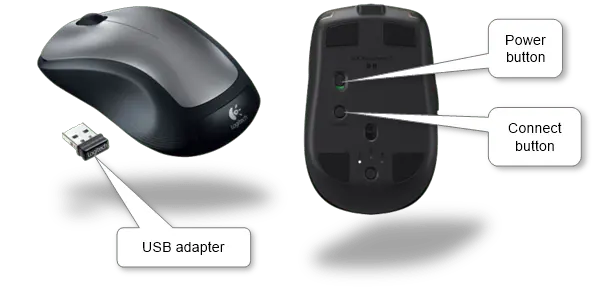
- Launch looking out on the second unit, select the mouse and begin connecting. There are Bluetooth pairing directions for Android telephones, iPad and iPhone mobiles, Home windows Telephones, Maс computer systems, and Home windows PCs.
- Sort the Bluetooth passkey on the second system and end connecting if required. The passkey could also be discovered within the mouse Consumer Guide. Typically, it’s a 4-digit code equivalent to 0000, 0001, 1234, 9999, and so forth.
Discover that if mouse battery is low the connection may not be established.
How one can join Bluetooth headset in 4 steps
A wi-fi headset is the most well-liked Bluetooth system for cellular. It’s rapidly changing into a brand new development for each enterprise and shopper communication. Retaining the telephone in our pocket whereas receiving calls by way of urgent the headset button may be very helpful.
Discover when our second unit doesn’t help this wi-fi expertise (e.g. desktop PC) or we don’t wish to use the built-in one we will use USB adapter included in some headset fashions’ set. It mechanically pairs the connection.
-
If the headset has a sliding change button, flip it ON. Swap OFF the headset by way of the facility button in different circumstances.
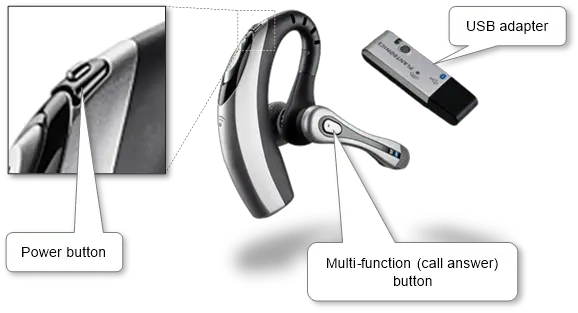
- Discover, press and maintain the headset multi-function (name reply) button till the sunshine begins flushing.
- Set up Bluetooth looking out on the second unit, select the headset and begin connecting. Listed here are manuals of arrange Bluetooth for mobiles equivalent to Android, iPad and iPhone, Home windows Cellphone and for Mac and Home windows computer systems.
- Sort the pairing code and end it on the second unit if required. It might be discovered within the headset Consumer Guide. Typically, it’s a digital code equivalent to 0000, 0001, 1234, 9999, and so forth.
Now we will make and obtain telephone calls. Discover the headset performance virtually relies on different gear software program.
To learn more, check our guide on what Would You Do with a Billion US dollars.
Pairing Bluetooth headphones in 3 steps
It’s nice to make use of headphones with none twine getting in our manner whereas engaged on the pc or resting on the couch and listening to music.
-
Make sure that the headphones are turned ON. Press or change the facility button.
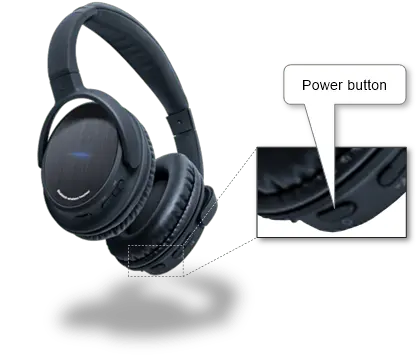
- Set up Bluetooth looking out on the second unit (following the outline for pairing up for mobiles, Mac and Home windows computer systems), select the headset and begin connecting. If we will’t discover the headphones, attempt to press and maintain the headphones energy button and search system once more.
- Sort the Bluetooth passkey on the second unit and end it if required. It might be discovered within the headset Consumer Guide. Typically, it’s a digital code equivalent to 0000, 0001, 1234, 9999, and so forth.
Now we’re prepared to make use of Bluetooth headphones.
How one can setup Bluetooth in our automotive for a cell phone in 3 steps
What’s Bluetooth in a automotive? It’s a capability to make use of devices by way of wi-fi connection and hands-free automotive mode designed particularly for driving. It’s helpful and secure.
Organising Bluetooth in a automotive is just like most automotive fashions.
-
Choose telephone mode in our automotive. Typically, we will press Cellphone button on the steering wheel then select join a brand new telephone.
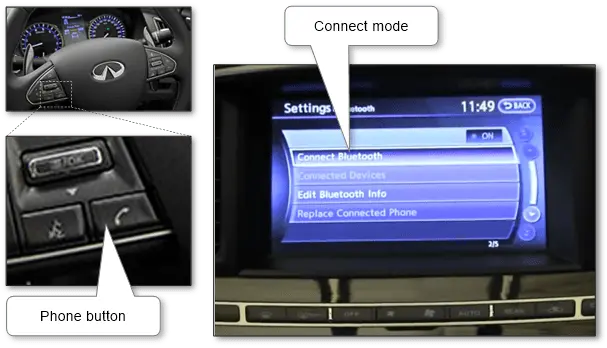
- On our telephone allow Bluetooth (join telephone process is described for Android telephone, iPhone and Home windows Cellphone) and discover and select our automotive within the gadgets listing.
-
Enter the passkey on the cellular that displayed on the automotive console display if required. If the automotive doesn’t present passkey attempt to use generic 1234 code. Or discover it out within the automotive Consumer’s Guide.
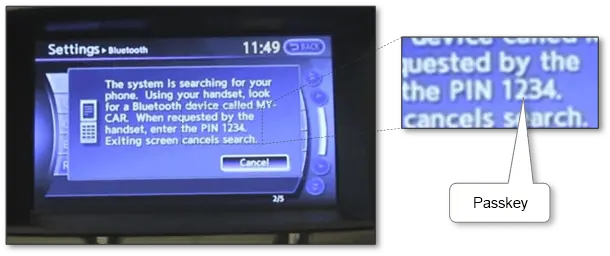
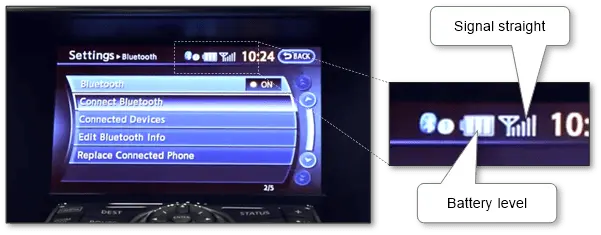
Pairing telephone to the automotive can be completed, the connection must be established and the automotive multimedia system ought to show battery stage and sign straight.
Pair up devices with Xbox
Wi-fi expertise offers us extra freedom after we are taking part in. Furthermore, a wi-fi connection is safer than wires inflicting an accident.
We solely can join Xbox appropriate devices equivalent to handset, sport controller, and so forth. We’d should get a software program replace to help this gear. The best option to get the replace is thru Xbox Reside. Guarantee that there’s the Web connection on Xbox.
There can be no want to make use of Bluetooth pairing code due to the next simplified connection process
- Ensure that that the wi-fi gadget is sufficient charged.
-
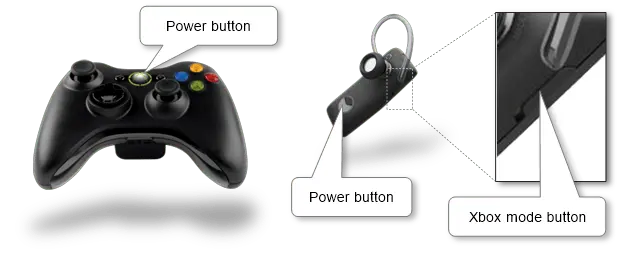
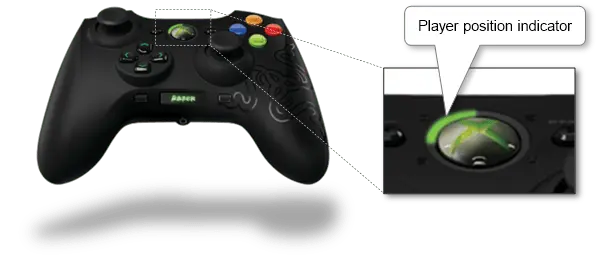
Activate the gadget by urgent and holding the facility button (“Information” button on the sport controller) till it activates. Ensure that that the headset is switched on to the Xbox mode if relevant.
-
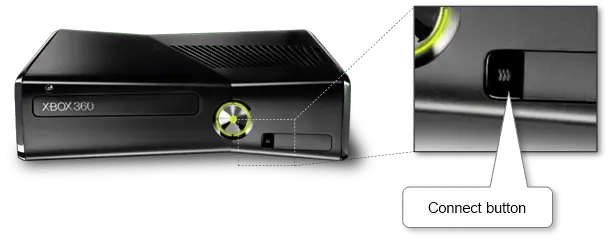
Energy on Xbox whether it is switched off then press and launch the join button on the console.
-
Press and launch the join button inside 20 seconds on the gadget. The Xbox and the gadget begin Bluetooth connecting and the lights across the energy button of Xbox cease flashing as soon as the connection is completed.
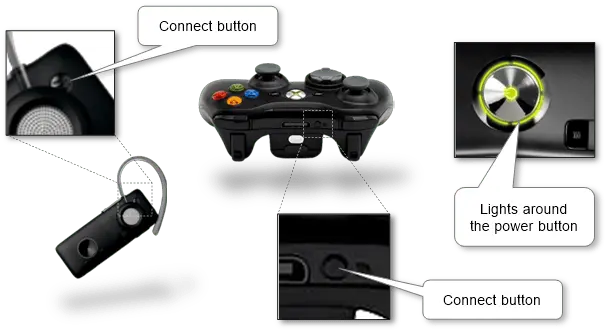
Be aware that we will join no more than 4 sport controllers or headsets. There is perhaps an indicator that exhibits one of many four-player positions. And if a sport controller is assigned to place 1, then the headset can also be assigned to place 1. If one other headset is already assigned to place 1, our headset is assigned to place 2.