Table of Contents
Today, :contentReference[oaicite:3]{index=3} is one of the most widely used communication technologies in the world.
Wireless internet is available almost everywhere, including:
- Cafes
- Airports
- Hotels
- Shopping centers
- Schools
- Homes and offices
However, many users occasionally encounter a situation where Wi-Fi appears disabled on their laptop or computer.
If the wireless adapter is physically turned off, you will not be able to connect to wireless networks through the operating system.
This guide explains all the common ways to turn on Wi-Fi on both Windows and Mac laptops.
What Is Wi-Fi?
:contentReference[oaicite:4]{index=4} allows devices to connect to the internet wirelessly using radio signals.
Instead of cables, Wi-Fi uses wireless routers and access points to provide internet access.
Common Uses of Wi-Fi
- Web browsing
- Streaming videos
- Online gaming
- Remote work
- Cloud services
Modern laptops typically include built-in wireless adapters.
Why Wi-Fi May Be Disabled
There are several reasons why wireless connectivity may stop working.
Common Causes
- Accidental keyboard shortcut press
- Disabled wireless adapter
- Physical Wi-Fi switch turned off
- Airplane mode enabled
- Driver or software issues
Before troubleshooting internet problems, always verify that Wi-Fi is enabled physically and within the operating system.
Turn On Wi-Fi Using Keyboard Shortcuts
Most laptops allow wireless activation using keyboard combinations.
How It Works
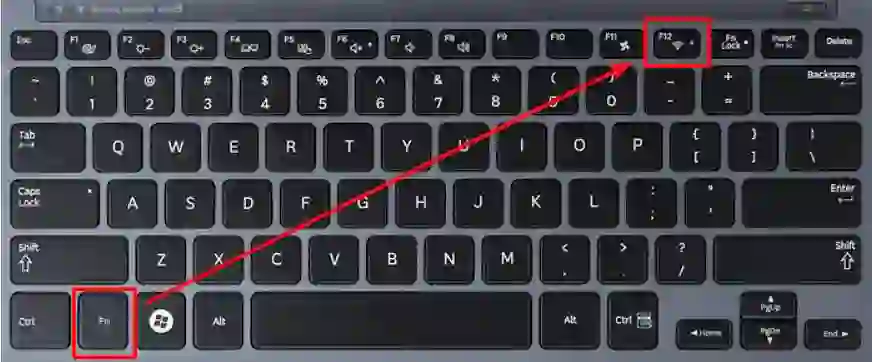
Manufacturers often assign Wi-Fi control to one of the Function (Fn) keys.
Typical Steps
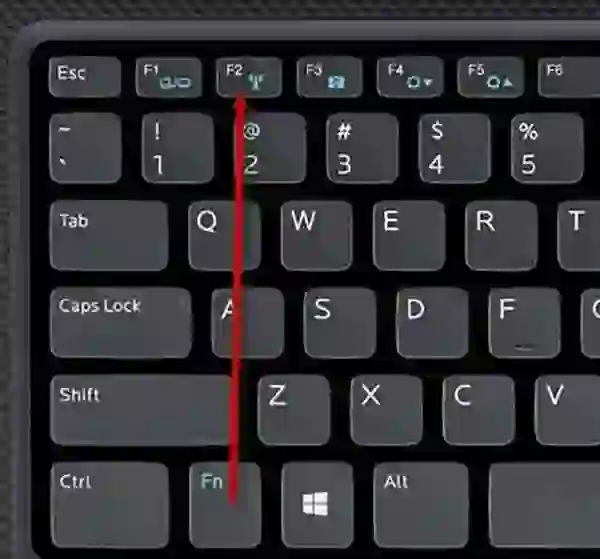
- Locate the Wi-Fi icon on the keyboard
- Hold the Fn key
- Press the corresponding function key
Common keys include:
- F2
- F5
- F7
- F12
The exact key depends on the laptop manufacturer.
Turn Off Wi-Fi
Pressing the same key combination again usually disables wireless connectivity.
Turn On Wi-Fi Using a Hardware Button
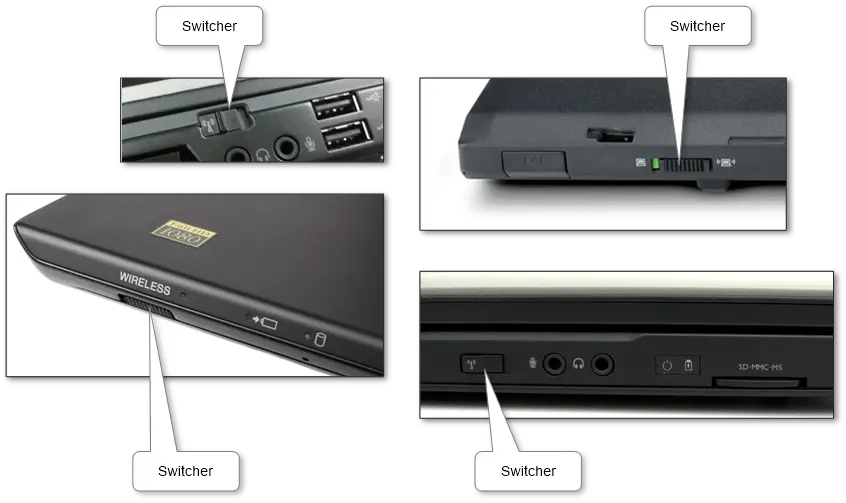
Some laptops include dedicated wireless switches or buttons.
Common Locations
- Laptop sides
- Front edges
- Above the keyboard
These switches physically enable or disable the wireless adapter.
How to Use It
- Locate the Wi-Fi switch
- Move it to the ON position
- Wait a few seconds for activation
Older laptops often rely heavily on hardware switches.
Enable Wi-Fi in Windows
:contentReference[oaicite:5]{index=5} allows enabling wireless networking through system settings.
Enable Wi-Fi Adapter
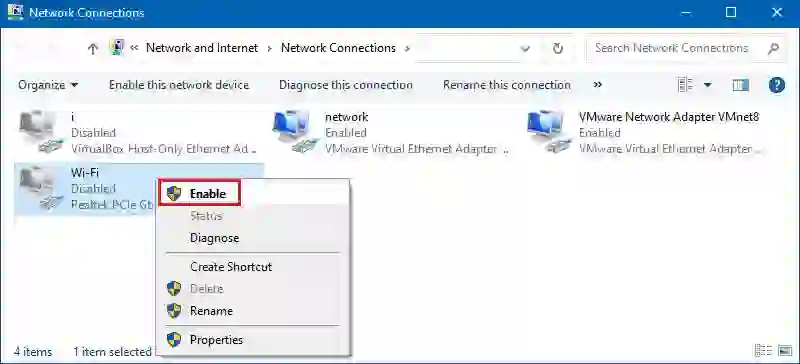
- Open Control Panel
- Go to Network and Sharing Center
- Select Change Adapter Settings
- Right-click the wireless adapter
- Select Enable
If the adapter appears grayed out, it is currently disabled.
Modern Windows Versions
On newer versions such as:
- :contentReference[oaicite:6]{index=6}
- :contentReference[oaicite:7]{index=7}
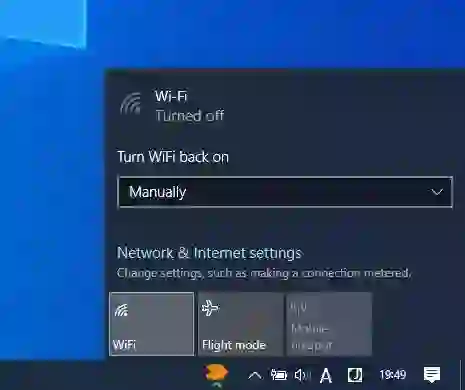
Wi-Fi can also be enabled directly from:
- Quick Settings
- Taskbar network menu
- Settings application
Enable Wi-Fi on Mac
:contentReference[oaicite:8]{index=8} devices provide easy wireless controls.
Steps to Turn On Wi-Fi on Mac
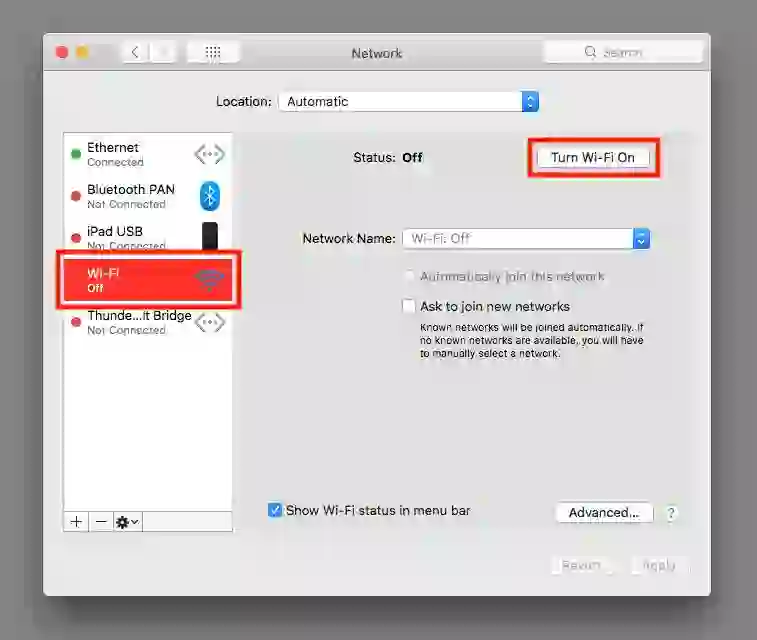
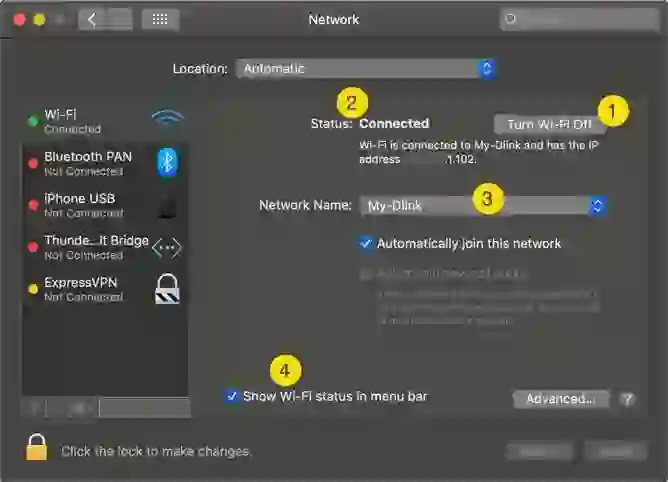
- Click the Wi-Fi icon in the menu bar
- Select Turn Wi-Fi On
You can also enable Wi-Fi through:
- System Settings
- Network
- Wi-Fi
Mac computers generally reconnect automatically to known networks.
Vendor Wi-Fi Software
Some manufacturers include additional wireless management software.
Examples
- :contentReference[oaicite:9]{index=9} laptops
- HP wireless assistants
- Dell connection managers
These tools may appear:
- In the system tray
- As desktop applications
- Inside manufacturer utilities
Sometimes Wi-Fi can only be enabled through these tools.
Common Wi-Fi Problems
Wireless connectivity issues are common but usually easy to solve.
Common Issues
- Wi-Fi icon missing
- No available networks
- Adapter disabled
- Driver problems
- Hardware switch off
Possible Solutions
- Restart the laptop
- Enable the wireless adapter
- Update Wi-Fi drivers
- Disable airplane mode
- Check keyboard shortcuts
Most Wi-Fi issues are related to disabled adapters or outdated drivers.
Wireless Security Tips
Once connected to Wi-Fi, maintaining security is extremely important.
Best Practices
- Use trusted networks
- Avoid suspicious public hotspots
- Use WPA2 or WPA3 encryption
- Keep operating systems updated
- Use strong passwords
Secure wireless usage helps protect personal information and online accounts.
Final Thoughts
Turning on Wi-Fi is usually a quick process once you know where the controls are located.
Whether using:
- :contentReference[oaicite:10]{index=10}
- :contentReference[oaicite:11]{index=11}
most laptops support wireless activation through:
- Keyboard shortcuts
- Hardware switches
- System settings
- Manufacturer utilities
Understanding how to activate and troubleshoot Wi-Fi can save time and quickly restore internet connectivity.
Frequently Asked Questions
Why won’t my laptop connect to Wi-Fi?
The wireless adapter may be disabled physically or within the operating system.
What does the Fn Wi-Fi key do?
It enables or disables the wireless adapter on many laptops.
Can a hardware switch disable Wi-Fi completely?
Yes, many laptops include physical switches that disable the wireless adapter.
How do I enable Wi-Fi on Mac?
Click the Wi-Fi icon in the menu bar and select “Turn Wi-Fi On.”
Why is my Wi-Fi adapter grayed out?
This usually means the adapter is disabled or drivers are missing.
Helpful Resources:
At the moment Wi-Fi is a quite common technique of communication. It may be discovered anyplace: cafes, airports, outlets, our houses. In our lives we should know find out how to activate Wi-Fi.
If the module itself Wi-Fi is turned off bodily, then we will be unable to attach our Home windows or Mac laptop to Wi-Fi by way of the working system interface. Due to this fact, it is very important perceive find out how to allow it.
The gadget’s Wi-Fi could be activated both by a key on the keyboard, or a particular button on the case. Hardly ever there’s particular enabling software program from the vendor of laptops (in our lab we bumped into this on fashions Samsung® – it was a particular icon within the system tray).
Enabling by way of keyboard
Normally that is carried out in particular ‘operate’ keys. Want, maintain down the “Fn” key, press the same operate key with the icon of Wi-Fi.
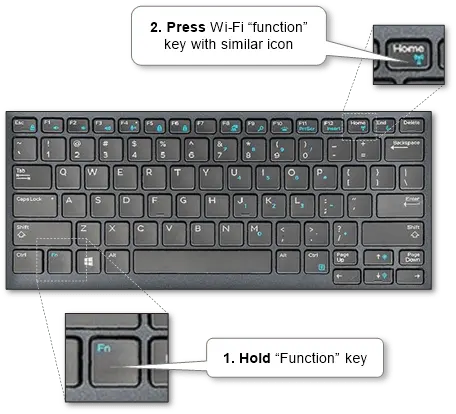
To show off Wi-Fi, it’s essential press this key mixture once more.
Enabling by a particular button on the case
A particular button might look completely different relying on the mannequin. That is often a change. See the examples beneath.