
Table of Contents
- Why Use VPS Hosting for WordPress?
- Advantages of VPS Hosting
- How to Choose a VPS Provider
- Setting Up the VPS Server
- Configuring DNS Settings
- Installing aaPanel
- Configuring the Control Panel
- Setting Up SSL Certificates
- Installing WordPress
- Migrating an Existing WordPress Website
- Using Duplicator and UpdraftPlus
- Important VPS Security Tips
- Frequently Asked Questions
How to Install WordPress on a VPS Server
Using a VPS (Virtual Private Server) for WordPress hosting gives website owners more flexibility, better performance, and complete control compared to traditional shared hosting.
Unlike shared hosting environments where multiple websites compete for the same resources, VPS hosting provides dedicated resources for your website.
This makes VPS hosting ideal for:
- Growing WordPress blogs
- Business websites
- WooCommerce stores
- High-traffic websites
- Developers and agencies
In this complete guide, you will learn how to install and configure WordPress on a VPS server using Ubuntu and aaPanel.
Why Use VPS Hosting for WordPress?
VPS hosting offers a balance between affordability and server performance.
Many VPS providers offer plans starting around $5 per month while providing significantly more power than shared hosting.
Main Benefits of VPS Hosting
- Dedicated resources
- Full server control
- Better security
- Improved website speed
- Scalability for traffic growth
For WordPress users who want maximum flexibility and performance, VPS hosting is often the best long-term solution.
Advantages of VPS Hosting
Performance Improvements
Since VPS resources are isolated, your website performs more consistently even during traffic spikes.
Full Root Access
Unlike shared hosting, VPS servers allow full root access, enabling advanced configuration and optimization.
Custom Software Installation
You can install:
- Custom PHP versions
- NGINX or Apache
- Redis caching
- Advanced firewalls
- Docker containers
How to Choose a VPS Provider
Several VPS providers offer affordable and reliable hosting solutions.
Popular VPS Hosting Providers
- :contentReference[oaicite:5]{index=5}
- :contentReference[oaicite:6]{index=6}
- :contentReference[oaicite:7]{index=7}
- :contentReference[oaicite:8]{index=8}
- Hostens
- Server4You
What to Look For
- SSD storage
- Reliable uptime
- Fast network speed
- Scalable plans
- Good customer support
Ubuntu-based VPS servers are highly recommended for WordPress hosting.
Setting Up the VPS Server
Choose Ubuntu Operating System
When ordering your VPS, select:
- Ubuntu 20.x or newer
Ubuntu provides excellent compatibility with WordPress hosting environments.
Set Root Credentials
During server setup, create:
- Root username
- Strong password
You will need these credentials later for SSH access.
Configuring DNS Settings
After receiving your VPS IP address, configure your domain DNS records.
Typical DNS Setup
- A record → points to VPS IP
- Optional AAAA record → IPv6
- Cloudflare proxy support
Many users use :contentReference[oaicite:9]{index=9} for DNS management and CDN services.
Temporary DNS Testing
Before switching production traffic, you can test the VPS using:
- Hosts file mapping
- Browser DNS override tools
Installing aaPanel
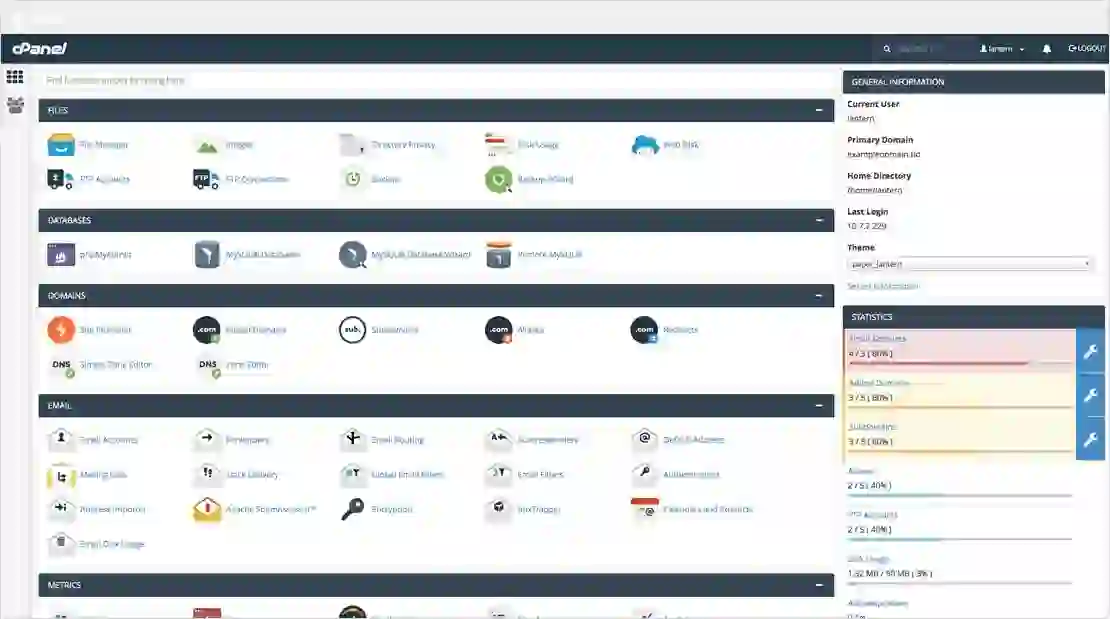
:contentReference[oaicite:10]{index=10} is a free and powerful server control panel.
It simplifies:
- Website management
- Database setup
- SSL installation
- PHP configuration
- File management
Connect to VPS via SSH
Use an SSH client such as:
- Terminal (Mac/Linux)
- PuTTY (Windows)
Install aaPanel
sudo apt-get update && sudo apt-get install wget && sudo wget http://www.aapanel.com/script/install-ubuntu_6.0_en.sh && sudo bash install-ubuntu_6.0_en.sh
During installation:
- Type y to confirm installation
- Type yes to enable SSL
After installation, aaPanel will display:
- Panel URL
- Username
- Password
Configuring the Control Panel
Open the aaPanel URL in your browser and log in using the generated credentials.
Recommended Packages
- NGINX
- MySQL or MariaDB
- PHP
- phpMyAdmin
These packages create a complete WordPress hosting environment.
Recommended Configuration Steps
- Disable insecure PHP functions
- Enable SSL for phpMyAdmin
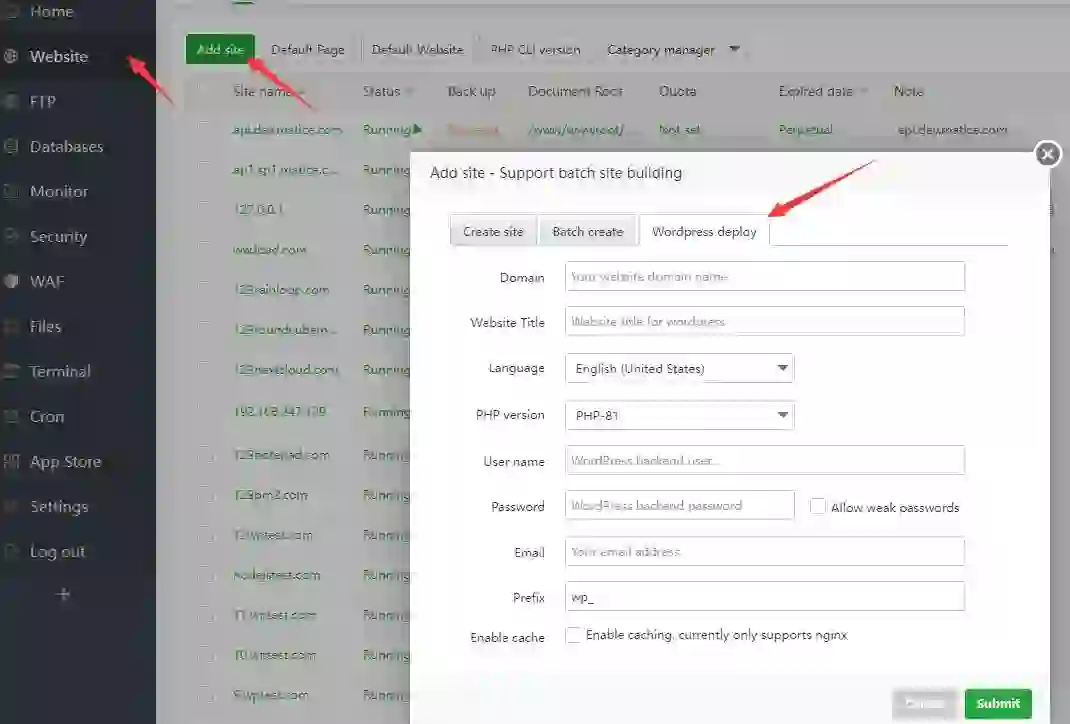
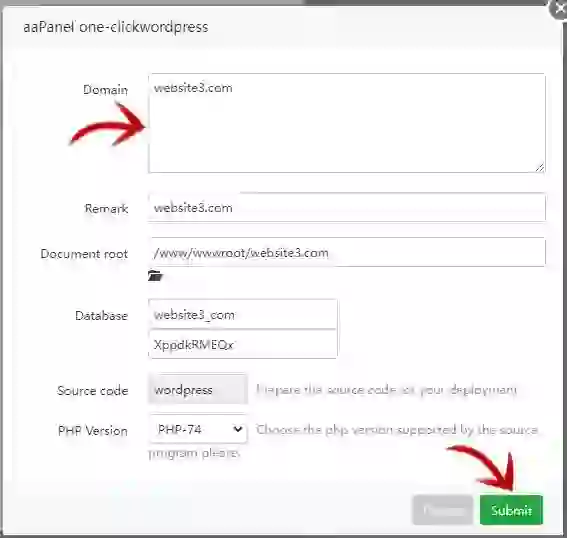
- Create website domain
- Configure WordPress rewrite rules
Setting Up SSL Certificates
SSL certificates are essential for modern websites.
HTTPS improves:
- Security
- SEO rankings
- User trust
- Browser compatibility
Most control panels support free SSL certificates from Let’s Encrypt.
Installing WordPress
You can either:
- Create a fresh WordPress installation
- Migrate an existing website
Fresh WordPress Installation
- Download WordPress ZIP archive
- Upload to website directory
- Extract files
- Create database
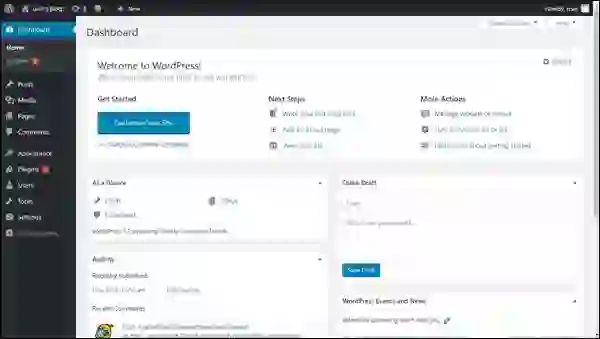
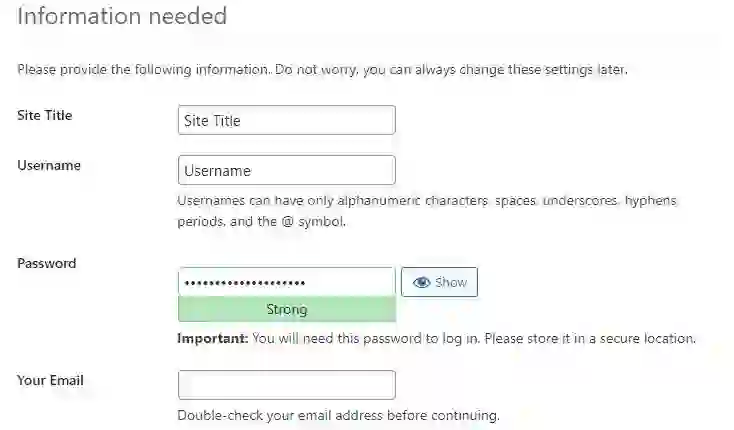
- Run WordPress installer
WordPress installation files are available from:
[WordPress.org](https://wordpress.org/download/?utm_source=chatgpt.com)
Migrating an Existing WordPress Website
Website migration allows moving an existing WordPress site to the new VPS server.
Migration Methods
- Manual migration
- Duplicator plugin
- UpdraftPlus backups
Using Duplicator and UpdraftPlus
Duplicator Plugin
:contentReference[oaicite:12]{index=12} helps package and migrate WordPress websites.
Migration Steps
- Create backup package
- Upload package to VPS
- Run installer.php
- Follow migration wizard
UpdraftPlus Plugin
:contentReference[oaicite:13]{index=13} is useful for backup-based migration.
Migration Process
- Create website backup
- Install WordPress on VPS
- Install UpdraftPlus
- Restore backup files
This method is beginner-friendly and reliable for smaller websites.
Important VPS Security Tips
Securing your VPS server is extremely important.
Essential Security Practices
- Use strong passwords
- Enable firewall protection
- Disable unused ports
- Use SSH keys
- Keep software updated
- Install SSL certificates
Proper server security protects your website from hacking attempts and malware.
Final Thoughts
Installing WordPress on a VPS server provides significantly more flexibility and performance than traditional shared hosting.
By using tools like:
- :contentReference[oaicite:14]{index=14}
- :contentReference[oaicite:15]{index=15}
- :contentReference[oaicite:16]{index=16}
you can build a powerful, scalable, and secure hosting environment for your website.
Although VPS hosting requires more setup effort, the long-term benefits in performance, customization, and control make it an excellent investment for serious website owners.
Frequently Asked Questions
Is VPS hosting better than shared hosting for WordPress?
Yes, VPS hosting provides dedicated resources, better performance, and full control.
Can beginners use VPS hosting?
Yes, especially with beginner-friendly control panels like aaPanel.
What operating system is best for WordPress VPS hosting?
Ubuntu is one of the most popular and recommended choices.
Do I need coding skills to manage a VPS?
Basic server knowledge helps, but control panels simplify most tasks.
Can I migrate an existing WordPress website to VPS hosting?
Yes, plugins like Duplicator and UpdraftPlus make migration easier.
Helpful Resources:
With VPS (Digital personal server) we get extra energy and full management for fairly equal value in evaluating with shared hostings. It began from 5$ monthly (e.g. Contabo or Server4You). The principle drawback from shared hostings is requiring set up and configuration.
It appears to be like sophisticated but it surely comprises solely 3 important steps.
- Choose and setup server
- Install and configure control panel
- Deploy WordPress
Select and setup server
Simply select any preferred supplier and server sort. We advocate to make use of subsequent suppliers as a consequence of good costs and given energy: Contabo (glorious mixture of value and German’s high quality, and lots of awards), Server4You (Europe and USA area), OVHCloud, Hostens, CloudWays (Linode is really useful for India area), MakeCloud (Asia and Russia area).
Let’s take a look at the method in Contabo.
-
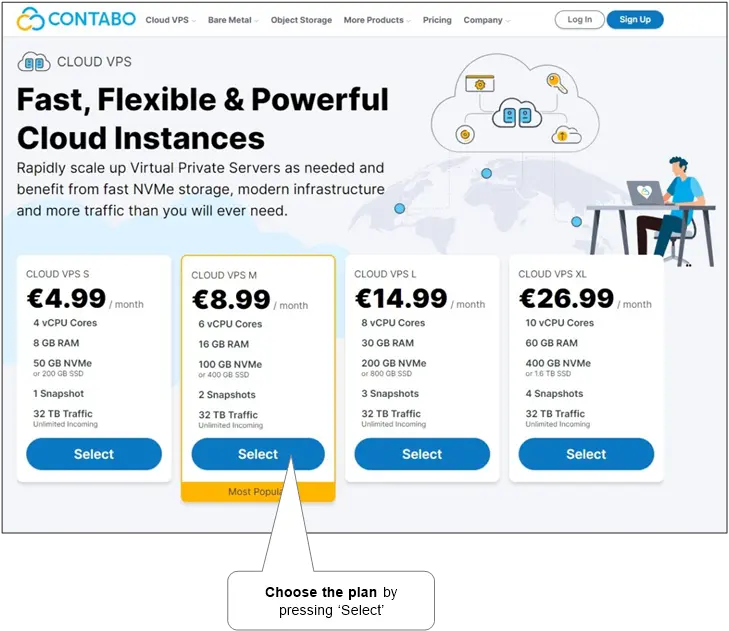
Go to the VPS web page (or VDS or VPS with big HDD storage if wanted), choose the wanted plan and click on the ‘Choose’ button.
-
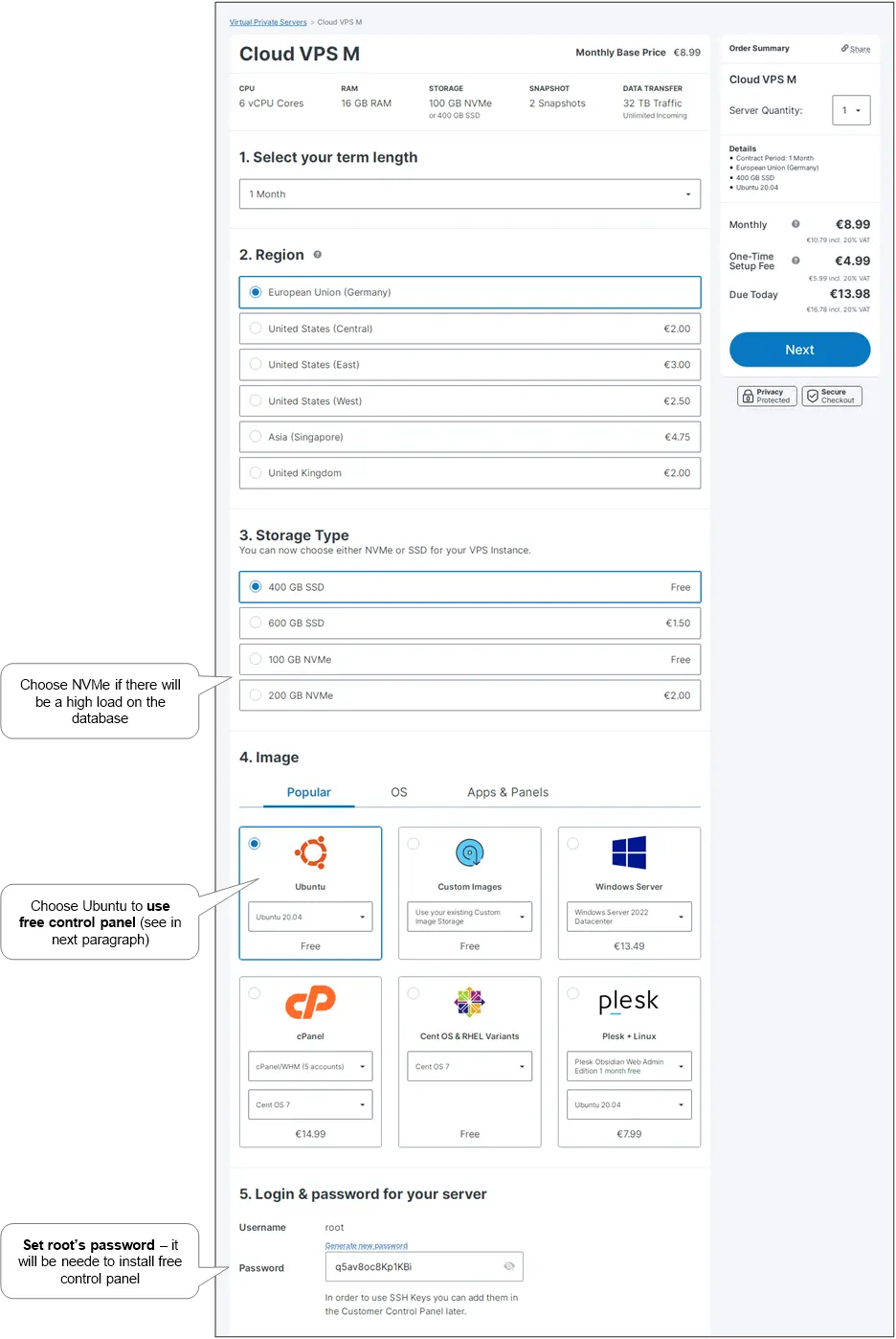
Subsequent, choose the wanted set of choices. Please, select Ubuntu 20.* (it’s essential) as working system. Additionally, set root’s login and password – will probably be required in further steps. Then, click on ‘Subsequent’.
- Do fee (notice that the server set up price will depend on the chosen fee interval).
- Now, watch for a letter from Contabo in regards to the completion of the set up and server’s IP handle. Now you’ve develop into the proprietor of a VPS server!
-
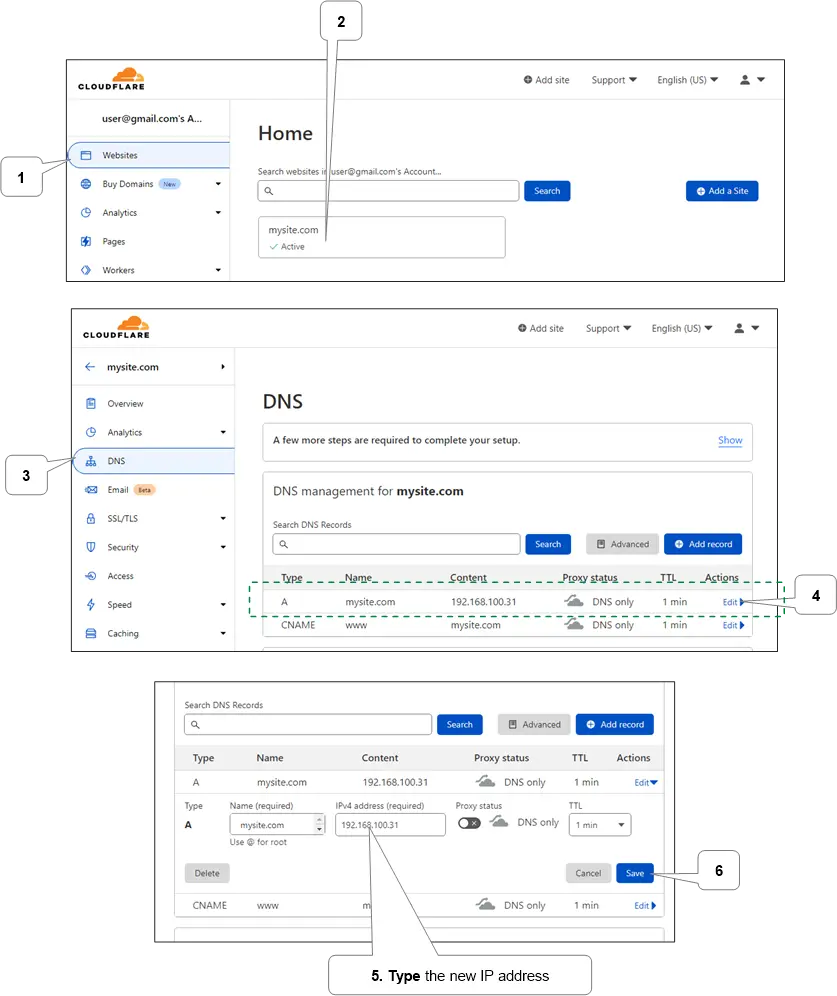
Lastly, set the brand new server’s IP handle for our web site identify.
-
If earlier web site is required to be alive whereas configuring the brand new one, actual DNS adjusting needs to be achieved because the final step (after putting in WordPress part). And the brand new IP needs to be non permanent set by utilizing Awesome Host Manager Chrome Extension by including mapping of IP to area identify.
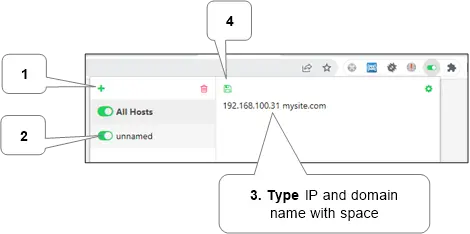
After testing is full, the non permanent mapping needs to be eliminated and the following step needs to be achieved lastly.
-
Under is how DNS adjusting might be achieved through CloudFlare for web site mysite.com in DNS settings.
-
Set up and configure management panel
To economize, we are going to set up fashionable free aaPanel that it is vitally highly effective and versatile. FastPanel can also be free, but it surely has smaller options. Additionally, many internet hosting suppliers supply paid management panels like highly effective cPanel – it may be undoubtedly used too.
Set up
- Run any SSH consumer (Mac, Windows), join utilizing server’s IP address, and login there utilizing and root’s login and password that have been setup whereas server set up.
-
Start set up course of by typing beneath command and urgent enter:
sudo apt-get replace && sudo apt-get set up wget && sudo wget http://www.aapanel.com/script/install-ubuntu_6.0_en.sh && sudo bash install-ubuntu_6.0_en.shThroughout set up, please, sort
yto the queryDo you wish to set up aaPanel to the /www listing now?(y/n)and sortsureto the queryDo you'll want to allow the panel SSL? (sure/n). -
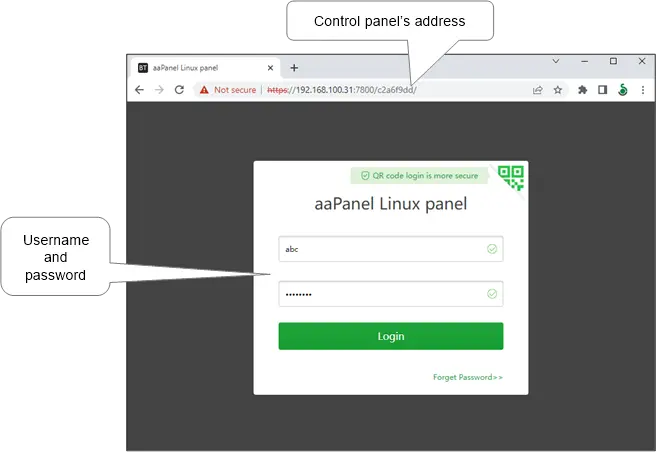
After profitable set up, info with a panel’s Internet-address, login and password for getting into the management panel will probably be displayed, for instance:
==================================================================

Congratulations! Put in efficiently!

==================================================================

aaPanel: https://192.168.100.31:7800/c2a6f9dd

username: abc

password: ef1e70fe

Warning:

In case you can't entry the panel,

launch the next port (7800|888|80|443|20|21) within the safety group

==================================================================

Time consumed: 2 Minute!
Word. On some hostings (besides Contabo), will probably be essential to open the desired ports within the firewall manually.
Configure
-
Enter in browser provided address (e.g. https://192.168.100.31:7800/c2a6f9dd).
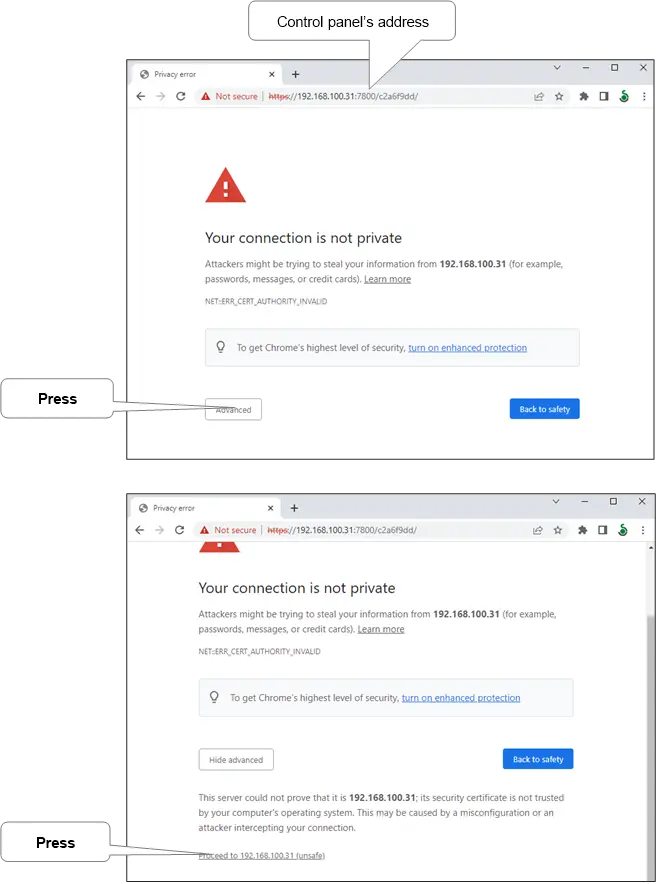
Then, login to our management panel through provided username and password.
-
Setup packages. Select default set if unsure.
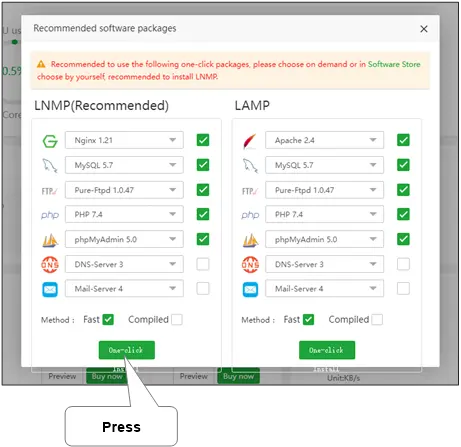
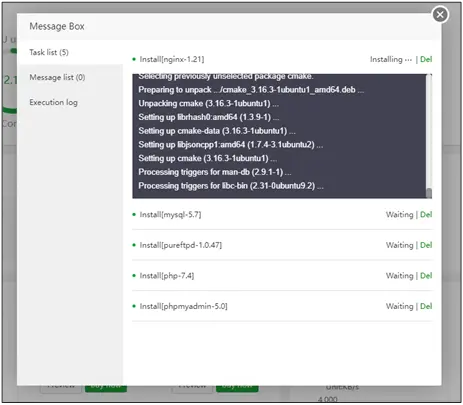
Then watch for set up completion. It could take a while, please, be affected person.
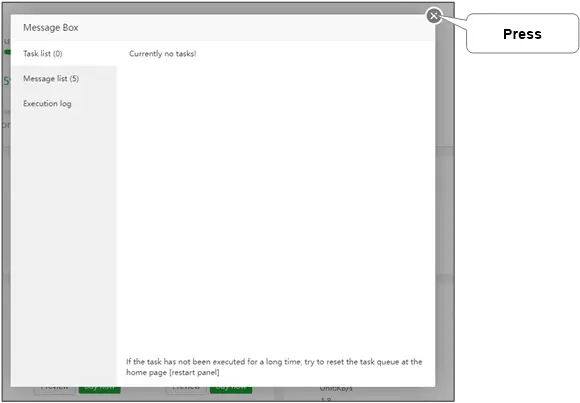
Now the window might be closed.
-
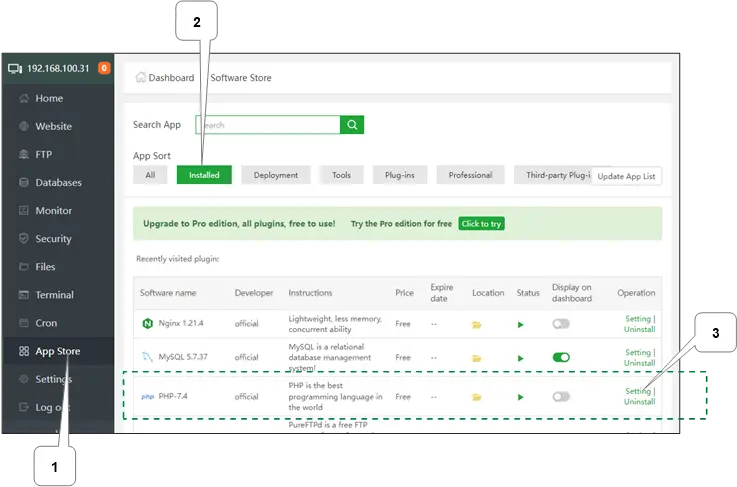
Flip off ‘putenv’ in PHP’s settings.
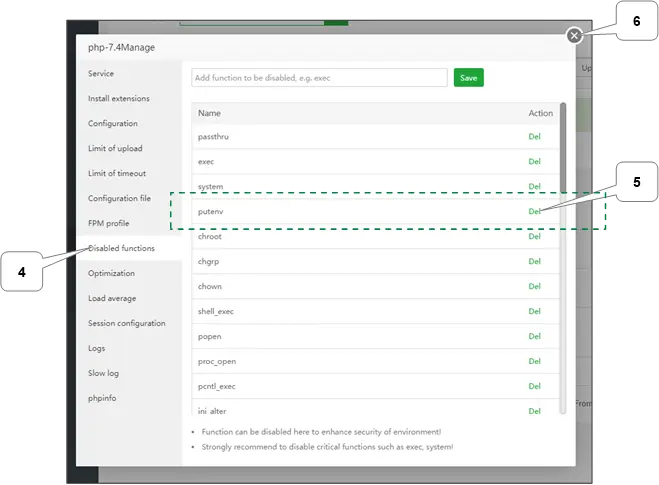
-
Allow SSL for ‘phpMyAdmin’.
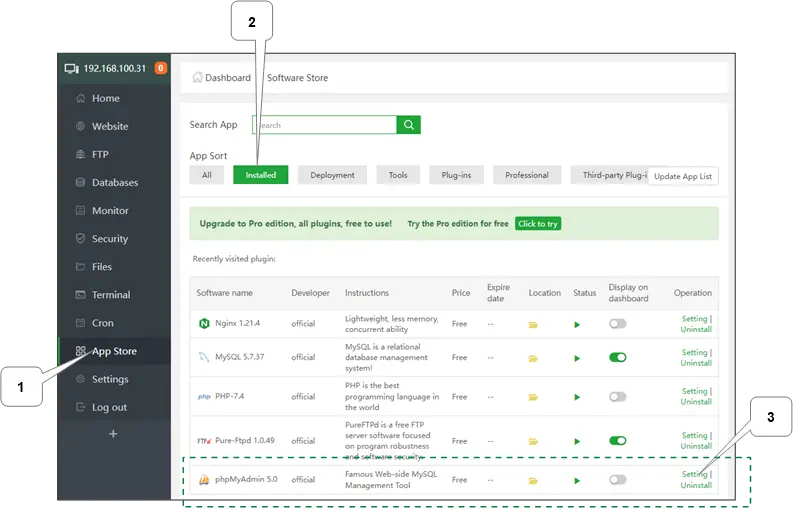
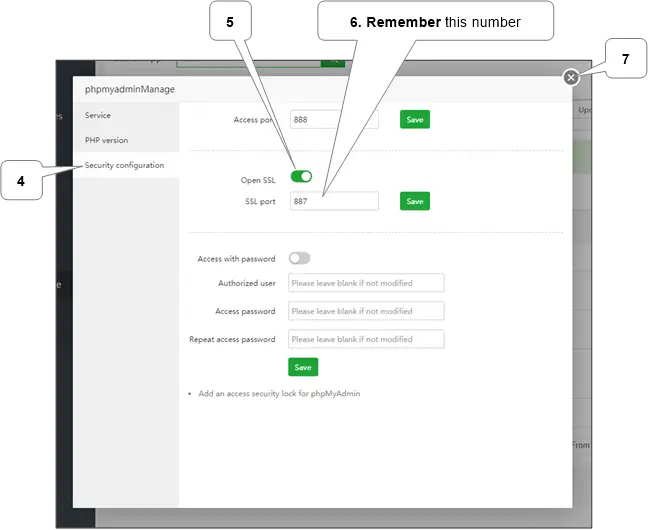
-
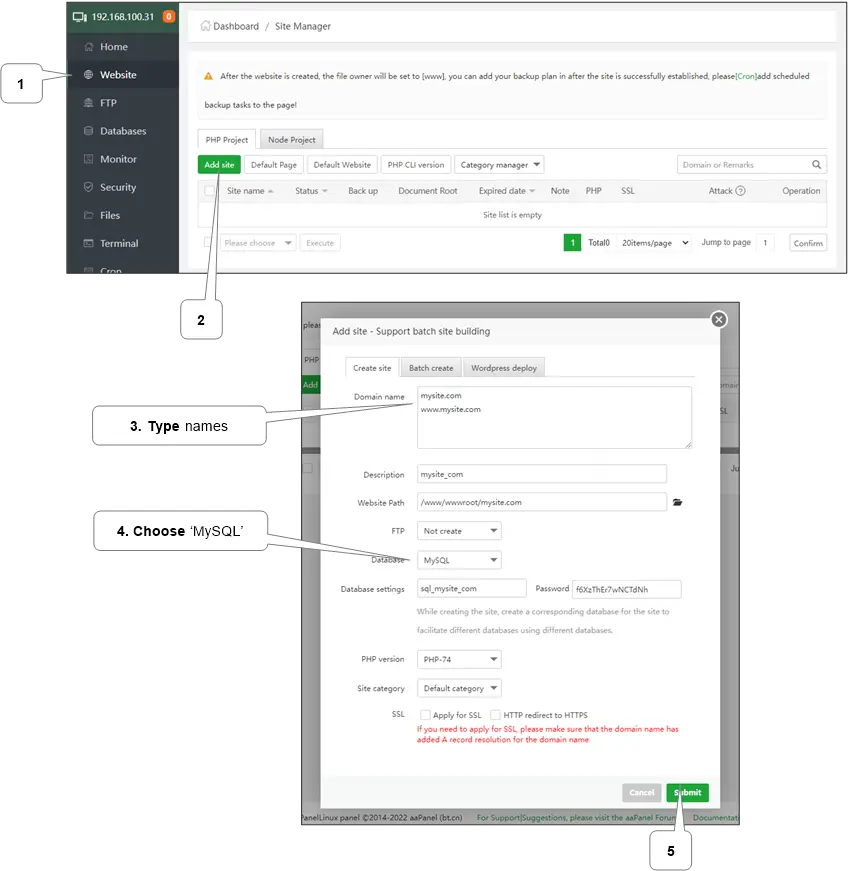
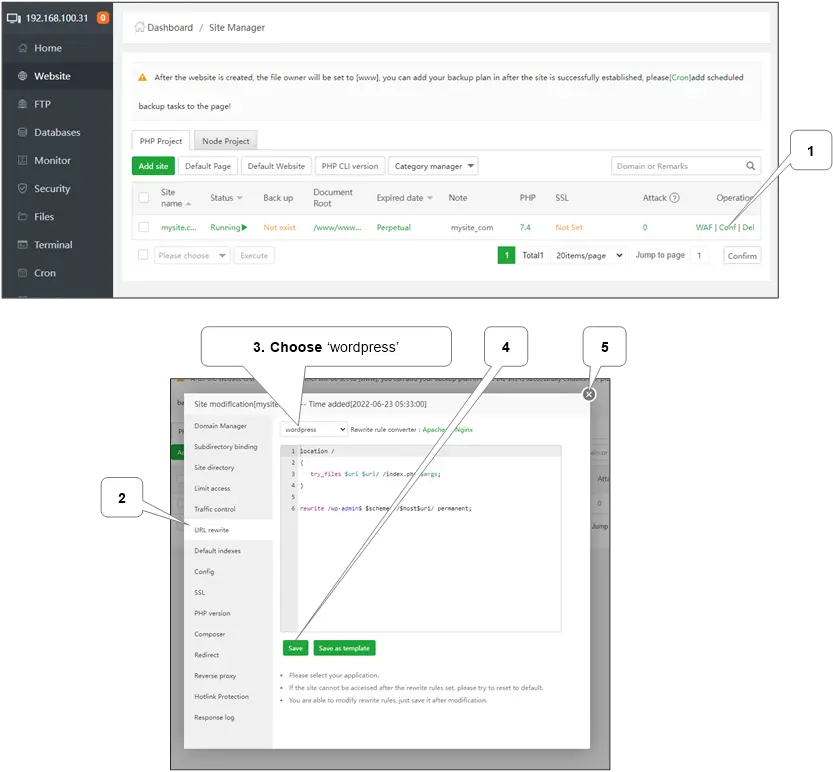
If NGINX is used (it’s by default) then setup WordPress rewrites.
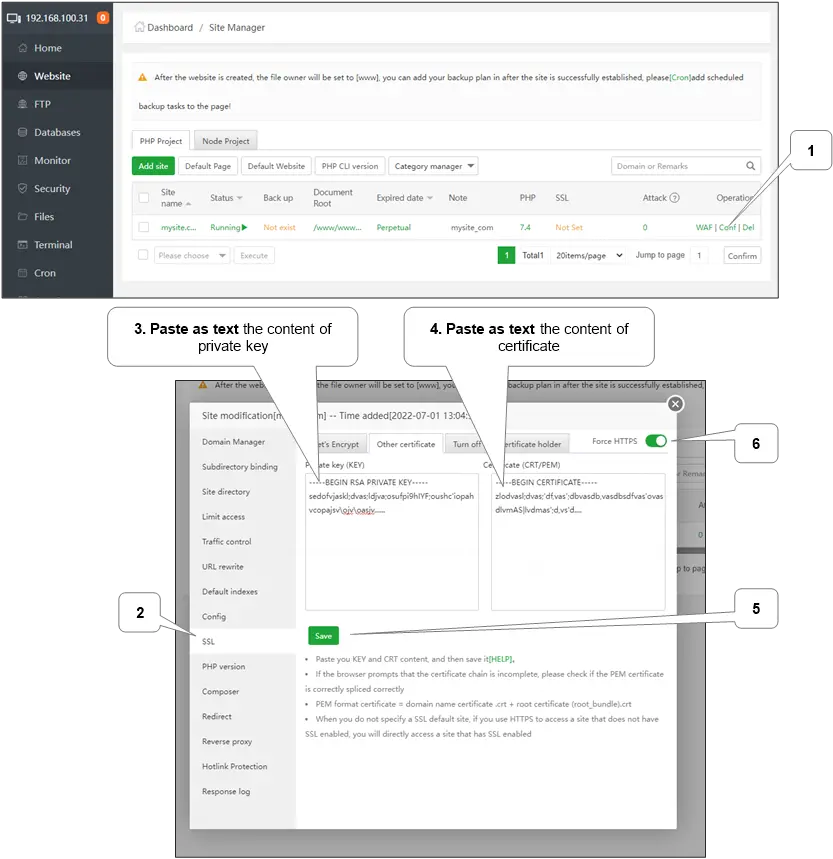
- Set web site’s SSL.
Deploy WordPress
Two methods:
- Move or copy existed installation
- New installation
Transfer or copy existed set up
It may be achieved by:
-
Manually
It’s extra complicated but it surely permits to repeat massive database and recordsdata.
-
Utilizing Duplicator or UpdraftPlus plugin
It’s less complicated however there might be issues with copying massive knowledge as a consequence of PHP typically has limits to file measurement and execution time.
Word. If new web site doesn’t work then there will probably be a have to right some configuration recordsdata and database tables that’s out of scope of present guide as a consequence of complexity and variability of potential points.
Guide mode
There will probably be wanted a replica of web site’s listing content material as zip file e.g. recordsdata.zip (it ought to include recordsdata like ‘wp-config.php’ and all different recordsdata from WordPress listing). Additionally, there will probably be wanted a database copy as sql or sql.gz file e.g. database.sql.gz. It may be made manually or bought from backup.
-
Add
recordsdata.zipfile to our new website path.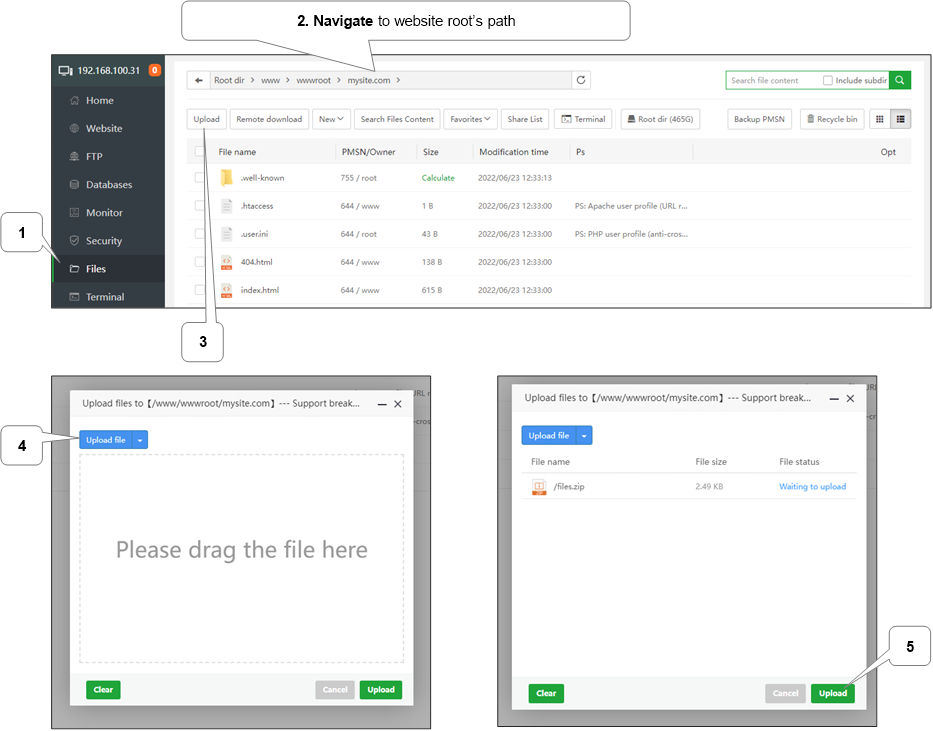
Then, extract it.
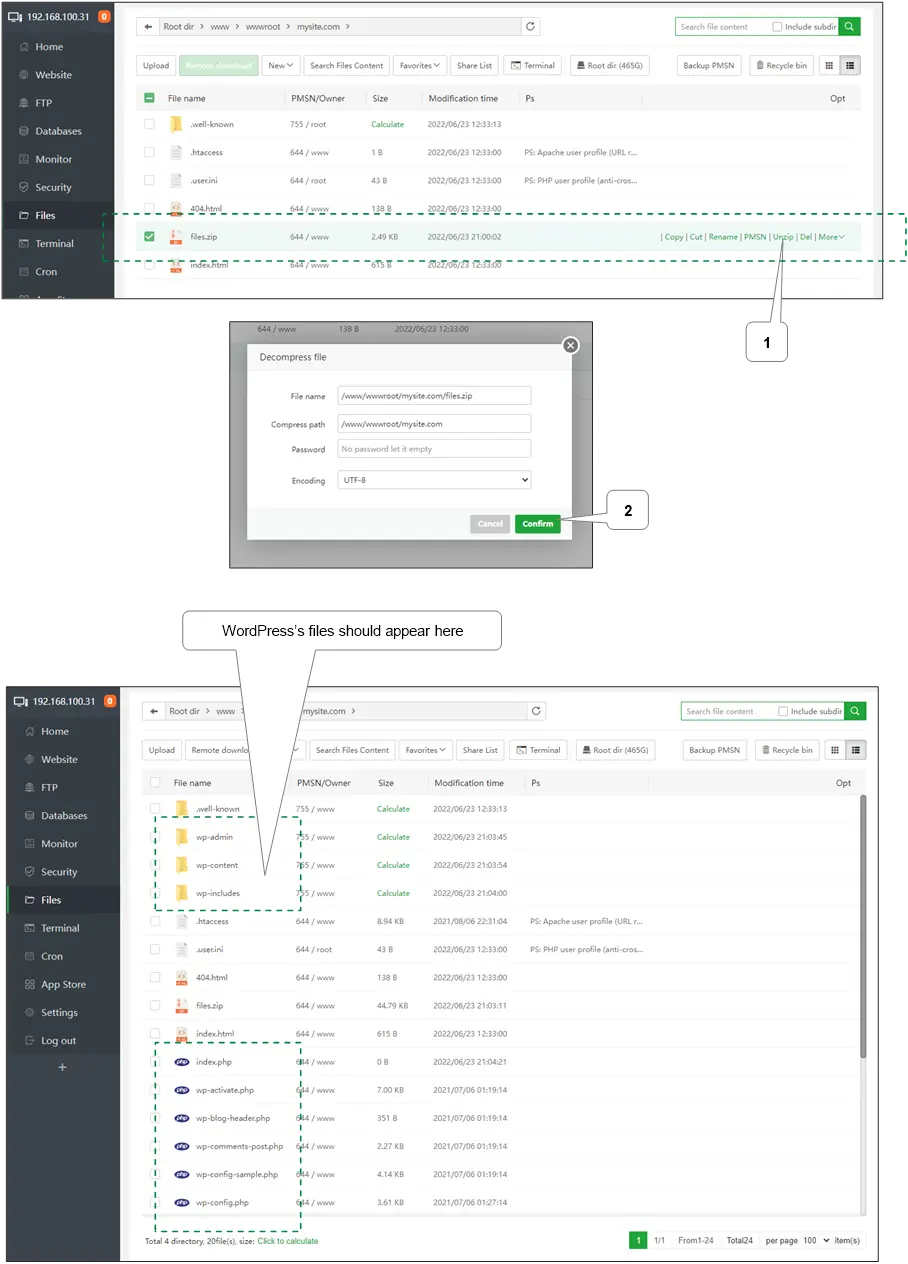
-
Import database
database.sql.gzfile. When importing is completed the window might be closed.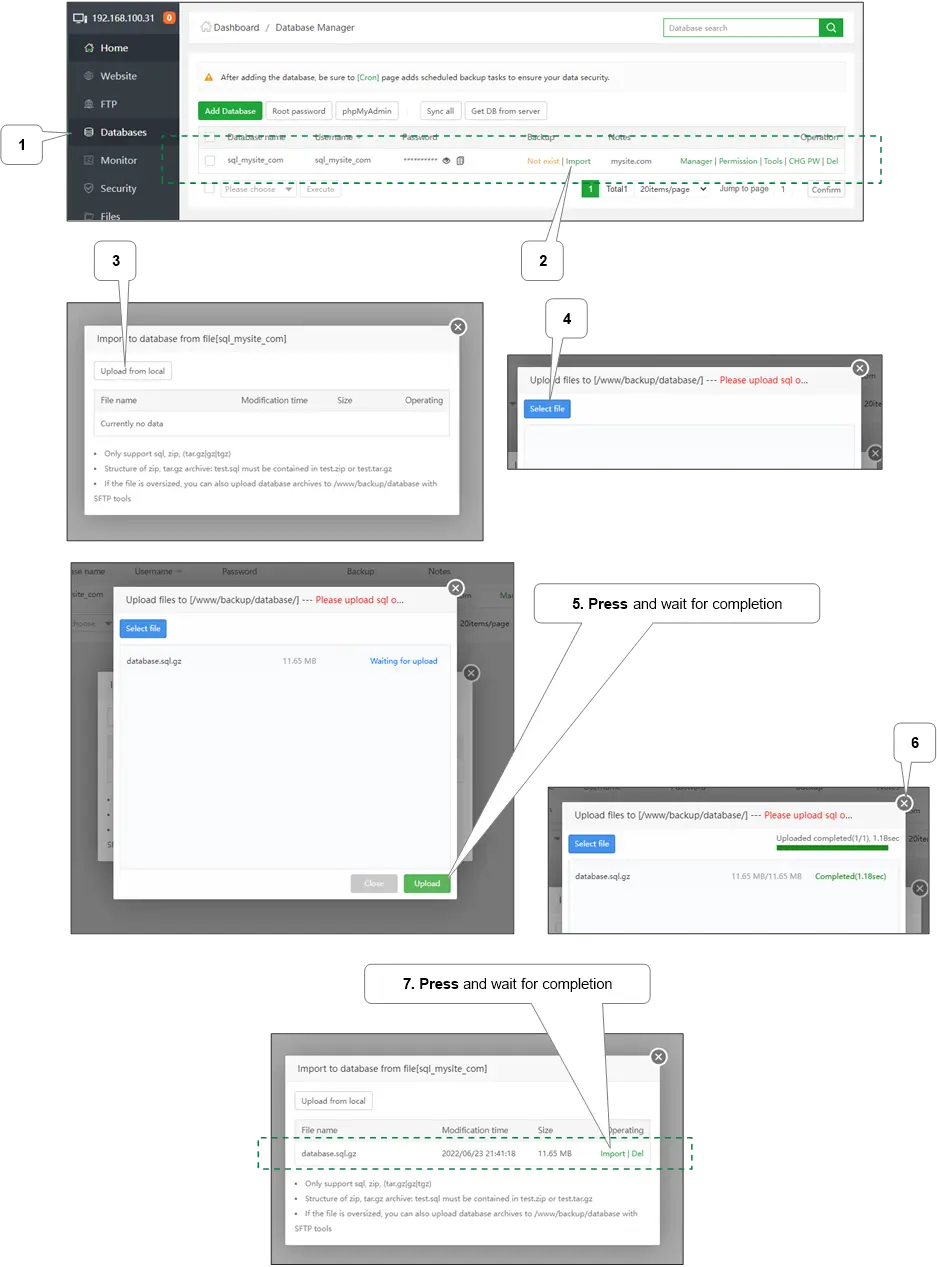
Utilizing Duplicator plugin
Obtain and set up Duplicator plugin on the supply web site. Be sure that backup exists in supply web site or make it.
- Now, simply add (as in manual mode) all created recordsdata to our new website path.
- Then in browser run web site’s identify appended with
installer.phpe.g.https://mysite.com/installer.phpand observe onscreen directions.
Utilizing UpdraftPlus plugin
Obtain and set up UpdraftPlus plugin on the supply web site. Be sure that backup exists in supply web site or make it.
- Create new WordPress vacation spot set up and set up UpdraftPlus plugin there.
- Now, simply add (as in manual mode) all backed up knowledge to our new website path below
wp-config/updraftlisting, e.g./www/wwwroot/mysite.com/wp-config/updraft. - Lastly, in vacation spot web site admin in ‘Settings -> UpdraftPlus Backups’ run looking new recordsdata and restore discovered backup.
New set up
- Add and extract (as in manual mode) needed ZIP WordPress archive to
/www/wwwroot. - Then delete current web site listing (e.g.
mysite.com) and renamewordpresslisting to web site listing’s identify. - Then in browser open web site identify (e.g.
https://mysite.com) and observe onscreen directions.
End
If the earlier web site was stored alive whereas instilling the brand new one then now a temp DNS can be disabled and the brand new IP can be set in DNS settings.

