
Table of Contents
- Introduction to Database Repair and Optimization
- Why Database Maintenance Is Important
- How to Access phpMyAdmin in cPanel
- How to Optimize Database Tables
- Understanding InnoDB Optimization Warnings
- How to Repair Database Tables
- MyISAM vs InnoDB Table Repair
- Database Optimization Best Practices
- Common Database Problems
- Frequently Asked Questions
How to Repair and Optimize MySQL Database Tables Using phpMyAdmin
Database maintenance is one of the most important tasks for keeping a website fast, stable, and secure.
Over time, MySQL databases accumulate unused data, fragmented indexes, temporary information, and damaged table structures that can negatively impact website performance.
Fortunately, phpMyAdmin provides powerful tools for repairing and optimizing database tables directly from the cPanel hosting environment.
Using the Optimize Table and Repair Table functions regularly can help improve website speed, reduce database overhead, and fix corrupted tables before they cause major website issues.
In this complete guide, you will learn how to repair and optimize MySQL database tables using phpMyAdmin step by step.
Introduction to Database Repair and Optimization
Every dynamic website depends heavily on databases to store and retrieve information.
Applications such as:
- WordPress
- WooCommerce
- Joomla
- Drupal
- Laravel applications
- Custom PHP systems
all rely on MySQL databases to function correctly.
As websites grow and process thousands of database queries daily, tables may gradually become fragmented or corrupted.
This can lead to:
- Slow website performance
- Database errors
- Corrupted tables
- High server resource usage
- Website downtime
Database optimization and repair help restore database efficiency and improve server performance.
Why Database Maintenance Is Important
Database optimization works similarly to routine maintenance for a car.
Without regular maintenance, performance gradually declines over time.
Benefits of Database Optimization
- Faster website loading speeds
- Reduced database overhead
- Improved server performance
- Better query execution
- Lower hosting resource usage
- Reduced risk of database corruption
Repairing damaged tables is equally important because corrupted database structures can break website functionality completely.
How to Access phpMyAdmin in cPanel
Before repairing or optimizing tables, you must first access phpMyAdmin through cPanel.
Steps to Access phpMyAdmin
- Log in to your cPanel account
- Navigate to the “Databases” section
- Click the “phpMyAdmin” icon
Once phpMyAdmin opens, you will see a list of all databases in the left sidebar.
Select the database you want to manage.
How to Optimize Database Tables
Database optimization helps reduce fragmentation and improve query efficiency.
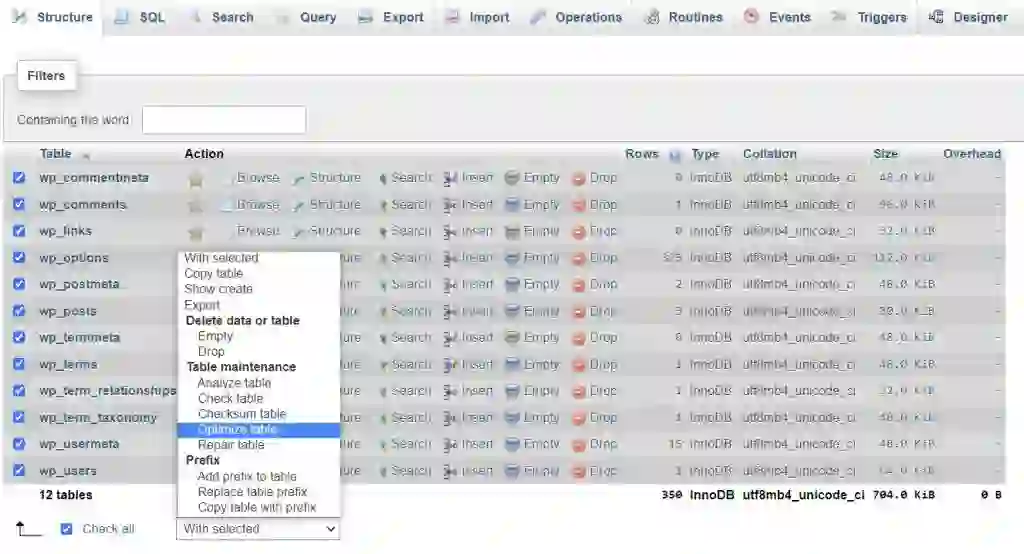
How to Optimize a Table in phpMyAdmin
- Select your database from the sidebar
- Choose one or more database tables
- Scroll to the bottom of the table list
- Open the “With selected” dropdown menu
- Select “Optimize Table”
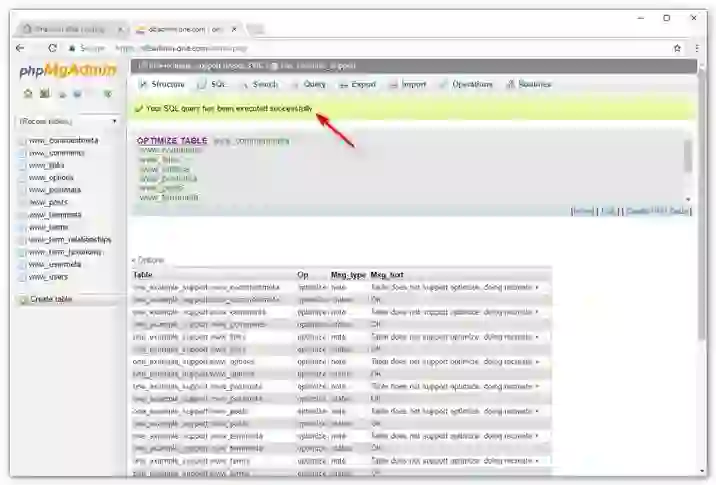
The optimization process begins immediately.
After completion, phpMyAdmin usually displays the message:
“Your SQL query has been executed successfully.”
What Optimization Does
- Defragments table data
- Improves index efficiency
- Removes unused storage space
- Improves query speed
Regular optimization helps maintain long-term database performance.
Understanding InnoDB Optimization Warnings
Some users may see warnings while optimizing InnoDB tables.
Common warning example:
“Table does not support optimize…”
This warning is usually not a problem.
Why the Warning Appears
The InnoDB storage engine handles optimization differently from MyISAM tables.
Instead of performing a traditional optimization, phpMyAdmin typically:
- Recreates the table
- Exports the SQL structure
- Reimports the table automatically
This process still achieves optimization successfully.
How to Repair Database Tables
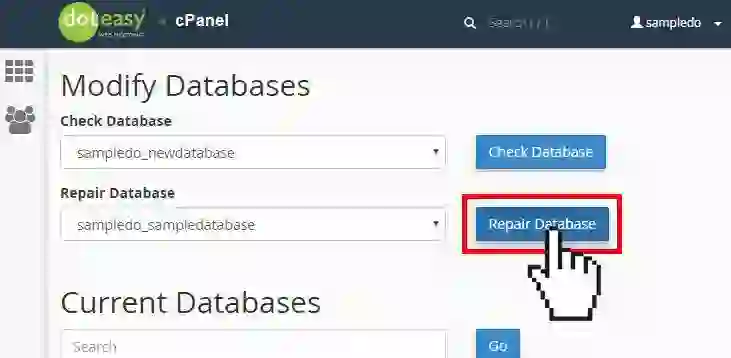
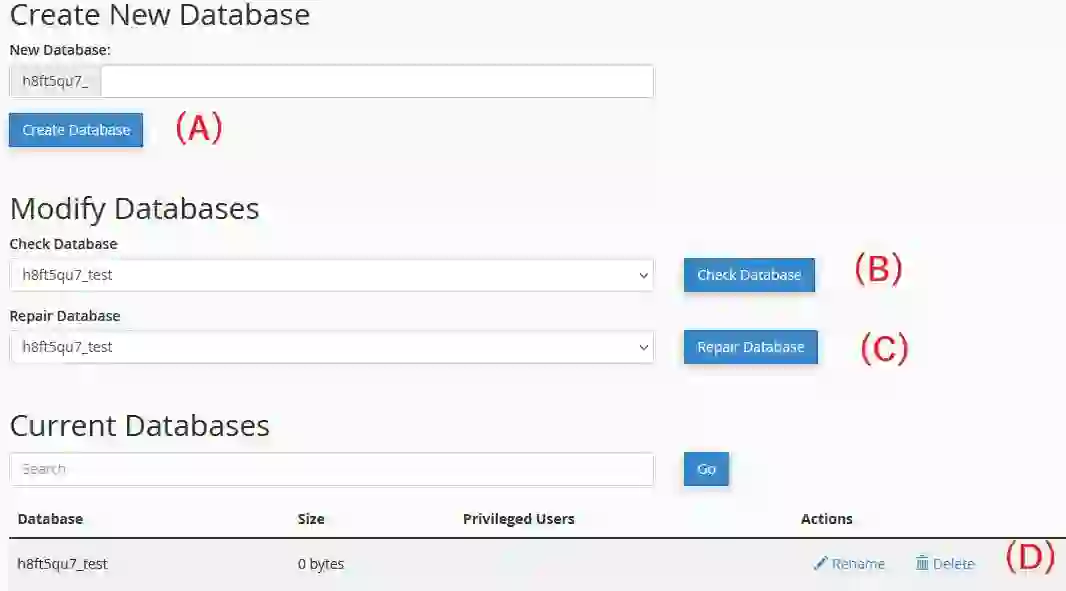
If a database table becomes corrupted, websites may display errors or stop functioning properly.
The Repair Table function can help restore damaged database tables.
How to Repair a Table in phpMyAdmin
- Select the desired database
- Choose one or more tables
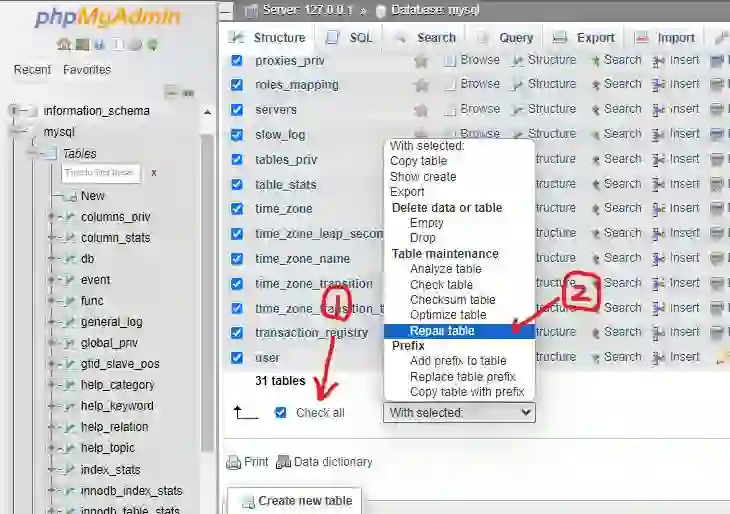
- Scroll to the “With selected” dropdown
- Select “Repair Table”
phpMyAdmin will begin the repair process automatically.
Successful repairs usually display:
“Your SQL query has been executed successfully.”
MyISAM vs InnoDB Table Repair
The behavior of the repair tool depends on the database storage engine.
MyISAM Repair
MyISAM tables fully support direct repair operations.
phpMyAdmin usually returns:
“OK”
inside the Msg_text column after successful repair.
InnoDB Repair
Repairing InnoDB tables is significantly more complex.
InnoDB uses advanced transaction systems and data recovery methods that phpMyAdmin cannot always handle safely.
For severe InnoDB corruption, professional hosting support may be required.
Important Recommendation
If critical InnoDB tables become corrupted, contact your hosting provider immediately before attempting risky recovery procedures.
Database Optimization Best Practices
Proper database maintenance reduces the likelihood of future corruption and performance issues.
Recommended Best Practices
- Optimize tables regularly
- Create frequent database backups
- Remove unused plugins and extensions
- Delete unnecessary database entries
- Monitor server resource usage
- Use reliable hosting providers
- Keep CMS software updated
Routine maintenance significantly improves website stability and speed.
Common Database Problems
Database issues can occur for multiple reasons.
Common Causes of Corrupted Tables
- Server crashes
- Improper shutdowns
- Plugin conflicts
- Insufficient hosting resources
- File system corruption
- Malware attacks
- Interrupted database writes
Identifying problems early helps prevent serious website downtime.
Final Thoughts
Repairing and optimizing MySQL database tables using phpMyAdmin is an essential website maintenance practice.
Regular optimization improves performance, reduces database overhead, and keeps websites running smoothly.
Meanwhile, repair tools help recover damaged tables and restore website functionality after corruption issues.
Whether you manage a WordPress blog, an eCommerce store, or a custom PHP application, maintaining healthy databases is critical for long-term website reliability and performance.
Frequently Asked Questions
What does Optimize Table do in phpMyAdmin?
It reorganizes table storage, reduces fragmentation, and improves database performance.
Can phpMyAdmin repair corrupted tables?
Yes, phpMyAdmin can repair many corrupted MyISAM tables using the Repair Table feature.
Why do I see warnings while optimizing InnoDB tables?
InnoDB handles optimization differently, and phpMyAdmin performs a table recreation process instead.
How often should I optimize database tables?
For active websites, monthly optimization is generally recommended.
Is database optimization safe?
Yes, but creating backups before optimization or repair is strongly recommended.The restore and optimization of database tables are among the many most helpful options provided by phpMyAdmin . Through the regular operation of your web site, a desk might often turn into malfunctioning, stopping guests from accessing its contents. On this case, you should use the restore possibility as an efficient instrument to revive the desk. Fast restore permits you to return the desk to its regular state, contributing to the sleek resumption of your web site’s operation.
Optimization can be essential, as repetitive queries improve database prices over time. These prices embody ” remaining ” queries, rows, columns, indexes, and different information beforehand utilized by the database. If database optimization is uncared for for an prolonged interval, the accrued information begins to impression efficiency, resulting in a slower web site. You may consider optimization like performing annual upkeep in your automotive to maintain it working easily.
Accessing phpMyAdmin
Earlier than you may entry PHPMyAdmin capabilities, it’s essential to log in to your cPanel account with us. To do that, please check with our information on tips on how to entry the cPanel service.
After logging in, please go to the “ Database ” part and click on on the “ phpMyAdmin ” icon.
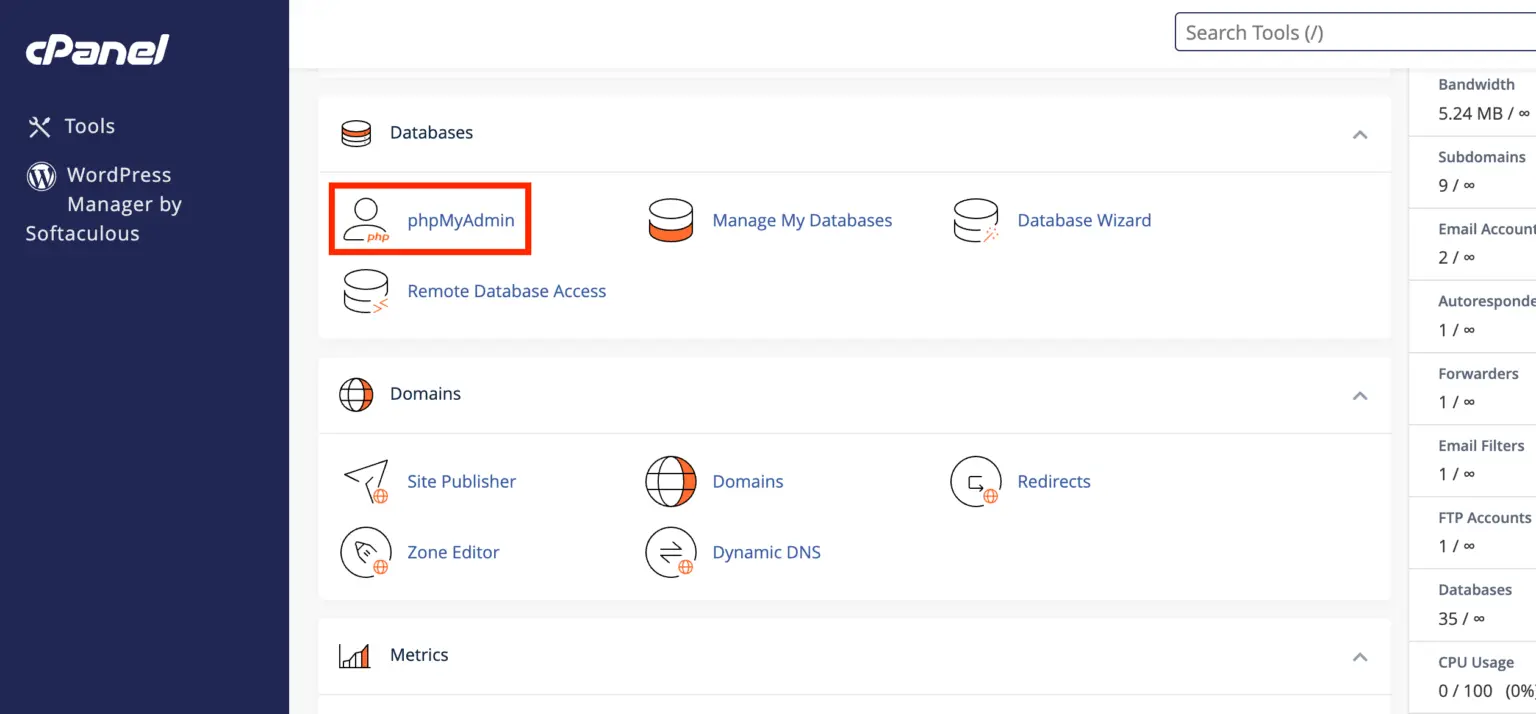
Clicking on the outcome will take you to the “ PHPMyAdmin ” characteristic. Within the left sidebar, you may see a listing of all of your databases.
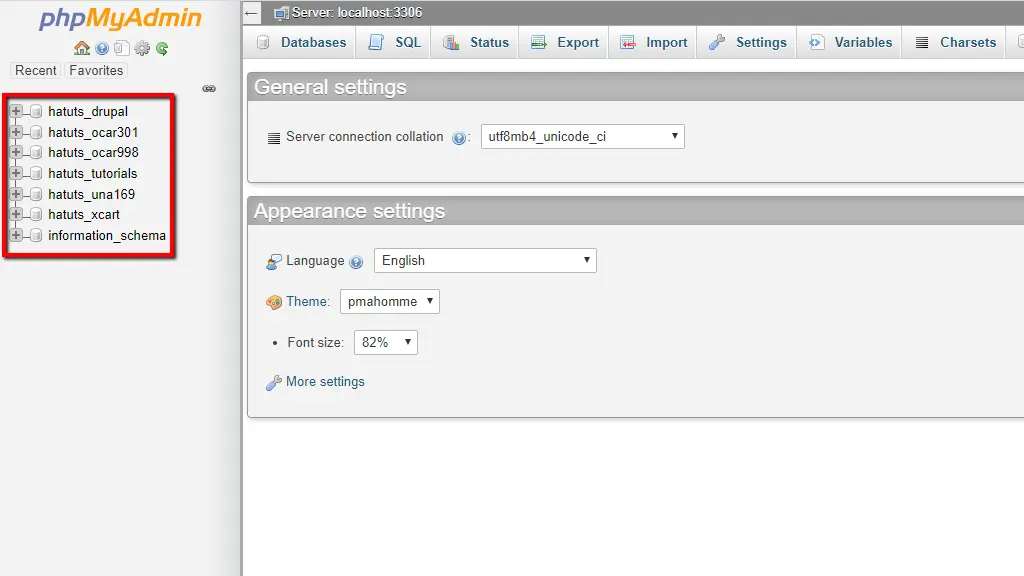
From the checklist, please choose the database you wish to enhance or repair.
How one can enhance your database desk
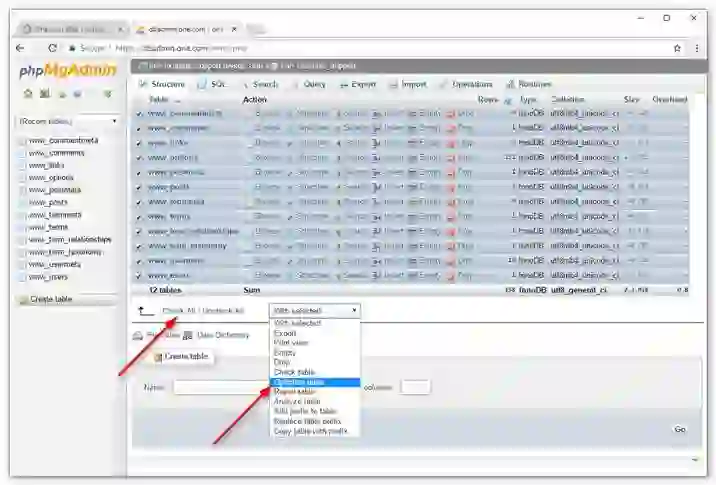
After deciding on the database, all tables will seem in the course of the display. Scrolling down the web page, you may see the drop-down menu “ With chosen :”.
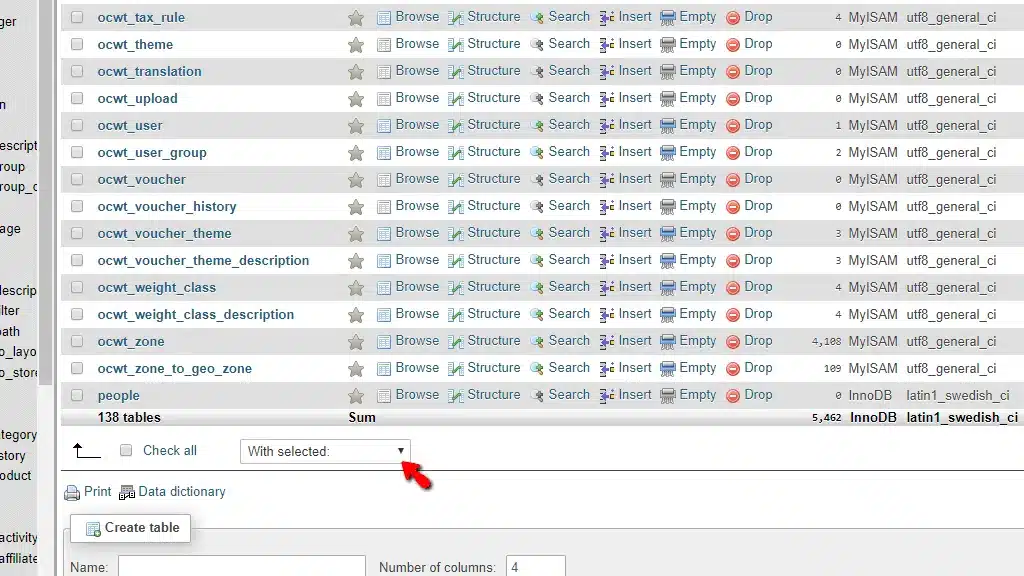
Once you broaden this drop-down menu, you will discover numerous operations you may carry out in your tables. The operation you need to search for is ” Optimize Desk “.
To start the ” Optimize Desk ” course of, choose one of many database tables by clicking the checkbox situated to the left of the desk title within the center part. You may also choose a number of databases by deciding on the corresponding checkbox.
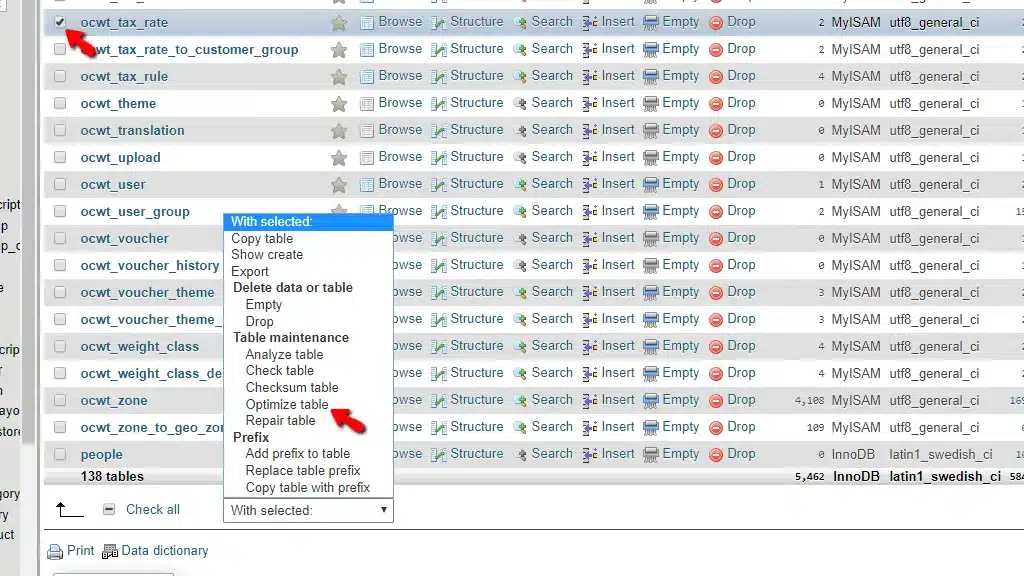
After deciding on the desk, click on on the “ Optimize Desk ” possibility from the drop-down menu. The method begins instantly, and after a brief loading display, the desk is optimized.
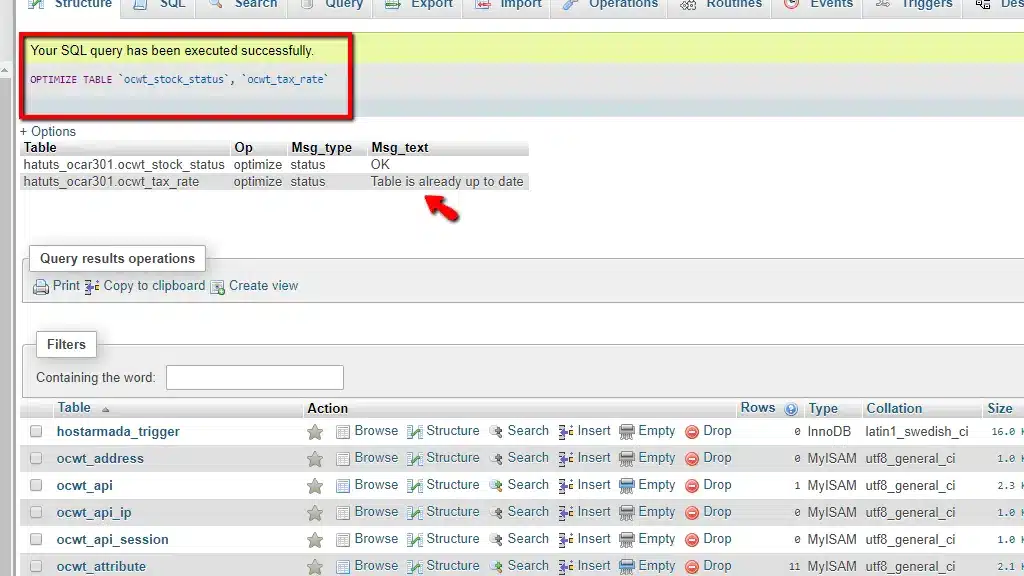
That is confirmed by the message “Your SQL question was executed efficiently” on the high of the web page.
Typically, when optimizing a desk utilizing the InnoDB database storage engine , you would possibly obtain a warning, suggesting the operation failed. Don’t be concerned, although you see the warning ” Desk doesn’t assist optimize… “, phpMyAdmin will nonetheless carry out the same operation that achieves the identical outcome. It’ll recreate the desk, export the SQL code, after which import it once more. If you choose MyISAM, phpMyAdmin will carry out a typical optimization operation, and you will note an “OK” message under the “Msg_text” column.
Repairing and bettering databases in phpMyAdmin
How one can repair your database desk
After deciding on the database, all tables will seem in the course of the display. You should scroll down the web page, the place you’ll find the drop-down menu “ With chosen :”.
Among the many accessible choices, search for the “ Restore Desk ” possibility.
To start the “Desk Restore” course of, choose a database desk by clicking the checkbox to the left of the desk title within the center part. You may also choose a number of databases by clicking the corresponding checkbox.
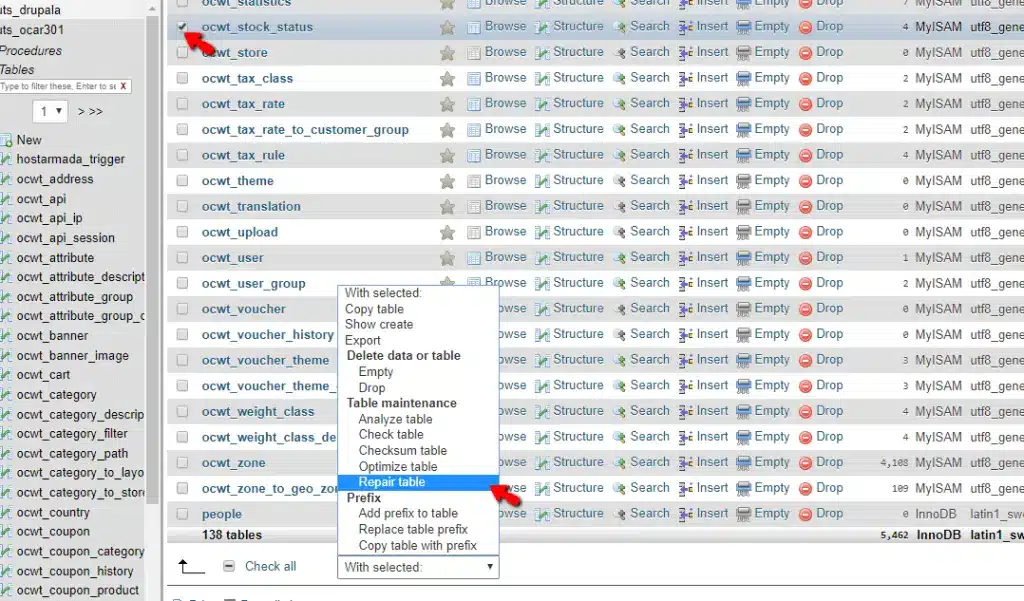
After deciding on the tables, click on on the “ Restore Desk ” possibility. The method begins instantly, and after a brief loading display, the desk is repaired.
That is confirmed by the message “ Your SQL question has been executed efficiently ” on the high of the web page.
As with the Optimize Desk instrument , the Restore Desk possibility shows a warning when used on a desk working the InnoDB storage engine. To know why this happens, you need to have a very good understanding of database storage engines. Repairing an InnoDB desk is a posh and delicate course of, so when you encounter a difficulty that causes your desk to malfunction, contact our assist staff instantly. Our assist staff has in depth expertise with InnoDB recovery and could possibly help you, offered the injury will not be catastrophic. Repairing a MyISAM desk usually shows the usual ” OK ” message under the ” Msg_text ” column.

