
Table of Contents
- Why Share Internet from a PC?
- Available Internet Sharing Methods
- Share Internet Using Wi-Fi
- Share Internet Using USB
- Share Internet Using Bluetooth
- Internet Sharing for Android
- Internet Sharing for iPhone and iPad
- Internet Sharing for Windows Phone
- Common Problems and Solutions
- Security Tips
- Frequently Asked Questions
How to Share PC Internet with Mobile Devices
Sometimes mobile devices cannot access the internet directly because of:
- No Wi-Fi network nearby
- Weak mobile signal
- Limited mobile data
- Travel situations
- Network restrictions
Fortunately, a laptop, desktop computer, or netbook can share its internet connection with smartphones and tablets.
This guide explains how to share internet connections with:
- :contentReference[oaicite:4]{index=4} phones and tablets
- :contentReference[oaicite:5]{index=5} devices like iPhone and iPad
- :contentReference[oaicite:6]{index=6} devices
Why Share Internet from a PC?
Sharing internet from a computer can be extremely useful in many situations.
Common Scenarios
- Using hotel Ethernet internet on a phone
- Providing internet during travel
- Testing mobile applications
- Saving mobile data
- Temporary internet access
Modern operating systems support several methods for internet sharing.
Available Internet Sharing Methods
Computers can share internet connections using three main methods.
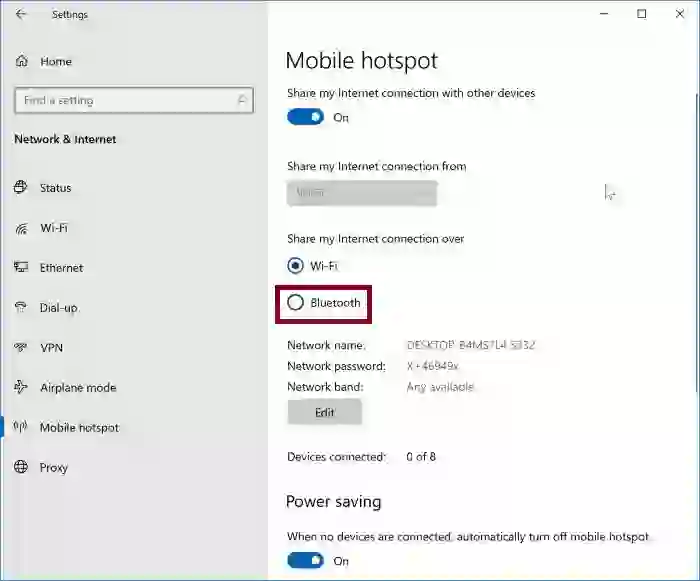
1. Wi-Fi Hotspot
This is the most popular and convenient option.
Advantages
- Wireless mobility
- Easy setup
- Supports multiple devices
- Fast connection speeds
If the computer lacks Wi-Fi hardware, users can purchase:
- USB Wi-Fi adapters
- PCI wireless cards
- PCMCIA adapters for laptops
2. USB Internet Sharing
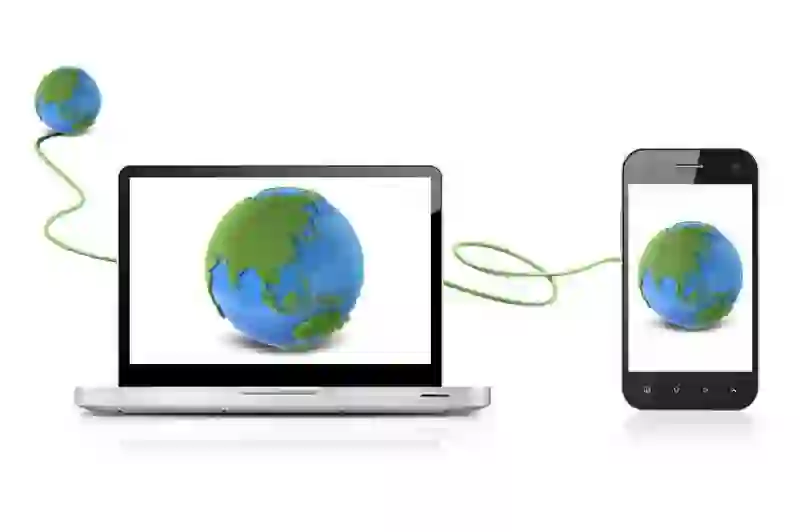
USB tethering uses a physical cable connection.
Advantages
- Stable connection
- No wireless interference
- Good for older devices
Disadvantages
- Limited mobility
- Requires USB cable
- Sometimes needs additional software
3. Bluetooth Internet Sharing
:contentReference[oaicite:7]{index=7} can also provide internet access.
Advantages
- Wireless connection
- Lower power consumption
Disadvantages
- Shorter range than Wi-Fi
- Slower speeds
- Limited compatibility
Share Internet Using Wi-Fi
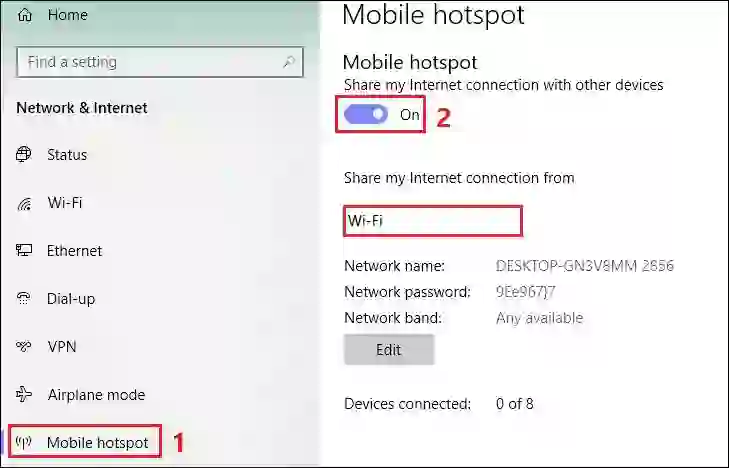
Creating a Wi-Fi hotspot is the easiest way to share internet.
General Steps
- Create a Wi-Fi hotspot on the computer
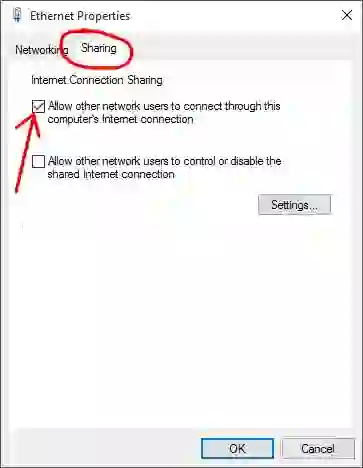
- Enable internet sharing
- Connect the phone or tablet to the hotspot
Modern versions of :contentReference[oaicite:8]{index=8} and :contentReference[oaicite:9]{index=9} include built-in hotspot features.
Share Internet Using USB
USB internet sharing is often called reverse tethering.
Requirements
- USB cable
- Drivers or tethering software
- Compatible operating system
Some older Android devices include built-in USB internet features.
In other cases, applications such as:
- Reverse Tethering
- Easy Tether
may be required.
Share Internet Using Bluetooth
Bluetooth internet sharing works through wireless pairing.
Requirements
- Bluetooth adapter
- Paired devices
- Bluetooth PAN support
This method is slower than Wi-Fi but useful when wireless hotspots are unavailable.
Internet Sharing for Android Devices
:contentReference[oaicite:10]{index=10} devices support several internet-sharing methods.
Android via Wi-Fi
- Create a hotspot on the computer
- Open Wi-Fi settings on Android
- Select the hotspot
- Enter the password
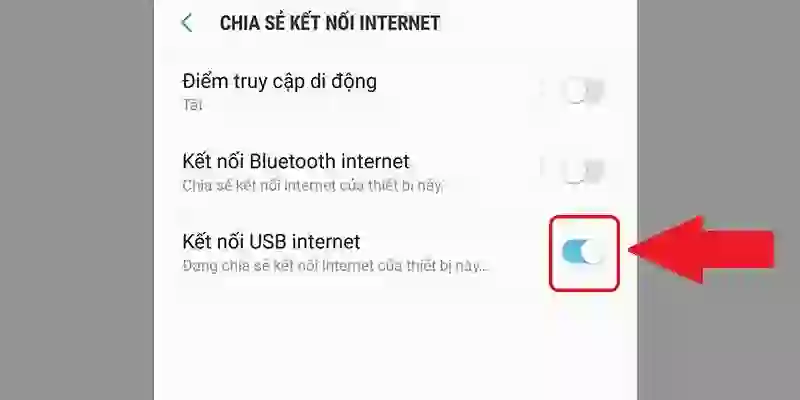
Android via USB
Some Android versions include:
- USB Internet
- USB Tethering
inside wireless settings.
Third-party apps may also help establish reverse tethering connections.
Android via Bluetooth
Bluetooth tethering may work using compatible tethering applications and Bluetooth PAN connections.
Internet Sharing for iPhone and iPad
iPhone and iPad devices support internet sharing in several ways.
Using Wi-Fi
- Create a hotspot on the computer
- Connect the iPhone or iPad to the wireless network
Using USB on Mac
:contentReference[oaicite:13]{index=13} includes built-in internet sharing tools.
Steps
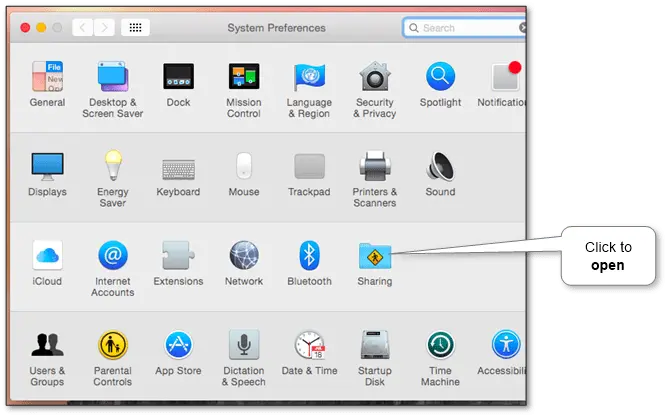
- Open System Preferences
- Select Sharing
- Choose the active internet connection
- Select iPhone USB
Using Bluetooth
Mac computers also support Bluetooth PAN internet sharing.
Steps
- Enable Bluetooth on both devices
- Pair the iPhone with the Mac
- Enable Bluetooth PAN sharing
Internet Sharing for Windows Phone
:contentReference[oaicite:14]{index=14} devices mainly support Wi-Fi internet sharing.
Using Wi-Fi
- Create a Wi-Fi hotspot on the computer
- Connect the Windows Phone device
USB and Bluetooth Limitations
Later versions of Windows Phone removed several tethering features that existed in earlier releases.
As a result:
- USB reverse tethering support is limited
- Bluetooth internet sharing is difficult
Common Problems and Solutions
Internet sharing occasionally encounters technical issues.
Common Problems
- Hotspot not visible
- USB connection failure
- Bluetooth pairing problems
- No internet access
- Driver issues
Possible Fixes
- Restart both devices
- Update network drivers
- Re-enable tethering
- Check firewall settings
- Verify adapter compatibility
Most issues are related to drivers or disabled sharing settings.
Security Tips
Always secure shared internet connections.
Best Practices
- Use strong hotspot passwords
- Enable WPA2 or WPA3 encryption
- Disable sharing when not needed
- Avoid unknown Bluetooth connections
- Keep devices updated
Proper security helps prevent unauthorized internet access.
Final Thoughts
Sharing internet from a computer to mobile devices is a useful feature for work, travel, and emergency connectivity.
The best method usually depends on available hardware:
- Wi-Fi for flexibility
- USB for stability
- Bluetooth for limited wireless access
Modern operating systems and smartphones make internet sharing easier than ever before.
Frequently Asked Questions
What is reverse tethering?
Reverse tethering allows a smartphone to use a computer’s internet connection.
Which method is best for internet sharing?
Wi-Fi hotspots are usually the fastest and most convenient method.
Can I share internet without Wi-Fi?
Yes, USB and Bluetooth connections can also share internet access.
Does Bluetooth internet sharing work on all devices?
No, compatibility depends on the operating system and hardware support.
Is internet sharing secure?
Yes, if protected with strong passwords and secure encryption.
Helpful Resources:
Typically we unable to have a direct Internet connection on the cell phone or pill because of completely different causes. Within the final hyperlink, we described one other means to supply the Web to cell. But when we’ve got a laptop computer, netbook or PC we will use its Web connection on our cell units.
We are able to join cell units through:
-
Wi-Fi
- It’s a preferable means as a result of we don’t lose the power of the cell phone to be cell.
- If the pc doesn’t have a Wi-Fi adapter, we must always receive it. The worth for it isn’t a giant deal. The cheaper and smaller form-factor is USB. However there are PCMCI (for laptops) and PCI (for PC’s) adapters. So, we could select what kind is extra preferable and handy for us.
-
USB
- It’s used once we don’t have or can’t use the Wi-Fi adapter on the pc.
- USB cable is required, and it needs to be included with our cell machine.
- We’d have to put in software program on cell units.
- And right here we restrict our mobility by the size of a cable.
- Lastly, it’s supported on particular configurations.
-
Bluetooth
- It’s used when we’ve got the identical scenario with the Wi-Fi adapter within the earlier bullet level.
- It requires having a Bluetooth adapter on the pc.
- We save mobility however in a really shorter distance somewhat than Wi-Fi.
- This fashion works with a restricted variety of configurations.
Beneath are technical descriptions of how you can use PC’s Web on
- Android (phones and tablets),
- iPhone, iPad and
- Windows Phone units.
Android cellphone and pill
Use the Web through Wi-Fi
- We should always share the Internet on our laptop computer, netbook or PC by way of making a Wi-Fi hotspot.
- And after that, we’d like simply to connect our android phone or tablet to the created Wi-Fi network.
Use the Web through USB
- Some earlier variations of Android have a particular choice “USB web” in “Wi-fi & networks” part. Allow it and simply observe the directions.
- If the machine doesn’t have such choice we could use particular software program like Reverse Tethering or Easy Tether. Discover that they’re freemium and have some limitations. E.g. Reverse Tethering has a time restrict and Straightforward Tether doesn’t work with secured (HTTPS) websites.
- We have to set up it on the cell machine and the pc. Observe every software directions to correctly arrange the connection. When the appliance asks for kind select USB if relevant. Particular software program for computer systems emulates our android cell as a separate community adapter. By means of this software, we must always allow connection to USB and after that share the Internet connection with new put in tether cell adapter.
Additionally, we will use phone as a modem.
Use the Web through Bluetooth
There isn’t any built-in means to do that. Android might be performing as Bluetooth modem to share its connection. However we will use the Easy Tether application from the previous point. It really works with Bluetooth too.
iPhone, iPad
Discover that additionally we will use the iPhone as a modem to share its connection to the pc.
Use the Web through Wi-Fi#
- We should always share the Internet on our laptop computer, netbook or PC by way of making a Wi-Fi hotspot.
- And after that, we’d like simply to connect our iPhone or iPad to established Wi-Fi.
Use the Web through USB
-
For Mac computer systems
-
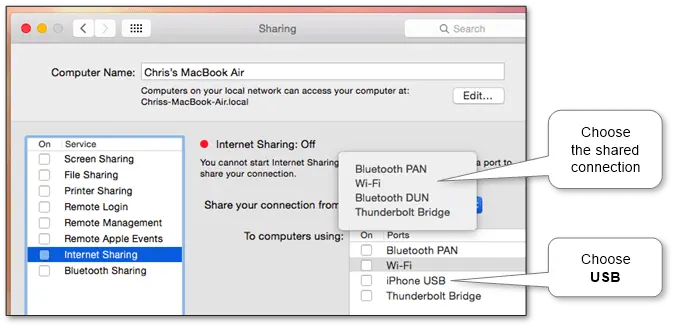
There’s a normal function that allows this solely in Apple units. In “System Preferences” select “Sharing”.
-
Select a specific connection (e.g. Wi-Fi) as sharing connection and choose “iPhone USB” within the “utilizing” part.
-
-
Different PCs
There may be one other method to get from not solely Mac units. Nevertheless it‘s not the legitime means and we don’t advocate doing it. It requires jailbreak our machine so it’s our personal danger.
Use the Web through Bluetooth#
This works solely with Mac computer systems. The steps are just like connecting via USB.
-
Open the “Sharing” panel in “System Preferences” and select a specific connection (e.g. Wi-Fi) as a sharing connection and choose “Bluetooth PAN” within the “utilizing” part.
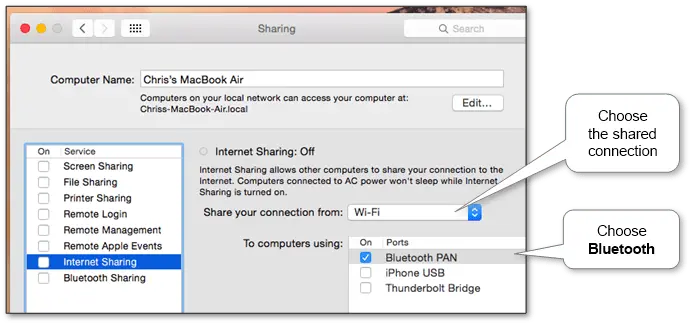
- After that simply pair via Bluetooth our Mac and the phone.
Discover that the reverse option can also be accessible.
Home windows Cellphone
Use the Web through Wi-Fi
We should always share the Internet on our laptop computer, netbook or PC by way of making a Wi-Fi hotspot. After that we capable of join Windows Phone to new Wi-Fi.
Use the Web through USB
Sadly, we haven’t discovered a transparent answer to do that. On Home windows Cellphone 7 this feature was accessible however in later variations, the seller has eliminated it. However we may be occupied with again operation once we are using a phone as USB modem.
Use the Web through Bluetooth
Unluckily, we haven’t discovered any means to do that. However there’s Bluetooth tethering to PC.

