
Table of Contents
- What Is a Wi-Fi Hotspot?
- Why Use a Laptop as a Hotspot?
- Requirements Before Setup
- How to Configure a Wi-Fi Hotspot on Mac
- How to Configure a Hotspot on Windows 10
- Windows 8.1 Wi-Fi Hotspot Setup
- Windows 7 Wi-Fi Hotspot Setup
- Windows Vista and XP Setup
- Hotspot Security Tips
- Common Problems and Fixes
- Frequently Asked Questions
How to Turn Your PC Into a Wi-Fi Hotspot on Windows and Mac
Modern computers can do much more than browsing the internet or running software applications.
With the help of built-in wireless adapters, a PC or laptop can also function as a Wi-Fi hotspot, allowing other devices to connect to the internet wirelessly.
This feature is extremely useful when:
- Traveling
- Sharing internet with friends
- Using hotel Ethernet connections
- Creating temporary wireless networks
- Connecting devices without routers
Both :contentReference[oaicite:3]{index=3} and :contentReference[oaicite:4]{index=4} include tools for internet sharing and hotspot creation.
This guide explains how to configure Wi-Fi hotspots on different operating systems step by step.
What Is a Wi-Fi Hotspot?
A Wi-Fi hotspot is a wireless access point that allows devices to connect to the internet using Wi-Fi.
Instead of using a dedicated router, your computer acts as the wireless transmitter.
Devices That Can Connect
- Smartphones
- Tablets
- Laptops
- Gaming consoles
- Smart TVs
Most hotspots rely on a built-in Wi-Fi adapter to broadcast the internet connection.
Why Use a Laptop as a Hotspot?
Turning a computer into a hotspot can solve many connectivity situations.
Main Advantages
- Portable internet sharing
- No external router required
- Useful during travel
- Quick network setup
- Supports multiple devices
This feature is particularly useful when only one wired connection is available but multiple devices require internet access.
Requirements Before Setup
Before creating a Wi-Fi hotspot, make sure your device meets these requirements:
- Working Wi-Fi adapter
- Internet connection
- Administrator privileges
- Updated wireless drivers
Some older devices may not support hotspot functionality depending on the wireless hardware.
How to Configure a Wi-Fi Hotspot on Mac
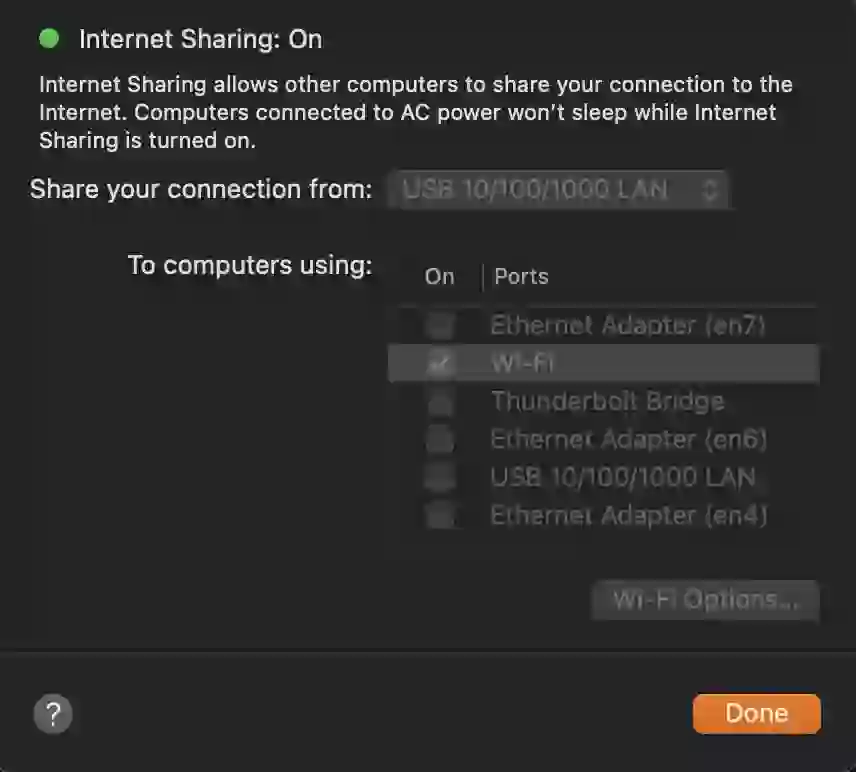
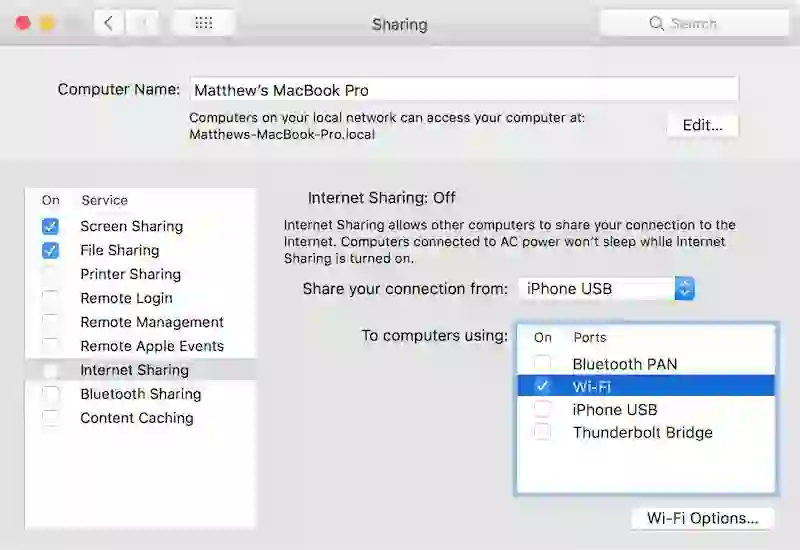
:contentReference[oaicite:5]{index=5} includes a built-in feature called Internet Sharing.
Steps to Create a Hotspot on Mac
- Open System Preferences
- Select Sharing
- Choose Internet Sharing
- Select the internet source connection
- Choose Wi-Fi under sharing options
Configure Wi-Fi Settings
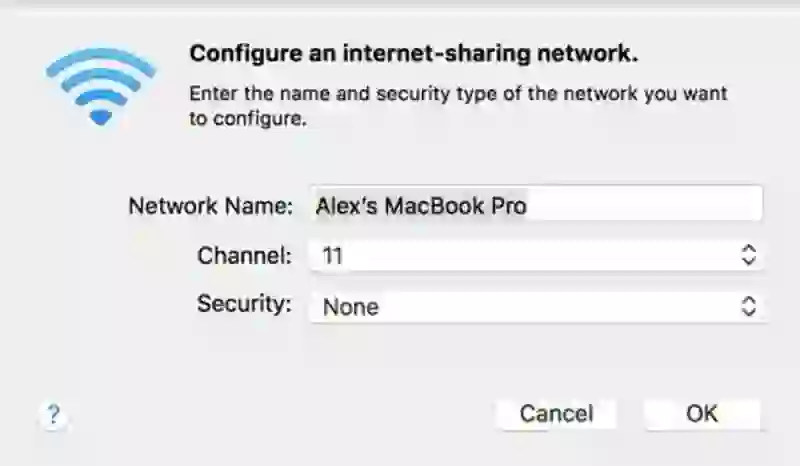
Click Wi-Fi Options and configure:
- Network name (SSID)
- Wi-Fi channel
- Password
- Security type
For security, choose:
- WPA2 Personal
Finally:
- Enable the checkbox beside Internet Sharing
- Click Start
Your Mac will now broadcast a wireless hotspot.
How to Configure a Hotspot on Windows 10
:contentReference[oaicite:6]{index=6} includes a built-in mobile hotspot feature.
Steps to Enable Mobile Hotspot
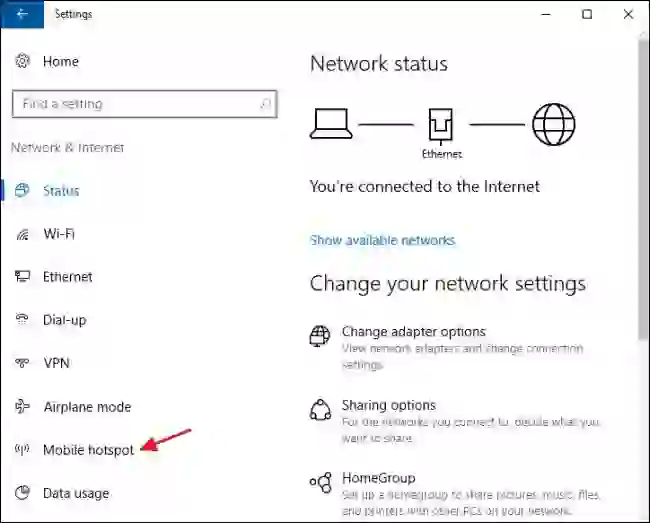
- Open Settings
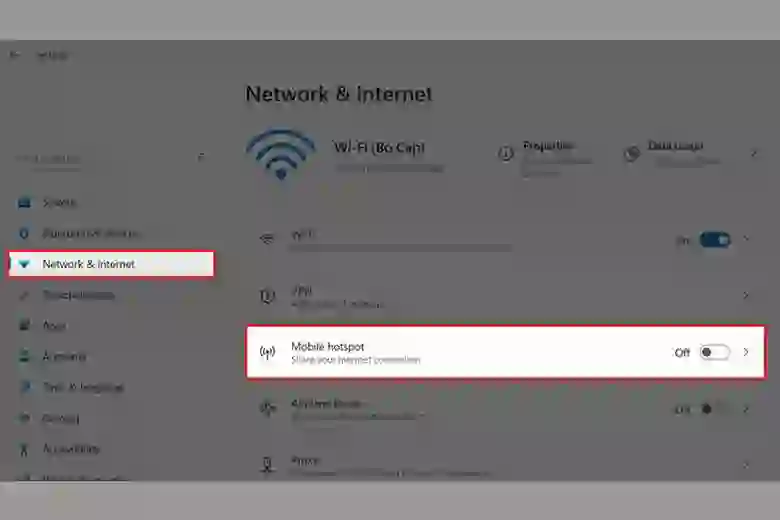
- Go to Network & Internet
- Select Mobile Hotspot
- Choose the internet connection to share
- Set network name and password
- Enable the hotspot
Windows 10 generally supports up to eight connected devices simultaneously.
Windows 8.1 Wi-Fi Hotspot Setup
:contentReference[oaicite:7]{index=7} requires using the Command Prompt.
Enable Hosted Network
netsh wlan set hostednetwork mode=allow ssid="MY-PC-WIFI" key="mypassword"
Start Hotspot
netsh wlan start hostednetwork
Stop Hotspot
netsh wlan stop hostednetwork
The Command Prompt must be run with administrator privileges.
Windows 7 Wi-Fi Hotspot Setup
:contentReference[oaicite:8]{index=8} uses the same hosted network commands as Windows 8.1.
Commands for Windows 7
netsh wlan set hostednetwork mode=allow ssid="MY-PC-WIFI" key="mypassword"
netsh wlan start hostednetwork
This method creates a virtual wireless access point on your PC.
Windows Vista and XP Setup
:contentReference[oaicite:9]{index=9} and :contentReference[oaicite:10]{index=10} only support Ad Hoc wireless networking.
In these systems, you must manually create an ad hoc network profile.
Important Note
Because these operating systems are outdated, they are not recommended for secure internet sharing.
Hotspot Security Tips
Wireless hotspots should always be secured properly.
Best Security Practices
- Use strong passwords
- Enable WPA2 encryption
- Avoid public sharing
- Disable hotspot when unused
- Monitor connected devices
Unsecured hotspots can expose your internet connection and personal data to unauthorized users.
Common Problems and Fixes
Hotspot functionality may occasionally fail due to driver or configuration issues.
Common Problems
- Hotspot not appearing
- No internet access
- Wi-Fi adapter unsupported
- Connected devices cannot browse
- Weak wireless signal
Possible Solutions
- Update Wi-Fi drivers
- Restart the hotspot
- Restart the computer
- Check internet sharing settings
- Move devices closer together
Most connectivity issues can be solved through driver updates and correct network sharing configuration.
Final Thoughts
Turning a computer into a Wi-Fi hotspot is one of the most useful networking features available on modern operating systems.
Whether using:
- :contentReference[oaicite:11]{index=11}
- :contentReference[oaicite:12]{index=12}
you can easily share internet access with nearby devices using built-in wireless capabilities.
This feature is especially valuable for travelers, remote workers, and users needing temporary wireless networks.
With proper security settings and configuration, a laptop hotspot can provide fast and reliable internet sharing almost anywhere.
Frequently Asked Questions
Can I turn my laptop into a Wi-Fi hotspot?
Yes, most modern laptops with Wi-Fi adapters support hotspot functionality.
How many devices can connect to a Windows hotspot?
Windows 10 typically supports up to eight connected devices.
Is a Wi-Fi hotspot secure?
Yes, if you use strong passwords and WPA2 encryption.
Why is my hotspot not working?
Possible causes include outdated drivers, disabled Wi-Fi adapters, or incorrect sharing settings.
Can Macs create Wi-Fi hotspots?
Yes, macOS includes an Internet Sharing feature for hotspot creation.
Helpful Resources:
Your PC, laptop computer or netbook can be become an entry level (hotspot) when it has a Wi-Fi adapter to share the Web with different units. It could be needed, for instance, in travel or once you want to share the Internet with friends.
It’s potential for Mac®, and Windows®.
Configuring Mac
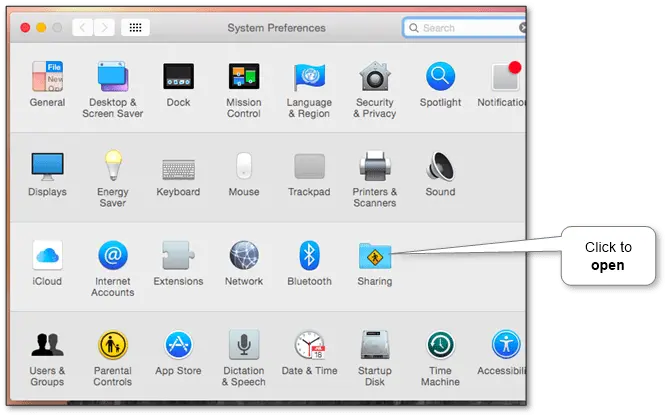
On Apple units, there’s a customary characteristic that lets you do that. You want into the “System Preferences” choose “Sharing”.
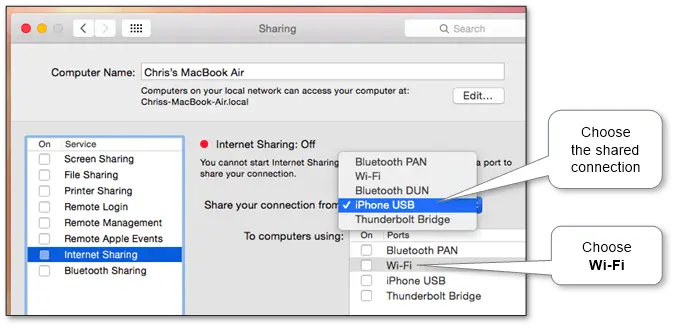
Then choose the particular connection (for instance, iPhone by way of USB) and choose “Wi-Fi” underneath “To computer systems utilizing”.
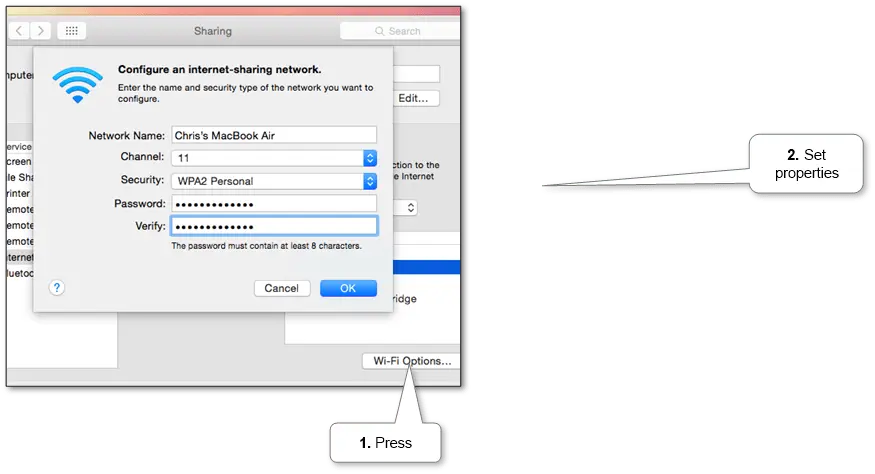
Then click on “Wi-Fi Choices” on the backside of the window to configure the Wi-Fi hotspot. Choose the community identify and one of the best Wi-Fi channel.
Within the “Safety” select “WPA2-Private” and enter the password. In any other case, by default, the hotspot will probably be configured with no password and anybody can join.
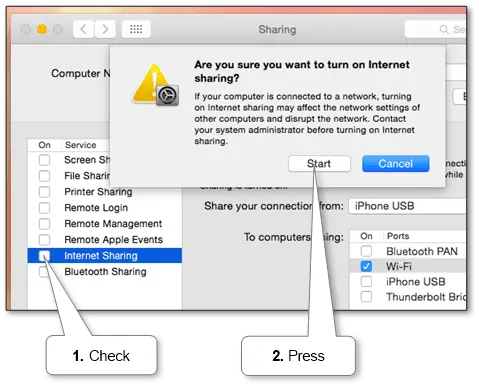
After that, click on on the checkbox to the left of “Web Sharing” and click on “Begin” to activate the Wi-Fi hotspot.
Configuring Home windows
It is advisable both configure it manually, given the particular model of Home windows®or to enroll simpler – to put in a particular program that’s arrange all routinely. There are numerous such packages, particularly, you’ll be able to strive our handy and free UNK_TYPESLUG:product:wifi-hotspot, which can give extra comfort.
- Windows 10®
- Windows 8.1®
- Windows 7®
- Windows Vista®
- Windows XP®
Home windows 10
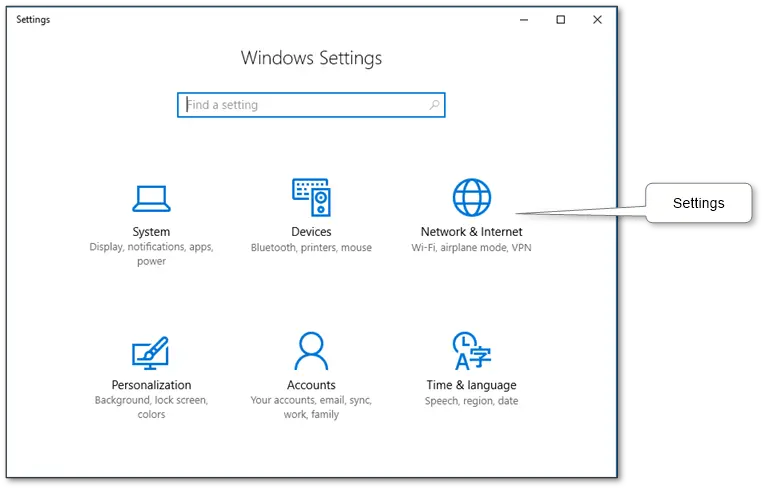
On this model, beginning with 1607, there is a built-in ability to enable an access point, restricted to eight units.
First, guarantee that the Wi-Fi is enabled. Subsequent, you want to specify the identify, password and Web connection to share.
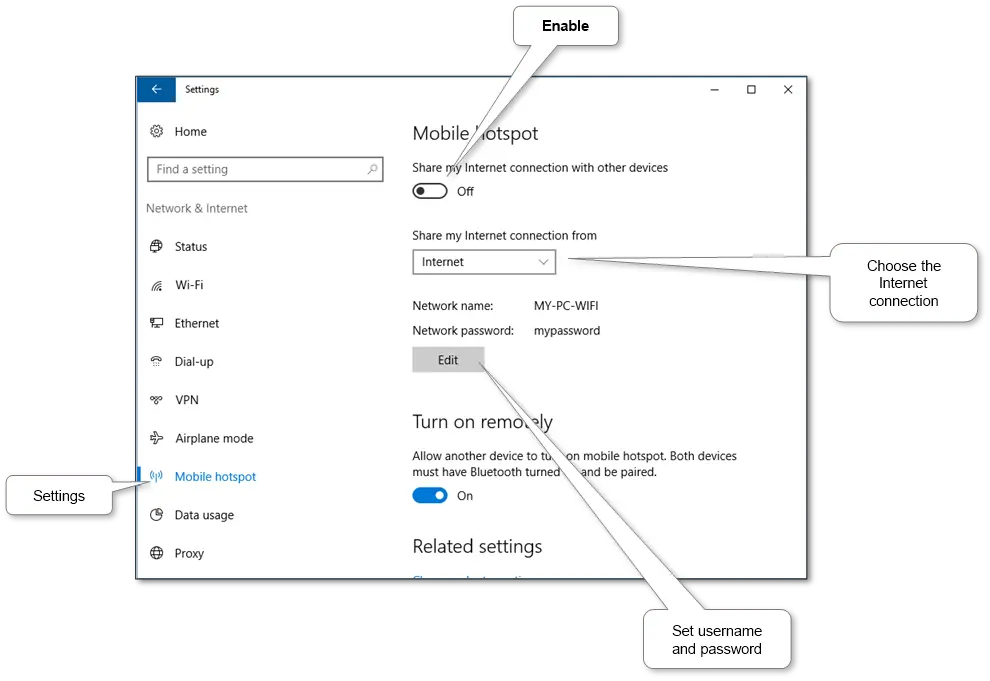
For extra facilities and services you need to use our free software program UNK_TYPESLUG:product:wifi-hotspot, which has automatic tuning, assist sleep mode, handy to choice username and password, the selection of the method of operation of the access point and choosing the Wi-Fi adapter.
Home windows 8.1
First, guarantee that the Wi-Fi is enabled. Subsequent, you want to run particular instructions from a command immediate operating with administrator privileges:
netsh wlan set hostednetwork mode=enable ssid=”MY-PC-WIFI” key=”mypassword” keyUsage=persistent
netsh wlan begin hostednetwork
To disable you want to run:
netsh wlan cease hostednetwork
Or simpler to use our free program UNK_TYPESLUG:product:wifi-hotspot, which routinely arrange all and provides extra comfort.
Home windows 7
First, guarantee that the Wi-Fi is enabled. Subsequent, you want to run particular instructions from a command immediate operating with administrator privileges:
netsh wlan set hostednetwork mode=enable ssid=”MY-PC-WIFI” key=”mypassword” keyUsage=persistent
netsh wlan begin hostednetwork
To disable you want to run:
netsh wlan cease hostednetwork
Or simpler to use our free program UNK_TYPESLUG:product:wifi-hotspot, which routinely arrange all and provides extra comfort.
Home windows Vista
This model solely helps Ad Hoc network mode. It is advisable create an advert hoc community within the Wi-Fi profiles.
Be sure that the Wi-Fi is enabled. Subsequent, do the steps in response to the scheme under.
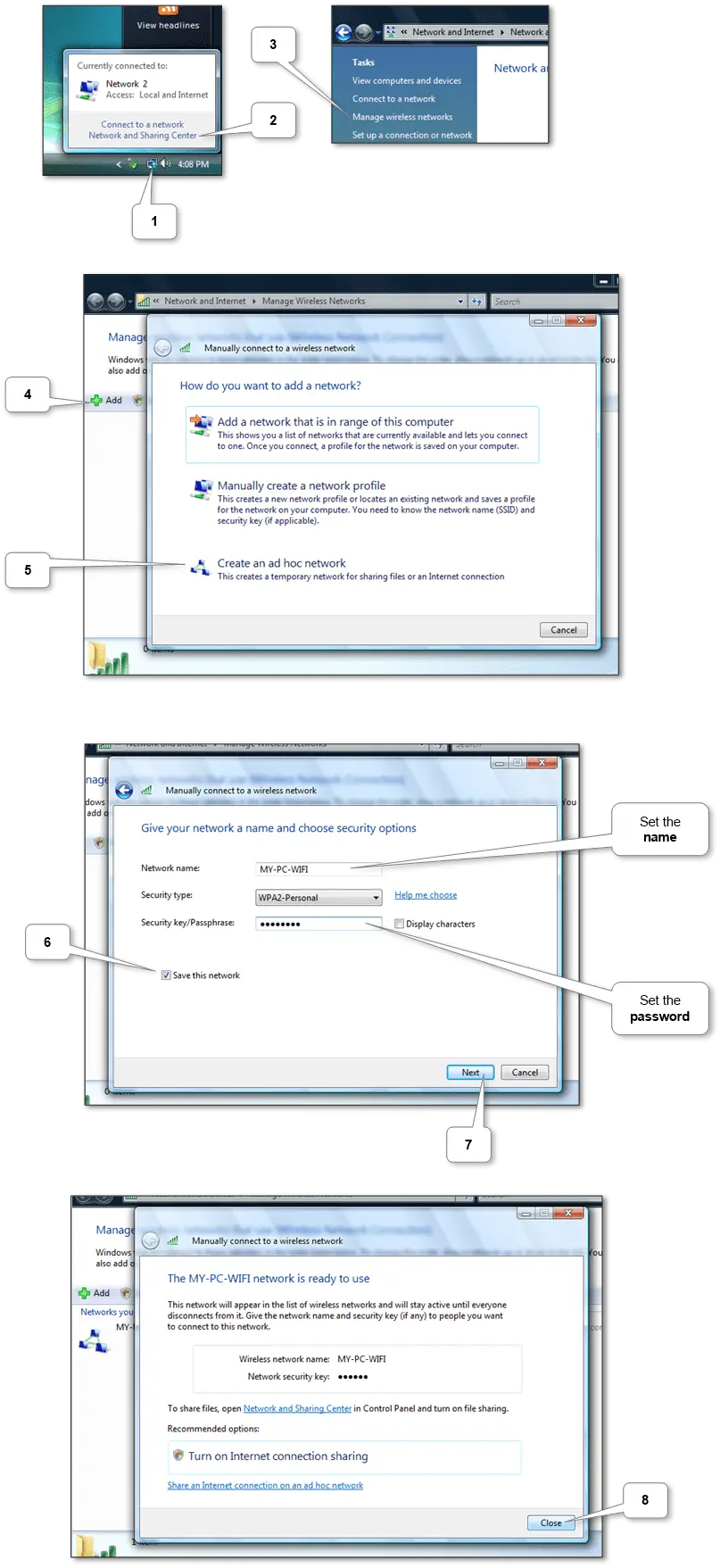
You should use our free software program UNK_TYPESLUG:product:wifi-hotspot, which routinely arrange all and can give extra comfort.
Home windows XP
This model solely helps Ad Hoc network mode. It is advisable create an advert hoc community within the Wi-Fi profiles.
Be sure that the Wi-Fi is enabled. Subsequent, do the steps in response to the scheme under.
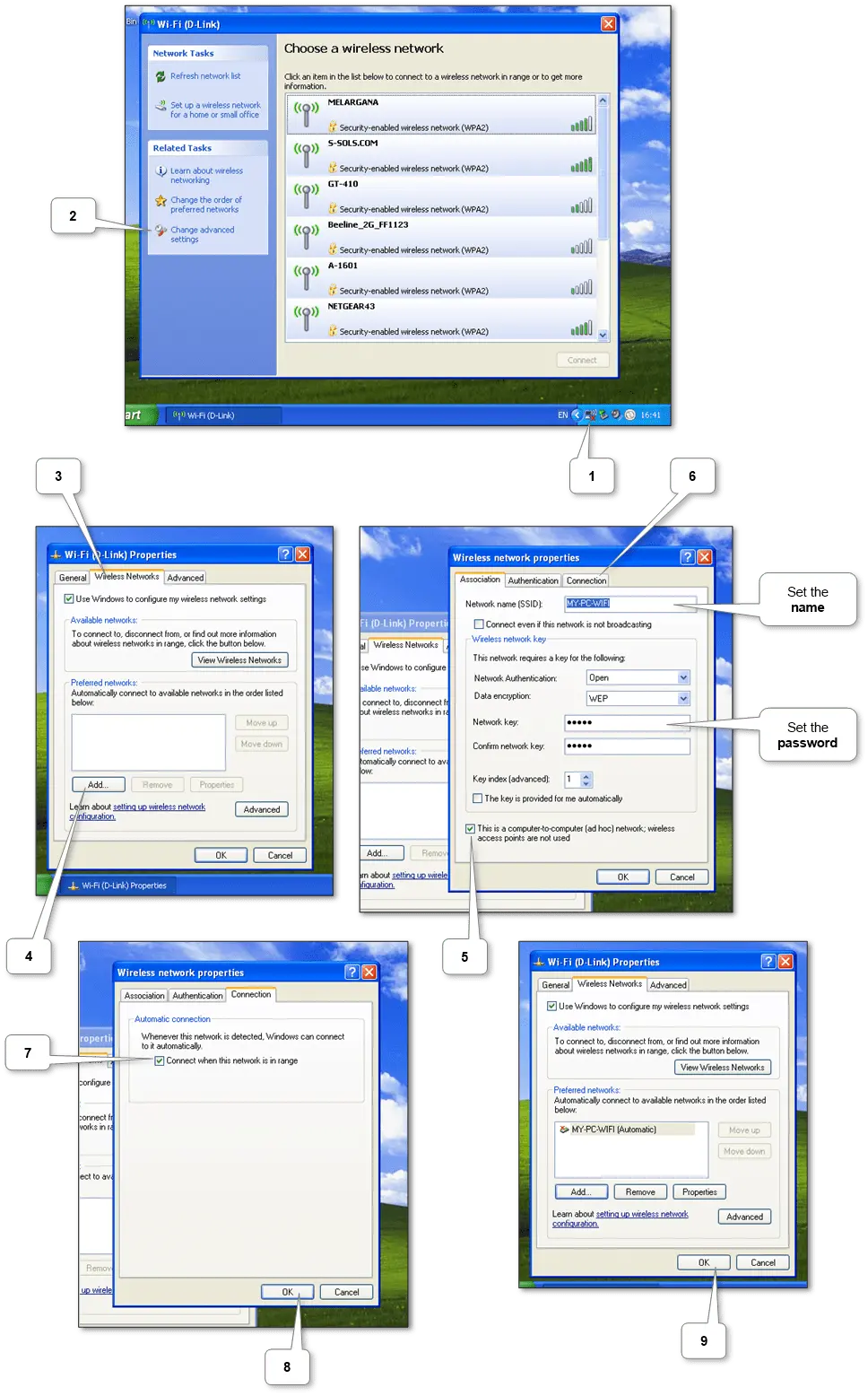
You should use our free software program UNK_TYPESLUG:product:wifi-hotspot, which routinely arrange all and can give extra comfort.

