
Table of Contents
- What Is PHP OPcache?
- Why OPcache Is Important for WordPress
- How PHP OPcache Works
- How to Locate php.ini File
- How to Configure PHP OPcache
- Important OPcache Settings Explained
- Restarting Apache or PHP Services
- How to Verify OPcache Is Working
- Additional WordPress Performance Tips
- Frequently Asked Questions
Website speed has become one of the most important ranking factors for search engines and user experience. Slow-loading websites can negatively affect SEO rankings, increase bounce rates, and reduce conversions.
If you run a WordPress website, optimizing PHP performance is one of the best ways to improve overall speed and server response time.
One of the most powerful performance optimization tools available for PHP websites is PHP OPcache.
By enabling OPcache, you can significantly reduce PHP execution time and improve WordPress loading speed without upgrading your hosting plan.
In this comprehensive guide, you will learn what PHP OPcache is, how it works, how to configure it properly, and how it can dramatically improve WordPress performance.
What Is PHP OPcache?
PHP OPcache is a built-in PHP extension designed to improve website performance through opcode caching.
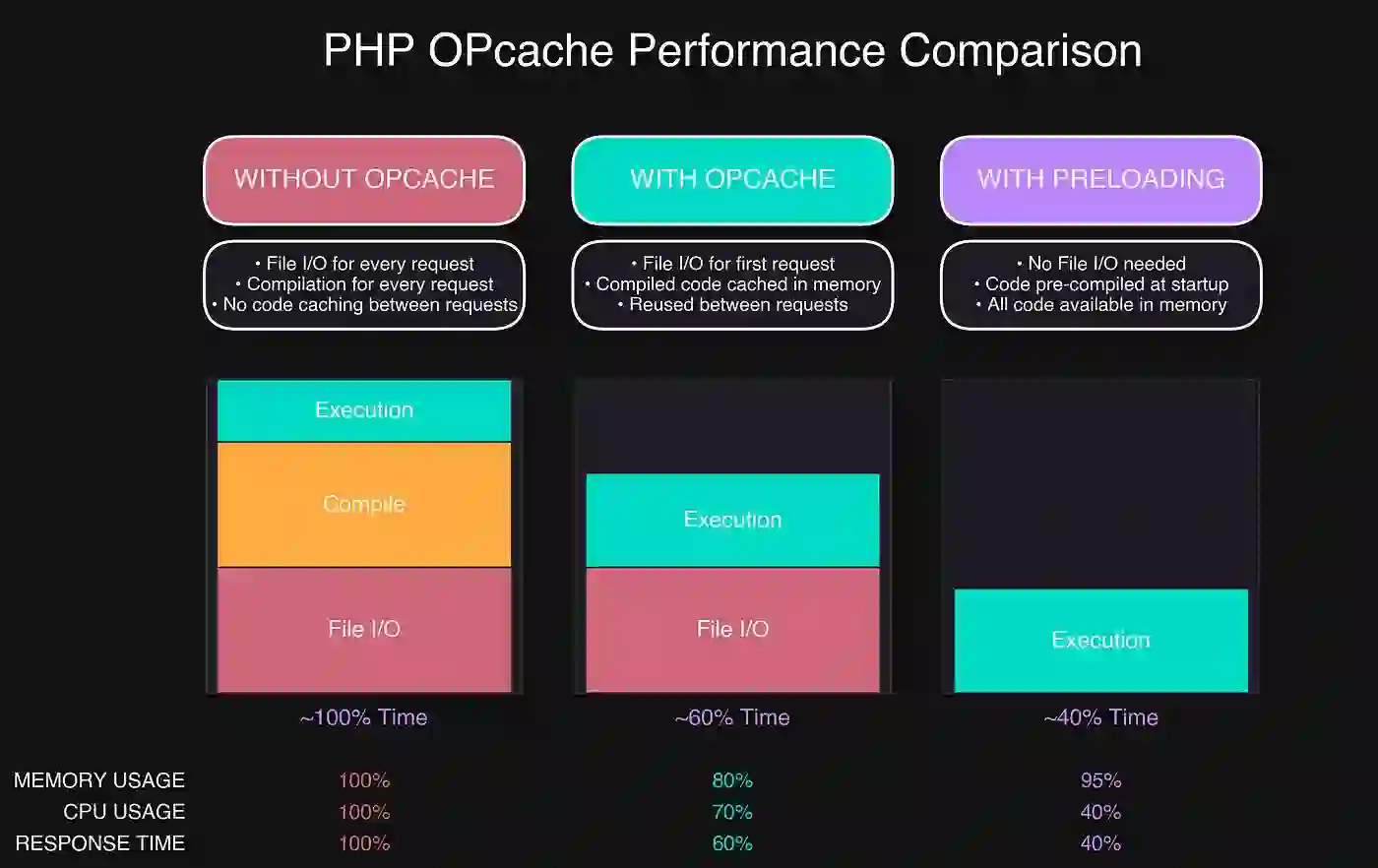
Instead of compiling PHP scripts every time a visitor loads a page, OPcache stores precompiled PHP bytecode in server memory.
This allows PHP scripts to execute much faster because the server skips repetitive parsing and compilation processes.
Starting from PHP 5.5, OPcache became officially integrated into PHP by default, making it one of the most widely used performance optimization technologies today.
To learn more, check our guide on convert Word documents to WordPress.
Why OPcache Is Important for WordPress
WordPress websites rely heavily on PHP execution. Every page request triggers multiple PHP scripts, plugins, database queries, and theme functions.
Without caching, the server repeatedly processes the same PHP code for every visitor.
Enabling OPcache dramatically reduces this overhead.
Benefits of PHP OPcache for WordPress
- Faster page loading speed
- Reduced server CPU usage
- Improved Time To First Byte (TTFB)
- Better user experience
- Higher SEO rankings
- Improved scalability during traffic spikes
- Lower hosting resource consumption
To learn more, check our guide on how to free Uurage space on your smartphone.
In many cases, OPcache can improve website speed by 30% to 50% or even more depending on server configuration.
How PHP OPcache Works
Normally, when a visitor opens a PHP-based webpage, the server performs several steps:
- Read PHP script files
- Parse the PHP code
- Compile the code into opcode
- Execute the opcode
- Generate HTML output
This process repeats for every request.
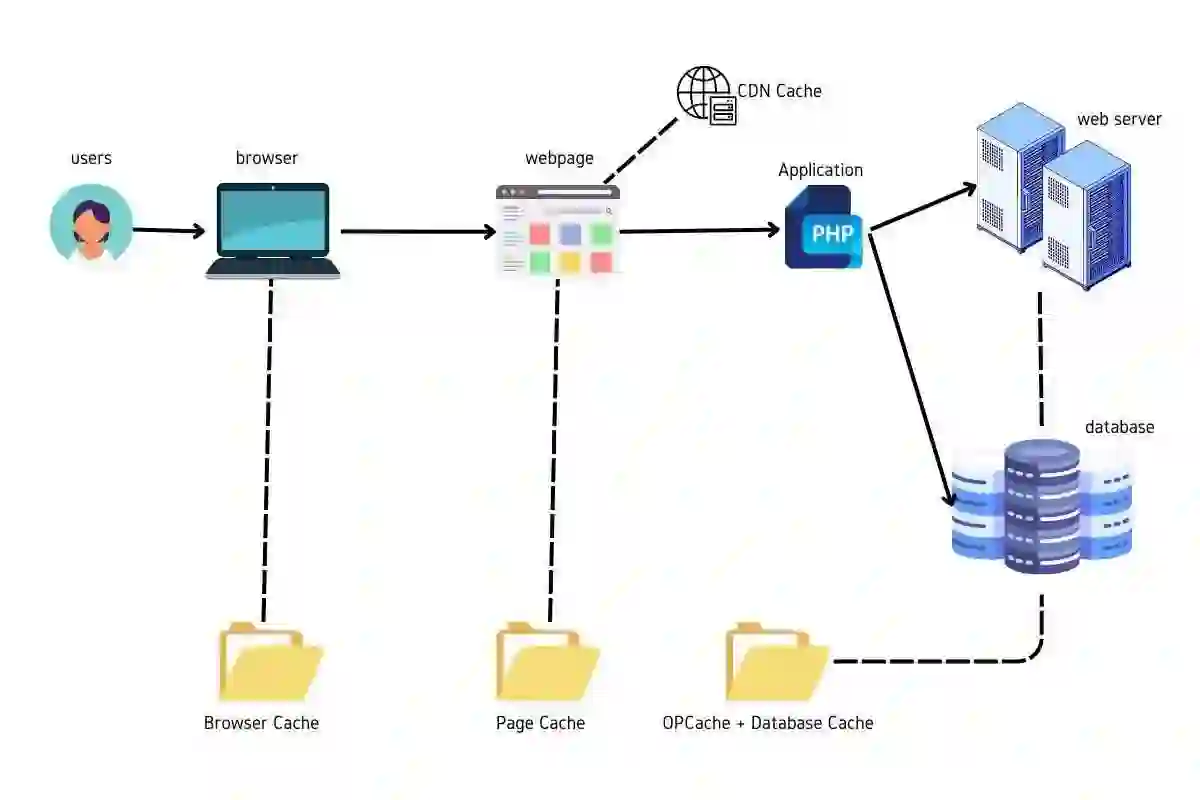
OPcache improves performance by storing the compiled opcode directly in shared memory.
When another visitor requests the same page, the server skips parsing and compilation completely and executes the cached opcode immediately.
This dramatically reduces server processing time.
How to Locate php.ini File
The main OPcache configuration is managed through the php.ini file.
The file location depends on your operating system and hosting environment.
Common php.ini Locations
- Linux Apache: /etc/php/apache2/php.ini
- Linux PHP-FPM: /etc/php/fpm/php.ini
- Unix Systems: /usr/local/lib/php.ini
- Windows WAMP: C:\wamp\bin\php\php.ini
To learn more, check our guide on Best Camera Phones in 2025.
How to Find php.ini Automatically
Create a file named phpinfo.php with the following code:
Upload the file to your web server root directory and visit:
http://yourdomain.com/phpinfo.php
You will see detailed PHP information including the exact php.ini location.
How to Configure PHP OPcache
After locating the php.ini file, open it using a text editor.
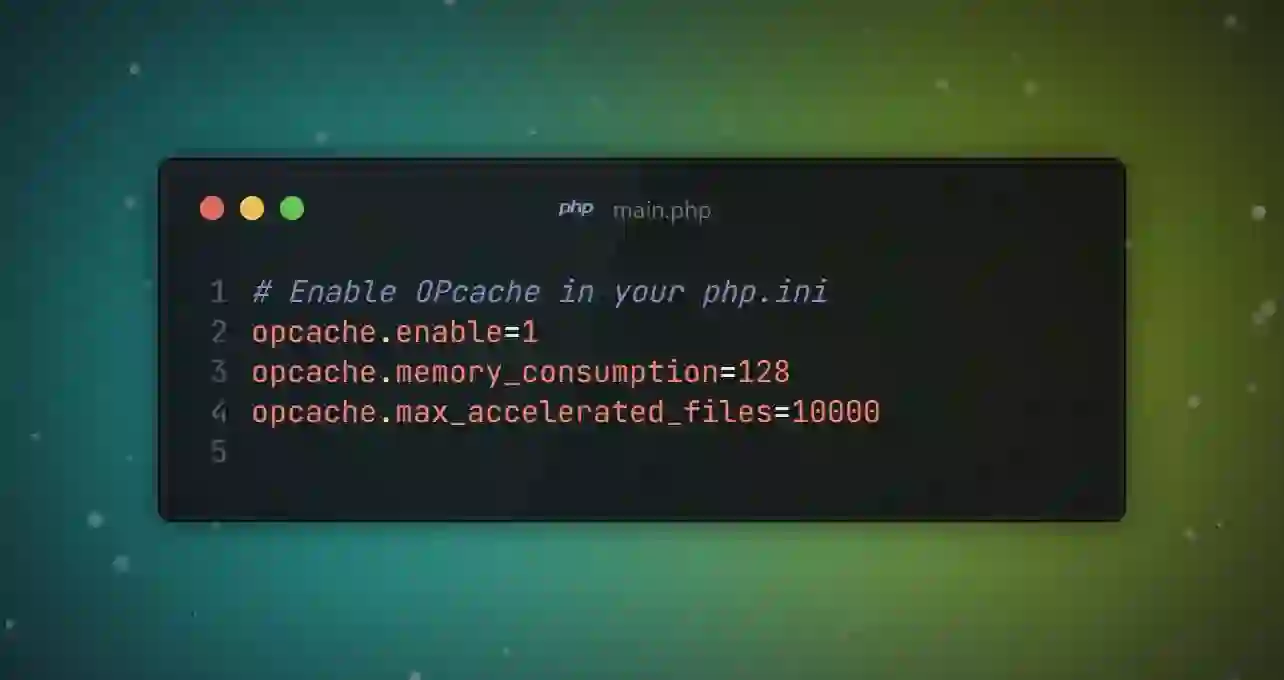
Find or create the [opcache] section and add the following configuration:
[opcache]
zend_extension=opcache
opcache.enable=1
This activates OPcache on your server.
However, additional optimization settings can further improve performance.
Important OPcache Settings Explained
opcache.enable = 1
This setting enables the OPcache system entirely.
opcache.use_cwd = 1
Prevents filename collisions between scripts with identical names located in different directories.
To learn more, check our guide on generative AI for gontent greation.
opcache.validate_timestamps = 1
Checks PHP files for changes automatically.
This is highly recommended for WordPress websites where themes and plugins are frequently updated.
If your website files rarely change, disabling this option can improve performance slightly.
opcache.revalidate_freq = 2
Defines how frequently PHP checks for file modifications.
A value of 2 means files are checked every two seconds.
opcache.max_accelerated_files = 10000
Specifies the maximum number of PHP files OPcache can store.
Large WordPress websites with many plugins should use higher values.
To learn more, check our guide on NVIDIA Artificial Intelligence.
Restarting Apache or PHP Services
After modifying php.ini settings, you must restart your web server or PHP service.
Examples
- Restart Apache
- Restart Nginx
- Restart PHP-FPM
- Restart WAMP services on Windows
This applies the new OPcache configuration.
How to Verify OPcache Is Working
You can verify OPcache functionality using a simple PHP script.
Create a file named opcache.php with the following code:
Upload the file to your website root directory and open it in your browser.
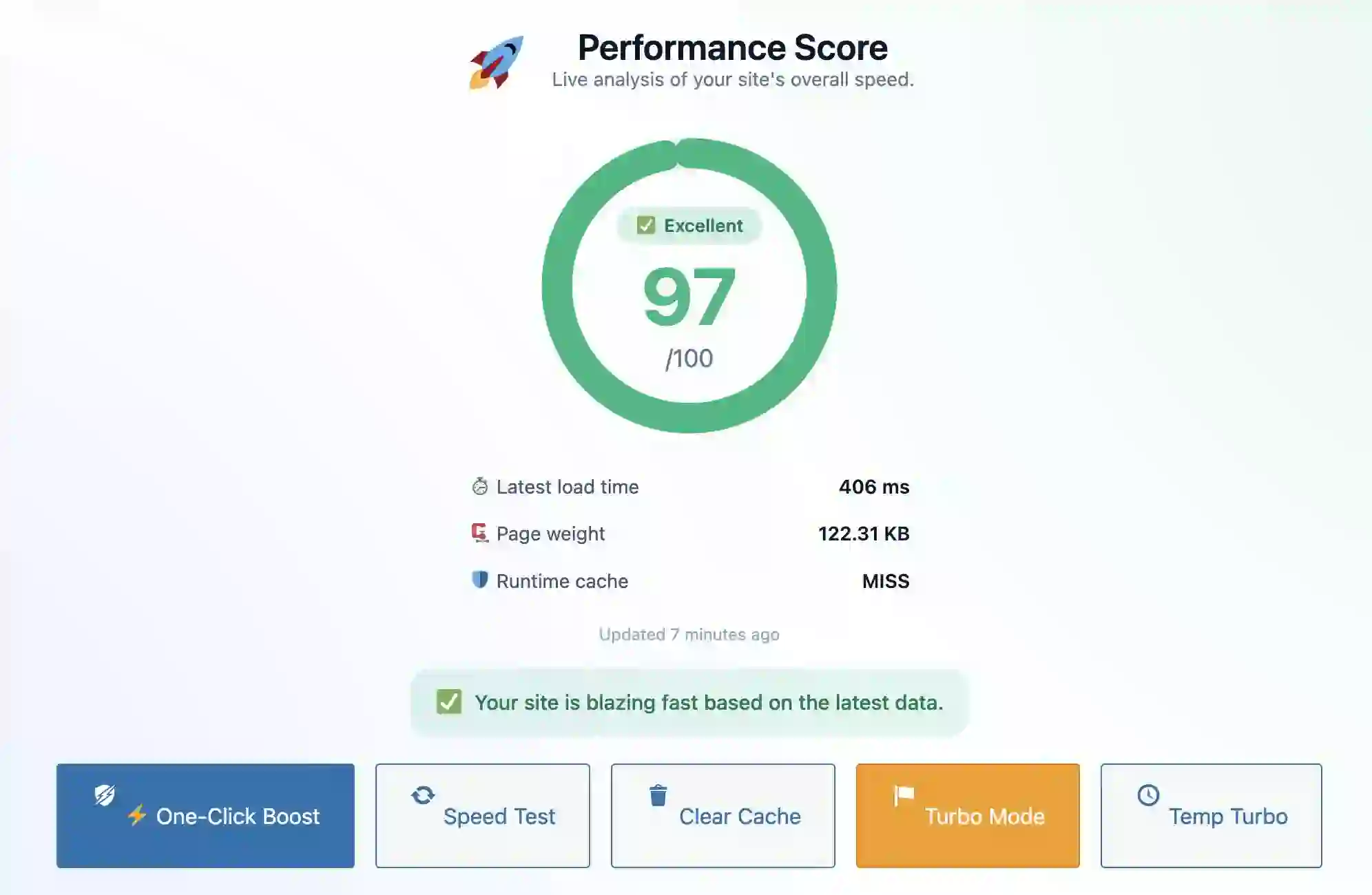
If OPcache is active, you should see:
- opcache_enabled = true
- Cached script statistics
- Memory usage details
- Hit rate information
This confirms that OPcache is functioning correctly.
To learn more, check our guide on google AI overviews Ads.
Additional WordPress Performance Tips
Although OPcache greatly improves PHP execution speed, combining it with additional optimization techniques delivers even better performance.
Use a WordPress Cache Plugin
- WP Rocket
- LiteSpeed Cache
- W3 Total Cache
- WP Super Cache
Optimize Images
Compressed images reduce loading times significantly.
Use a CDN
Content Delivery Networks improve global loading speed.
Reduce Plugin Usage
Too many plugins can increase PHP execution time.
Upgrade PHP Version
Using modern PHP versions such as PHP 8.x dramatically improves performance and security.
Final Thoughts
PHP OPcache is one of the easiest and most effective ways to speed up WordPress websites and improve server performance.
By caching compiled PHP code in memory, OPcache reduces CPU load, decreases response times, and enhances the overall browsing experience.
Whether you manage a personal blog, WooCommerce store, or enterprise website, enabling OPcache can provide immediate performance improvements.
When combined with WordPress caching plugins, optimized hosting, and modern PHP versions, OPcache becomes a critical component of a high-performance WordPress environment.
To learn more, check our guide on how to create a website yourself for free.
Frequently Asked Questions
What is PHP OPcache?
PHP OPcache is a built-in caching system that stores compiled PHP bytecode in memory to improve website speed.
Does OPcache improve WordPress performance?
Yes, OPcache significantly reduces PHP execution time and improves WordPress loading speed.
Is OPcache enabled by default?
In PHP 5.5 and newer versions, OPcache is included by default but may require activation.
Do I need a caching plugin if I use OPcache?
Yes, OPcache optimizes PHP execution while caching plugins optimize page delivery and browser caching.
Can OPcache reduce server load?
Yes, OPcache reduces repetitive PHP compilation and lowers CPU usage considerably.
PHP cache unbelievable will increase the velocity of a web site. As an illustration, if request preparation takes 1.2 seconds, after cache enabling it can take 0.6 seconds (improve by about 50%). Notably, it influences on WordPress considerably as nicely as a result of it incorporates lots of PHP code.
On some websites based mostly on e.g. WAMP (Apache, MySQL and PHP bundle for Home windows) PHP code cache is turned off by default so it’s higher for us to verify the settings.
The most well-liked approach to do this is to make use of OpCache – a particular PHP module that does code caching. In PHP 5.5 and above this module already built-in into.
The way it works
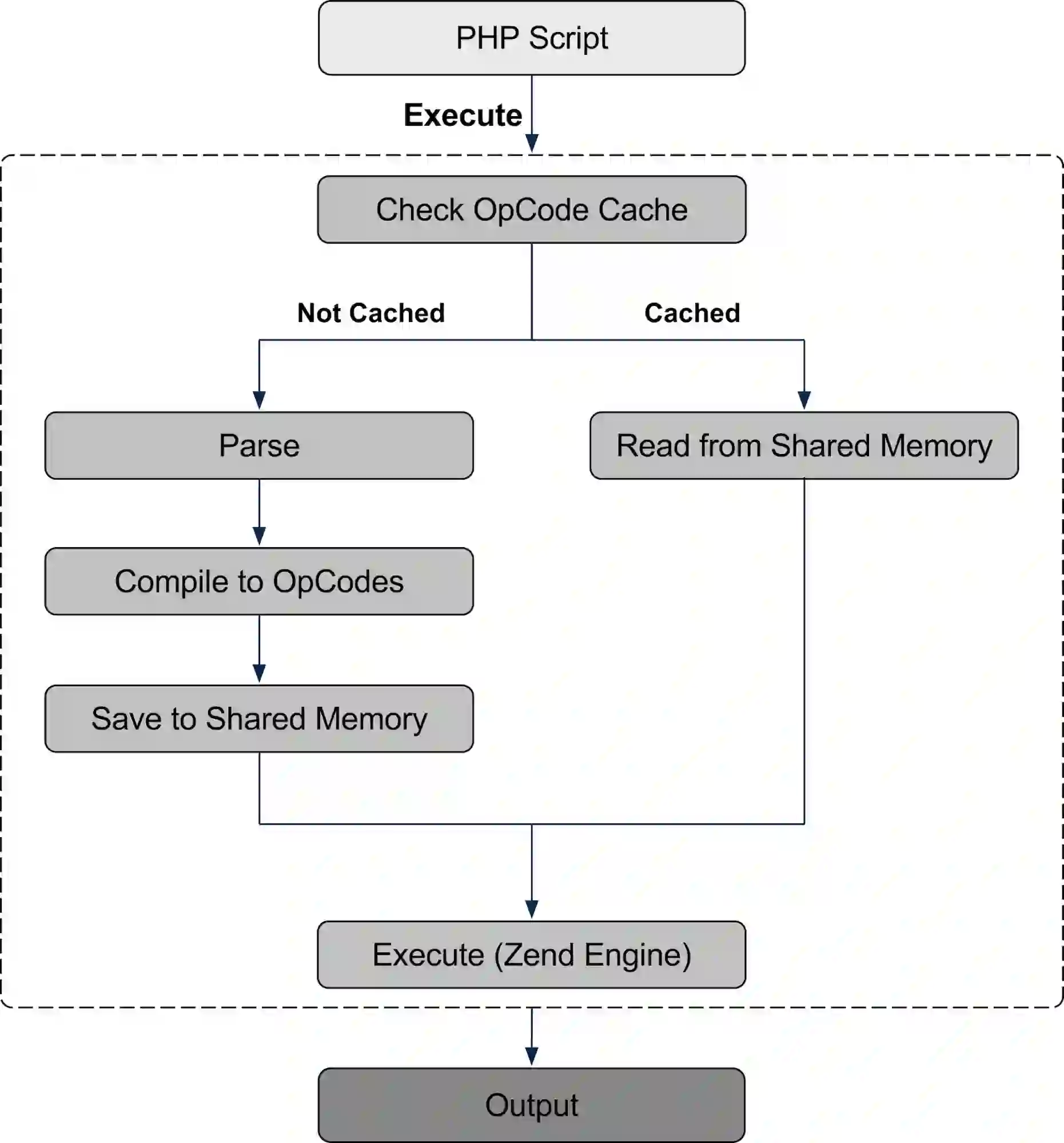
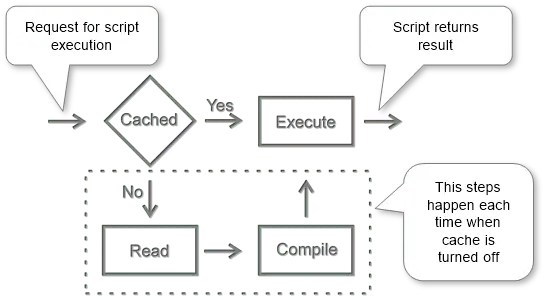
OpCache offers quicker PHP execution by means of compiled code caching and optimization. It improves PHP efficiency by storing precompiled script bytecode within the shared reminiscence. Each time a PHP script is requested, the PHP script will likely be parsed and compiled into opcode, which then is executed within the engine. When an opcode cache is launched, after a PHP script is interpreted and changed into opcode (compiled), it’s saved in shared reminiscence, and subsequent requests will skip the parsing and compilation phases and leverage the opcode saved in reminiscence, decreasing the script’s execution time.
Configure
Configuration primarily is finished by enhancing a particular file named php.ini.
Find configuration file
The placement is rely upon a system and will be like /and many others/php5/apache2/php.ini or /and many others/php5/fpm/php.ini, /usr/native/lib/php.ini on Unix-similar techniques and C:\wamp\bin\php\php5.5.12\php.ini on Home windows.
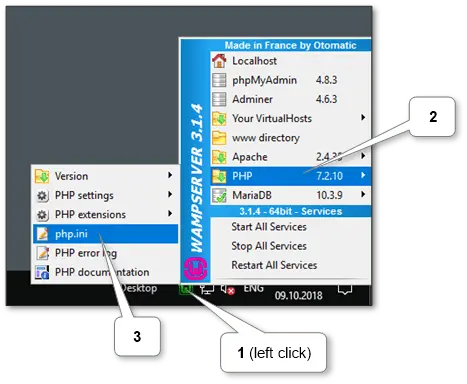
In WAMP there’s a particular menu merchandise that opens it.
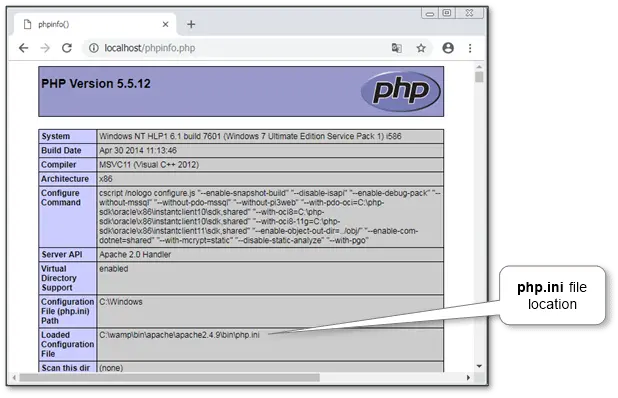
Additionally, a file’s location can all the time be found from PHP information. Simply create phpinfo.php file with content material , copy it to the online server’s root listing and run it by http://localhost/phpinfo.php. The placement is within the Configuration File (php.ini) Path part of the primary block (have a look at the image beneath).
Set settings
All settings are situated in [opcache] part of php.ini.
Make sure that the primary settings exist there:
[opcache]

zend_extension=

opcache.allow=1
Different further settings will be left untouched with default values. However generally it’s required to tune them. So here’s a brief description of every vital one with advisable values.
-
opcache.allow = 1
Permits or disables the cache. The principle setting.
-
opcache.use_cwd = 1
Eliminates attainable collisions between recordsdata with the identical base title.
-
opcache.validate_timestamps = 1
Permits runtime validation of script recordsdata adjustments. It’s advisable to be used if the location is being modified with totally different PHP scripts. E.g. plugins set up in WordPress. But when there may be insurance coverage that every one set of scripts is steady, this setting will be turned off to extend just a little little bit of runtime execution.
-
opcache.revalidate_freq = 2
How usually to verify script adjustments, in seconds. 0 will end in checking on each request. It doesn’t work if opcache.validate_timestamps is disabled.
-
opcache.max_accelerated_files = 10000
The utmost variety of cached recordsdata. Greater values advisable for larger websites with an enormous quantity of scripts and put in reminiscence.
To learn more, check our guide on top financial apps for money management.
The precise parameters can all the time be checked on the OPcache source configuration page and within the list of all parameters.
Restart internet service
Simply restart Net service (e.g. Apache) and PHP will likely be restarted too.
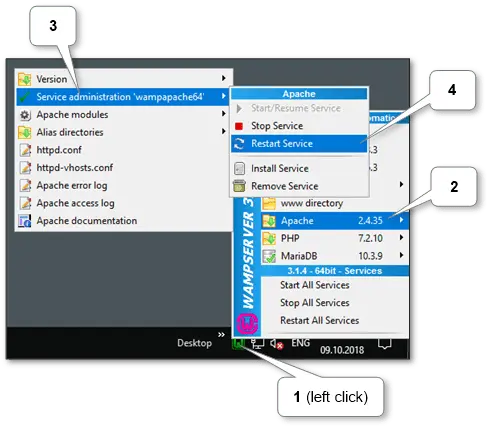
In WAMP it may be achieved by restart Apache.
Examine
The plain option to verify it’s to match server response earlier than and after turning on a cache. E.g. we can try this by Google Chrome browser.
One other option to verify that OpCache is working is to create a file opcache.php with content material , copy it to the online server’s root listing and run it by http://localhost/opcache.php. The pattern end result within the image beneath.
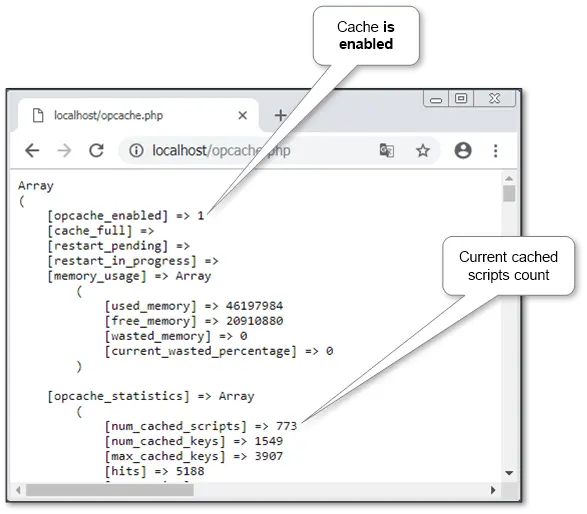
The worth of opcache_enabled needs to be 1. And decrease there may be PHP scripts statistics will be seen like complete depend and detailed information for each.
If the location’s efficiency shouldn’t be sufficient it’s attainable to tune up WordPress by cache plugins.

