Table of Contents
- What Are Microsoft Word Document Properties?
- Why Document Properties Matter for SEO
- How to Access Document Properties in Microsoft Word
- Common Word Document Properties
- Advanced Document Properties Explained
- Using Custom Properties for WordPress Publishing
- Benefits of DOCX Metadata Workflows
- Integrating Word Documents with WordPress
- Best Practices for SEO Content Management
- Frequently Asked Questions
Managing website content efficiently is one of the biggest challenges for bloggers, marketers, and WordPress website owners. While most users focus on writing articles and optimizing keywords, many overlook an incredibly useful feature built directly into Microsoft Word: document properties.
Microsoft Word document properties provide a professional way to organize metadata, improve publishing workflows, and optimize content management for WordPress websites.
When combined with DOCX-to-WordPress publishing plugins, these properties can automate categories, tags, SEO information, and other publishing elements with minimal effort.
In this comprehensive guide, you will learn how Microsoft Word document properties work, why they matter for SEO, and how to integrate them into a modern WordPress publishing workflow.
What Are Microsoft Word Document Properties?
Document properties are metadata fields embedded inside Microsoft Word documents. They store important information related to the document itself, including title, author name, tags, subject, comments, categories, and custom values.
These properties help organize content and improve file management across teams and publishing systems.
Many advanced WordPress publishing plugins can automatically read these properties during DOCX imports and use them to configure WordPress posts.
This creates a highly efficient content workflow for bloggers, editors, and marketing agencies.

Why Document Properties Matter for SEO
Modern SEO requires proper organization of metadata, categories, keywords, and content structure.
Document properties help content creators maintain consistency and improve optimization before publishing articles online.
Benefits of Using Word Document Properties
- Better content organization
- Improved SEO metadata management
- Faster publishing workflows
- Easier collaboration between writers and editors
- Improved automation for WordPress publishing
- Reduced manual data entry
For websites publishing large amounts of content regularly, these optimizations can save significant time and reduce publishing errors.
To learn more, check our guide on how to create a website yourself for free.
How to Access Document Properties in Microsoft Word
Microsoft Word makes it easy to access document properties.
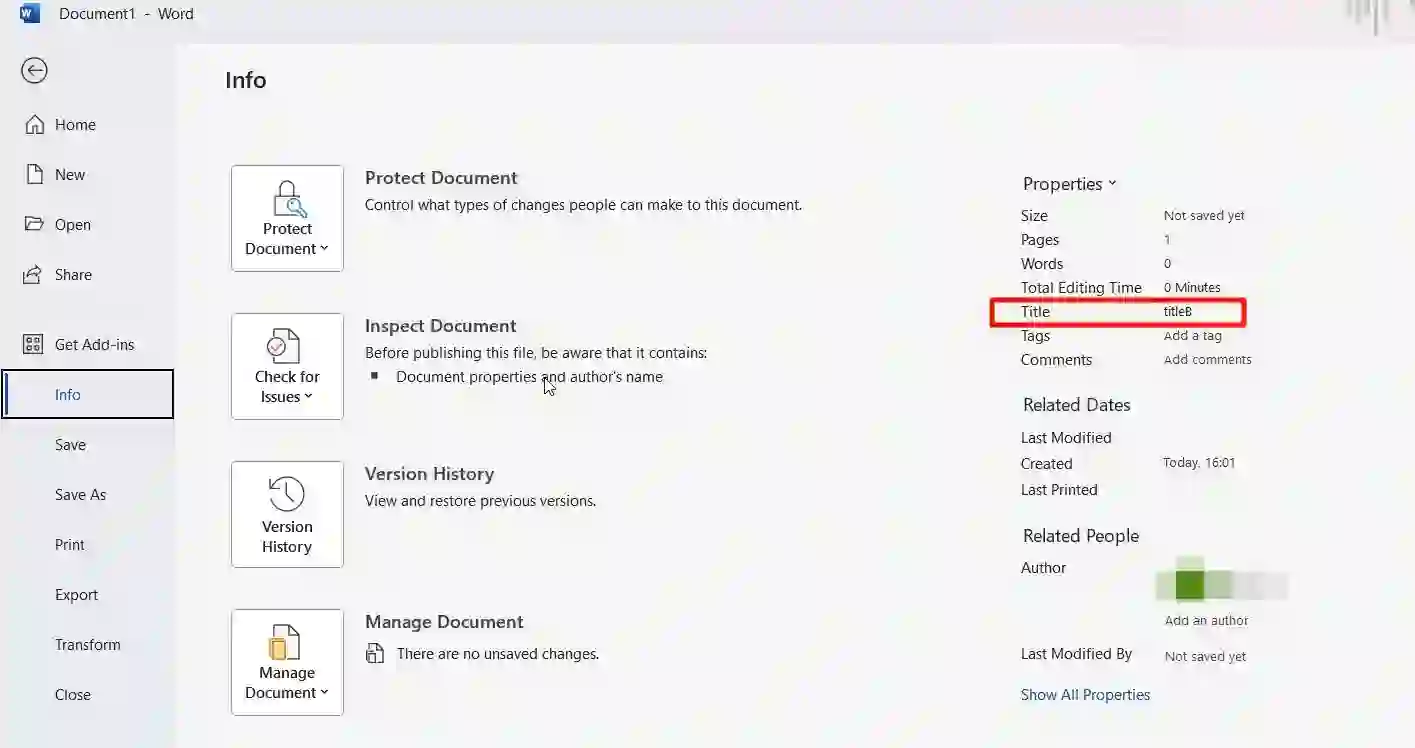
Steps to Open Document Properties
- Open your Word document
- Click the File tab
- Select Info
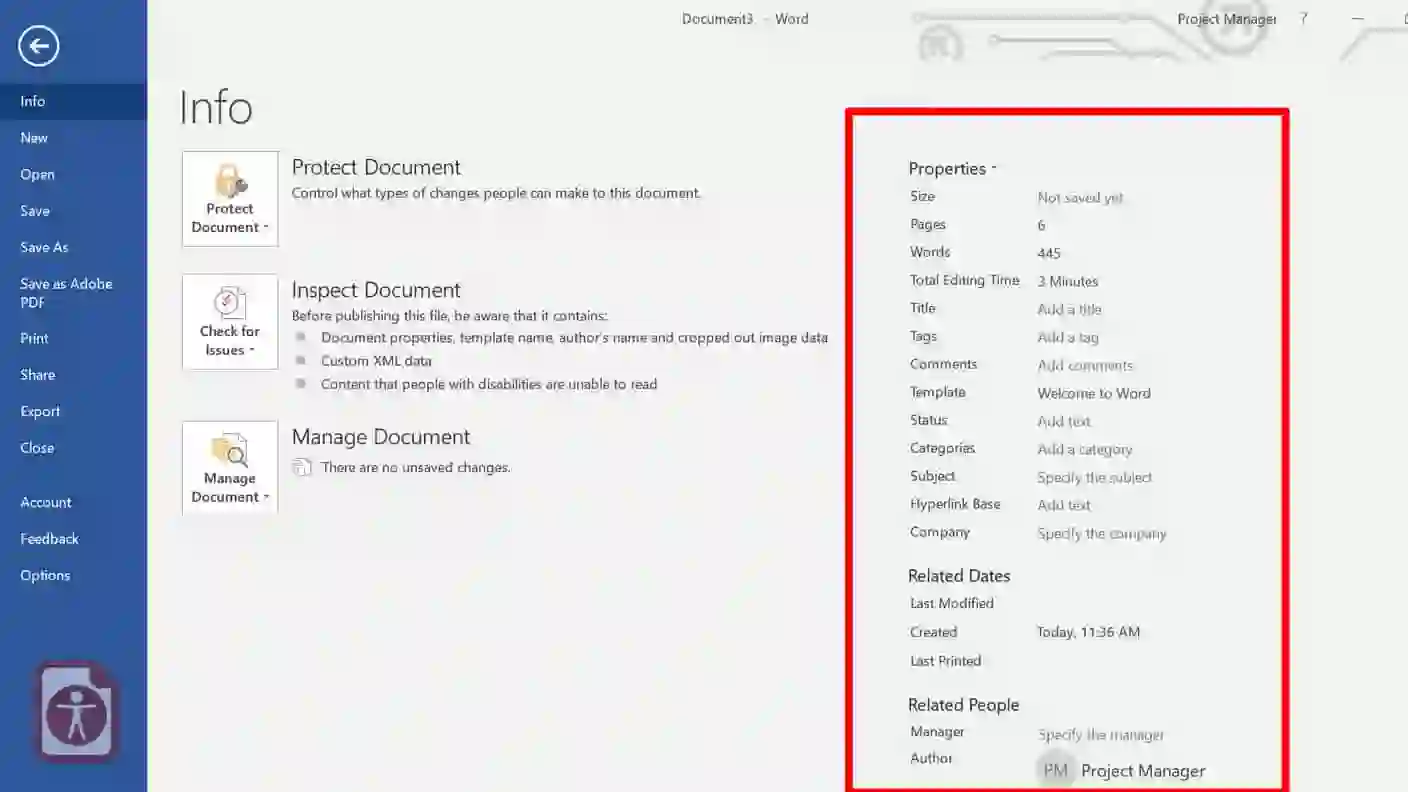
- View the document information panel
This section displays basic metadata fields and publishing information.
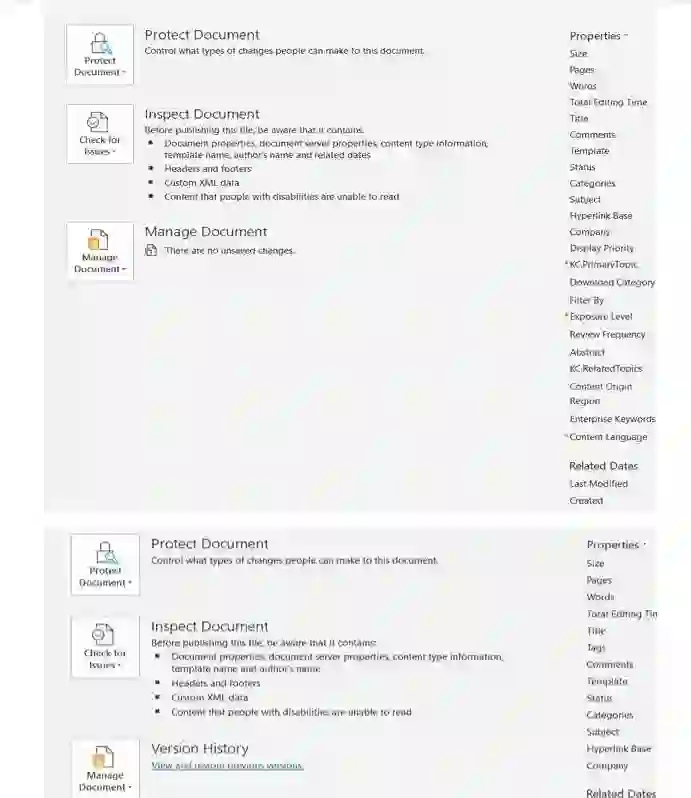
Microsoft Word initially shows only common properties, but additional advanced properties can also be accessed easily.
Common Word Document Properties
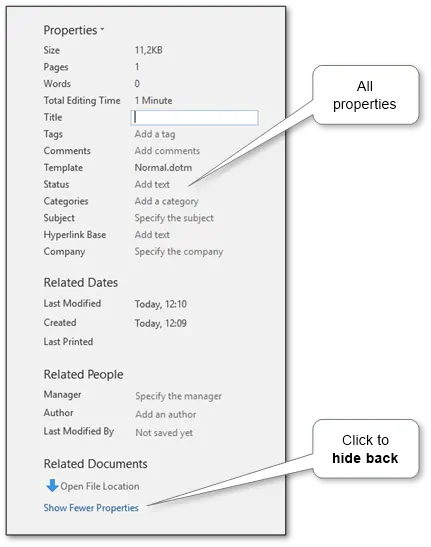
The standard information panel contains several commonly used metadata fields.
Important Common Properties
- Title
- Tags
- Categories
- Subject
- Comments
- Author
- Status
These fields are particularly useful when documents are integrated into automated WordPress publishing workflows.
For example, WordPress plugins can automatically convert tags and categories directly into WordPress taxonomy fields during import.
Advanced Document Properties Explained
In addition to standard metadata, Microsoft Word includes advanced document properties that provide deeper control over document management.
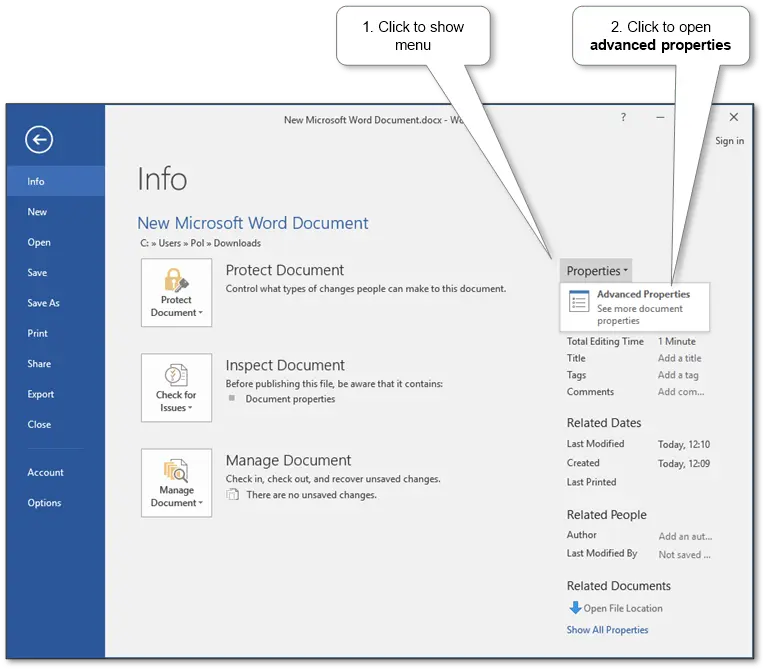
To access advanced properties:
- Go to File → Info
- Open the Properties dropdown menu
- Select Advanced Properties
To learn more, check our guide on google AI overviews Ads.
The advanced properties window includes several important sections.
1. General Properties
This section includes:
- File type
- File size
- Document location
- Creation date
- Modification date
2. Statistics Properties
Useful SEO and content statistics include:
- Word count
- Character count
- Number of pages
- Editing time
These statistics are valuable for content length analysis and SEO optimization.
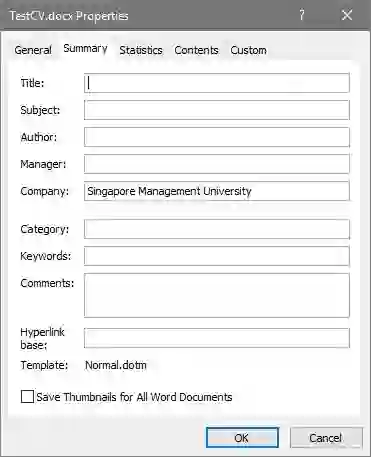
3. Content Properties
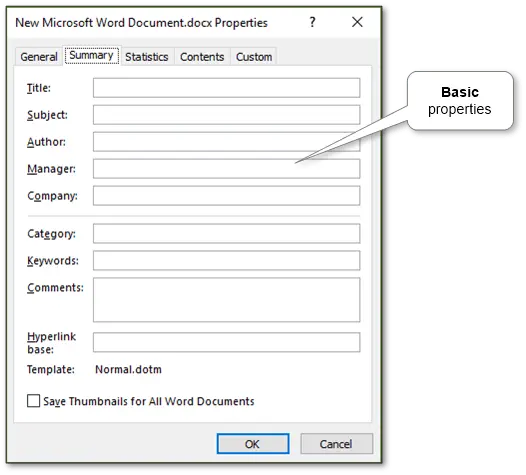
This area stores core content metadata such as:
- Title
- Subject
- Author
- Keywords
- Comments
Using Custom Properties for WordPress Publishing
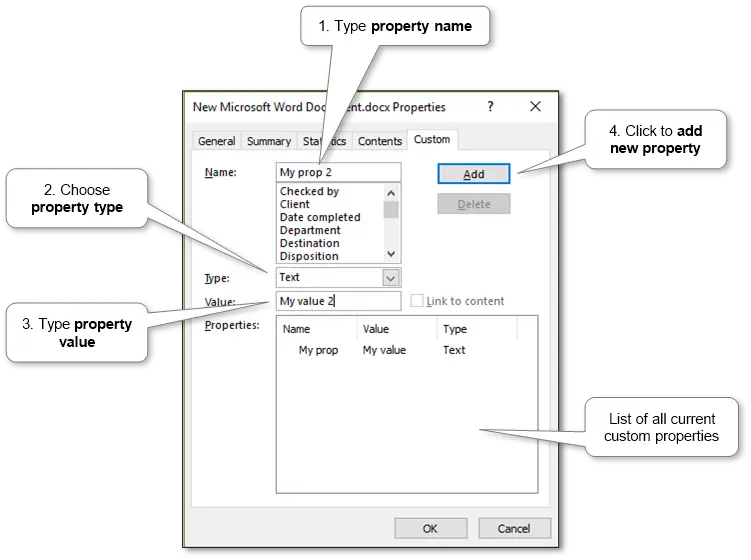
One of the most powerful features of Microsoft Word is the ability to create custom document properties.
Custom properties allow content creators to define personalized metadata fields tailored to publishing workflows.
Examples of Custom WordPress Metadata
- SEO Title
- Meta Description
- Focus Keywords
- Featured Image URL
- Canonical URL
- Article Slug
- Custom Taxonomies
Advanced DOCX publishing plugins can detect these custom properties automatically and apply them directly to WordPress posts.
This eliminates repetitive manual SEO setup inside WordPress.
Benefits of DOCX Metadata Workflows
Using document properties creates a more professional content management system.
Major Workflow Advantages
- Faster content production
- Improved consistency
- Reduced publishing mistakes
- Centralized metadata management
- Better editorial collaboration
- Enhanced SEO optimization
Editorial teams can review and optimize metadata before articles are uploaded to WordPress.
To learn more, check our guide on how to free Uurage space on your smartphone.
Integrating Word Documents with WordPress
Modern WordPress plugins now support direct DOCX importing and automated publishing workflows.
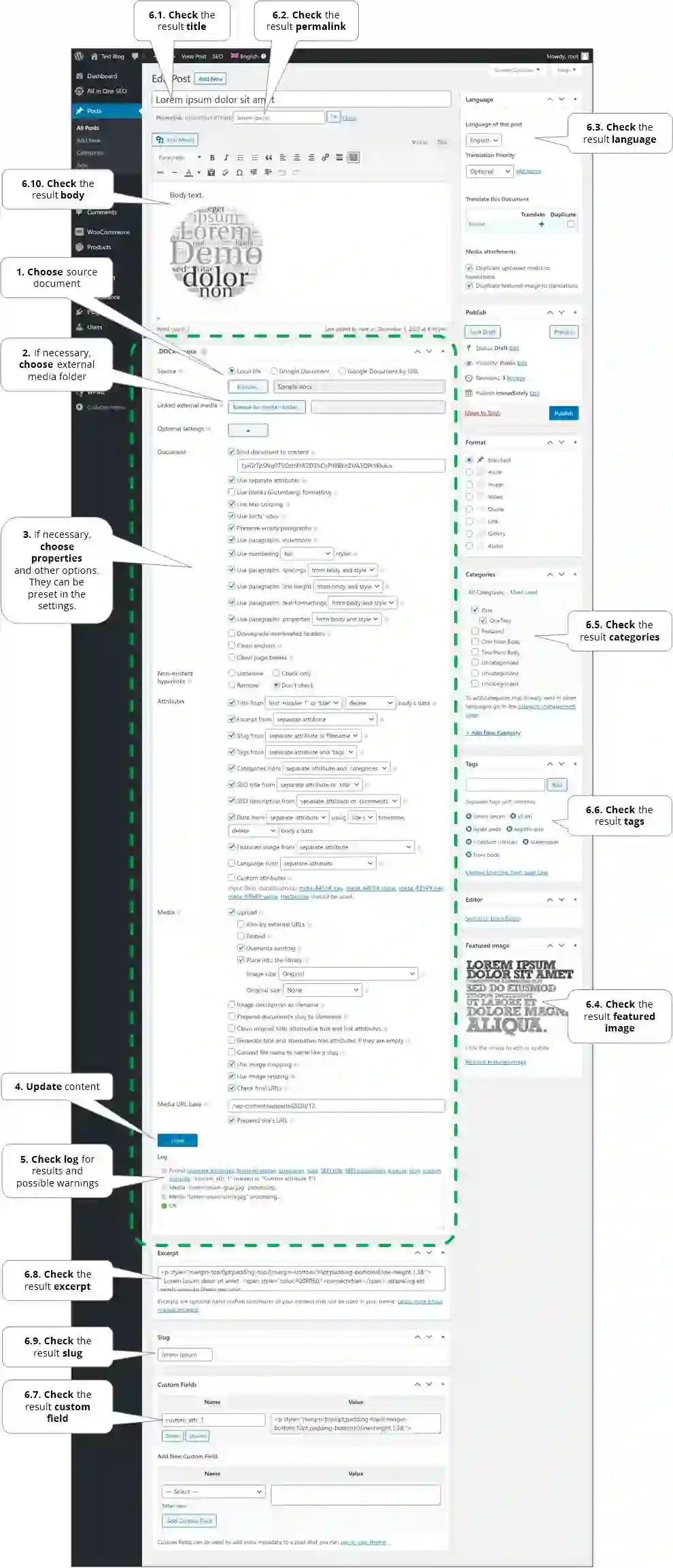
These tools can automatically:
- Convert DOCX files into WordPress posts
- Preserve formatting and headings
- Import images and media
- Apply SEO metadata
- Assign categories and tags
- Generate optimized URLs
This dramatically simplifies content publishing for WordPress websites.
Instead of copying and pasting articles manually, entire publishing workflows can be automated.
Best Practices for SEO Content Management
Use Clear Titles
Document titles should include target keywords naturally.
Optimize Tags and Categories
Use structured taxonomy to improve content discoverability.
Maintain Consistent Metadata
Keep SEO titles, descriptions, and keywords aligned across documents and WordPress posts.
Store Documents in Cloud Platforms
Using OneDrive or Google Drive improves collaboration and backup security.
Review Metadata Before Publishing
Always verify custom properties before importing documents into WordPress.
To learn more, check our guide on convert Word documents to WordPress.
Final Thoughts
Microsoft Word document properties are often overlooked, but they can significantly improve WordPress publishing workflows and SEO management.
By organizing metadata directly inside DOCX files, content creators can streamline automation, reduce errors, and improve publishing efficiency.
When combined with advanced WordPress import plugins, Word document properties become a powerful content management solution for bloggers, agencies, and editorial teams.
If you regularly publish SEO-focused content on WordPress, implementing document property workflows can save time and enhance consistency across your website.
Frequently Asked Questions
What are Microsoft Word document properties?
Document properties are metadata fields inside Word documents that store information such as title, tags, categories, author, and custom values.
Can Word document properties improve SEO workflows?
Yes, they help organize metadata and automate WordPress publishing processes.
To learn more, check our guide on speed up WordPress.
What are custom properties in Microsoft Word?
Custom properties are user-defined metadata fields that can store SEO titles, keywords, URLs, and other publishing information.
Can WordPress plugins read DOCX metadata?
Yes, many DOCX publishing plugins can automatically import Word document properties into WordPress.
Why use Word instead of the WordPress editor?
Microsoft Word offers advanced formatting, collaboration, offline editing, and metadata management features.All doc’s properties are situated below the ‘File’ menu tab within the ‘Information’ part (MS Phrase doc data panel). Take a look at the image under.
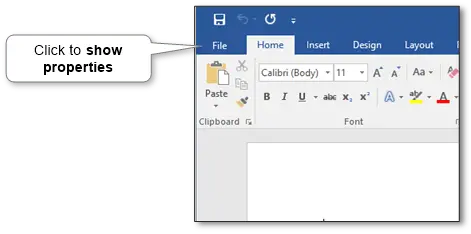
INTERESTING!Do you know that you should use acquainted MS Phrase or Google Docs to create website’s content material through WordPress’s plugin for importing from .DOCX simply by one click on?
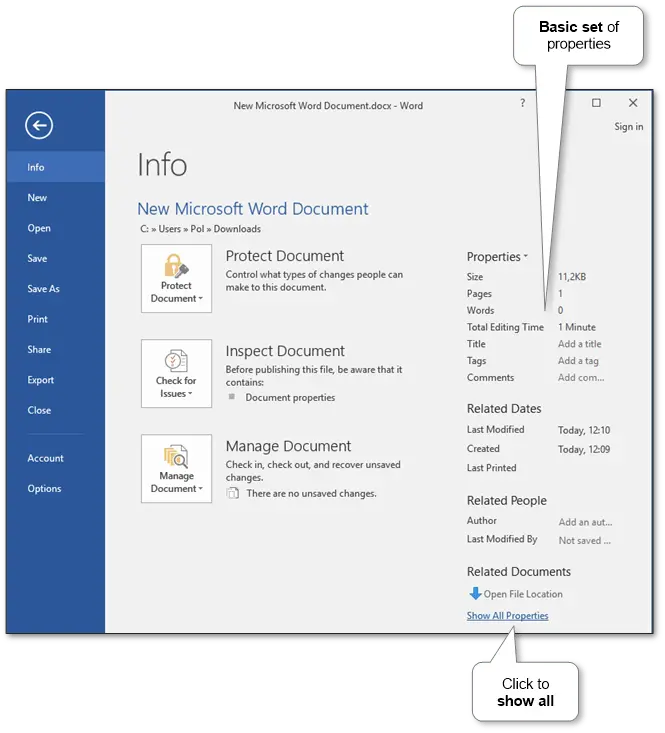
Frequent properties
There are a set of widespread properties reminiscent of title, tags, classes, feedback, topic, and many others. By default, the one primary set is displayed. To present all properties, click on the hyperlink on the backside of the window (see the image under).
Superior properties
Additionally, there are superior properties that include basic data, some statistics, primary and customized properties.
Fundamental properties
Customized properties