
Table of Contents
- What Is a Google Drive Direct Download Link?
- Why Use Direct Download Links?
- Step 1: Share Your File in Google Drive
- Step 2: Change File Visibility Settings
- Step 3: Copy the Google Drive Link
- Step 4: Use a Direct Link Generator Tool
- Step 5: Generate and Test the Direct Download Link
- Important Notes and Limitations
- Google Drive Sharing Security Tips
- Frequently Asked Questions
Google Drive is one of the most widely used cloud storage platforms for storing, sharing, and accessing files online.
By default, when users share files from Google Drive, the generated link usually opens a preview page before the file can be downloaded.
However, in many situations, users may prefer a direct download link that immediately starts downloading the file without opening the Google Drive preview screen.
To learn more, check our guide on Windows 11 tips and tricks.
Direct download links are especially useful for:
- Sharing software files
- Distributing PDFs and documents
- Providing downloadable media
- Creating download buttons on websites
- Improving user experience
In this guide, you will learn how to create a Google Drive direct download link quickly and easily using a simple online generator tool.
What Is a Google Drive Direct Download Link?
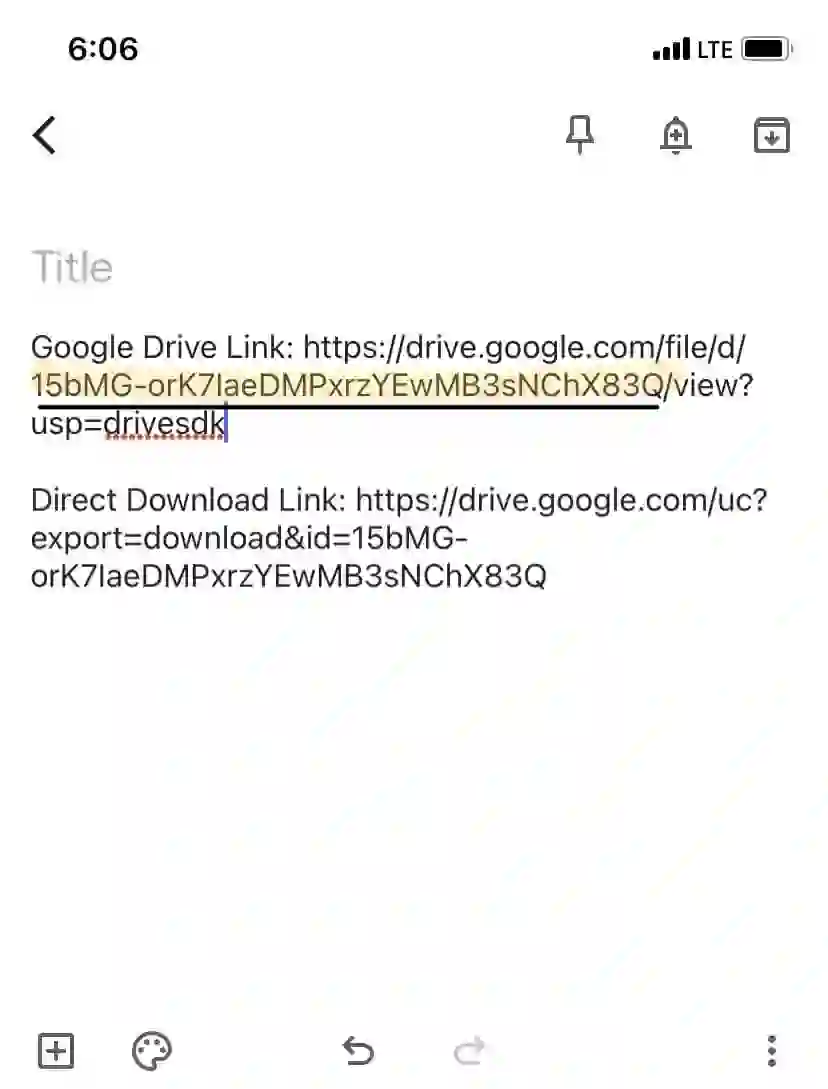
A Google Drive direct download link is a modified sharing URL that automatically triggers file downloads instead of displaying the preview page.
Normally, shared Google Drive files open inside Google’s file viewer first.
With a direct link, users can:
- Download files instantly
- Avoid unnecessary preview pages
- Improve accessibility
- Create cleaner website download buttons
This method is commonly used by website owners, developers, educators, and businesses sharing downloadable resources online.
Why Use Direct Download Links?
Direct download links provide several practical advantages compared to regular Google Drive sharing URLs.
To learn more, check our guide on MySQL database optimization.
Main Benefits
- Faster file access
- Better user experience
- Simplified downloads
- Professional-looking download buttons
- Reduced navigation steps
- Useful for websites and blogs
These links are especially valuable when sharing downloadable software, templates, ZIP archives, videos, or educational materials.
Step 1: Share Your File in Google Drive
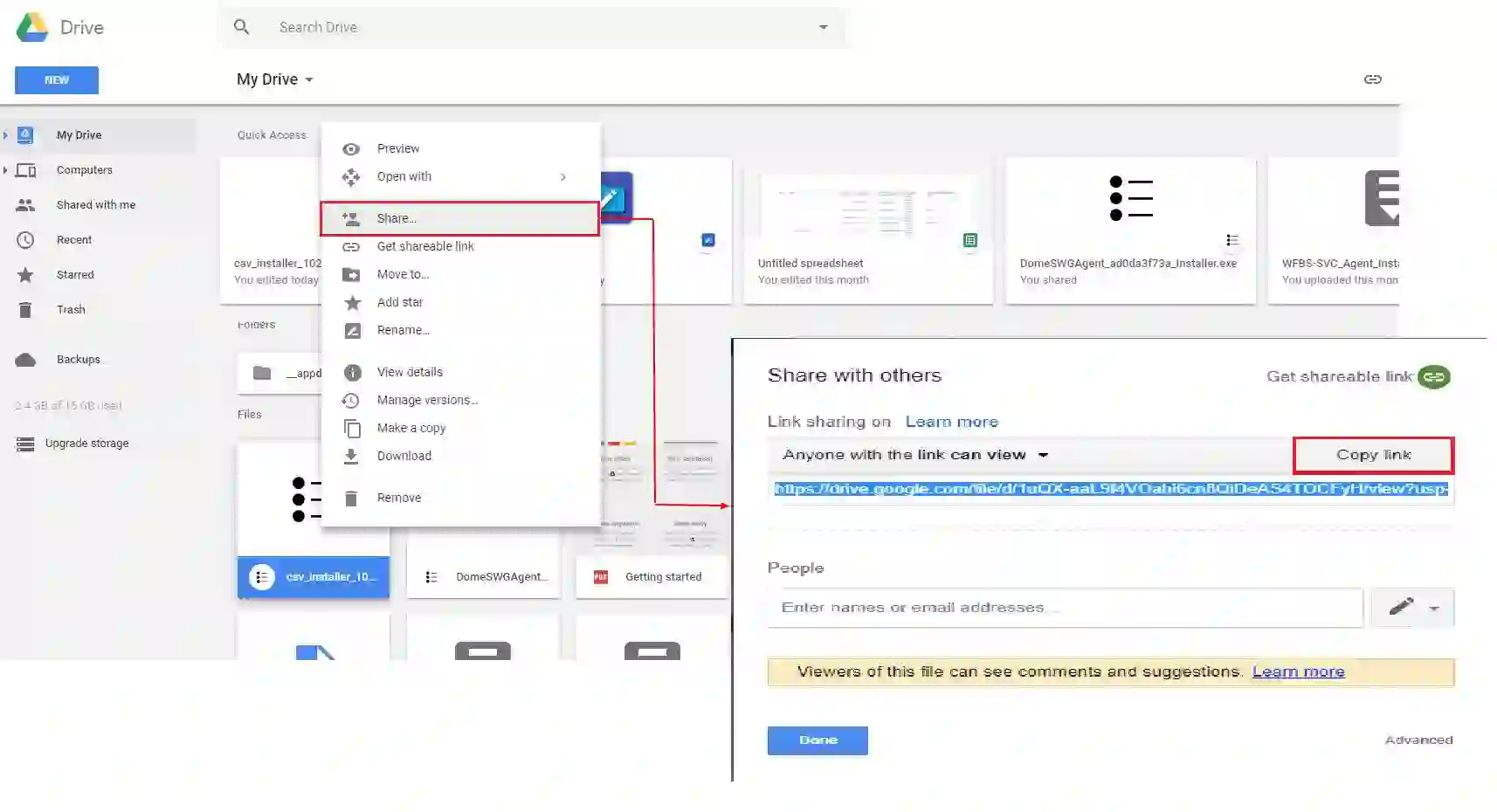
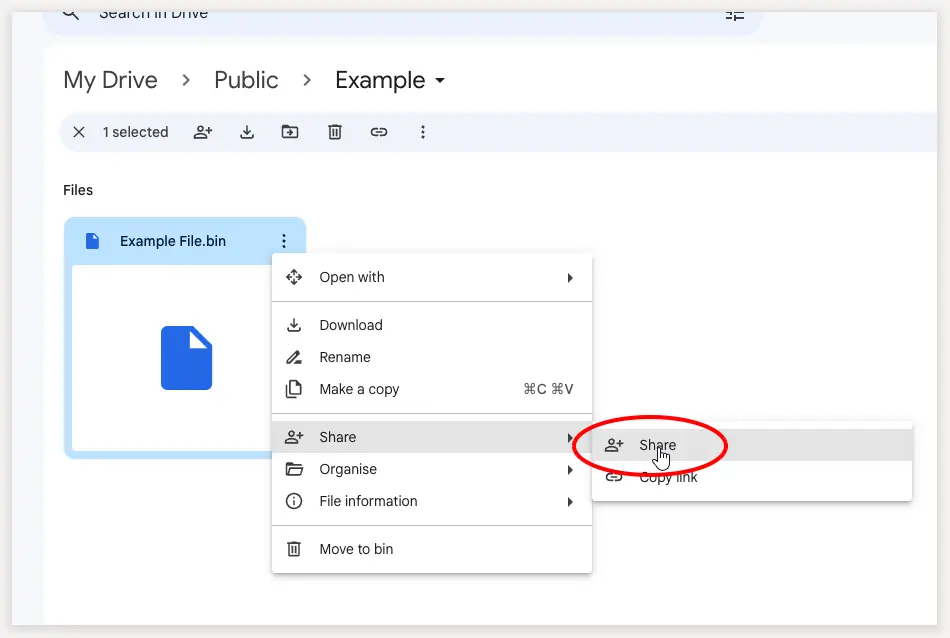
First, open Google Drive and locate the file you want to share.
How to Share the File
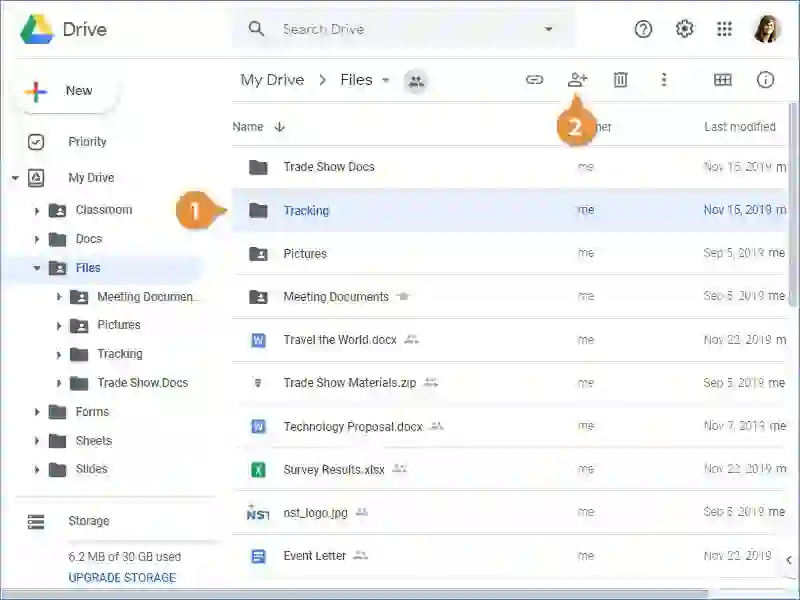
- Right-click the file
- Select Share
- Open the sharing settings window
This step allows you to configure who can access the file online.
Step 2: Change File Visibility Settings
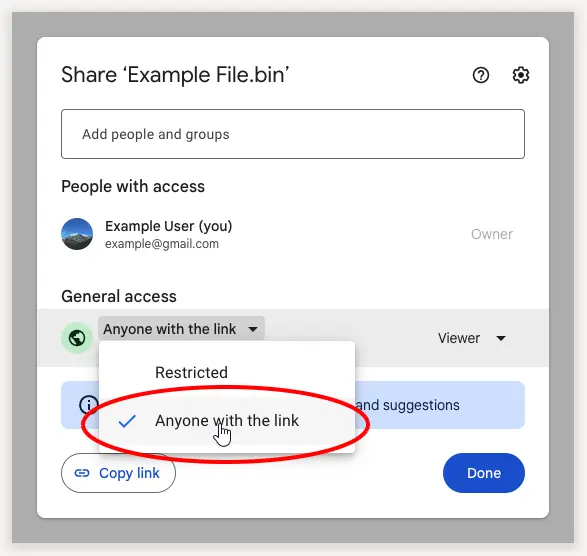
Inside the sharing window, modify the file permissions.
To learn more, check our guide on Windows 10 Support Ends in 2025.
Required Setting
Change access permissions to:
“Anyone with the link”
This ensures that users can access the file without needing individual Google account permissions.
If the file remains set to Restricted, only approved users will be able to open the direct download link.
Step 3: Copy the Google Drive Link
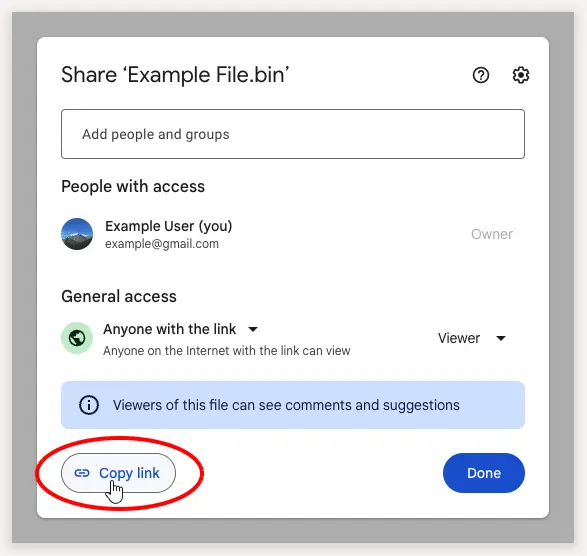
After adjusting visibility settings:
- Click Copy Link
- Save the generated Google Drive sharing URL
This is the link you will convert into a direct download link.
Step 4: Use a Direct Link Generator Tool
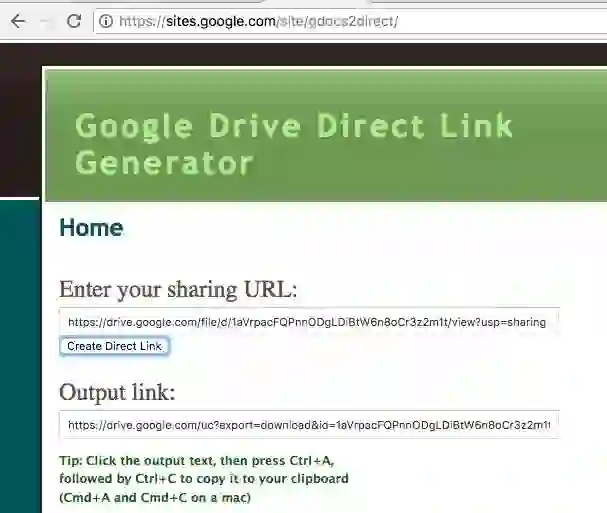
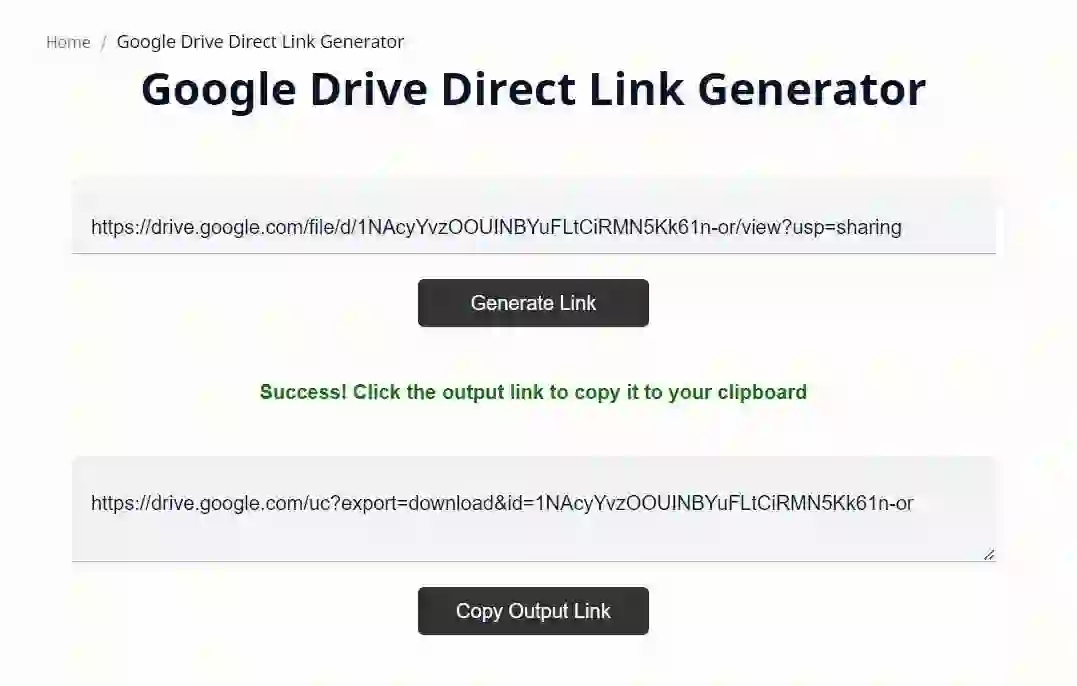
Next, open a Google Drive Direct Link Generator tool.
These tools automatically convert standard Google Drive URLs into direct download links.
How It Works
- Paste the copied Google Drive URL
- Click the conversion button
- The tool generates a direct download link
The resulting URL will bypass the standard Google Drive preview page and begin downloading the file immediately.
To learn more, check our guide on Google AI advertising.
Step 5: Generate and Test the Direct Download Link
Once the direct link is generated:
- Copy the new download URL
- Open it in a browser tab
- Verify that the file downloads correctly
Testing the link before sharing it publicly helps avoid permission or accessibility problems.
Important Notes and Limitations
Although direct download links work well for most uploaded files, there are several important limitations users should understand.
1. File Visibility Must Be Public
Your Google Drive file must remain set to Anyone with the link.
2. Only Uploaded Files Are Supported
To learn more, check our guide on Apple bug bounty program.
This method works for uploaded files such as:
- ZIP files
- PDF documents
- Videos
- Images
- Software files
Google Docs, Sheets, and Slides created directly inside Google Workspace may not work properly with this method.
3. Large Files May Show Warning Pages
If the file is very large, Google may display a virus scan warning page before allowing the download.
This is normal behavior for large Google Drive files.
Google Drive Sharing Security Tips
When sharing files publicly online, maintaining proper security practices is important.
Recommended Security Tips
- Avoid sharing sensitive personal data
- Double-check public permissions
- Regularly review shared files
- Use descriptive filenames
- Remove access when files are no longer needed
Public links can potentially be shared widely, so users should always verify what content they make publicly accessible.
To learn more, check our guide on convert Word documents to WordPress.
Final Thoughts
Creating a Google Drive direct download link is a simple but highly useful technique for improving file sharing efficiency.
By converting standard Google Drive URLs into direct download links, users can simplify the download process and provide a smoother experience for visitors, clients, students, or customers.
Whether you are sharing documents, software, media files, or downloadable resources on your website, direct download links can make content delivery faster and more professional.
As cloud storage continues growing in popularity, understanding how to manage and optimize file sharing becomes increasingly valuable for both personal and professional use.
Frequently Asked Questions
What is a Google Drive direct download link?
It is a modified Google Drive URL that starts downloading a file immediately instead of opening a preview page.
Can I create direct links for Google Docs files?
Direct download links work best for uploaded files rather than native Google Docs, Sheets, or Slides documents.
Why does my direct download link not work?
The file may still be set to “Restricted” instead of “Anyone with the link.”
Can large Google Drive files bypass virus scanning?
Large files may display a warning page because Google cannot scan them fully for viruses.
Are Google Drive direct download links safe?
Yes, as long as you avoid sharing sensitive information publicly and manage file permissions carefully.Step 1: Go to Google Drive and right click on the file that you just wish to share, then click on on “Share”
Step 2: Within the window that comes up, change the entry to “Anyone with the link”
-
Ensure your file’s visibility in Google Drive is about to “Anybody with the hyperlink”. If it is set to “Restricted” then solely people who find themselves logged in to Google and have been granted entry to the file will have the ability to open the direct hyperlink (which most likely is not what you need).
-
This solely works for uploaded recordsdata, not paperwork created in Google Docs/Sheets/Slides.
-
In case your file may be very massive, the direct hyperlink might first open a web page saying that the file is simply too massive for Google to scan for viruses. That web page may have a button to obtain the file.

